
1. Nhanganyaya
This manual provides essential information for the proper use and care of your Lexar Professional 1000X 32GB SDHC UHS-II memory card. Designed for high-speed performance, this card is ideal for capturing and transferring high-quality photos and videos, including 1080p Full-HD, 3D, and 4K content. Please read this manual thoroughly to ensure optimal performance and longevity of your memory card.
2. Chigadzirwa Pamusoroview
The Lexar Professional 1000X SDHC UHS-II card leverages UHS-II technology (UHS Speed Class 3 (U3)) to deliver impressive read transfer speeds up to 150MB/s (1000x). This significantly accelerates your workflow, from capturing to post-production. It is also backwards compatible with UHS-I devices at UHS-I speeds and performs at Class 10 speeds with non-UHS devices, offering broad compatibility.
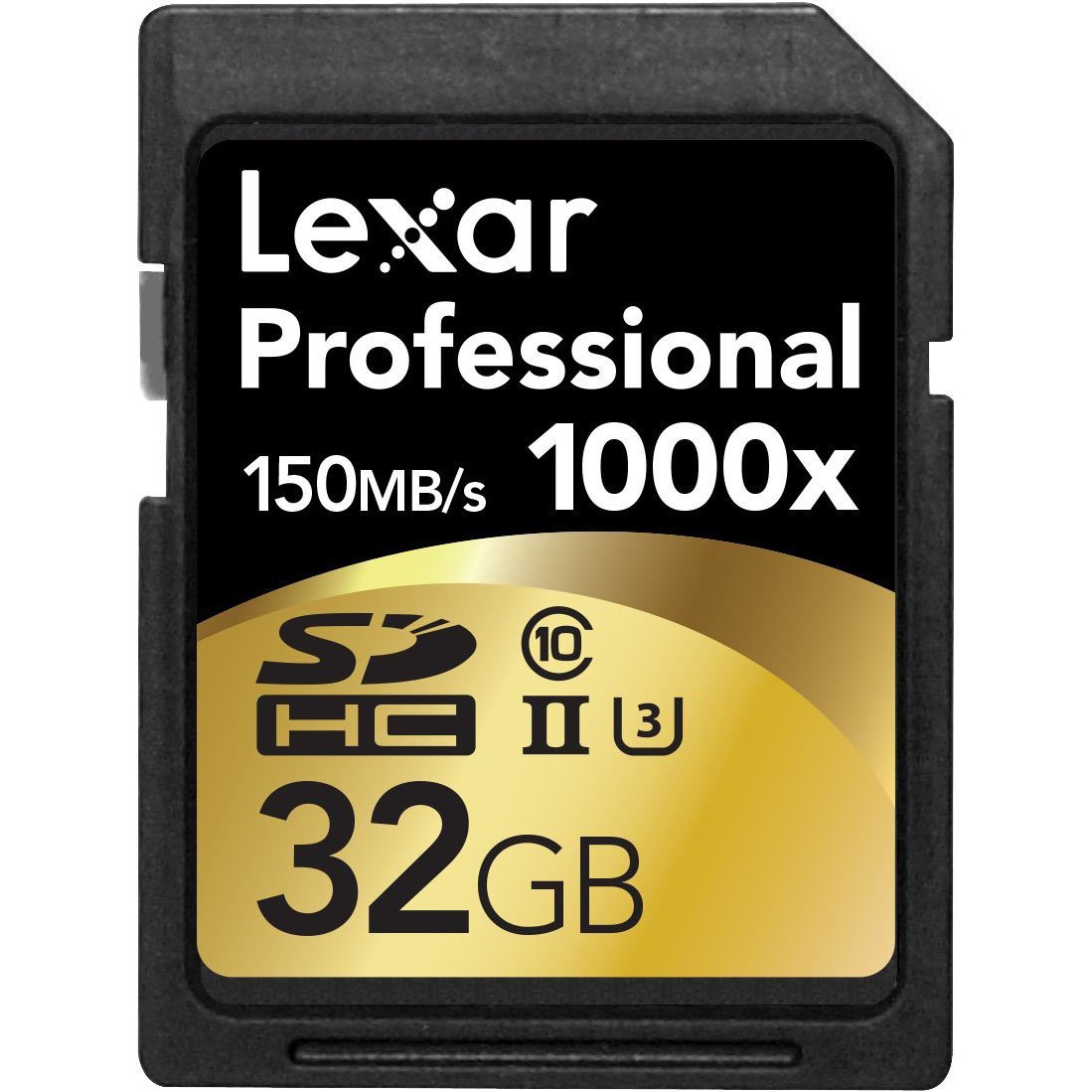
Figure 1: Lexar Professional 1000X 32GB SDHC UHS-II Card, front view.

Mufananidzo 2: Pedyo-kumusoro view of the Lexar Professional 1000X 32GB SDHC UHS-II Card, highlighting speed and capacity markings.
3. Setup
- Tarisa Chishandiso Kuenderana: Ensure your device (camera, camcorder, laptop, etc.) supports SDHC and UHS-II memory cards. While backwards compatible, optimal performance is achieved with UHS-II compatible devices.
- Isa Kadhi: Locate the SD card slot on your device. Insert the Lexar Professional 1000X card with the gold contacts facing down (or as indicated by your device's manual) until it clicks into place. Do not force the card.
- Kugadzira Mafomati Ekutanga: For best performance and to avoid potential data issues, it is highly recommended to format the memory card using your device's internal formatting function before its first use and periodically thereafter. Refer to your device's manual for specific formatting instructions. Formatting will erase all data on the card.

Figure 3: Proper insertion of an SD card into a compatible device, such as a laptop.
4. Operating Instructions
- Capturing Content: Once inserted and formatted, your card is ready to store photos and videos. Ensure your device is set to the desired resolution and quality settings (e.g., 4K, 1080p, RAW) to fully utilize the card's high-speed capabilities.
- Kuendesa Data: Kuendesa files to a computer, insert the card into a compatible SD card reader (preferably a UHS-II reader for maximum speed). Drag and drop files or use your operating system's import functions.
- Nyora Dziviriro Chinja: The card features a small write-protection switch on its side. Slide the switch down (towards the contacts) to enable write protection, preventing accidental deletion or modification of files. Slide it up to disable write protection and allow writing to the card.
5. Kuchengeta uye Kuchengeta
- Kubviswa Kwakakodzera: Always safely eject the memory card from your computer or device before physically removing it to prevent data corruption.
- Kudzivirirwa Pamuviri: Store the card in its protective case when not in use to prevent dust, dirt, and physical damage to the contacts or casing.
- Environmental Resistance: The Lexar Professional 1000X card is designed to be temperature-proof, water-proof, and X-ray proof, offering enhanced durability. However, avoid exposing it to extreme conditions unnecessarily.
- Kuchenesa: If necessary, gently clean the gold contacts with a soft, lint-free cloth. Avoid using abrasive materials or harsh chemicals.
6. Kugadzirisa matambudziko
| Nyaya | Possible Solution |
|---|---|
| Card not recognized by device | Ensure the card is fully inserted. Check if the device supports SDHC cards. Try inserting the card into another compatible device or card reader. Clean the card's contacts. |
| Slow read/write speeds | Ensure your device and card reader are UHS-II compatible. If using a non-UHS-II device, speeds will be limited to UHS-I or Class 10. Ensure the card is not nearly full. |
| Cannot write to card | Check the write-protection switch on the side of the card. Ensure it is in the 'unlocked' position. |
| Data corruption or errors | Always safely eject the card. Reformat the card (this will erase all data). If issues persist, the card may be faulty. |
7. Zvinotsanangurwa
| Feature | Detail |
|---|---|
| Model Name | LSD32GCRBNA1000 |
| Flash Memory Type | Sdhc |
| Memory Storage Capacity | 32 GB |
| Read Speed | Up to 150 MB/s (1000x) |
| Nyora Speed | Optimized for high-speed capture of 1080p Full-HD, 3D, and 4K video. (Specific write speed not provided, but implied by U3 rating) |
| Hardware inowanikwa | UHS-II (U3) / Class 10 |
| Special Features | Humbowo hweTembiricha, Humbowo hweMvura, Humbowo hweX-Ray |
| Inowirirana Devices | Personal Computer, DSLR Cameras, HD Camcorders, 3D Cameras |
| Dimensions (LxWxH) | 0.02 x 0.02 x 0.02 inches |
| Item Weight | 0.32 onzi (9.07 g) |
8. Warranty uye Tsigiro
The Lexar Professional 1000X 32GB SDHC UHS-II Card comes with a garandi yeupenyu hushoma. For detailed warranty information, technical support, or service inquiries, please visit the official Lexar website or contact Lexar customer support. Keep your proof of purchase for warranty claims.