
1. Nhanganyaya
Ndatenda nekutengaasing the ELECOM M-XGM10DBBK Wireless 5-Button BlueLED Mouse. This mouse is designed for comfort and precision, featuring an ergonomic shape that fits naturally in your hand and BlueLED technology for reliable tracking on various surfaces. This manual provides essential information for proper setup, operation, and maintenance of your device.
2. Chigadzirwa Pamusoroview
The M-XGM10DBBK mouse is part of the "EX-G" series, known for its ergonomic design and comfortable grip. It features five buttons, including dedicated back and forward buttons, to enhance productivity.
Zvinokosha:
- Ergonomic Dhizaini: Shaped to fit the hand for ultimate grip comfort.
- Sensor yeBlueLED: Provides precise tracking on a wide range of surfaces, including glass and fabric.
- Mashandiro emabhatani matanhatu: Includes left, right, scroll wheel, and dedicated back/forward buttons.
- 2.4GHz Wireless Connection: Offers a stable connection with a range of approximately 10 meters (3 meters on steel desks).
- Customizable Mabhatani: Button functions can be re-assigned using the free "ELECOM Mouse Assistant" software (Windows/Mac only).
- Chiratidzo chebhatiri: A lamp indicates remaining battery life.
Zvikamu:
Familiarize yourself with the mouse components:

Mufananidzo 2.1: Pamusoro view of the mouse, highlighting the main buttons.
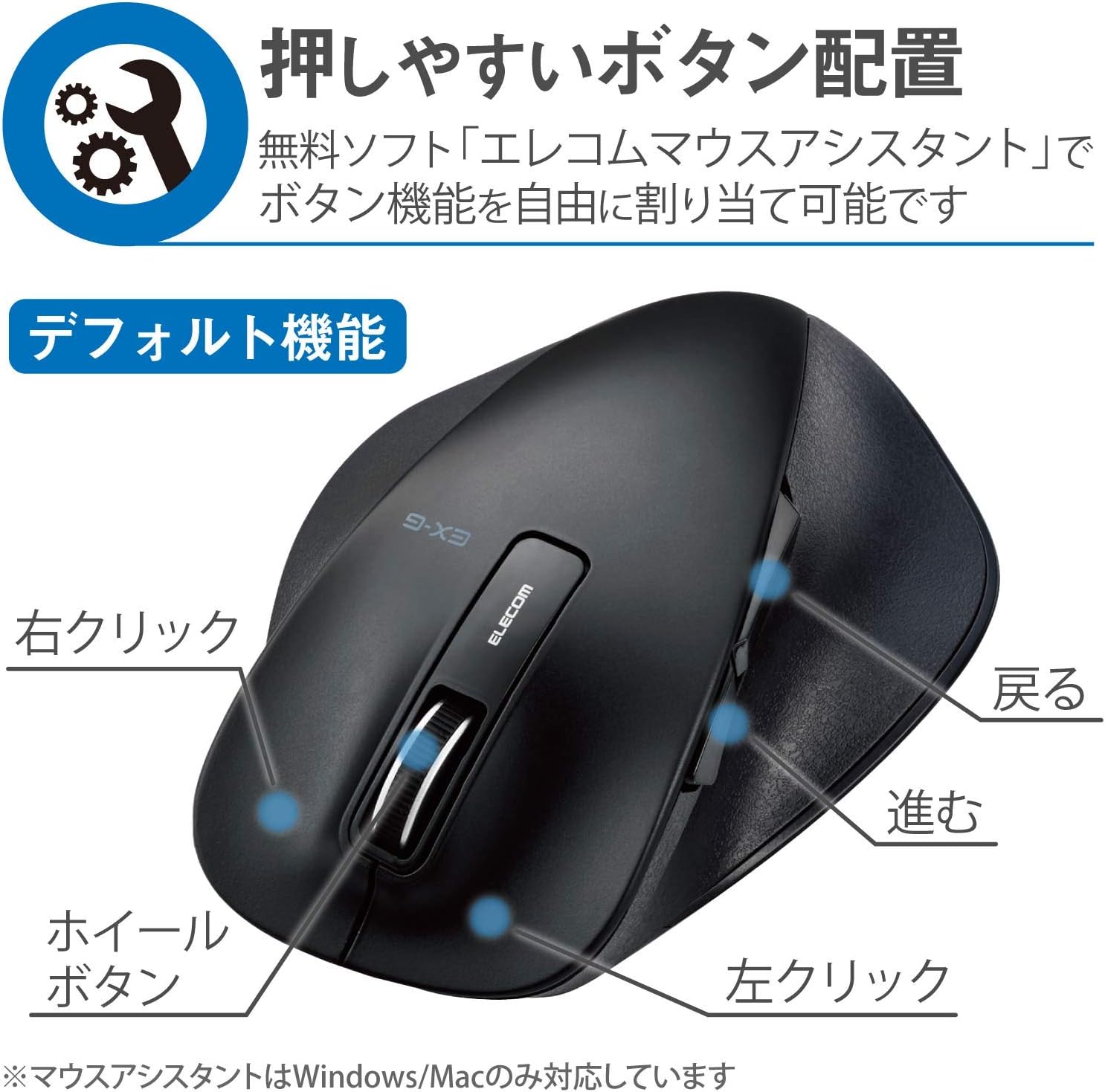
Mufananidzo 2.2: Rutivi view of the mouse, showing the back and forward buttons.
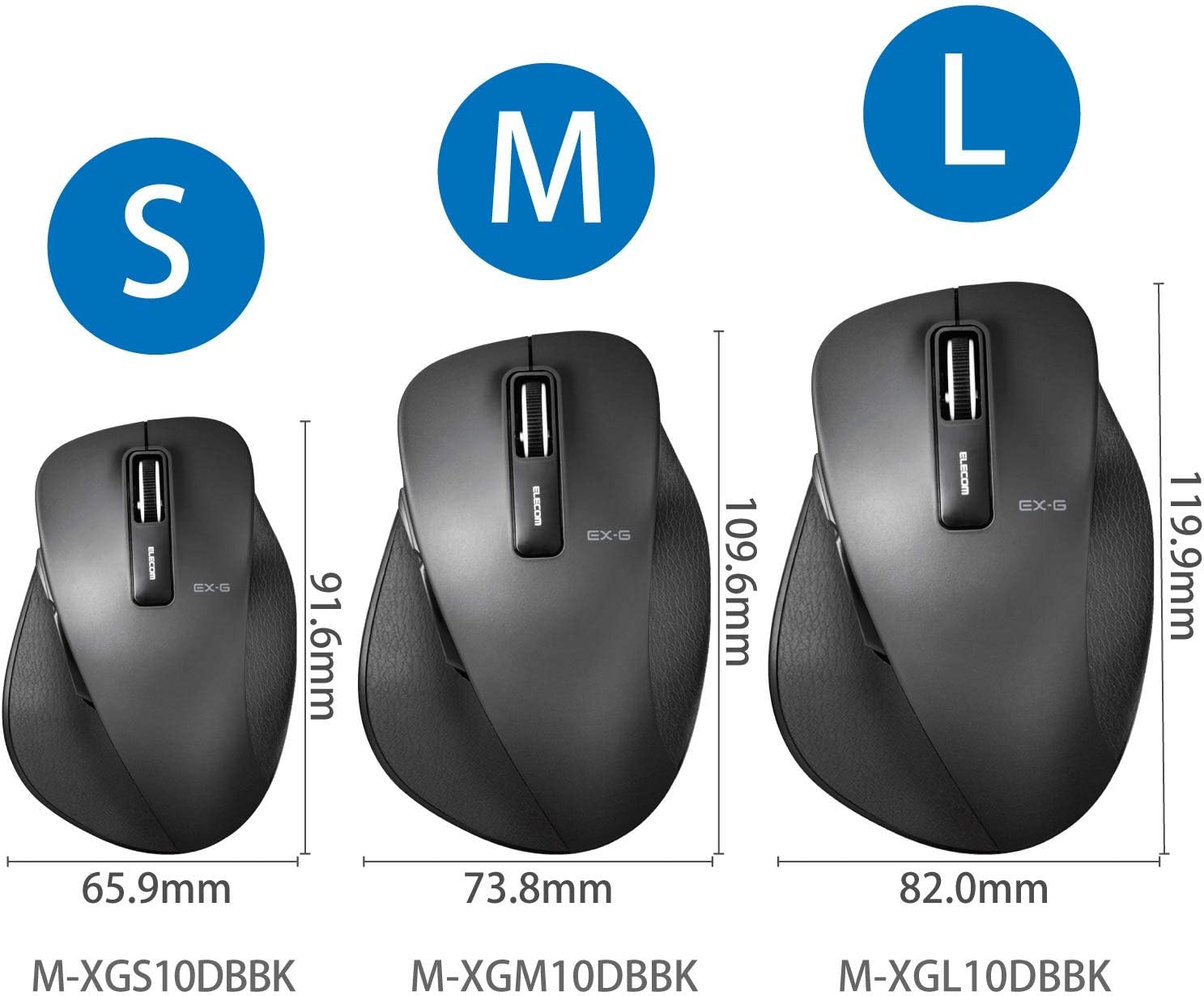
Figure 2.3: Size comparison of EX-G mice (S, M, L). The M-XGM10DBBK is the M size.

Mufananidzo 2.4: Pazasi view of the mouse, indicating the optical sensor, power switch, and receiver storage compartment.

Figure 2.5: Illustration of the durable Omron switches used for the left and right click buttons.
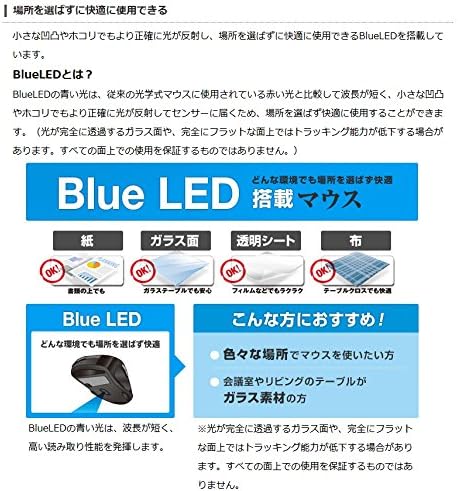
Figure 2.6: Explanation of BlueLED technology, demonstrating its versatility on different surfaces. Note: Tracking performance may decrease on completely transparent or perfectly flat surfaces.

Figure 2.7: Details on 2.4GHz wireless, battery indicator, and 2000 DPI resolution for smooth operation.

Figure 2.8: The ELECOM M-XGM10DBBK mouse is certified to work with Chromebooks.
3. Setup
3.1 Kuiswa kwebhatiri
- Tsvaga chifukidziro chebhatiri pasi pegonzo.
- Svetedza chivharo chivhure.
- Insert one AA alkaline, manganese, or nickel-metal hydride battery, ensuring correct polarity (+/-).
- Vhara chivharo chebhatiri zvakachengeteka.
3.2 Receiver Connection
- Bvisa USB receiver kubva panzvimbo yayo yekuchengetera zvinhu pasi pemouse.
- Batanidza USB inogamuchira mune inowanikwa USB-A port pakombuta yako.
- Kombiyuta yako inofanira kuona otomatiki uye kuisa madhiraivha anodiwa. Izvi zvinogona kutora nguva shoma.
3.3 Kubatidza
- Slide the power switch on the bottom of the mouse to the "ON" position.
- Iyo mbeva ikozvino yagadzirira kushandiswa.
4. Operating Instructions
4.1 Basic Mabasa
- Kuruboshwe: Primary kusarudzwa uye activation.
- Right Click: Inovhura menyu yezvinyorwa.
- Mupumburu Wheel: Mipumburu magwaro uye web pages vertically. Can also be clicked for middle-click functionality.
4.2 Back/Forward Buttons
The dedicated back and forward buttons located on the side of the mouse allow for quick navigation in web browsers uye file vaongorori.
- Press the Back button to go to the previous page or folder.
- Press the Pamberi button to go to the next page or folder.
4.3 Customizing Buttons (ELECOM Mouse Assistant)
For advanced customization, download the free "ELECOM Mouse Assistant" software from the official ELECOM website. This software allows you to re-assign functions to the mouse buttons according to your preferences. Please note that this software is compatible with Windows and macOS only.
5. Kuchengeta
5.1 Kuchenesa
Kuti urambe uchishanda zvakanaka uye uine hutsanana, gara uchichenesa mbeva yako:
- Dzima mbeva uchishandisa power switch.
- Shandisa jira rakapfava, rakaoma kupukuta pamusoro pembeva.
- Patsvina yakasindimara, zvishoma dampIsa jira nemvura kana mushonga wekuchenesa wakapfava, wobva wapukuta nekukurumidza.
- Dzivisa kushandisa makemikari ane hasha, abrasives, kana zvinonyungudutsa.
- Gently clean the optical sensor area on the bottom of the mouse with a cotton swab if tracking issues occur.
5.2 Kutsiviwa kwebhatiri
Kana chiratidzo chebhatiri lamp flashes or the mouse performance degrades, replace the battery:
- Dzima mbeva.
- Vhura chivharo chebhatiri.
- Bvisa bhatiri rekare woirasa zvinoenderana nemirau yemuno.
- Isa bhatiri idzva reAA, zvichiita kuti pave ne polarity yakakwana.
- Close the battery cover and turn the mouse back on.
6. Kugadzirisa matambudziko
Kana ukasangana nenyaya nembeva yako, tarisa kune anotevera akajairika matambudziko uye mhinduro:
| Dambudziko | Zvinogona Kukonzera | Solution |
|---|---|---|
| Mbeva isingadaire | Low battery; Power switch off; Receiver not connected; Receiver interference. | Replace battery; Turn power switch ON; Ensure receiver is firmly plugged in; Try a different USB port; Move closer to the receiver. |
| Erratic cursor movement | Dirty optical sensor; Unsuitable surface; Interference. | Clean optical sensor; Use on a suitable mouse pad or surface; Reduce interference from other wireless devices. |
| Mabhatani asiri kushanda | Software conflict; Driver issue. | Restart computer; Reinstall mouse drivers; Check for conflicting software. |
| Wireless connection nyaya | Distance too far; Obstructions; Interference. | Ensure mouse is within range (10m); Remove obstructions between mouse and receiver; Avoid using near other 2.4GHz devices. |
7. Zvinotsanangurwa
| Feature | Detail |
|---|---|
| Model Number | M-XGM10DBBK |
| Connection Method | 2.4GHz Wireless (USB-A Receiver) |
| Sensor Type | BlueLED Optical |
| Mabhatani | 5 buttons (Left, Right, Scroll Wheel, Back, Forward) |
| Resolution | 2000 DPI |
| Zviyero (W x D x H) | 73.8 x 109.6 x 40.8 mm (M Size) |
| Kurema | Approx. 151.95 g (kusanganisira bhatiri) |
| Simba Source | 1 x AA battery (Alkaline, Manganese, or Ni-MH) |
| Estimated Battery Hupenyu | Approx. 722 days (based on typical usage) |
| Inoenderana OS | Windows 11, 10, RT8.1, 8.1, 7, Vista; macOS High Sierra 10.13, OS X 10.10; Chrome OS |
| Color | Nhema |
8. Warranty uye Tsigiro
8.1 Ruzivo rweWaranti
Ichi chigadzirwa chinouya ne 6-mwedzi waranti from the date of purchase. Please retain your proof of purchase for warranty claims. The warranty covers manufacturing defects under normal use. It does not cover damage caused by misuse, accidents, unauthorized modifications, or normal wear and tear.
8.2 Mutengi Tsigiro
For technical assistance, troubleshooting, or warranty inquiries, please visit the official ELECOM website or contact ELECOM customer support. Contact details can typically be found on the ELECOM websaiti iri pasi pechikamu che'Rutsigiro' kana kuti 'Taura Nesu'.