
1. Nhanganyaya
Ndatenda nekutengaasing the Ivation Portable Digital HD LCD Microscope. This device is designed for detailed observation and analysis, offering up to 220x optical and 500x digital magnification. Featuring a 3.5-inch LCD screen, 14MP HD sensor, and photo/video capture capabilities, it is suitable for various applications including education, inspection, and hobby use. Please read this manual thoroughly before use to ensure proper operation and to maximize the lifespan of your microscope.
Chengetedzo Yekuchengetedza
- Do not expose the device to extreme temperatures, humidity, or corrosive substances.
- Avoid dropping or subjecting the microscope to strong impacts.
- Keep the lens clean and free from dust. Use a soft, lint-free cloth for cleaning.
- Do not attempt to disassemble or modify the microscope, as this will void the warranty.
- Use only the provided power adapter and battery.
2. Zvigadzirwa zveChigadzirwa
Familiarize yourself with the various parts of your Ivation Digital Microscope:
- 3.5-inch LCD Display Screen
- Control Buttons (Power, Menu, OK, Navigation)
- Tarisa Wheel
- Inogadziriswa LED Kuvhenekera
- Adjustable Specimen Stage with Clips
- Stage Adjustment Knob (Up/Down)
- MicroSD Card Slot
- USB Port (for PC connection and charging)
- HDMI Kuburitsa Port
- Rechargeable Li-ion Battery (pre-installed or included)
- Power Adapter
- USB Cable
- HDMI Cable
- Software CD (for Windows XP SP2 driver, other OS are driver-free)

Mberi view of the Ivation Digital Microscope, highlighting the LCD screen and control buttons.

Side view of the Ivation Digital Microscope, showing the adjustable stage and focus knob.
3. Setup
3.1 Kuiswa kwebhatiri uye kuchaja
- Ensure the microscope is powered off.
- Locate the battery compartment on the underside of the base.
- Open the compartment cover and insert the provided Li-ion battery, ensuring correct polarity.
- Vhara chivharo chebhatiri zvakachengeteka.
- Connect the power adapter to the microscope's USB port and plug it into a power outlet to charge the battery. The charging indicator light will illuminate. A full charge takes approximately 3 hours and provides about 2 hours of operation.
Official product demonstration video for the Ivation Portable Digital HD LCD Microscope, showcasing its features and usage, including battery installation.
3.2 Kubatidza/Kudzima
- To power on, press and hold the Power button (usually marked with a circle and vertical line) on the LCD screen panel until the screen illuminates.
- Kuti udzime, dzvanya wobata bhatani rePower zvakare kusvika skrini yadzima.
3.3 MicroSD Kadhi Kuiswa
- Insert a MicroSD card (not included, up to 32GB recommended) into the MicroSD card slot on the side of the LCD unit. Ensure the card is inserted in the correct orientation until it clicks into place.
- Kuti ubvise, isa zvinyoro nyoro kadhi mukati kusvikira yabuda.
3.4 Kubatanidza kuKombuta (USB)
- Connect the microscope to your computer using the supplied USB cable.
- Simba pamaikorosikopu.
- On the microscope's LCD screen, navigate to the menu and select 'PC Camera' mode. For Windows XP SP2, you may need to install the driver from the included CD. For Windows 7/8 and Mac OS 10.5-10.9, it is typically driver-free.
- Open a compatible camera application on your computer to view chikafu chinorarama.
3.5 Connecting to a Television/Monitor (HDMI)
- Connect the microscope to an HDMI-enabled display using the supplied HDMI cable.
- Power on the microscope and the external display.
- Select the correct HDMI input on your television or monitor. The microscope's display will mirror on the external screen.
4. Kushanda
4.1 Placing a Specimen
- Place the specimen directly onto the adjustable stage.
- Use the metal clips to secure slides or other flat objects if necessary.
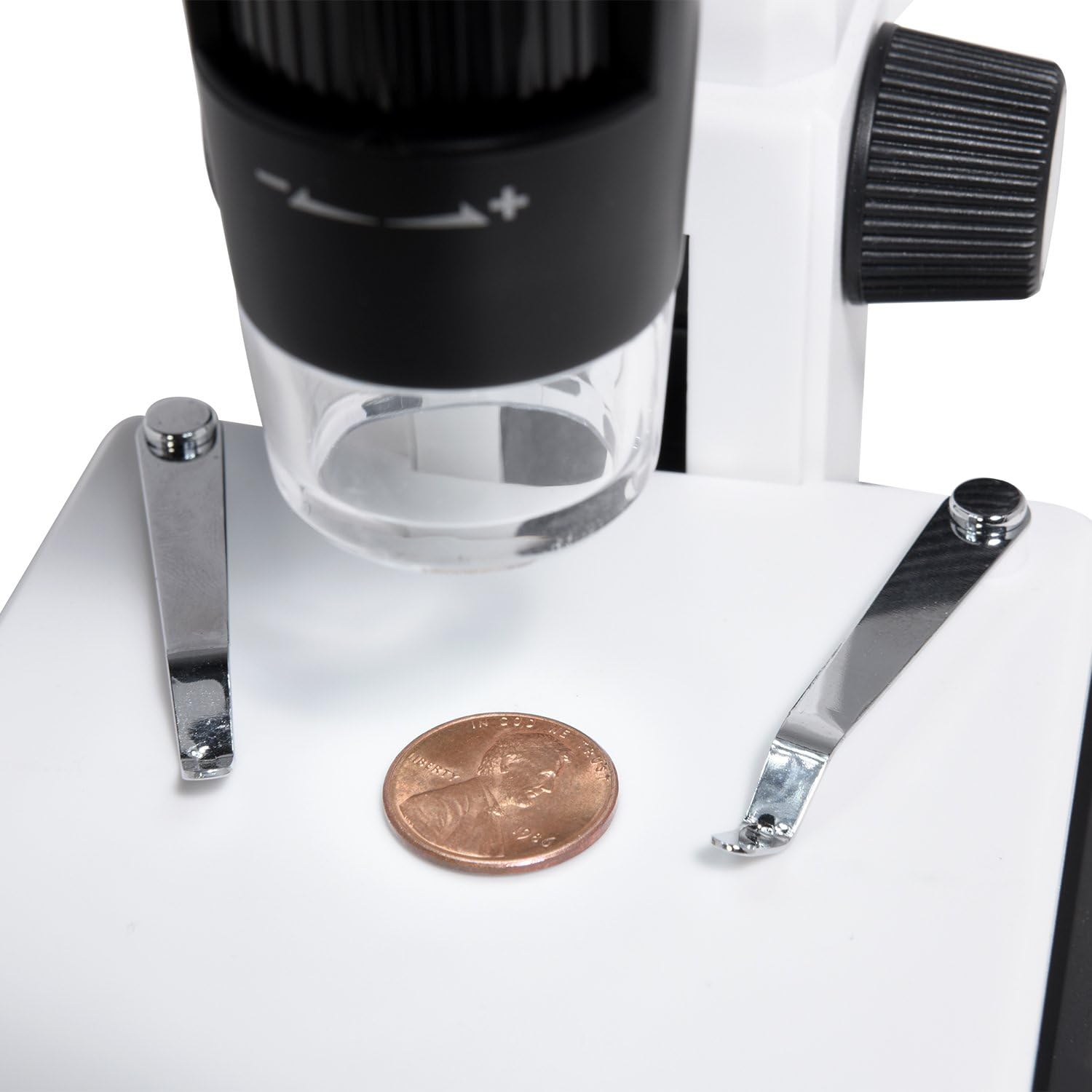
A penny placed on the adjustable stage for microscopic examination.
4.2 Adjusting Focus and Magnification
- Use the large focus wheel on the side of the microscope to bring the image into sharp focus on the LCD screen.
- The microscope offers 220x optical magnification. For additional magnification up to 500x, use the digital zoom function via the control buttons on the LCD panel.
- Adjust the height of the specimen stage kushandisa stage adjustment knob (Up/Down) for larger or smaller objects, or to achieve initial focus before fine-tuning with the focus wheel.

Adjusting the focus wheel for clear observation.

Close-up of the LCD screen displaying a highly magnified section of a dollar bill.
4.3 Kugadzirisa Kuvhenekerwa kwe LED
- The microscope features 8 adjustable LED lights.
- Use the LED brightness control dial (typically on the side of the LCD unit) to increase or decrease the illumination intensity for optimal viewing.
4.4 Kutora Mifananidzo neMavhidhiyo
- Iva nechokwadi chekuti kadhi reMicroSD raiswa.
- In live view mode, press the 'OK' button to capture a still image.
- To record video, press the 'Menu' button to enter video mode, then press 'OK' to start/stop recording.
- Captured photos and videos are saved to the MicroSD card.
5. Kuchengeta
5.1 Kuchenesa
- Lenzi: Use a soft, lint-free cloth or lens paper to gently wipe the lens. For stubborn smudges, a small amount of lens cleaning solution can be applied to the cloth, not directly to the lens.
- Muviri: Wipe the microscope body with a soft, dry cloth. Avoid using harsh chemicals or abrasive cleaners.
- Sikirini Clean the LCD screen with a soft, dry, anti-static cloth.
5.2 Kuchengeta
- Store the microscope in a cool, dry place away from direct sunlight and dust.
- Kana uchichengeta kwenguva yakareba, bvisa bhatiri kudzivirira kubuda.
- Keep the microscope in its original packaging or a protective case to prevent damage.
6. Kugadzirisa matambudziko
- Hapana Simba:
- Ensure the battery is properly installed and charged.
- Verify the power adapter is securely connected if operating via AC power. - Hapana mufananidzo paScreen:
- Check if the microscope is powered on.
- Adjust the focus wheel.
- Iva nechokwadi chekuti mwenje ye LED yakabatidzwa uye yakagadziridzwa kuti ikwane kupenya kwakakodzera. - Mufananidzo Wakasviba:
- Adjust the focus wheel carefully.
- Ensure the specimen is properly positioned on the stage.
- Clean the lens if smudges are visible. - Cannot Capture Photos/Videos:
- Verify a MicroSD card is inserted and has sufficient free space.
- Ensure the MicroSD card is not locked (read-only).
- Format the MicroSD card if issues persist (this will erase all data). - No Image on PC/TV:
- For PC connection, ensure 'PC Camera' mode is selected on the microscope and the correct software is running on the computer. Check USB cable connection.
- For TV connection, ensure the HDMI cable is securely connected to both devices and the correct HDMI input is selected on the TV.
7. Zvinotsanangurwa
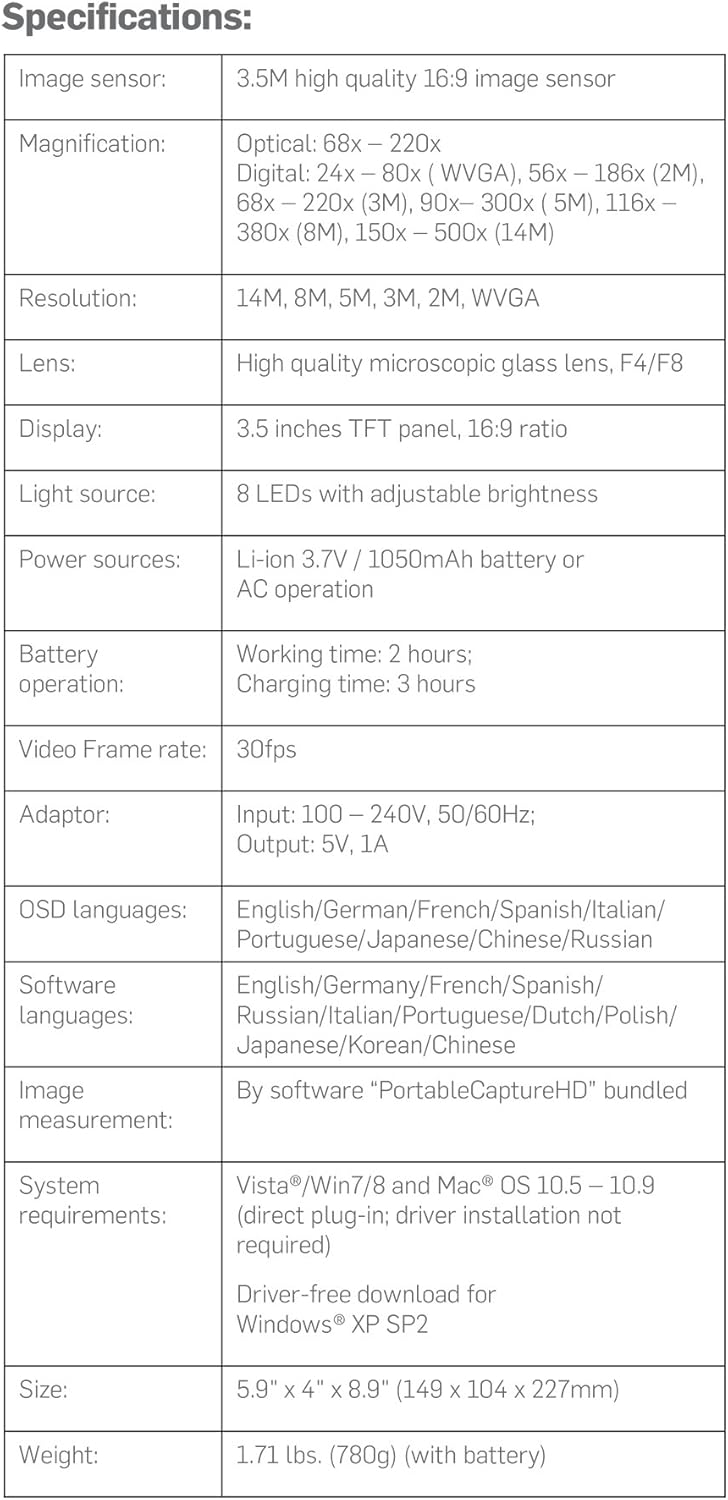
Detailed technical specifications of the Ivation Digital Microscope.
| Feature | Detail |
|---|---|
| Image Sensor | 3.5M high quality 16:9 image sensor |
| Kukudza | Optical: 68x – 220x; Digital: 24x – 80x (WVGA), 56x – 186x (2M), 68x – 220x (3M), 90x – 300x (5M), 116x – 380x (8M), 150x – 500x (14M) |
| Resolution | 14M, 8M, 5M, 3M, 2M, WVGA |
| Lens | High quality microscopic glass lens, F4/F8 |
| Display | 3.5 inches TFT panel, 16:9 ratio |
| Light Source | 8 LEDs with adjustable brightness |
| Zvitubu zveMasimba | Li-ion 3.7V / 1050mAh battery or AC operation |
| Battery Operation | Working time: 2 hours; Charging time: 3 hours |
| Vhidhiyo Frame Rate | 30fps |
| Adapter | Input: 100 – 240V, 50/60Hz; Output: 5V, 1A |
| OSD Mitauro | English, German, French, Spanish, Italian, Portuguese, Japanese, Chinese, Russian |
| Software Mitauro | Chirungu, German, French, Spanish, Russian, Italian, Portuguese, Dutch, Polish, Japanese, Korean, Chinese |
| Image Measurement | By software "PortableCaptureHD" bundled |
| System Zvinodiwa | Vista/Win7/8 and Mac® OS 10.5 – 10.9 (direct plug-in; driver installation not required); Driver-free download for Windows® XP SP2 |
| Size | 5.9" x 4" x 8.9" (149 x 104 x 227mm) |
| Kurema | 1.71 lbs. (780g) (with battery) |
8. Warranty & Tsigiro
Ivation products are designed to provide reliable performance. For specific warranty information regarding your Ivation Portable Digital HD LCD Microscope, please refer to the warranty card included in your product packaging or visit the official Ivation website.
If you encounter any issues or have questions not covered in this manual, please contact Ivation Customer Support:
- Websaiti: Ivation Store on Amazon
- Email: Tarisa kurongedza kwechigadzirwa kana websaiti kuti uwane ruzivo.
- Runhare: Tarisa kurongedza kwechigadzirwa kana websaiti kuti uwane ruzivo.
Please have your model number (IVAMS04HD) and purchase date ready when contacting support.