
Nhanganyaya
This manual provides instructions for the PROZOR 192kHz Digital to Analog Audio Converter, Model PST158. This device converts digital audio signals from optical (Toslink) or coaxial inputs into analog stereo L/R RCA and 3.5mm headphone jack outputs. It features a built-in volume control for adjusting output levels, enhancing compatibility with various audio systems.
Package Zviri mukati
- PROZOR 192KHz DAC Converter
- USB Power Cable (5.5mm)
- Tambo yeOptical (Toslink)
- User Manual

Image: Contents of the PROZOR 192kHz DAC Converter package.
Product Overview
Front Panel
The front panel of the converter features the 3.5mm headphone jack, a power indicator LED, and L/R RCA analog audio outputs (red for right, white for left).

Mufananidzo: Mberi view of the converter with output ports and power indicator.
Rear Panel
The rear panel includes the Toslink (optical) input, Coaxial input, and the DC 5V power input for connecting the USB power cable.

Mufananidzo: Rear view of the converter with input ports.
Side Panel
The side panel features a volume control knob, allowing users to adjust the output level for both the 3.5mm headphone jack and RCA outputs.

Image: Close-up of the volume control knob on the side of the converter.
Setup Instructions
Follow these steps to connect and set up your PROZOR 192kHz Digital to Analog Audio Converter:
- Connect Digital Audio Source: Connect your digital audio source (e.g., TV, Blu-ray player, game console) to the converter's Toslink (optical) or Coaxial input using the appropriate cable. Ensure the cable is fully inserted.
- Connect Analog Audio Receiver: Connect your analog audio receiver (e.g., amplifier, headphones, speakers) to the converter's L/R RCA outputs or 3.5mm headphone jack.
- Power Connection: Connect the provided USB power cable to the DC 5V input on the converter. Plug the USB end into a standard 5V 1A USB power adapter (not included) or a compatible USB port on your source device (e.g., TV). The power indicator LED on the converter will illuminate when powered.
- Configure Audio Source: It is crucial to set your digital audio source's output format to PCM/LPCM. Refer to your source device's user manual for specific instructions on how to change this audio output setting. The converter does not support DTS/Dolby AC3 or other 5.1 channel audio formats.

Image: Connection diagram illustrating typical setup with various audio sources and outputs.
Vhidhiyo: Kuperaview of the PROZOR 192kHz DAC Converter, including its components and basic connections. This video demonstrates the physical aspects and initial setup of the device.
Operating Instruction
After successful setup, the converter will automatically process the digital audio signal. Use the volume knob on the side of the converter to adjust the output volume to your desired level. This control affects both the RCA and 3.5mm headphone outputs.
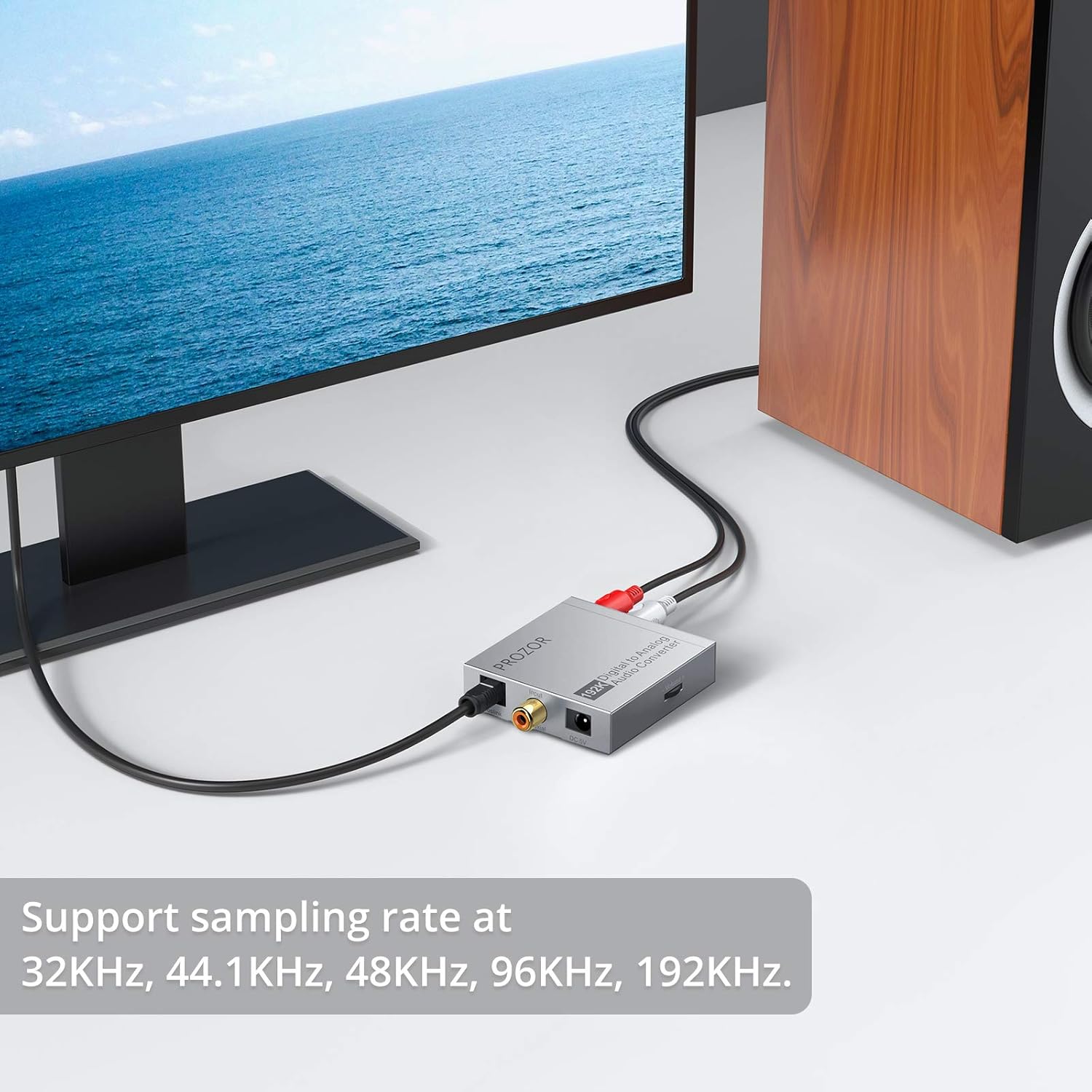
Image: Illustration of the volume control knob and its function.
Mashoko Akakosha
- This converter is designed for digital to analog conversion only and is NOT reversible. It cannot convert analog signals to digital.
- A 5V 1A USB simba adapta is required but not included. Using a power adapter with insufficient current may result in unstable operation or poor audio quality.
- For optimal performance, ensure your audio source's digital output is set to PCM/LPCM format. DTS/Dolby AC3 and other 5.1 channel audio formats are not supported by this device.
- Chishandiso chinotsigira odhiyo sampling rates of 32kHz, 44.1kHz, 48kHz, 96kHz, and up to 192kHz at 24-bit resolution.
- The aluminum metal shell provides durability and helps with heat dissipation.
Zvinotsanangurwa
| Feature | Detail |
|---|---|
| Model Number | PST158 |
| Input Interface | Toslink (Optical), Coaxial |
| Output Interface | L/R RCA, 3.5mm Headphone Jack |
| Sampling Rate Support | 32kHz, 44.1kHz, 48kHz, 96kHz, 192kHz (24-bit) |
| Power Input | DC 5V (via 5.5mm USB power cord) |
| Dimensions (L x W x H) | Approx. 60mm x 56mm x 15mm (2.36 x 2.2 x 0.59 inches) |
| Material | Aluminum Metal Shell |

Image: Dimensions of the PROZOR 192kHz DAC Converter.
Kugadzirisa matambudziko
Hapana Sound Output
- Verify all audio and power cables are securely connected to the correct ports.
- Ensure the power indicator LED on the converter is illuminated. If not, check the USB power connection and adapter.
- Confirm that your digital audio source's output format is set to PCM/LPCM. This is a common cause for no sound.
- Adjust the volume knob on the converter and the volume on your connected analog audio device (e.g., headphones, ampanosimudza).
- Test with different audio cables or a different digital audio source to help isolate whether the issue is with the converter, cables, or source device.
Buzzing or Static Noise
- Ensure all connections are tight and free from interference.
- Try using a different 5V 1A USB power adapter. A low-quality or underpowered adapter can introduce noise.
- Check for ground loop issues. Try plugging the power adapter into a different electrical outlet or using a ground loop isolator if the issue persists.
- Confirm the input audio format is PCM/LPCM. Incorrect formats can sometimes cause unexpected audio artifacts.
Warranty uye Support
For detailed warranty information, technical assistance, or customer support, please refer to the documentation included with your product or visit the official PROZOR website. Chengeta risiti yako yekutenga yezvichemo zvewaranti.