
1. Nhanganyaya
The BLUEAIR DustMagnet 5210i is an advanced air purifier designed to improve indoor air quality by effectively removing airborne particles such as dust, pet dander, smoke, mold, pollen, bacteria, and viruses. Featuring HEPASilent™ dual filtration technology and smart capabilities, this unit provides efficient and quiet air purification for small to medium-sized rooms.
This manual provides essential information for the safe and effective use of your DustMagnet 5210i air purifier, including setup, operation, maintenance, and troubleshooting.
2. Safety Information
Please read all safety instructions carefully before operating the appliance to reduce the risk of fire, electric shock, or injury.
- Always unplug the air purifier before moving, cleaning, or performing maintenance.
- Usashandise mudziyo netambo yakakuvara kana plug.
- Chengetedza tambo yemagetsi kure nenzvimbo dzinopisa.
- Usashandise chinonatsa mweya mukunyorova kana damp nharaunda, senge dzimba dzekugezera.
- Iva nechokwadi chekuti mhepo inofefetera zvakanaka kutenderedza mudziyo; usavhare mapillow kana ma outlet emhepo.
- Chishandiso ichi hachina kuitirwa kuti chishandiswe nevanhu vane huwori hwemuviri, kunzwa, kana pfungwa dzakadzikira kunze kwekunge vatariswa kana kurairwa nemunhu ane mutoro.
- Only use original BLUEAIR replacement filters.
3. Chigadzirwa Pamusoroview
The DustMagnet 5210i features a sleek design with a convenient tabletop surface. It utilizes HEPASilent™ dual filtration technology for maximum filtration with minimum noise. Key components include the control panel, air inlets, air outlets, and dual filters.

Figure 3.1: BLUEAIR DustMagnet 5210i Air Purifier. This image shows the complete air purifier unit, highlighting its compact and modern design suitable for various room settings.
3.1 Control Panel
The top of the unit features an intuitive control panel with touch buttons and LED indicators for easy operation.

Figure 3.2: Control Panel. This image details the control panel buttons and LED indicators, including On/Off, WiFi, Filter Replacement Warning, Fan Speed, Auto Mode, and Night Mode.
- Batanidza/Kudzima: Inobatisa kana kudzima unit.
- WiFi Indicator: Shows connection status to the Blueair app.
- Filter Replacement Warning: Illuminates when it's time to replace filters.
- Bhatani rekumhanya kweFan: Cycles through fan speeds (1, 2, 3).
- Auto Mode Bhatani: Activates automatic fan speed adjustment based on air quality.
- Night Mode Button: Lowers fan speed and dims LED lights for quiet operation.
3.2 HEPASilent™ Dual Filtration Technology
This technology combines mechanical filtration with electrostatic charging to capture 99.97% of airborne particles down to 0.1 micron, including smoke, dust, viruses, and pet dander. The integrated carbon filter also traps light household odors.

Figure 3.3: HEPASilent™ Dual Filtration Technology. This image illustrates the concept of HEPASilent technology, showing how it achieves maximum filtration with minimum noise compared to traditional HEPA.
4. Setup
4.1 Kusunungura uye Kuisa
- Nyatsobvisa mhepo yekuchenesa kubva pakurongedzerwa kwayo.
- Place the unit on a flat, stable surface. Ensure there is at least 4 inches (10 cm) of clear space around the unit for optimal airflow.
- The DustMagnet 5210i is designed for rooms up to 212 sq. ft. for optimal performance.
4.2 Sefa Kuisirwa
The unit comes with two combo-filters. Ensure they are correctly installed before first use.
- Bvisa unit kubva pamagetsi.
- Open the filter compartments (refer to product diagram for location).
- Insert the filters. For the top filter, ensure the white accordion folds face upwards. For the bottom filter, ensure the black charcoal side faces upwards. While filter direction does not affect efficiency, this orientation is recommended for consistency.
- Close the filter compartments securely.
4.3 Simba Connection
Batanidza tambo yemagetsi mudura remagetsi rakadzika.
4.4 Connecting to the Blueair App
For advanced features and remote control, download the Blueair app from your smartphone's app store. Follow the in-app instructions to connect your DustMagnet 5210i to your home Wi-Fi network.

Figure 4.1: Blueair App Interface. This image displays the Blueair app interface, showing smart sensor tracking, Clean Air ETA, Welcome Home function, Night Mode, and Voice Control integration with Alexa and Google Home.
Iyo app inobvumidza iwe kuti:
- Track real-time air quality.
- Adjust fan speed and operating modes remotely.
- Set schedules and activate features like 'Welcome Home'.
- Monitor filter life and receive replacement reminders.
- Batanidza neAmazon Alexa neGoogle Home kuti udzore izwi.
5. Operating Instructions
5.1 Simba On/Kudzima
Press the On/Kudzima bhatani pane control panel yekubatidza kana kudzima unit.
5.2 Kugadzirisa kumhanya kweFan
Press the Fan Speed button to cycle through three fan speeds (1, 2, 3). The corresponding LED indicator will light up.
5.3 Auto Modhi
Press the Auto Mode button to activate. In Auto Mode, the air purifier automatically adjusts its fan speed based on the detected air quality, optimizing performance and energy consumption.
5.4 Night Mode
Press the Night Mode button. This mode lowers the fan speed to its quietest setting (23 dB) and dims the LED lights for an undisturbed sleep environment.
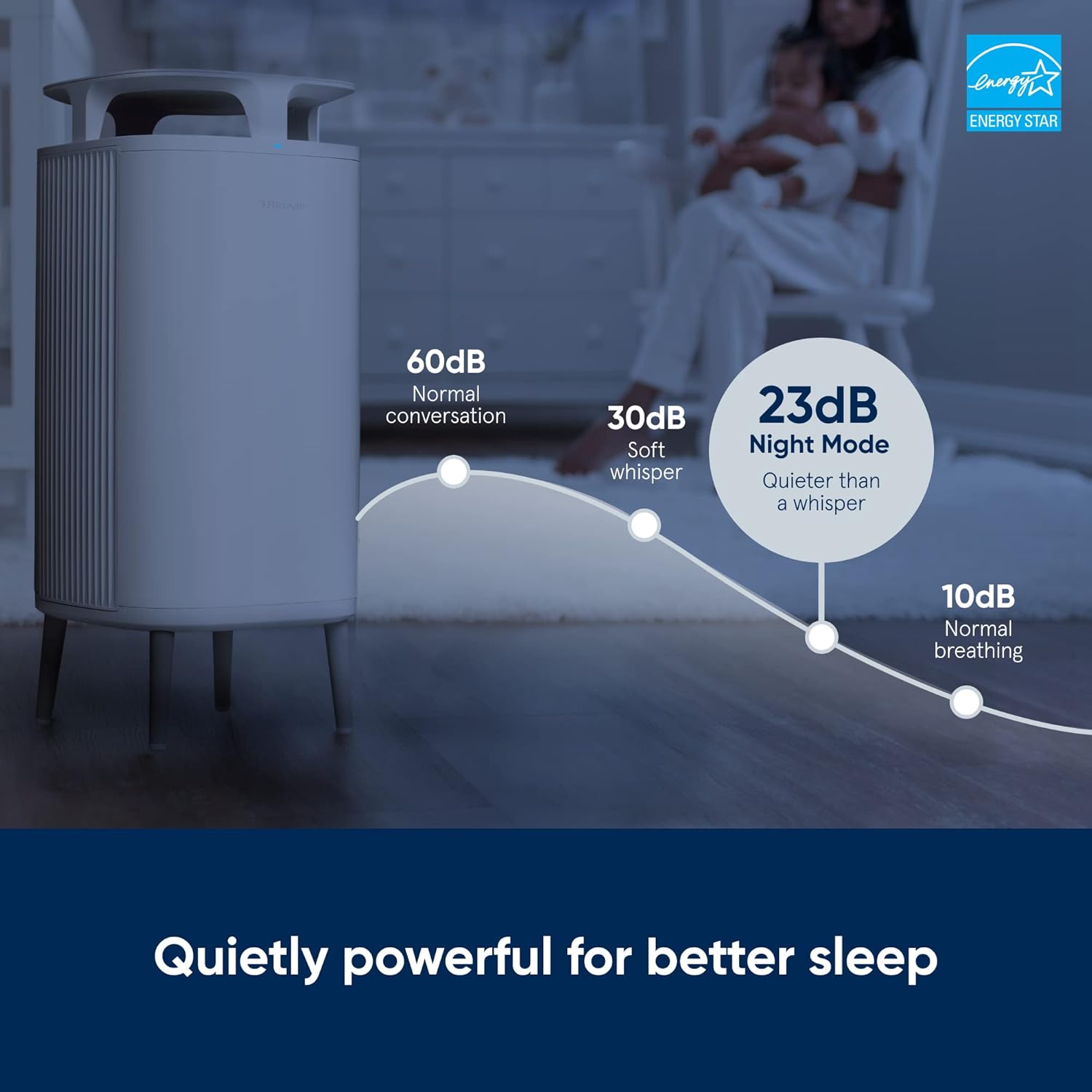
Figure 5.1: Night Mode Sound Levels. This image illustrates the low noise level of the air purifier in Night Mode (23 dB), comparable to a whisper, ensuring quiet operation for better sleep.
5.5 Chivharo Chemwana
To prevent unintended changes to settings, activate the Child Lock feature via the Blueair app. This deactivates the control buttons on the unit itself, allowing control only through the app.
5.6 Air Quality Indicator
The unit features a 5-color LED indicator that provides real-time feedback on your indoor air quality. Refer to the Blueair app for detailed information on pollutant levels.
5.7 Vhidhiyo Yepamutemo Yechigadzirwa
Vhidhiyo 5.1: Chigadzirwa PamusoroviewVhidhiyo iyi inopa ruzivo rwakakwana pamusoroview of the BLUEAIR DustMagnet 5210i Air Purifier, demonstrating its features and operation.
6. Kuchengeta
6.1 Kutsiva Sefa
The filter replacement warning indicator on the control panel will illuminate when it's time to replace the filters. For optimal performance, filters should be replaced approximately every 6 months, depending on usage and air quality.
- Bvisa chinonatsa mweya kubva pamagetsi.
- Open the filter compartments.
- Remove the old filters and dispose of them responsibly.
- Install new original BLUEAIR combo-filters, ensuring correct orientation as described in Section 4.2.
- Close the filter compartments securely.
- Plug the unit back in. The filter warning light should reset automatically. If not, consult the troubleshooting section or the Blueair app.
6.2 Kuchenesa Chikamu
Regular cleaning helps maintain the efficiency and appearance of your air purifier.
- Kunze: Pukuta nzvimbo dzekunze nekanyoro, damp jira. Usashandise abrasive cleaners kana solvents.
- Pre-sefa: The stainless steel pre-filters can be gently wiped clean to remove accumulated dust.
- Do not immerse the unit in water or allow water to enter the air outlets.
7. Kugadzirisa matambudziko
If you experience issues with your DustMagnet 5210i, refer to the table below for common problems and solutions. For more detailed troubleshooting, consult the Blueair app or the official Blueair support website.
| Dambudziko | Zvinogona Kukonzera | Solution |
|---|---|---|
| Unit haibatike. | Hapana simba, tambo yemagetsi yakasununguka. | Tarisa simba rekubatanidza, chengetedza kubuda kunoshanda. |
| Airflow is weak or air quality not improving. | Clogged filters, unit in low fan speed. | Check filter replacement indicator; replace filters if needed. Increase fan speed or activate Auto Mode. |
| Filter replacement indicator remains on after changing filters. | Sensor not reset, filter not installed correctly. | Ensure filters are seated properly. Consult the Blueair app for manual reset instructions if necessary. |
| Cannot connect to Wi-Fi or Blueair app. | Incorrect Wi-Fi password, router issues, unit too far from router. | Verify Wi-Fi password. Restart router and air purifier. Move unit closer to router. Ensure 2.4GHz network is used. |
| Ruzha rusina kujairika kubva payuniti. | Obstruction in fan, loose component. | Unplug the unit and check for any foreign objects. If noise persists, contact customer support. |
8. Zvinotsanangurwa
| Feature | Detail |
|---|---|
| Model Number | 5210i |
| Brand | BLUEAIR |
| Zviyero zveChigadzirwa (D x W x H) | 9.1" x 9.1" x 20.5" (23.1 masendimita x 23.1 masendimita x 52.1 cm) |
| Item Weight | 6.03 makirogiramu (2.74 kg) |
| Floor Area Coverage | 212 Square Feet (optimal) |
| Noise Level | 23 dB (Night Mode) - 31 dB (Low) |
| Wattage | 22 watts (max) |
| Particle Retention Size | 0.1 Micron |
| Controller Type | Touch Panel, Blueair App, Amazon Alexa, Google Home |
| Tsanangudzo Met | AHAM Certified, ENERGY STAR rated |
| UPC | 689122015200 |

Figure 8.1: Air Changes Per Hour (ACH) and Time to Clean Air. This table illustrates the performance of the air purifier across different room sizes, showing the time required to achieve clean air and the corresponding ACH rating.
9. Warranty uye Tsigiro
9.1 Ruzivo rweWaranti
BLUEAIR products are manufactured to the highest quality standards. For detailed warranty terms and conditions, please refer to the warranty card included with your product or visit the official BLUEAIR website. Chengetedza humbowo hwako hwekutenga kune warranty claim.
9.2 Mutengi Tsigiro
For technical assistance, replacement parts, or general inquiries, please contact BLUEAIR customer support. You can find contact information on the official BLUEAIR website or through the Blueair app.
Zvekushandisa Pamhepo: