
Nhanganyaya
The Hyper Drive GEN2 12-in-1 USB-C Docking Station is designed to expand the connectivity of your USB-C enabled laptop or tablet. This docking station provides a comprehensive solution for connecting multiple peripherals, external displays, and power delivery through a single USB-C port. It supports high-speed data transfer, multiple 4K video outputs, and efficient power charging for enhanced productivity.
Product Features
The Hyper Drive GEN2 12-in-1 USB-C Docking Station offers a wide array of ports and capabilities:
- Dual HDMI 4K60Hz HDR: Connect up to two external displays with stunning 4K resolution at 60Hz, supporting High Dynamic Range (HDR) for vibrant visuals.
- DisplayPort 4K60Hz: Connect an additional external display via DisplayPort, also supporting 4K resolution at 60Hz.
- USB-C Power Delivery (PD) 100W: Charge your host laptop or tablet with up to 100W of power through the dedicated USB-C PD port.
- 2x USB-A 10Gbps (USB 3.1 Gen 2): Experience ultra-fast data transfer speeds for compatible USB-A devices.
- 2x USB-A 2.0: Connect standard USB peripherals such as keyboards, mice, or printers.
- Gigabit-Ethernet: Enjoy stable and high-speed wired network connectivity.
- MicroSD UHS-II (300MB/s): Fast data transfer for MicroSD cards, ideal for photographers and videographers.
- SD UHS-II (300MB/s): Fast data transfer for standard SD cards.
- 3.5mm Audio Jack: Connect headphones or speakers for audio output.

Mufananidzo 1: Mberi view of the Hyper Drive GEN2 12-in-1 USB-C Hub, highlighting MicroSD, SD, 3.5mm Audio, and two USB-A 10Gbps ports.
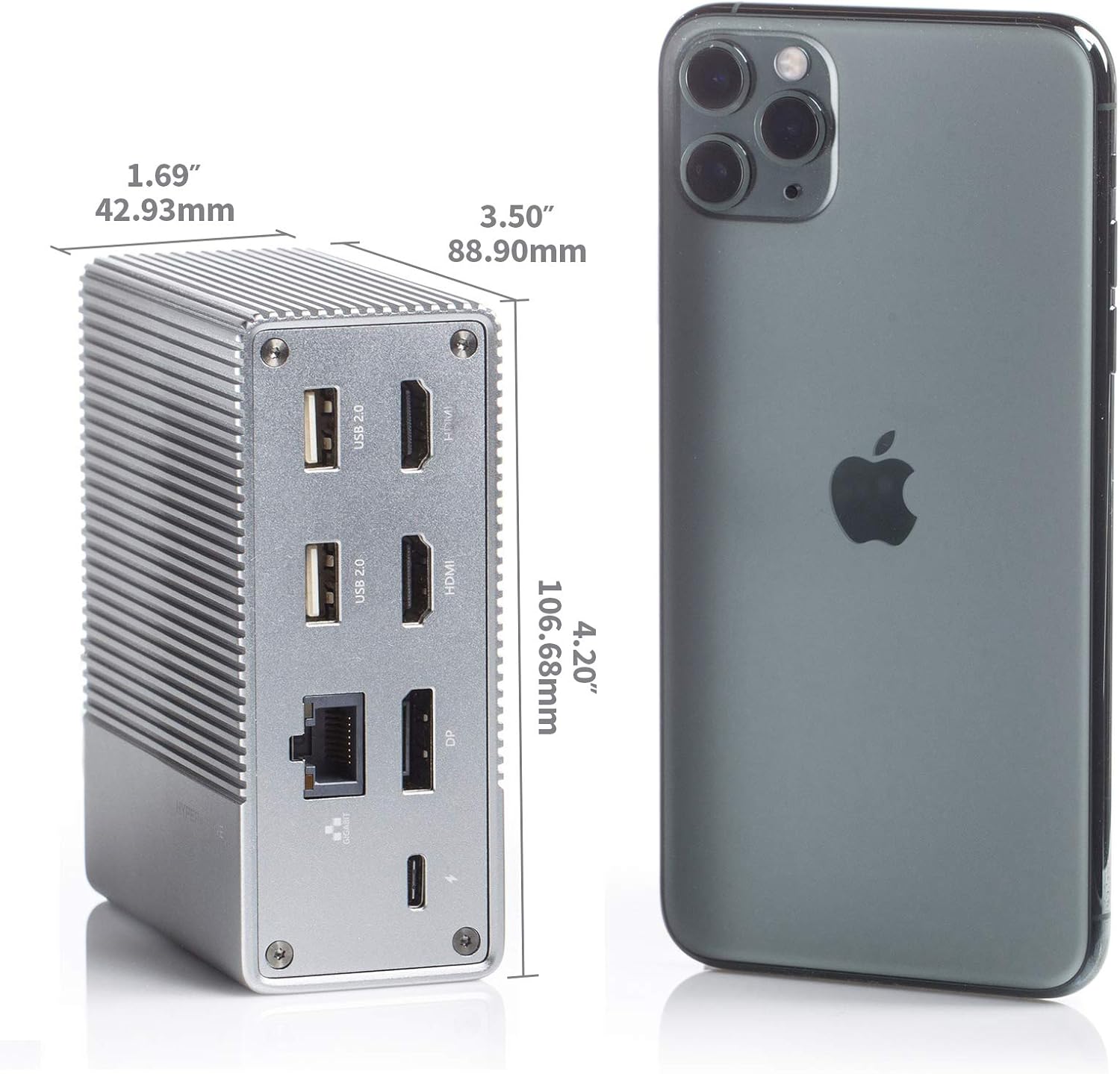
Mufananidzo 2: Kumashure view of the Hyper Drive GEN2 12-in-1 USB-C Hub, highlighting USB-C Power Delivery, Gigabit Ethernet, DisplayPort, two HDMI, and two USB-A 2.0 ports.
Setup Guide
- Batanidza kune Host Device: Plug the integrated USB-C cable from the docking station into an available USB-C port on your laptop or tablet. Ensure the USB-C port on your host device supports DisplayPort Alternate Mode (Alt Mode) and Power Delivery for full functionality.
- Kubatanidza Simba (Inosarudzo asi Inokurudzirwa): For optimal performance and to charge your host device, connect your laptop's USB-C power adapter to the USB-C PD port on the docking station. The docking station supports up to 100W power delivery.
- Batanidza External Displays:
- Batanidza yako HDMI monitors kune HDMI ports pane docking station.
- Connect your DisplayPort monitor to the DisplayPort on the docking station.
Cherechedza: For macOS, only one extended display is supported with the same image on all external displays at 4K60Hz. Windows/Chrome OS supports Multi-Stream Transport (MST) for up to three extended displays.
- Batanidza Peripherals: Plug your USB devices (keyboard, mouse, external drives), Ethernet cable, and audio devices into the corresponding ports on the docking station.
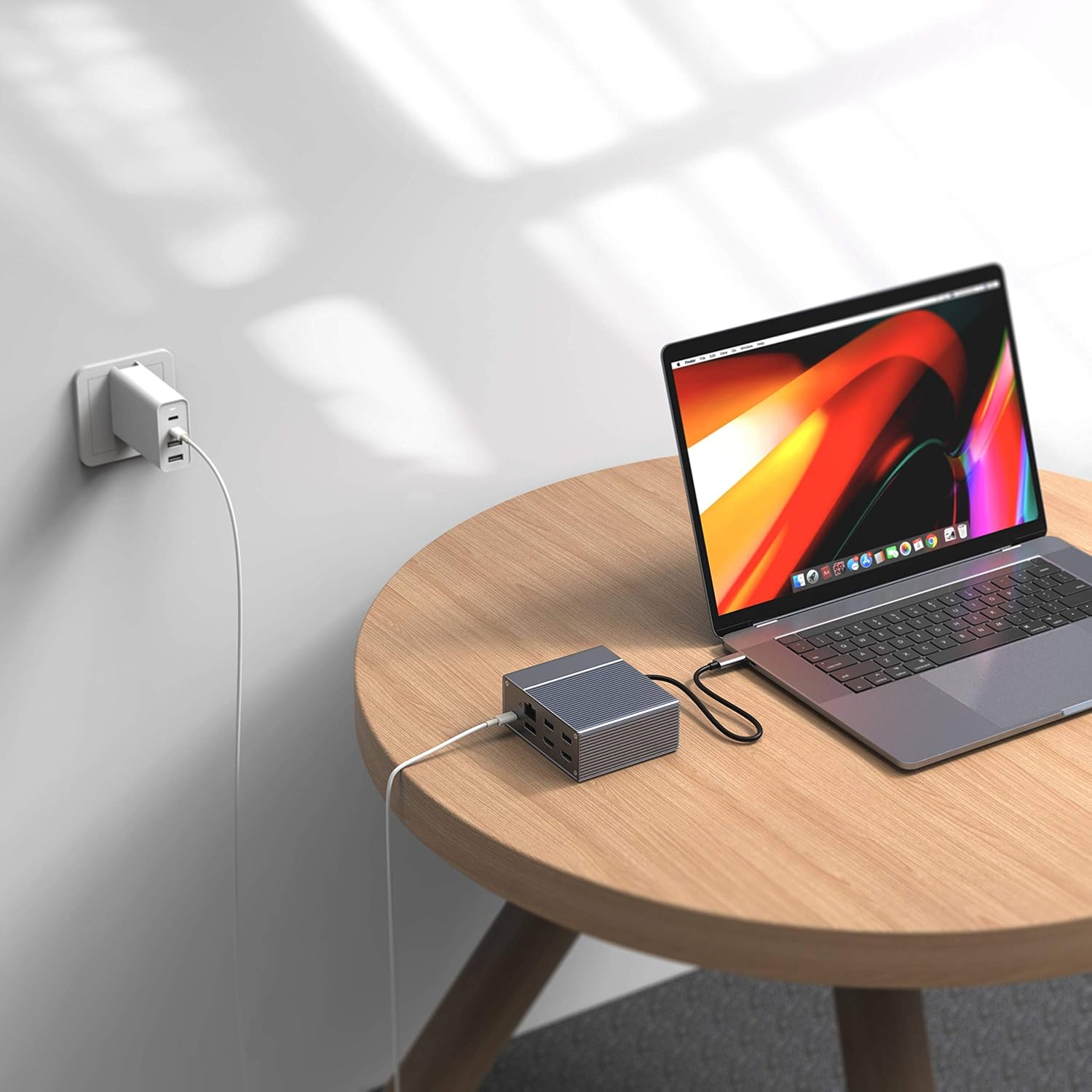
Figure 3: Laptop connected to the docking station and a power adapter for charging.
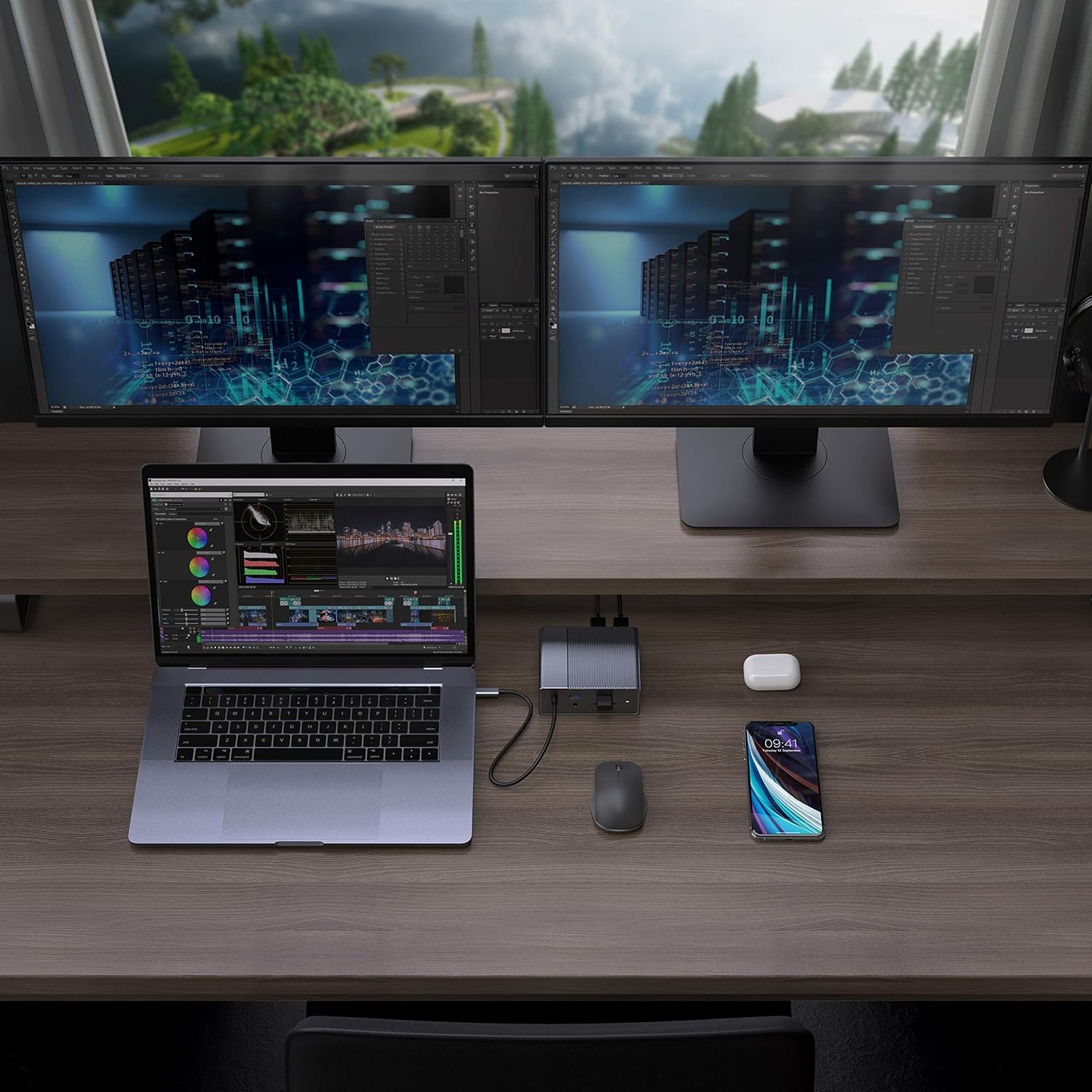
Figure 4: A typical setup showing a laptop connected to the docking station with multiple peripherals and external displays.
Operating Instruction
Display Modes
The docking station supports various display configurations depending on your operating system:
- macOS: Supports one extended display with the same image mirrored across all external displays at 4K60Hz. macOS does not support Multi-Stream Transport (MST) for independent extended displays.
- Maitiro ekushandisa eWindows/Chrome: Supports Multi-Stream Transport (MST), allowing for up to three extended displays with independent content at 4K60Hz.

Figure 5: Illustration of display modes for macOS (mirror mode) and Windows (mirror and extended modes) using the docking station.
Data Transfer and Power Delivery
- USB-A 10Gbps Ports: Use these ports for high-speed data transfer with compatible external hard drives, SSDs, or other USB 3.1 Gen 2 devices.
- USB-A 2.0 Ports: Ideal for connecting standard peripherals like keyboards, mice, or USB flash drives where high-speed data transfer is not critical.
- SD/MicroSD Card Slots: Insert your memory cards for quick access and transfer of photos and videos at up to 300MB/s (UHS-II speeds).
- USB-C PD Port: Connect your laptop's power adapter to this port to charge your laptop while using the docking station. This port also supports data transfer.
Vhidhiyo 1: Zviri pamutemo pamusoroview of the HyperDrive GEN2 USB-C Hub, demonstrating its speed, power, and various port functionalities.
Maintenance
- Keep the docking station in a clean, dry environment.
- Dzivisa kuisa mudziyo kune tembiricha yakanyanyisa kana zuva rakananga.
- Geza kunze nemucheka wakapfava, wakaoma. Usashandise mvura yekuchenesa kana aerosols.
- Iva nechokwadi chekufefetedza kwakaringana kutenderedza mudziyo kudzivirira kupisa.
Kugadzirisa matambudziko
- No display output or flickering screen:
- Ensure your host device's USB-C port supports DisplayPort Alt Mode.
- Check all cable connections (USB-C to host, HDMI/DP to monitors).
- Try a different HDMI or DisplayPort cable.
- Verify your monitor input settings are correct.
- For macOS, remember that only one extended display is supported, with other external displays mirroring the extended one.
- Zvishandiso zve USB hazvizivikanwe:
- Reconnect the USB device to the docking station.
- Edza imwe USB port iri pachiteshi chekushandisa.
- Ita shuwa kuti docking station yakabatana nemazvo kune yako yekugamuchira mudziyo.
- If using high-power USB devices, ensure the docking station is connected to a power source via its USB-C PD port.
- Laptop haisi kuchaja:
- Ensure your laptop's original USB-C power adapter is connected to the USB-C PD port on the docking station.
- Verify that your laptop supports USB-C Power Delivery.
- Check the power adapter and cable for any damage.
Zvinotsanangurwa
| Feature | Tsanangudzo |
|---|---|
| Model | GEN2 12-in-1 USB-C Hub |
| Brand | Hyper |
| HDMI Ports | 2x HDMI 4K60Hz HDR |
| DisplayPort | 1x DisplayPort 4K60Hz |
| USB-C PD Chiteshi | 1x USB-C Power Delivery 100W |
| USB-A Data Ports | 2x USB-A 10Gbps (USB 3.1 Gen 2), 2x USB-A 2.0 |
| Ethernet | 1x Gigabit Ethernet |
| Vaverengi Kadhi | 1x MicroSD UHS-II (300MB/s), 1x SD UHS-II (300MB/s) |
| Sravana Sameeralu Serial 4th Audio Jack | 1x 3.5mm Audio Jack |
| Inoenderana OS | macOS, Windows, Chrome OS |
| Item Weight | 480.8 magiramu |
| UPC | 817110014519 |
Warranty uye Support
For warranty information and technical support, please refer to the official Hyper websaiti kana kubata basa ravo revatengi. Chengeta risiti yako yekutenga yezvichemo zvewaranti.
Rutsigiro rwepamhepo: www.hyper.com/support