
1. Nhanganyaya
The WAVLINK USB 3.0 Universal Docking Station (Model: UG39DK101-BL) is designed to expand the connectivity of your laptop or desktop computer. It provides a comprehensive solution for connecting multiple peripherals, external displays, and network access through a single USB 3.0 connection to your host device. This manual provides detailed instructions for setup, operation, and troubleshooting to ensure optimal performance.

Image 1.1: WAVLINK USB 3.0 Universal Docking Station, front view.
2. Zvigadzirwa zveChigadzirwa
- Extensive Port Selection: Features 13 ports including 2x USB 3.0, 4x USB 2.0, 1x USB 3.0 IN (for host connection), 1x HDMI, 1x DVI, 1x Gigabit Ethernet, 1x DC Power Jack, 1x Audio Input, and 1x Audio Output.
- High-Resolution Dual Display: Supports dual external monitors. HDMI output supports resolutions up to 2560x1440@50Hz. DVI or VGA (via included adapter) supports resolutions up to 2048x1152@60Hz / 1920x1080@60Hz. When using HDMI + DVI/VGA, resolutions up to 2048x1152@60Hz / 1920x1080@60Hz are supported for extended or mirrored displays.
- Gigabit-Ethernet: Provides a stable and fast wired network connection with support for 10/100/1000Mbps Ethernet via the RJ-45 port.
- Super-Speed Data Transfer: USB 3.0 ports inopa kufambisa data kumhanya kusvika ku5Gbps.
- Wide Compatibility: Compatible with Windows Vista/7/8/8.1/10/11 and Mac OS 10.2 and later.
- Compact uye Lightweight Dhizaini: Designed for portability and minimal desk space.
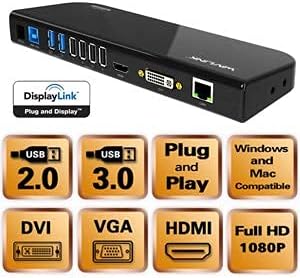
Mufananidzo 2.1: Pamusoroview of the docking station ports and key features.
3. Package Zviri mukati
Ndokumbira utarise kuti zvinhu zvese zviripo mupakeji:
- 1x WAVLINK USB 3.0 Universal Docking Station (UG39DK101-BL)
- 1x SuperSpeed USB 3.0 Cable
- 1x DVI-to-VGA Adapter
- 1x Power Adapter
- 1x Chinyorwa cheMushandisi
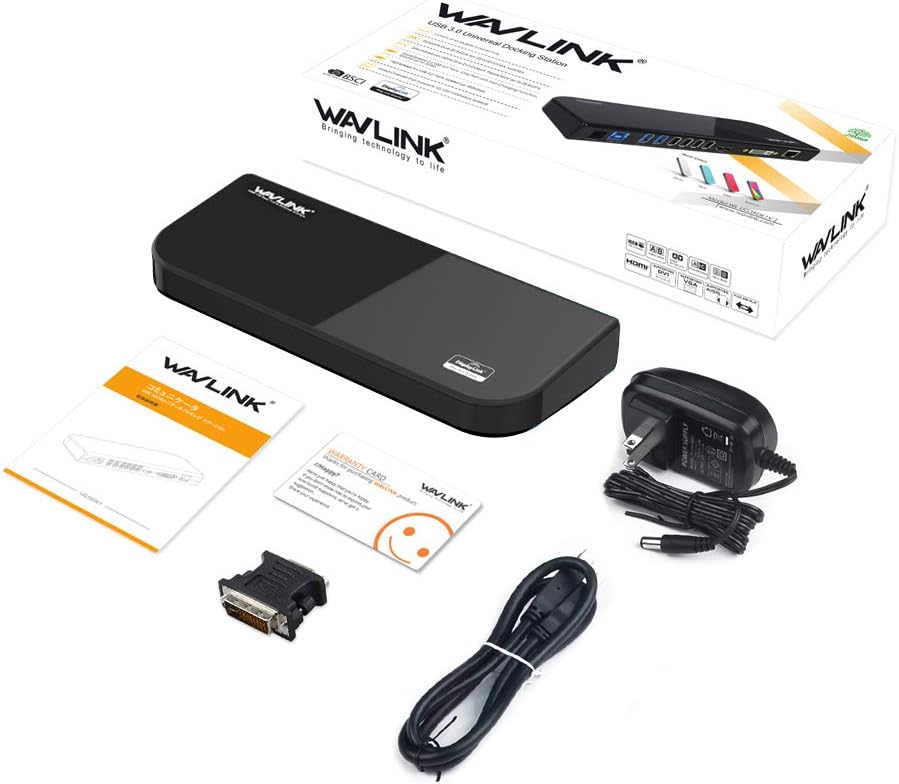
Mufananidzo 3.1: Zvinhu zvese zviri mupakeji yechigadzirwa.
4. Setup Instructions
- Isa Madhiraivha: Before connecting the docking station, ensure that the latest DisplayLink drivers are installed on your computer. These can typically be downloaded from the WAVLINK support website or DisplayLink's official website.
- Batanidza Simba: Connect the provided power adapter to the DC 12V port on the docking station and then plug it into a power outlet.
- Batanidza kuHost Computer: Use the SuperSpeed USB 3.0 cable to connect the USB 3.0 IN port on the docking station to an available USB 3.0 port on your laptop or desktop computer.
- Batanidza Peripherals:
- Vatariri: Connect your external monitors to the HDMI and/or DVI ports on the docking station. If using a VGA monitor, use the DVI-to-VGA adapter.
- USB Zvishandiso: Connect your USB devices (keyboard, mouse, printer, external drives, etc.) to the available USB 3.0 and USB 2.0 ports.
- Ethernet Connect an Ethernet cable from your router or modem to the RJ-45 Gigabit Ethernet port on the docking station.
- Audio: Connect headphones, speakers, or a microphone to the audio input/output ports as needed.
- Verify Connection: Once all connections are made, your computer should detect the docking station and connected devices. You may need to adjust display settings in your operating system.

Mufananidzo 4.1: Yakadzama view of the docking station's ports and their labels.
5. Operating Instructions
5.1 Ratidza Modes
The docking station supports various display modes for external monitors:
- Yakawedzerwa Nzira: Each monitor displays a different part of your desktop, allowing for increased workspace.
- Mirror Mode (Duplicate Mode): All monitors display the same content as your primary display.
- Primary Mode / Alternate Mode: Use this mode if you are using your laptop with the lid closed, displaying only on external monitors.
You can configure these display settings through your operating system's display settings (e.g., Windows Display Settings or macOS System Preferences > Displays).
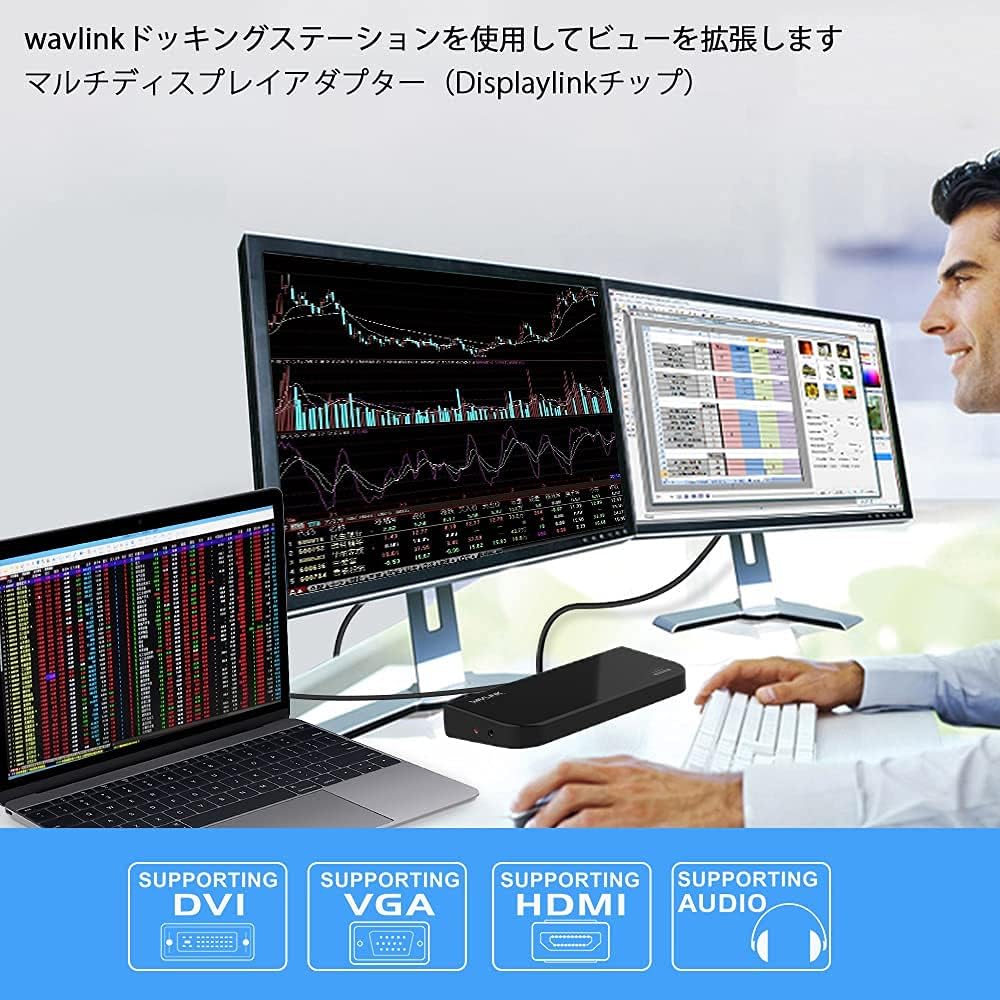
Image 5.1: Illustration of different display modes (Primary, Mirror, Extended).
5.2 Audio Configuration
After connecting audio devices to the docking station, you may need to select the docking station as the default audio output/input device in your operating system's sound settings.
5.3 Network Kubatana
The Gigabit Ethernet port provides a stable wired network connection. Ensure your network cable is securely connected to the docking station and your network source. Your operating system should automatically detect the network connection.
6. Kuchengeta
- Keep the docking station in a dry, well-ventilated area, away from direct sunlight and heat sources.
- Dzivisa kuisa mudziyo kumvura kana kunyorova zvakanyanya.
- Geza mudziyo nejira rakapfava, rakaoma. Usashandise mvura kana aerosol cleaners.
- Ensure cables are not bent or crimped excessively to prevent damage.
- Periodically check for and install updated DisplayLink drivers for optimal performance and compatibility.
7. Kugadzirisa matambudziko
- Hapana Chiratidziro paMonitori Yekunze:
- Ensure the docking station is powered on and connected to your computer via USB 3.0.
- Verify that the monitor cables (HDMI, DVI, VGA) are securely connected to both the docking station and the monitors.
- Check your computer's display settings to ensure the external monitors are detected and configured correctly (e.g., extended or mirrored).
- Update or reinstall DisplayLink drivers.
- Test the monitors directly with your computer if possible to rule out monitor issues.
- USB Zvishandiso Hazvishande:
- Ensure the docking station is powered and connected to the host computer.
- Edza kubatanidza USB mudziyo kune imwe chiteshi pane docking chiteshi.
- Connect the USB device directly to your computer to confirm it is functional.
- Hapana Network Connection:
- Verify the Ethernet cable is securely connected to the docking station and your network source.
- Tarisa marongero enetwork pakombuta yako.
- Restart your router/modem and the computer.
- Audio Nyaya:
- Ensure audio cables are properly connected.
- Check your computer's sound settings to ensure the docking station's audio output/input is selected as the default device.
8. Zvinotsanangurwa
| Feature | Tsanangudzo |
|---|---|
| Model Number | UG39DK101-BL |
| Host Kubatana | USB 3.0 Rudzi-A |
| Video Output | 1x HDMI, 1x DVI (with DVI-to-VGA adapter) |
| Max Resolution (HDMI) | 2560x1440@50Hz |
| Max Resolution (DVI/VGA) | 2048x1152@60Hz / 1920x1080@60Hz |
| USB Ports | 2x USB 3.0, 4x USB 2.0 |
| Data Transfer Rate | Kusvika ku5Gbps (USB 3.0) |
| Ethernet | RJ-45 Gigabit Ethernet (10/100/1000Mbps) |
| Sravana Sameeralu Serial 4th Audio Ports | 1x Audio Input, 1x Audio Output |
| Power Input | DC 12V |
| Operating System Kuenderana | Windows Vista/7/8/8.1/10/11, Mac OS 10.2 and later |
| Product Dimensions | 34.5 x 15.8 x 6 cm |
| Product Weight | 732 g |

Image 8.1: Product dimensions of the WAVLINK docking station.
9. Warranty uye Tsigiro
WAVLINK provides a 12-mwedzi waranti for this product, covering manufacturing defects and malfunctions under normal use. We are confident in the design and durability of our products.
If you encounter any issues or have questions regarding the product, please do not hesitate to contact WAVLINK customer support. For the latest drivers, FAQs, and support resources, please visit the official WAVLINK website.
Note: If you are unsure about device compatibility, please contact customer support for assistance.