
1. Nhanganyaya
This manual provides essential information for setting up, operating, maintaining, and troubleshooting your Samsung Galaxy Tab Active3. The Galaxy Tab Active3 is an 8-inch rugged tablet designed for durability and performance in demanding environments. It features MIL-STD-810H compliance and IP68 water and dust resistance, ensuring reliability. Key functionalities include an integrated S Pen, a replaceable battery with 'No Battery Mode' support, Wireless DeX for a PC-like experience, and enhanced touch sensitivity for glove use.
2. Setup Guide
2.1 Package Zviri mukati
Ona kuti pasuru yako ine zvinhu zvinotevera:
- Samsung Galaxy Tab Active3 Tablet
- Chaja Cable
- S Pen (integrated)
2.2 Kutanga Kuchaja
Before first use, fully charge the tablet using the provided charging cable and a compatible power adapter. The tablet supports fast charging.
2.3 Kubatidza/Kudzima
- Kubatidza: Dzvanya wobata bhatani rePower kusvika logo yeSamsung yaonekwa.
- Kudzima: Press and hold the Power key, then select 'Power off' from the options.
2.4 Kuisa SIM Card neMicroSD Card
The Galaxy Tab Active3 supports LTE connectivity and expandable storage via a microSD card (up to 1TB).
- Tsvaga iyo SIM/microSD kadhi tireyi padivi pehwendefa.
- Use the provided ejection tool to open the tray.
- Carefully place the Nano-SIM card and/or microSD card into their respective slots, ensuring correct orientation.
- Vhara tireyi zvakachengeteka.
2.5 Yekutanga Chishandiso Setup
Pamusoro pekutanga simba-pa, tevera pa-screen kukurudzira ku:
- Sarudza mutauro wako.
- Batanidza kune network yeWi-Fi.
- Pinda neakaundi yako yeGoogle kana gadzira itsva.
- Set up biometric security (fingerprint or face recognition) for enhanced device protection.
3. Operating Instructions
3.1 Rugged Design and Durability
The Galaxy Tab Active3 is built to withstand harsh conditions. It is MIL-STD-810H compliant for shock resistance and IP68 rated for water and dust resistance. This means it can be submerged in up to 1.5 meters of fresh water for up to 30 minutes and is protected against dust ingress.

Image: Galaxy Tab Active3 demonstrating its water and dust resistance.
3.2 S Pen and Enhanced Touch Capability
The integrated S Pen allows for precise input, note-taking, and drawing. The tablet also features enhanced touch sensitivity, enabling operation even when wearing gloves. To activate glove mode, navigate to Settings > Display > Touch sensitivity.

Image: Using the S Pen and enhanced touch with gloves on the Galaxy Tab Active3.
3.3 Battery Management and No Battery Mode
The Galaxy Tab Active3 is equipped with a long-lasting, replaceable 5050mAh battery. For extended use in fixed installations or vehicles, the tablet supports 'No Battery Mode'. When connected to a dedicated power source, the tablet can operate without the battery installed, preventing battery degradation in constant power environments.

Image: Internal components highlighting the battery and POGO pin for charging.
3.4 Wireless DeX
Samsung Wireless DeX allows you to connect your tablet to a compatible display wirelessly, providing a PC-like desktop experience. This enables multitasking with multiple windows and a familiar interface, enhancing productivity.
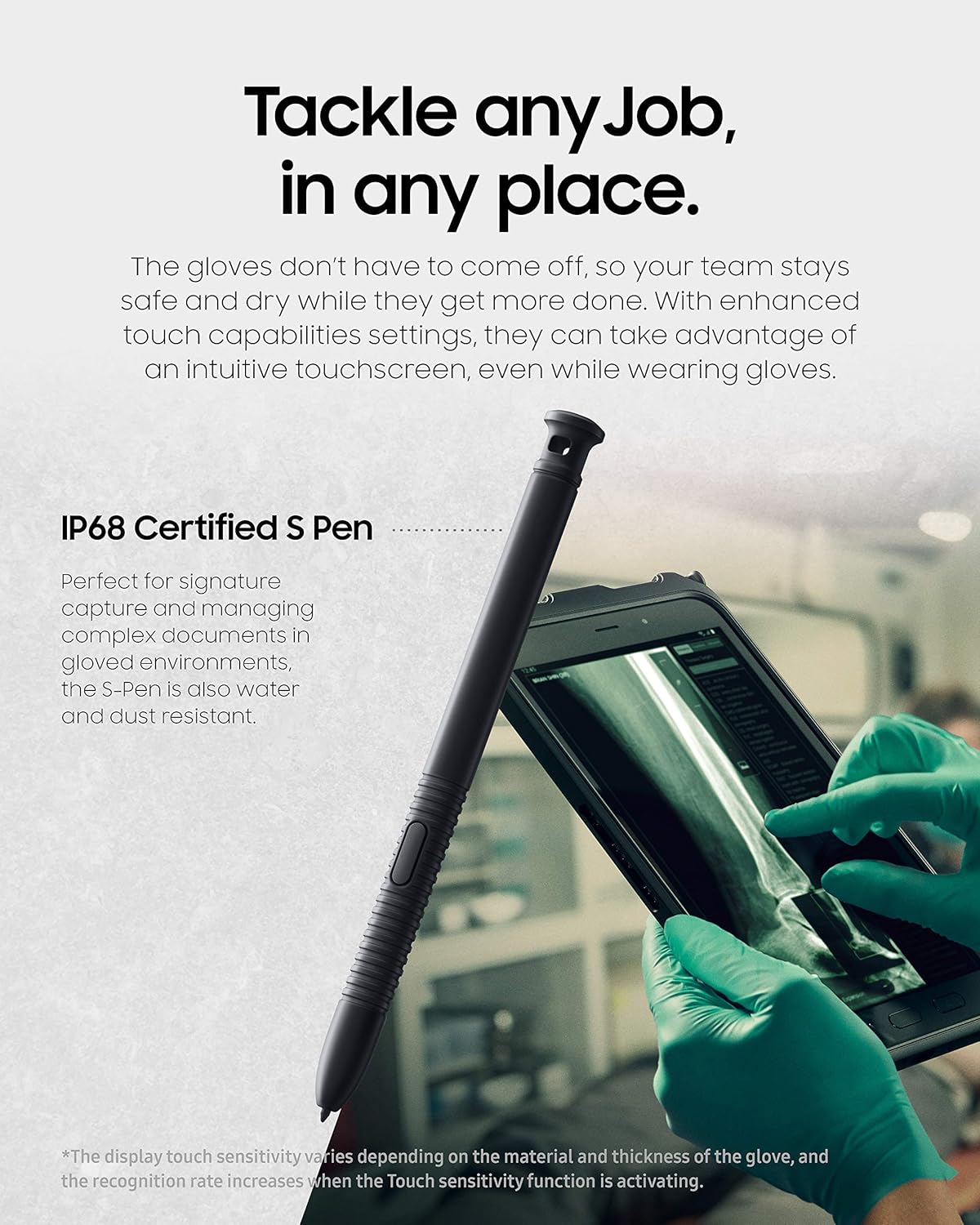
Image: Galaxy Tab Active3 utilizing Wireless DeX for a desktop experience.
3.5 Camera and NFC
The tablet features a 13MP rear camera for clear photo and document scanning, and a front camera for video calls. NFC (Near Field Communication) with EMV Level 1 support enables secure contactless payments and data exchange.

Image: Rear camera detail and NFC payment use case.
3.6 Programmable Key and Biometric Security
A programmable key provides quick access to frequently used apps or functions. For security, the tablet includes face recognition and fingerprint access, ensuring only authorized users can access the device.
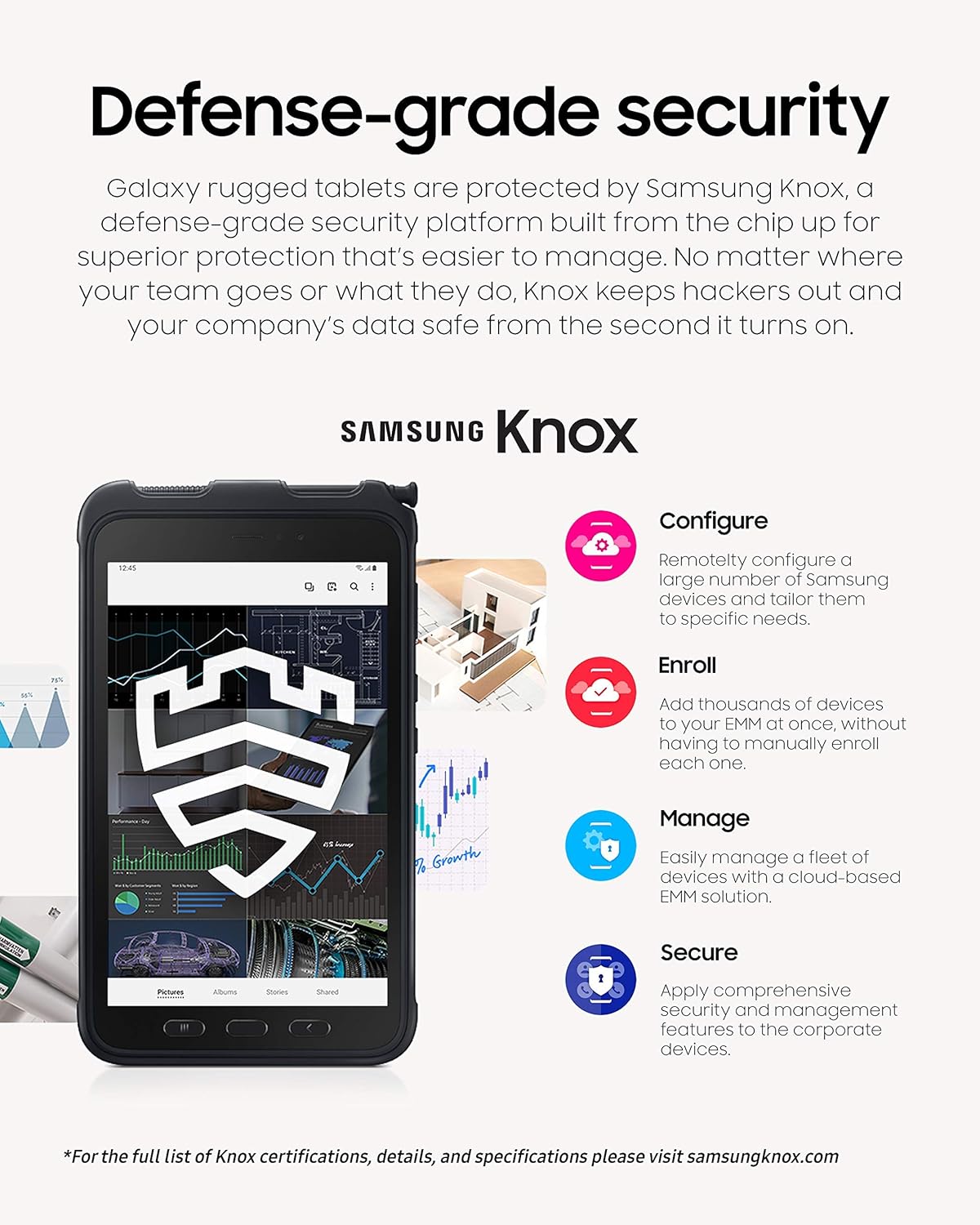
Image: Biometric security features and programmable key.
4. Kuchengeta
4.1 Kuchenesa Chishandiso
Due to its IP68 rating, the tablet can be rinsed with fresh water if it gets dirty. After exposure to water, ensure all ports are dry before charging. Use a soft, lint-free cloth to wipe the screen and body. Avoid harsh chemicals or abrasive materials.
4.2 Kuchengeta Battery
To prolong battery life, avoid extreme temperatures and do not leave the tablet fully charged or fully discharged for extended periods. The replaceable battery allows for easy replacement if its capacity diminishes over time.
4.3 Zvigadziriso zveSoftware
Regularly check for and install software updates to ensure optimal performance, security, and access to the latest features. Navigate to Zvirongwa> Software update> Dhawunirodha uye isa.
4.4 Kuchengeta Kuchengeta
The tablet comes with 64GB of internal storage. Utilize a microSD card for additional storage of photos, videos, and documents to keep the internal storage free for apps and system files.
5. Kugadzirisa matambudziko
5.1 Matambudziko Anowanikwa uye Magadzirirwo
- Mudziyo hausi kubatika: Ensure the battery is charged. If the battery is removable, try removing and reinserting it.
- Kuita zvishoma nezvishoma: Vhara maapplication asina kushandiswa, bvisa cache, kana kutangazve mudziyo. Tarisa kune zviripo software updates.
- Connectivity issues (Wi-Fi/LTE): Toggle Wi-Fi/LTE off and on. Restart your router or contact your service provider.
- Touchscreen haidaire: Restart the device. If the issue persists, ensure the screen is clean and free of damage.
5.2 Factory Reset
If persistent issues occur, a factory reset may resolve them. Yambiro: This will erase all data on your device. Back up important data before proceeding. Navigate to Zvirongwa> General manejimendi> Reset> Factory data reset.
6. Zvinotsanangurwa

Image: Performance overview of the Galaxy Tab Active3.
| Feature | Detail |
|---|---|
| Model Number | SM-T577UZKDXAA |
| Brand | Samsung |
| Screen Size | 8 inches |
| Display Resolution | 1920 x 1200 pixels |
| processor | Exynos 9810 (Octa Core, 2.7 GHz) |
| RAM | 4 GB |
| Storage Capacity | 64 GB (inokwidziridzwa kusvika ku1TB kuburikidza nemicroSD) |
| Operating System | Android 10 |
| Rear Camera | 13 MP |
| Front Camera | Ehe |
| Battery Capacity | 5050 mAh (Average life: 11 hours) |
| Kubatana | LTE (Unlocked), Wi-Fi, Bluetooth, NFC, GPS |
| Kugara kwenguva refu | MIL-STD-810H, IP68 Water and Dust Resistant |
| Chengetedzo Features | Biometric Security (Fingerprint, Face Recognition), Samsung Knox |
| Kurema | 15.04 ounces |
7. Ruzivo rweWaranti
This Samsung Galaxy Tab Active3 (SM-T577UZKDXAA) is covered by a 90-day limited warranty. For products purchased as 'Amazon Renewed', they are eligible for replacement or refund under the Amazon Renewed Guarantee if you are not satisfied with your purchase. Please refer to the specific terms and conditions of the Amazon Renewed Guarantee for full details.
8. Tsigiro
For further technical assistance, troubleshooting beyond this manual, or warranty claims, please contact Samsung Customer Support or refer to the official Samsung website for your region. You can find updated drivers, firmware, and additional support resources there.
For information regarding Samsung Knox security features and certifications, visit samsungknox.com.