
Unbranded DP-KK99
Bhuku rekushandisa reDP-KK99 WiFi Panoramic Security Camera
Model: DP-KK99
1. Nhanganyaya
This manual provides detailed instructions for the installation, operation, and maintenance of your Unbranded DP-KK99 WiFi Panoramic Security Camera. Please read this manual thoroughly before using the product to ensure proper functionality and safety. This camera offers 360-degree panoramic surveillance, motion detection, night vision, and two-way audio communication for comprehensive home monitoring.
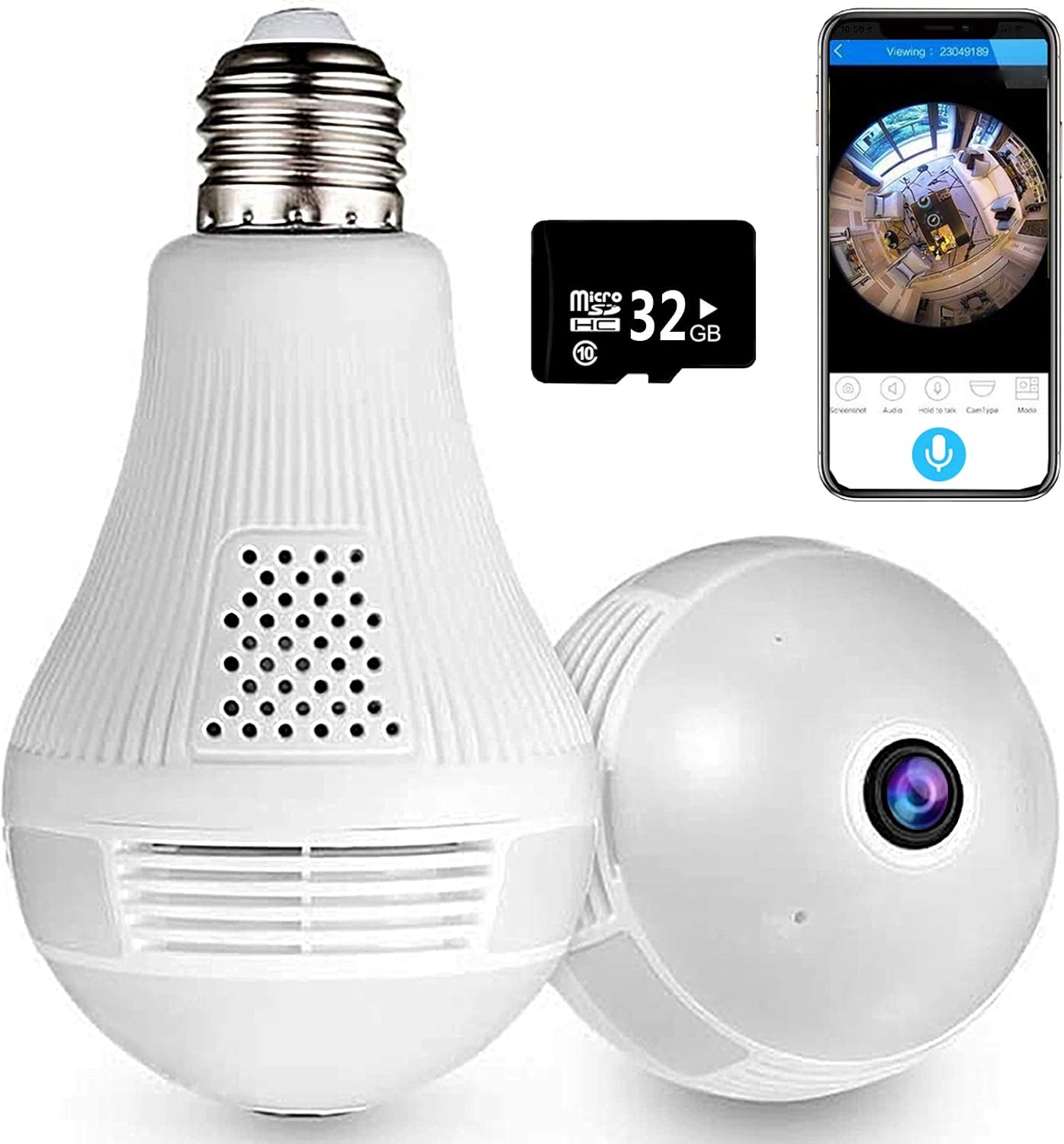
Image 1.1: The Unbranded DP-KK99 WiFi Panoramic Security Camera, showing its bulb-like design, a 32GB Micro SD card, and a smartphone displaying the camera's panoramic view.
2. Package Zviri mukati
Ndokumbira utarise zviri pasuru pawatambira. Kana paine zvinhu zvisipo kana kukuvadzwa, taura nemutengesi wako.
- Unbranded DP-KK99 WiFi Panoramic Security Camera
- Kadhi reMicro SD re32GB (rakaiswa kare kana kuti rakaiswa zvakasiyana)
- Kuisa Bracket
- Mushandisi Chinyorwa (gwaro iri)
3. Setup Guide
3.1 Kuiswa
The camera is designed for easy installation into a standard E27 lamp base.
- Ensure the power to the E27 lamp base is turned off before installation.
- Screw the camera firmly into the E27 lamp base.
- Turn on the power to the lamp base. The camera will power on and begin its startup sequence.

Image 3.1: Visual guide for screwing the camera into a standard E27 lamp base for installation.
3.2 App Dhawunirodha uye yekubatanidza
The camera operates via the 'iCsee' mobile application.
- Dhaunirodha App: Scan the QR code provided on the product packaging or search for "iCsee" in your smartphone's app store (iOS/Android).
- Bhalisa Akaundi: Open the iCsee application and register a new account using your email address. Phone numbers are not required for registration.
- Wedzera Kamera: Tap the '+' icon within the app to add a new device. Follow the on-screen prompts to select "Add Camera."
- Batanidza kuWi-Fi: Enter your 2.4GHz Wi-Fi network password. The camera only supports 2.4GHz Wi-Fi. Ensure the Wi-Fi name and password are spelled correctly.
- Initial Connection Tips: For the first connection, place the camera within 2 meters of your Wi-Fi router.
- Set New Password: Once successfully connected, set a new password for your camera for security.
3.3 Important Connection Notes
- Only 2.4GHz Wi-Fi networks are supported. 5GHz networks are not compatible.
- Ensure your Wi-Fi name and password are entered accurately.
- For initial setup, keep the camera close to your Wi-Fi router (within 2 meters).
4. Operating Instructions
4.1 Kure Viewing uye Kudzora
Kana wangobatanidzwa, unogona view rarama footage and control camera functions remotely through the iCsee app.
- Rarama View: Access the camera feed to see a clear, all-round view of your monitored area. The 360-degree fisheye lens provides comprehensive coverage without blind spots.
- Bata: Use the app to capture pictures and record videos directly from the live feed.

Image 4.1: The camera's 360-degree panoramic view eliminates blind spots, providing coverage equivalent to multiple standard cameras.
4.2 Kutaurirana kweOdhiyo nenzira mbiri
The camera features a built-in microphone and speaker, enabling two-way audio communication.
- From the iCsee app, you can initiate audio calls and conversations with individuals near the camera.
- The clear microphone ensures effective vocal transmission.

Image 4.2: The camera supports two-way intercom/audio, allowing remote communication with family members.
4.3 Kuonekwa Kwekufamba uye Zviziviso
The camera is equipped with a motion detection function to enhance security.
- When abnormal motion is detected, the camera will send an alert message directly to your mobile phone via the iCsee app.
- This feature helps keep your home or office secure by notifying you of unusual activity.

Image 4.3: The camera supports motion detection, sending alarm notifications to your smartphone upon detecting activity.
4.4 Chiratidzo chehusiku
The camera provides excellent night vision capabilities for monitoring in low-light or dark conditions.
- It features built-in infrared night vision and white light full-color night vision dual mode.
- This dual mode ensures clear visibility and security around the clock.
4.5 Chiedza Basa
The integrated light can be controlled via the app.
- You can set the light to turn on automatically in the dark, manually control it, or schedule it to turn on at specific times.
4.6 Sarudzo dzeKuchengetera Zvinhu
The camera supports both local and cloud storage for recorded footage.
- Micro SD Kadhi: Rarama viewing and recording are supported directly to the included 32GB Micro SD card.
- Cloud Storage: Cloud storage options may be available through the iCsee app for additional backup and accessibility.

Image 4.4: The camera supports both Micro SD card and cloud storage for recording and viewing.
5. Zvinotsanangurwa
| Feature | Detail |
|---|---|
| Model Number | DP-KK99 |
| Kubatana Technology | Wireless (Wi-Fi) |
| Kubatana Protocol | Wi-Fi (2.4GHz chete) |
| Inowirirana Devices | Smartphone (iOS/Android) |
| Simba Source | AC/DC (E27 Lamp Base) |
| Mounting Type | Ceiling Mount |
| Fomu Factor | Dome |
| Color | Chena |
| Zviyero (L x W x H) | 6.5 x 3.94 x 3.54 inches |
| Item Weight | 7.8 ounces |
| Special Features | Motion Sensor, Night Vision (Infrared & Full-Color), Two-Way Audio |
| Indoor / Outdoor Kushandiswa | Indoor |
| Vhidhiyo Capture Format | MPEG-4 |
| International Protection Rating | IP67 |
6. Kugadzirisa matambudziko
If you encounter issues with your camera, please refer to the following common solutions:
- Kukundikana kwekubatanidza:
- Iva nechokwadi chekuti network yako yeWi-Fi iri 2.4GHz. Kamera haitsigire Wi-Fi ye5GHz.
- Verify that the Wi-Fi name (SSID) and password are entered correctly in the iCsee app.
- During initial setup, ensure the camera is within 2 meters of your Wi-Fi router.
- Kugadzirisa Kamera: If connection fails, insert a thimble or small pin into the reset hole on the camera. Press and hold for 10 seconds until you hear a prompt or see an indicator light change. Wait 2 minutes for the camera to restart, then attempt to reconnect.
- Hotspot Mode Activation: If you need to activate hotspot mode, insert a thimble into the reset hole and click 3 times. Then, search for a Wi-Fi network starting with "camera" on your phone. The default password for this hotspot is 1234567890.
- No Picture/Offline: Check the power supply to the E27 lamp base. Ensure the camera is securely screwed in and receiving power. Verify your Wi-Fi connection is stable.
- Hunhu Hwakashata Wemufananidzo: Ensure the camera lens is clean and free from dust or obstructions. Check your internet connection speed.
- Kadhi reSD Harirekodhwe: Ensure the 32GB Micro SD card is properly inserted. Format the SD card through the app if necessary.
7. Kuchengeta
- Kuchenesa: Pukuta lenzi yekamera nemuviri wayo zvinyoro nyoro nejira rakaoma uye rakapfava. Usashandise makemikari akasimba kana mishonga inokwesha.
- Kuiswa: Ensure the camera is installed in a dry, indoor environment. Avoid direct exposure to water or extreme temperatures.
- Firmware Dzokorora: Periodically check the iCsee app for available firmware updates to ensure optimal performance and security.
8. Warranty uye Tsigiro
Specific warranty details for this Unbranded product are not provided in this manual. For warranty information, technical support, or service inquiries, please contact your original retailer or the seller directly. Keep your purchase receipt as proof of purchase.