
Nhanganyaya
The Poly DA75 is a versatile USB-A/USB-C digital adapter designed to connect Poly Quick Disconnect (QD) headsets to computers. It ensures clear audio quality for call center environments, supporting both USB-A and USB-C connections for compatibility with various systems. This adapter is engineered to work seamlessly with platforms such as Avaya, Genesys, and Cisco, providing a reliable audio solution for professionals.
Zvinhu zvakakosha zvinosanganisira:
- Universal Connectivity: Equipped with both USB-A and USB-C connectors on the cable for broad compatibility with new and legacy equipment.
- Intelligent Headset Recognition: Automatically adjusts audio performance to the specific Poly Quick Disconnect headset for optimized call quality.
- Acoustic Protection: Incorporates features to manage safe volume levels, protecting user hearing.
- Platform Integration: Fully compatible with leading call center platforms including Avaya, Genesys, and Cisco.
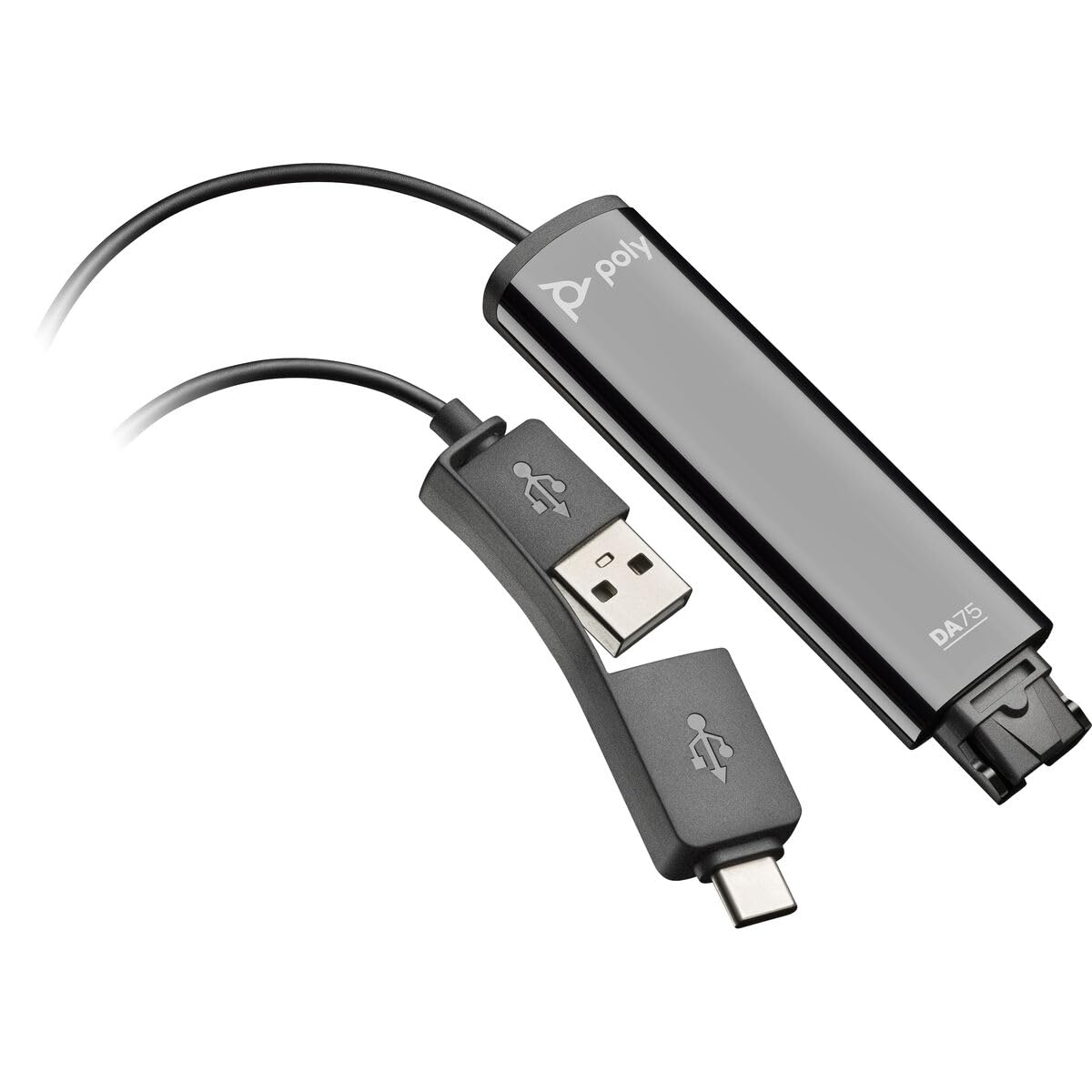
Image: The Poly DA75 USB-A/USB-C Digital Adapter, showing its dual USB-A and USB-C connectors and the Quick Disconnect port for headsets.
Chii chiri muBhokisi
The Poly DA75 package typically includes the following items:
- Poly DA75 USB-A/USB-C Digital Adapter
- Zvinyorwa (Kurumidza Kutanga Gwaro, Ruzivo Rwekuchengetedza)
Note: Headsets are sold separately and are not included with the DA75 adapter.
Gadzirira
Follow these steps to set up your Poly DA75 Digital Adapter:
- Batanidza Mahedhifoni: Connect your Poly Quick Disconnect (QD) headset to the QD port on the Poly DA75 adapter. Ensure the connection is secure.
- Batanidza kuKombuta:
- If your computer has a USB-A port, use the USB-A connector on the DA75 cable.
- If your computer has a USB-C port, use the USB-C connector on the DA75 cable.
Plug the appropriate USB connector into an available USB port on your computer.
- Kuiswa kwemutyairi: The DA75 is a plug-and-play device. Your operating system (Windows, macOS) should automatically detect the device and install the necessary drivers. This process may take a few moments.
- Verify Device Recognition:
- Windows: Enda ku Settings> System> Inzwi or Control Panel> Inzwi. The Poly DA75 should appear as an audio input and output device.
- macOS: Enda ku System Settings > Sound. The Poly DA75 should appear as an input and output device.
Select the Poly DA75 as your default communication device for both playback and recording.
- Software Configuration: If you are using communication software (e.g., Avaya, Genesys, Cisco, Microsoft Teams, Zoom), ensure that the Poly DA75 is selected as the audio device within the application's settings.
Operating Instruction
The Poly DA75 adapter facilitates audio communication through your connected Poly QD headset. Its operation is primarily managed through your computer's operating system and communication software.
- Kufona/Kugamuchira Mafoni: Use your communication software to initiate or answer calls. The audio will be routed through your connected Poly QD headset via the DA75 adapter.
- Kudzora inzwi: Adjust the listening volume using your computer's system volume controls or the volume controls within your communication application.
- Maikorofoni Kunyarara: Mute and unmute your microphone using the controls provided by your communication software.
- Audio Optimization: The DA75 automatically optimizes audio for your specific Poly QD headset. No manual adjustments are typically required for audio profiles.
Maintenance
To ensure the longevity and optimal performance of your Poly DA75 Digital Adapter, follow these maintenance guidelines:
- Kuchenesa: Gently wipe the adapter with a soft, dry, anti-static cloth. Do not use liquid cleaners or abrasive materials.
- Kuchengeta: Chengetedza adapta munzvimbo inotonhorera, yakaoma kure nechiedza chezuva uye tembiricha yakanyanyisa.
- Kubata: Avoid bending or twisting the cable excessively, especially near the connectors, to prevent internal damage.
- Kubatana: Ensure the Quick Disconnect (QD) connection and USB connections are clean and free of debris before connecting.
Kugadzirisa matambudziko
If you encounter issues with your Poly DA75 Digital Adapter, refer to the following troubleshooting steps:
| Dambudziko | Zvinogona Kukonzera | Solution |
|---|---|---|
| Hapana odhiyo kubva kumahedhifoni |
|
|
| Maikorofoni haisi kushanda |
|
|
| Adapter not recognized by computer |
|
|
Zvinotsanangurwa
| Feature | Detail |
|---|---|
| Model Number | 218266-01 |
| Brand | POLY |
| Connector Type | USB-A, USB-C (dual connector) |
| Inowirirana Devices | Poly Quick Disconnect (QD) Headsets |
| Mashandisirwo Akananga | PC, Call Center Platforms (Avaya, Genesys, Cisco) |
| Color | Nhema |
| Zviyero (L x W x H) | 0.98 x 0.39 x 2.95 inches |
| Item Weight | 30 magiramu |
| Nhamba yePorts | 2 (USB-A/USB-C to QD) |
| UPC | 197029650054, 017229175112 |
Warranty uye Support
Ruzivo rwewaranti: The Poly DA75 Digital Adapter comes with a Waranti yemakore maviri yemugadziri. Iyi waranti inovhara kukanganisa mune zvigadzirwa uye magadzirirwo pasi pekushandiswa kwakajairwa. Ndapota chengetedza humbowo hwako hwekutenga kwezvichemo zvewaranti.
Tsigiro yehunyanzvi: For technical assistance, product inquiries, or warranty service, please contact Poly customer support. Visit the official Poly website for the most up-to-date support contact information, FAQs, and additional resources.
Zvekushandisa Pamhepo: Poly Support Website