
1. Nhanganyaya
This manual provides detailed instructions for the installation, operation, and maintenance of your j5create USB-C Dual HDMI Docking Station (Model JCD542). This docking station is designed to expand the connectivity of your USB-C enabled laptop, offering dual display output, multiple USB ports, network connectivity, and power delivery.
Ndapota verenga bhuku rino zvakakwana usati washandisa chigadzirwa kuti uone kushanda kwakakodzera uye kudzivirira kukanganisa.
2. Chigadzirwa Pamusoroview
2.1 Package Zviri mukati
- j5create USB-C Dual HDMI Docking Station (JCD542)
- Bhuku reMirayiridzo
2.2 Device Layout and Ports
The JCD542 docking station features a comprehensive array of ports to enhance your workstation. Refer to the images below for a visual guide to the port layout.

Mufananidzo 1: Pamusoro-pasi view of the j5create JCD542 USB-C Dual HDMI Docking Station, showcasing its sleek design and various ports.

Image 2: Diagram illustrating the 10 available ports on the j5create JCD542 docking station, including USB-C Power In, USB 3.0, Mic/Speaker, SD/microSD, Gigabit Ethernet, 4K HDMI, HDMI, and Security Slot.
- Chinongedzo cheUSB-C Host: Connects to your laptop's USB-C port.
- USB-C Power In (PD 3.0): Supports up to 100W Power Delivery for charging your laptop.
- HDMI 1 (4K): Connects to a display for up to 4K (3840 x 2160) resolution.
- HDMI2: Connects to a display for up to 2K (2048 x 1152) or 1080p resolution.
- USB 3.0 (5Gbps) x3: Connects to USB peripherals such as keyboards, mice, or external drives.
- RJ45 Gigabit Ethernet: Inopa network ine waya yakasimba.
- SD Card Reader: Yekuverenga makadhi e SD memory.
- MicroSD Card Reader: For reading microSD memory cards.
- Combo Audio Jack (Mic/Speaker): Connects to headphones or speakers with a microphone.
- Chengetedzo Lock Slot: For attaching a security cable to prevent theft.
3. Setup
3.1 System Zvinodiwa
- Available USB-C port with DisplayPort Alternate Mode (Alt Mode) support.
- Windows 10 / 8.1 / 7 or macOS X 10.8 or later (macOS 11 & 12 supported).
- For Mac users, driver installation is required for display functionality. Please visit the j5create websaiti yevatyairi vazvino.
- For Power Delivery, your laptop must support USB-C Power Delivery.
3.2 Kubatanidza Nzvimbo Yekumisa Docking
- Connect the integrated USB-C host cable from the docking station to an available USB-C port on your laptop.
- If you wish to charge your laptop via the docking station, connect your laptop's USB-C power adapter to the USB-C Power In port on the docking station.
- Batanidza mamonitor ako ekunze kune HDMI ports pane docking station uchishandisa HDMI tambo.
- Connect any USB peripherals (keyboard, mouse, external hard drive) to the USB 3.0 ports.
- For a wired network connection, connect an Ethernet cable from your router/modem to the RJ45 Gigabit Ethernet port.
- Insert SD or microSD cards into the respective card reader slots if needed.
- Connect headphones or speakers to the Combo Audio Jack.

Image 3: A laptop connected to the j5create JCD542 docking station via its integrated USB-C cable, demonstrating a typical setup.

Image 4: Illustration showing compatibility with both Windows and Mac operating systems, highlighting the need for driver installation for Mac users.
4. Operating Instructions
4.1 Dual Display Configuration
The docking station supports extending your laptop's display to two external monitors. One HDMI port supports up to 4K (3840 x 2160) resolution, and the other supports up to 2K (2048 x 1152) or 1080p. You can also use your laptop screen for a total of three displays.

Image 5: A workstation demonstrating a dual-monitor setup connected via the j5create JCD542 docking station, enhancing productivity.
After connecting your monitors, you may need to configure display settings in your operating system (Windows Display Settings or macOS System Preferences > Displays) to extend or mirror your desktop.
4.2 Kuendesa Simba
The USB-C Power In port allows you to charge your laptop while using the docking station, supporting up to 100W Power Delivery. Ensure your laptop's original power adapter is connected to this port for charging.

Image 6: A USB-C power cable connected to the 'Power In' port of the j5create JCD542 docking station, indicating support for up to 100W Power Delivery to the connected laptop.
4.3 Data Transfer and Peripherals
The three USB 3.0 ports provide SuperSpeed 5Gbps data transfer rates for connecting various USB peripherals. The RJ45 Gigabit Ethernet port ensures a reliable and fast wired internet connection, while the SD and microSD card readers allow for convenient access to memory card data.

Mufananidzo 7: Pedyo-up view of the three SuperSpeed USB 3.0 ports on the j5create JCD542 docking station, with a USB device connected.

Mufananidzo 8: Pedyo-up view of the RJ45 Gigabit Ethernet port on the j5create JCD542 docking station, showing an Ethernet cable connected for a stable network connection.

Mufananidzo 9: Pedyo-up view of the SD and microSD card reader slots on the j5create JCD542 docking station, with a memory card being inserted.

Mufananidzo 10: Pedyo-up view of the combo audio jack (Mic/Speaker) on the j5create JCD542 docking station, with a 3.5mm audio plug inserted.
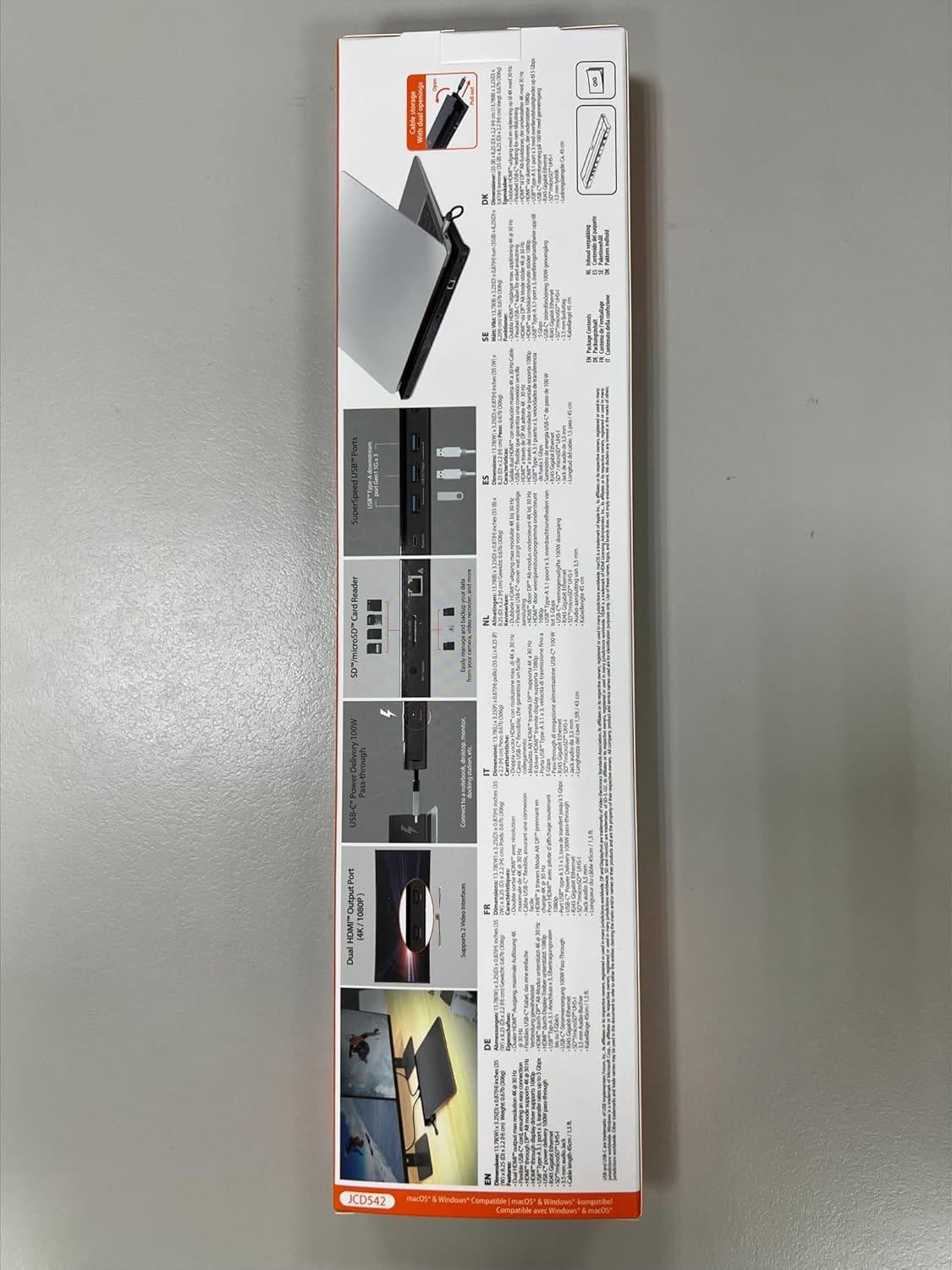
Mufananidzo 11: Pedyo-up view of the security lock slot on the j5create JCD542 docking station, showing a security cable being attached.
5. Kuchengeta
Kuti uve nechokwadi chekugara kwenguva refu uye kuita kwakakwana kwechiteshi chako chekumisikidza, tevera iyi nhungamiro yekugadzirisa:
- Chengeta mudziyo wakachena nekuupukuta nejira rakapfava, rakaoma. Dzivisa kushandisa mishonga yekuchenesa kana zvinonyungudutsa mvura.
- Usaisa mudziyo kune tembiricha yakanyanyisa, mwando, kana zuva rakananga.
- Dzivisa kudonhedza kana kuisa mudziyo kune zvinokanganisa zvakasimba.
- Ita shuwa kufefetera kwakaringana kwakatenderedza chiteshi chekudzivirira kudzivirira kupisa.
6. Kugadzirisa matambudziko
If you encounter issues with your j5create JCD542 docking station, refer to the following common problems and solutions:
- Hapana Kubuda
- Ita shuwa kuti laptop yako USB-C port inotsigira DisplayPort Alt Mode.
- Verify that all HDMI cables are securely connected to both the docking station and the monitors.
- For Mac users, ensure the necessary display drivers are installed. Visit the j5create support websaiti yekurodha mutyairi.
- Check your operating system's display settings to ensure monitors are detected and configured correctly (extended or mirrored).
- Try disconnecting and reconnecting the docking station from your laptop.
- Laptop haina kuchaja:
- Confirm that your laptop supports USB-C Power Delivery.
- Ensure your laptop's original USB-C power adapter is connected to the USB-C Power In port on the docking station.
- Verify the power adapter is functioning correctly and connected to a power outlet.
- USB Peripherals Haisi Kushanda:
- Ita shuwa kuti docking station yakabatana nemazvo kune yako laptop.
- Try connecting the peripheral directly to your laptop to confirm it is functional.
- Test the peripheral in a different USB 3.0 port on the docking station.
- Hapana Indaneti Inobatana neEthernet:
- Simbisa tambo yeEthernet yakabatana zvakachengeteka kune ese ari maviri docking chiteshi uye yako router/modemu.
- Check your network settings in your operating system.
- Iva nechokwadi chekuti router/modem yako iri kushanda nemazvo.
- Docking Station Inonzwa Kudziya:
- It is normal for the docking station to generate some heat during operation, especially when multiple ports are in use or when charging a laptop. Ensure it has adequate ventilation and is not covered.
7. Zvinotsanangurwa
| Model Number | JCD542 |
| Product Dimensions | 13.78 x 3.25 x 0.86 inches (350 x 82.5 x 21.8 mm) |
| Item Weight | 14.3 ounces (405 gramu) |
| Host inowanikwa | USB-C |
| Video Output | 2 x HDMI (1x 4K, 1x 2K/1080p) |
| USB Ports | 3 x USB 3.0 (5Gbps) |
| Ethernet | RJ45 Gigabit Ethernet |
| Kadhi Reader | SD / microSD |
| Vadivelu Comedy Audio | Combo Audio Jack (Mic/Speaker) |
| Power Delivery | Up to 100W via USB-C Power In port |
| Kugarisana | Windows 10/8.1/7, macOS X 10.8 or later (macOS 11 & 12) |
8. Warranty uye Tsigiro
j5create products are designed and manufactured with quality in mind. For warranty information and technical support, please refer to the official j5create websaiti kana kubata basa ravo revatengi.
Mugadziri: j5gadzira
Contact Information:
Kaijet Technology International BV
Address: Zomerdroom 20, 3068 MZ Rotterdam, Netherlands
Phone Number: +31 (0)6-2880 2882
E-mail: service@j5create.com
Ndapota chengetedza humbowo hwako hwekutenga kwezvichemo zvewaranti.