1. Nhanganyaya
Ndatenda nekutengaasing the Finlux FLU5535ANDROID 55-inch 4K Ultra HD Android Smart TV. This manual provides essential information for setting up, operating, and maintaining your new television. Please read this manual thoroughly before using the product and keep it for future reference.
Ruzivo Rwakakosha Chekuchengetedza
Always follow basic safety precautions when using this television to reduce the risk of fire, electric shock, and injury to persons. Do not expose the TV to rain or moisture. Do not open the cabinet. Refer all servicing to qualified personnel.
- Iva nechokwadi chekufefetera kwakaringana paTV.
- Do not block ventilation openings with items such as newspapers, table-cloths, or curtains.
- Usaise TV pangoro isina kugadzikana, stand, tripod, bracket, kana table.
- Bvisa TV panguva yemadutu emheni kana kuti isina kushandiswa kwenguva refu.
- Keep small components and batteries out of reach of children.
2. Chii chiri muBhokisi
Upon unpacking your Finlux FLU5535ANDROID TV, please ensure all the following items are present:
- Finlux FLU5535ANDROID 55-inch 4K Ultra HD Android Smart TV
- Remote Control nemabhatiri
- Power Cable
- Stand (if applicable, for tabletop placement)
- Mushandisi Chinyorwa (gwaro iri)
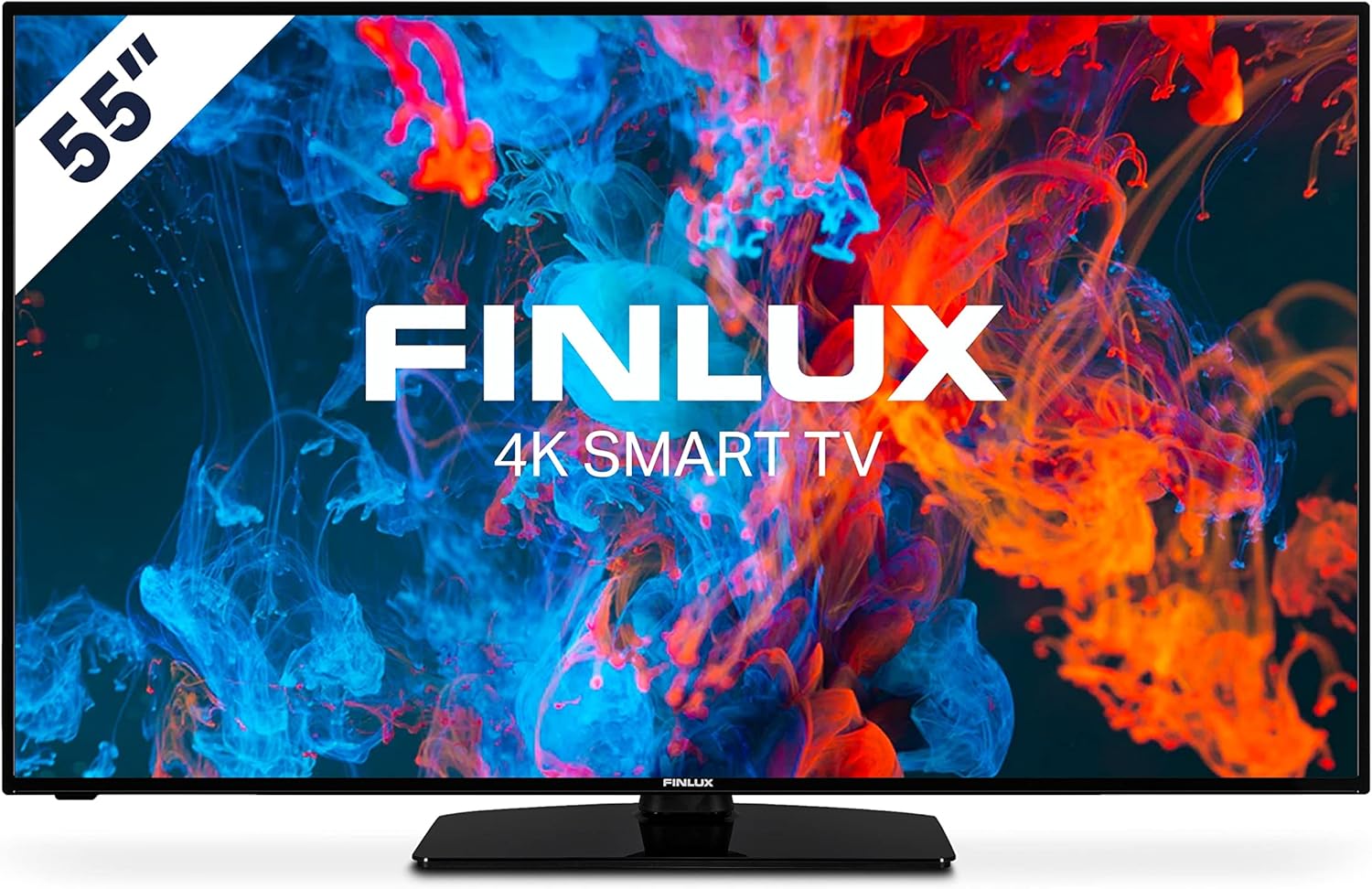
Mufananidzo: Mberi view of the Finlux FLU5535ANDROID 55-inch 4K Ultra HD Android Smart TV, showcasing its slim bezel and central stand.
3. Setup
3.1 Kuiswa Kwenyama
The Finlux FLU5535ANDROID TV features a practical size and a slim screen, making it easy to place in various rooms. Its flat back and thin screen design allow for easy wall mounting or placement against a wall.
- Tabletop Placement: Attach the provided stand securely to the TV following the instructions in the separate quick start guide. Place the TV on a stable, level surface.
- Kuisa madziro: If you plan to wall mount the TV, ensure you use a VESA-compatible wall mount (not included) and follow the wall mount manufacturer's instructions.
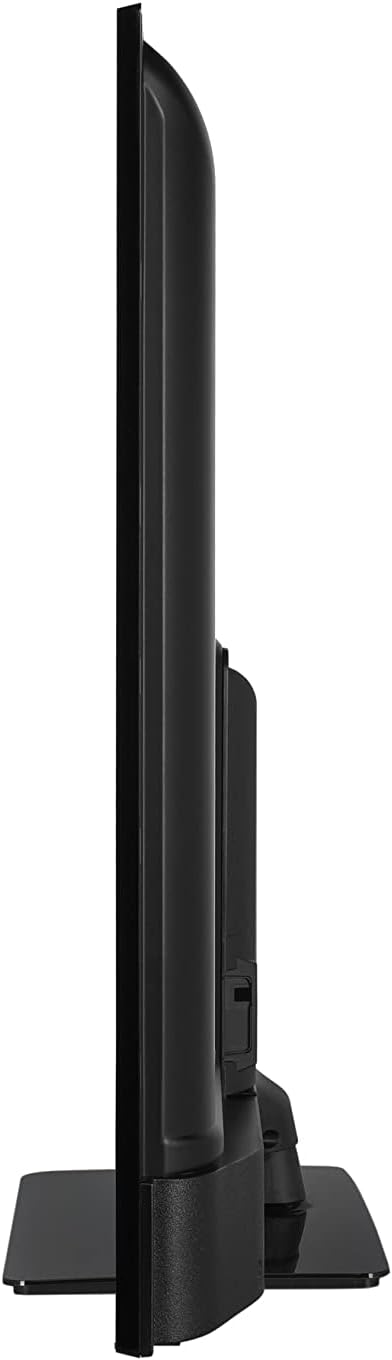
Mufananidzo: Side profile view of the Finlux FLU5535ANDROID TV, highlighting its slim design.
3.2 Kubatanidza Cables
Connect the power cable to the TV's power input and then to a wall outlet. Connect your external devices such as set-top boxes, gaming consoles, or Blu-ray players to the appropriate ports on the TV.

Mufananidzo: Rear view of the Finlux FLU5535ANDROID TV, displaying the arrangement of its input ports including HDMI and USB.
- HDMI: Connect high-definition devices using HDMI cables. This TV features 4 HDMI ports.
- USB: Connect USB storage devices for media playback or PVR functionality. This TV has 2 USB ports.
- Antenna/Cable: Batanidza antenna yako kana tambo yeTV yekuisa yenhepfenyuro.
- Ethernet Kune yakatsiga wired internet yekubatanidza.
3.3 Yekutanga Simba Pa uye Setup Wizard
After connecting all necessary cables, plug the TV into a power outlet and press the power button on the remote control or the TV itself. The TV will guide you through the initial setup process, including language selection, network connection, and channel scanning.
4. Kushandisa TV Yako
4.1 Remote Kudzora Pamusoroview
The provided remote control allows you to navigate the TV's features and menus. Insert the included batteries into the remote control before use.

Image: The Finlux TV remote control, featuring dedicated buttons for quick access to popular streaming services like Netflix and YouTube, along with standard navigation and number keys.
- Bhatani reSimba: Batidza kana kudzima TV.
- Mabhatani eNhamba: Kuti usarudze nzira zvakananga.
- Navigation Pad (Kumusoro/Kudzika/Kuruboshwe/Kurudyi/Zvakanaka): To navigate menus and confirm selections.
- Vhoriyamu kumusoro/Kudzika: Inogadzirisa chiyero chevhoriyamu.
- Channel Kumusoro/Kudzika: Inochinja chiteshi cheTV.
- Mabhatani eNetflix/YouTube: Kupinda zvakananga kune aya maapplication ekutepfenyura.
- Bhatani reMenu: Opens the main settings menu.
- Buda Bhatani: Inobuda pane yazvino menyu kana application.
4.2 Android Smart TV Features
This TV runs on the Android operating system, providing access to a wide range of applications and smart features. Popular applications like Netflix, YouTube, and Prime Video are pre-configured for your convenience.
- Kutepfenyura masevhisi: Enjoy movies and series in high quality from Netflix, YouTube, Prime Video, and Spotify.
- Google Play Store: Download additional apps, games, and content from the Google Play Store.
- Chromecast Yakavakwa-mukati: Easily cast content from your smartphone or other compatible devices directly to your TV.
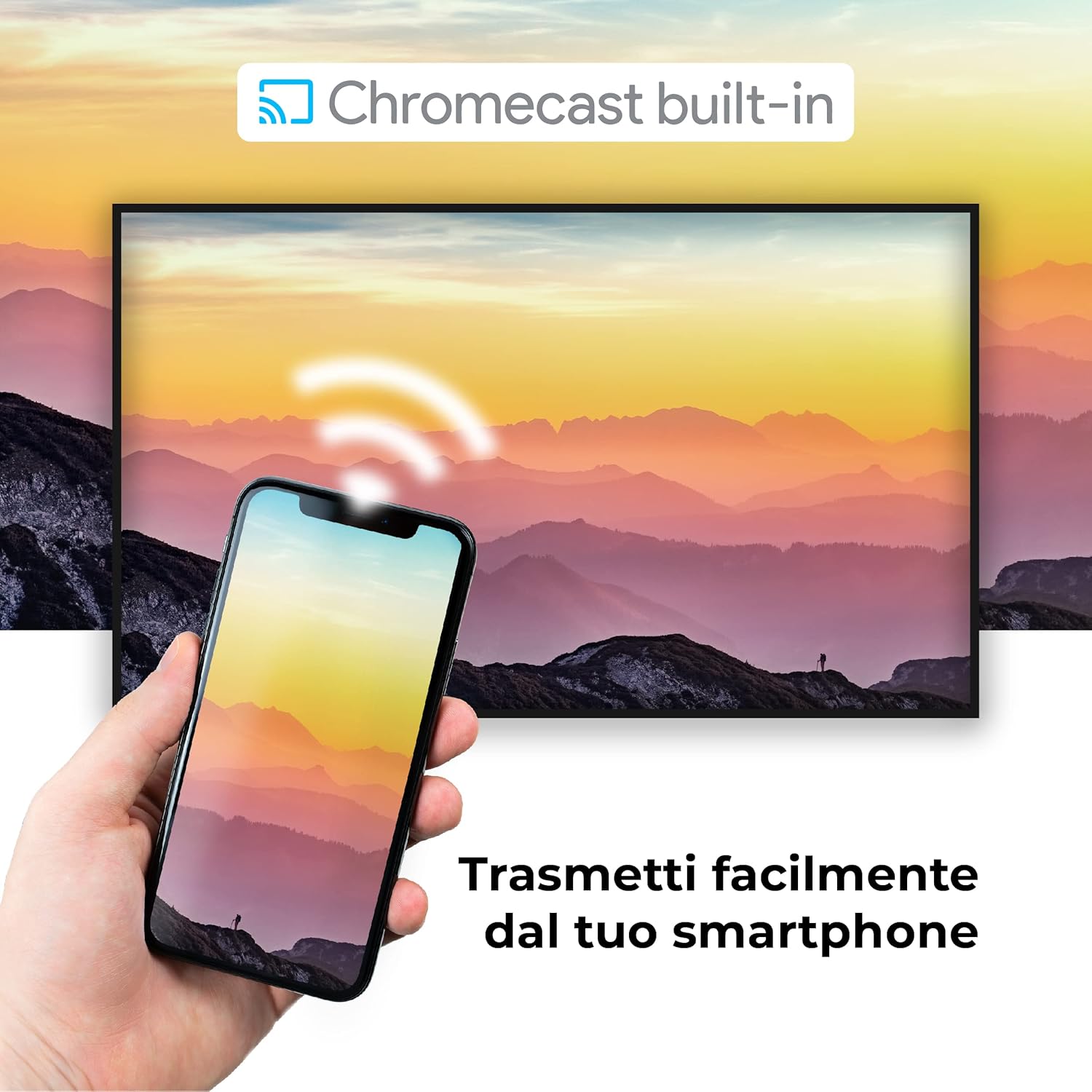
Image: A visual representation of the Chromecast built-in feature, demonstrating how content can be easily streamed from a smartphone to the Finlux TV.
4.3 USB Media Player and PVR
The TV supports USB multimedia playback, allowing you to view photos, play music, or watch videos directly from a USB storage device. It also features PVR (Personal Video Recorder) readiness, enabling you to record TV programs to a connected USB drive.
5. Zvisungo
Your Finlux TV offers a variety of connection options for external devices:
- HDMI Ports (x4): Kubatanidza zvishandiso zvine hunyanzvi hwakakura zvakaita seBlu-ray players, magame consoles, uye maset-top box.
- Zviteshi zve USB (x2): For connecting USB storage devices (e.g., flash drives, external hard drives) for media playback or PVR functionality.
- Bluetooth: For wireless connection to compatible audio devices like headphones or soundbars.
- Wi-Fi: Built-in Wi-Fi for wireless internet access and Smart TV features.
- Ethernet (LAN): Kune yakatsiga wired internet yekubatanidza.
- Antenna Input: For connecting an aerial for digital terrestrial television (DVB-T, DVB-T2).
- Satellite Input: For connecting a satellite dish (DVB-S, DVB-S2).
- Optical Digital Audio Output: For connecting to a soundbar or home theater system for high-quality audio.
6. Kuchengeta
6.1 Kuchenesa TV
To ensure the longevity and optimal performance of your TV, regular cleaning is recommended:
- Sikirini pukuta skrini zvinyoro nyoro nemucheka wakapfava, usina lint. Nokuda kwemavara akasindimara, dampen the cloth slightly with water or a specialized screen cleaner. Never spray cleaner directly onto the screen.
- Cabinet: Shandisa jira rakapfava, rakaoma kupukuta kabhineti yeTV. Dzivisa kushandisa zvinochenesa zvinogumbura kana zvinonyungudutsa.
- Before Cleaning: Gara uchisunungura TV kubva pamagetsi usati wachenesa.
6.2 Kutarisira Kwese
- Dzivisa kuisa TV muzuva rakananga kana pedyo nenzvimbo dzinopisa.
- Usaise TV munzvimbo dzinopisa zvakanyanya kana kuti dzine hunyoro.
- Protect the TV from dust by regularly dusting its surface.
- Usaise zvinhu zvinorema pamusoro peTV.
7. Kugadzirisa matambudziko
Kana ukasangana nenyaya neTV yako, tarisa kune anotevera matambudziko akajairika uye mhinduro usati wabata rutsigiro:
| Dambudziko | Zvinogoneka Chikonzero / Mhinduro |
|---|---|
| Hapana Simba | Ensure the power cable is securely plugged into the TV and the wall outlet. Check if the power outlet is working. Try pressing the power button on the TV itself. |
| Hapana Mufananidzo / Hapana Ruzha | Check the input source (HDMI, AV, TV) is correctly selected. Ensure external devices are powered on and connected properly. For sound, check volume levels and mute settings. |
| Hunhu Husina kunaka hweMufananidzo | Check antenna/cable connection. Adjust picture settings (brightness, contrast, sharpness) in the TV menu. Ensure the source content is high quality. |
| Remote Control Haisi Kushanda | Tarisa uye dzorera mabhatiri. Iva nechokwadi chekuti hapana zvipingamupinyi pakati pe remote ne sensor ye IR yeTV. |
| Haikwanisi Kubatanidza kuWi-Fi | Ensure Wi-Fi is enabled on the TV. Check your router is working and within range. Re-enter the Wi-Fi password. Try restarting both the TV and the router. |
| Mapurogiramu eTV Akangwara Haasi Kurodha | Check your internet connection. Try restarting the TV. Ensure the app is updated to the latest version. Clear app cache if available in settings. |
8. Zvinotsanangurwa
Below are the key technical specifications for the Finlux FLU5535ANDROID TV:
| Feature | Detail |
|---|---|
| Brand | Finlux |
| Model Number | FLU5535ANDROID |
| Screen Size | 55 inches (140 cm) |
| Display Technology | LED |
| Resolution | 4K Ultra HD (3840 x 2160) |
| Refresh Rate | 100 Hz (with integrated technology, base 50 Hz) |
| Operating System | Android |
| Kubatana | Bluetooth, HDMI, USB, Wi-Fi, Ethernet |
| HDMI Ports | 4 |
| USB Ports | 2 |
| Special Features | Flat Design, Android Smart TV, Chromecast Built-in, PVR Ready |
| Inotsigirwa Internet Services | Netflix, YouTube, Prime Video, Spotify |
| Inosanganisirwa Zvikamu | Power cable, Standard, TV |

Image: EU Energy Label for the Finlux FLU5535ANDROID TV, indicating its energy efficiency class G and power consumption details. For more details, visit the official EPREL database: EPREL Chigadzirwa Ruzivo
9. Warranty uye Tsigiro
Finlux products are designed for reliability and performance. This product comes with a standard manufacturer's warranty. Please refer to the warranty card included with your product for specific terms and conditions.
For technical support, troubleshooting assistance beyond this manual, or warranty claims, please contact Finlux customer service. Contact information can typically be found on the manufacturer's official websaiti kana pane chigadzirwa kurongedza.
Note: Information regarding spare parts availability is not provided. Software updates are not guaranteed beyond a certain period.