
Nhanganyaya
This manual provides detailed instructions for the installation, operation, and maintenance of your Everycom EC-901 80mm Thermal POS Receipt Printer. Please read this manual thoroughly before using the printer to ensure proper functionality and to prevent damage.
Safety Information
- Ensure the printer is connected to a power source with the correct voltage.
- Do not expose the printer to water or high humidity.
- Dzivisa kuisa printa pachiedza chezuva chakananga kana pedyo nekupisa.
- Use only specified thermal paper for optimal performance and to prevent damage to the print head.
- Usaedze kupatsanura kana kugadzirisa printa wega. Bata vashandi vane hunyanzvi.
Package Zviri mukati
Tarisa uone kuti zvinhu zvese zviripo mupakeji:
- Printer yeEverycom EC-901 Thermal POS Risiti
- Roll paper × 1 Roll (for initial testing)
- CD-ROM (containing Drivers, Utility Software, Manuals)
- Paper Guide
- Kutakura Pepa
- USB Cable
- Simba Adapter Cable
Product Overview
The Everycom EC-901 is a compact 80mm (3-inch) thermal POS receipt printer designed for efficient and reliable printing. It features a USB and LAN interface for versatile connectivity.

Mufananidzo 1: Mberi view of the Everycom EC-901 Thermal POS Receipt Printer.
Zvinokosha:
- Kukurumidza Kuprinda: Up to 160mm per second for quick receipt output.
- Kurodha Mapepa Zviri Nyore: Drop-in paper loading mechanism for quick and easy media changes.
- Compact Design: Low space requirement with an integrated power supply.
- Upamhi hwepepa hunochinja-chinja: Supports 80mm paper width.
- Kubatana: USB and LAN interface options.
- High Resolution: 203 x 203 DPI for clear print quality.
- Low Noise Levels: Operates quietly, suitable for various work environments.

Figure 2: Top-open design for easy paper roll installation.
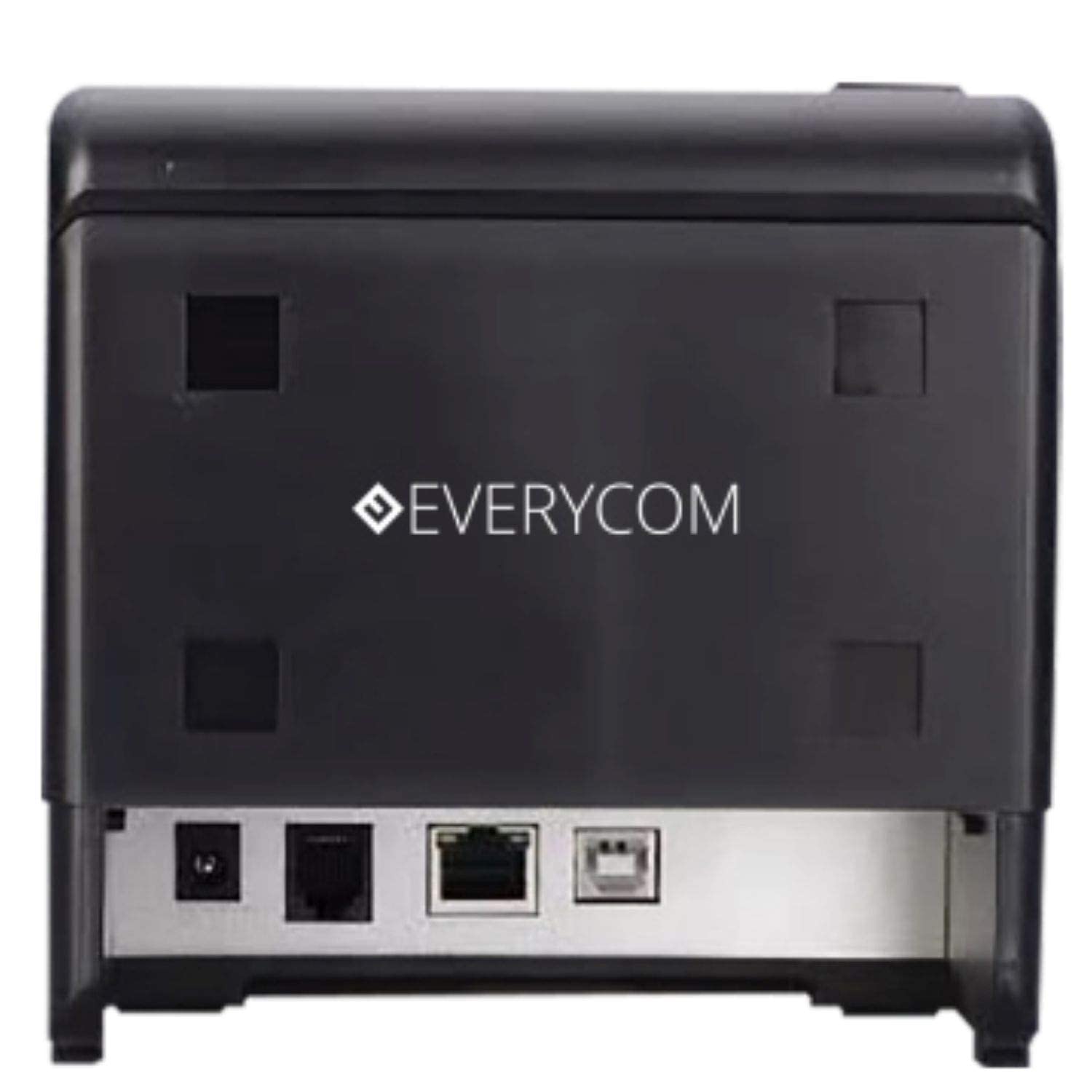
Mufananidzo 3: Kumashure view showing USB and LAN connectivity ports.

Figure 4: The EC-901 printer is designed for low noise operation.

Figure 5: The EC-901 printer features an easy-to-use design for paper installation.
Gadzirira
1. Connecting the Printer
- Connect the power adapter cable to the printer's power port and then plug it into a suitable electrical outlet.
- For USB connection: Connect one end of the USB cable to the printer's USB port and the other end to your computer.
- For LAN connection: Connect an Ethernet cable to the printer's LAN port and the other end to your network router or switch.
- Turn on the printer using the power switch located on the front or side of the device.
2. Installing the Paper Roll
- Open the printer cover by pressing the release button or lifting the cover.
- Insert the thermal paper roll into the compartment with the paper feeding from the bottom and exiting towards the front.
- Dhonza bepa diki uchipfuura nemuchina wekucheka.
- Vhara chifukidziro cheprinta zvakasimba kusvika chadzvanya panzvimbo yacho.
3. Kuiswa kwemutyairi
Insert the provided CD-ROM into your computer's CD/DVD drive. Follow the on-screen instructions to install the printer drivers and utility software. Drivers are typically compatible with Windows operating systems, including Windows 10.
Operating Instruction
Indicator Lights:
- SIMBA: Zvinoratidza kuti printer yakabatidzwa.
- ERROR: Lights up or flashes to indicate an error (e.g., print head overheating, cover open).
- PEPA: Indicates low paper or no paper.
Basic Printing:
Once the printer is connected and drivers are installed, you can print receipts from your POS software or any application that supports printing. Ensure the Everycom EC-901 is selected as the default printer or the desired printer in your application's print settings.
Maintenance
Kuchenesa Printer:
- Turn off the printer and disconnect the power cable before cleaning.
- Shandisa jira rakapfava, risina mucheka dampened with isopropyl alcohol to gently clean the thermal print head. Allow it to dry completely before use.
- Wipe the exterior of the printer with a soft, dry cloth. Do not use abrasive cleaners.
Replacing Paper:
When the PAPER indicator lights up or printing becomes faint, replace the paper roll following the steps outlined in the "Installing the Paper Roll" section.
Kugadzirisa matambudziko
| Dambudziko | Zvinogona Kukonzera | Solution |
|---|---|---|
| Printer haibatidzi. | Power cable disconnected or power outlet issue. | Tarisa magetsi emagetsi ekubatanidza. Ita shuwa kuti chinobuda magetsi chinoshanda. |
| No printing or blank output. | No paper, paper loaded incorrectly, or print head issue. | Check paper roll and ensure it's loaded correctly. Clean the print head if necessary. Verify printer drivers are installed. |
| PAPER indicator is on. | Paper roll is empty or low. | Tsiva mupumburu wepepa. |
| ERROR indicator is on. | Printer cover open, print head overheating, or other internal error. | Ensure the printer cover is closed properly. Turn off the printer, wait a few minutes for it to cool down, then restart. If the issue persists, contact support. |
| Printer not recognized by computer. | Driver not installed or USB/LAN cable issue. | Reinstall printer drivers. Check USB/LAN cable connections. Try a different port or cable. |
Zvinotsanangurwa
| Feature | Detail |
|---|---|
| Model Name | EC-901 |
| Printing Technology | Thermal |
| Print Media | Paper (plain thermal) |
| Maximum Media Size | 3 inches (80mm) |
| Maximum Print Speed | 160 mm/sekondi |
| Resolution | 203 x 203 DPI |
| Kubatana Technology | USB, LAN Interface |
| Printer Output | Monochrome |
| Operating System | Windows 10 (and compatible with other Windows versions) |
| Zviyero zveChigadzirwa (LxWxH) | 19.8 x 14.8 x 14.8 cm |
| Item Weight | 1.8 kg |
| Special Feature | Without Auto cutter |
Warranty uye Support
For technical assistance, warranty claims, or any product-related inquiries, please contact Everycom customer support.
- Nhamba Yemahara: 1800 121 4480
- Maawa Ekushanda: Muvhuro - Mugovera, 10:00 AM - 6:30 PM (Kunze kwemazororo everuzhinji)