
White Shark Apache 2
White Shark Apache 2 Gaming Keyboard and Mouse Combo User Manual
1. Nhanganyaya
The White Shark Apache 2 Gaming Combo provides a full-size gaming keyboard and a 6-button optical gaming mouse. Designed for PC use, this combo features a durable metal base, vibrant rainbow LED backlighting, and anti-ghosting functionality on 19 keys for enhanced gaming performance. The mouse offers high precision with up to 3200 DPI, ensuring responsive and accurate control.
Mufananidzo 1: Mberi view of the White Shark Apache 2 gaming keyboard and mouse combo.
2. Package Zviri mukati
Ndokumbira utarise kuti zvinhu zvese zviripo mupakeji:
- 1x White Shark Apache 2 Gaming Keyboard
- 1x White Shark Apache 2 Gaming Mouse
- 1x Chinyorwa cheMushandisi (gwaro iri)
3. Setup Instructions
Follow these steps to connect your White Shark Apache 2 Gaming Combo:
- Batanidza kiyibhodhi: Locate an available USB 2.0 port on your computer. Insert the USB connector from the White Shark Apache 2 keyboard into the port.
- Batanidza Mouse: Locate another available USB 2.0 port on your computer. Insert the USB connector from the White Shark Apache 2 mouse into the port.
- Automatic Recognition: Your operating system (Windows XP/VISTA/7/8/10 or MacOS) should automatically detect and install the necessary drivers for both devices. No additional software installation is typically required.

Figure 2: The White Shark Apache 2 keyboard and mouse connected via USB.
4. Operating Instructions
4.1 Keyboard Mabasa
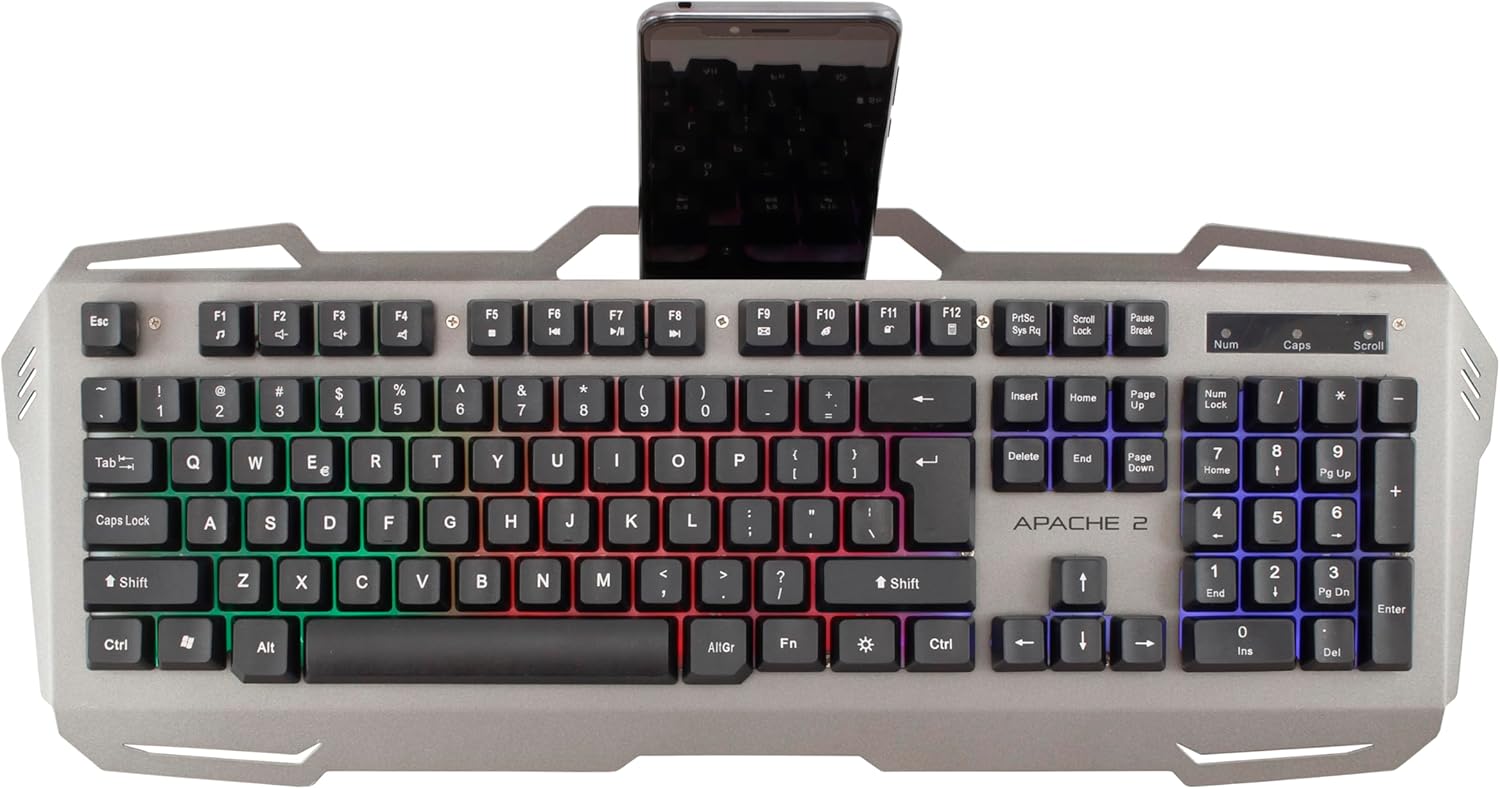
- Kudzora Mwenje we LED: The keyboard features a rainbow LED backlight. Use the Fn + Mupumburu Kiya keys to cycle through different lighting modes. Use Fn + Peji kumusoro kuwedzera kupenya kwechiedza chekumashure uye Fn + Peji Pasi kuderedza kupenya.
- Anti-Ghosting: The keyboard supports anti-ghosting on 19 keys, ensuring that multiple simultaneous key presses are registered accurately, which is crucial for gaming.
- Integrated Smartphone Holder: The keyboard includes a built-in slot at the top for holding a smartphone, providing convenient access during use.

Figure 3: White Shark Apache 2 keyboard featuring an integrated smartphone holder.
4.2 Mouse Mabasa
- DPI Kugadziriswa: The optical mouse features a 3200 DPI sensor. A dedicated button located behind the scroll wheel allows you to cycle through different DPI settings to adjust cursor sensitivity to your preference.
- 6 Mabhatani: The mouse is equipped with 6 buttons, including left-click, right-click, scroll wheel, DPI adjustment, and two side buttons, providing versatile control for gaming and general use.
- Chiyero chekuvhota: The mouse operates with a polling rate of up to 125 Hz, ensuring a responsive and lag-free experience.

Figure 4: Close-up of the keyboard's LED backlight and the mouse's DPI button.
5. Kuchengeta
Proper maintenance ensures the longevity and optimal performance of your gaming combo:
- Kuchenesa: Use a soft, dry cloth to gently wipe the surfaces of the keyboard and mouse. For stubborn dirt, a slightly damp jira rinogona kushandiswa, asi ona kuti hapana mvura inopinda mumidziyo.
- Dzivisa Makemikari: Do not use harsh chemicals, abrasive cleaners, or solvents, as these can damage the finish and internal components.
- Kuchengeta: Store the devices in a clean, dry environment, away from direct sunlight, extreme temperatures, and excessive dust or moisture.
6. Kugadzirisa matambudziko
Kana ukasangana nematambudziko, tarisa kune anotevera akajairika mhinduro:
- Mudziyo Hauzivikanwe:
- Ensure the USB cables are securely connected to your computer's USB ports.
- Try connecting the devices to different USB ports.
- Tangazve komputa yako.
- Keyboard LEDs Not Working:
- Check if the backlight is turned off or set to minimum brightness using the Fn + Peji Kumusoro/Kudzika keys.
- Iva nechokwadi chekuti kiyibhodhi yakabatana nemazvo.
- Mouse Cursor Erratic or Unresponsive:
- Gezai sensor yemaziso iri pasi pembeva nejira rakapfava, rakaoma.
- Ensure the mouse pad or surface is clean, uniform, and suitable for optical mice.
- Edza kubatanidza mbeva kune imwe USB port.
- Specific Keys Not Responding:
- Iva nechokwadi chekuti kiyibhodhi yakabatana nemazvo.
- Test the keys in different applications to rule out software issues.
- Kana nyaya ikaramba iripo, bata rutsigiro rwevatengi.
7. Zvinotsanangurwa
| Feature | Detail |
|---|---|
| Product Type | Yemitambo Keyboard uye Mouse Combo |
| Brand | White Shark |
| Model | Apache 2 |
| Kubatana | USB 2.0 |
| Keyboard Layout | QWERTY, 104 keys |
| Keyboard Anti-Ghosting | 19 makiyi |
| Keyboard Backlight | Rainbow LED, adjustable intensity |
| Nguva Yehupenyu hweKiibhodhi | Anosvika 5 miriyoni keystrokes |
| Rudzi rweSensor yeMbeva | Optical |
| Mouse DPI | Kusvika ku3200 DPI |
| Mouse Buttons | 6 |
| Mouse Polling Rate | Kusvika ku125 Hz |
| Mouse Lifespan | Kusvika mamirioni matatu kudzvanya |
| Cable Length | 150 cm |
| Inowirirana Operating Systems | Windows XP/VISTA/7/8/10, MacOS |
| Khibhodi Yemidziyo | Metal base |
8. Ruzivo rweWaranti
White Shark products typically come with a limited manufacturer's warranty. For detailed warranty terms, conditions, and duration, please refer to the warranty card included with your product or visit the official White Shark website. Chengetedza humbowo hwako hwekutenga kune chero vimbiso yewaranti.
9. Mutengi Tsigiro
For technical assistance, troubleshooting beyond the scope of this manual, or warranty claims, please contact White Shark customer support. Contact details, including phone numbers, email addresses, or support portals, can usually be found on the product packaging or the official White Shark website.