
1. Chigadzirwa Pamusoroview
The Lexar Professional CFexpress Type A / SD USB 3.2 Gen 2 Reader is designed to facilitate high-speed data transfer from CFexpress Type A and SD UHS-II memory cards to your computer. It supports USB 10Gbps (USB 3.2 Gen 2) transfer rates, optimizing workflow for content creators handling high-resolution photos and video content.

Image 1: Lexar Professional CFexpress Type A / SD USB 3.2 Gen 2 Reader. This image displays the compact design of the card reader, highlighting its dual-slot capability for both CFexpress Type A and SD cards.
2. Package Zviri mukati
- Lexar Professional CFexpress Type A / SD USB 3.2 Gen 2 Reader
- 2-in-1 USB Type-C to Type-A cable
- USB Type-C kune Type-C tambo
3. Setup uye Connection
Follow these steps to connect your card reader and begin data transfer:
- Connect the Reader to Your Computer: Use the provided USB Type-C to Type-A cable or USB Type-C to Type-C cable to connect the reader to an available USB port on your computer. Ensure your computer's USB port supports USB 3.2 Gen 2 for optimal performance.
- Isa Memory Card:
- For CFexpress Type A cards, gently insert the card into the designated CFexpress Type A slot until it clicks into place.
- For SD UHS-II cards, gently insert the card into the designated SD slot until it clicks into place.
- Verify Connection: A small LED indicator on the reader will illuminate when properly connected and a card is inserted, indicating readiness for data transfer.

Image 2: The card reader connected to a laptop via its USB-C cable, demonstrating its integration into a digital workflow.
4. Kushanda
The Lexar Professional CFexpress Type A / SD USB 3.2 Gen 2 Reader supports simultaneous high-speed transfers from both CFexpress Type A and SD UHS-II cards.
- Kuendesa Data: Once connected and cards are inserted, your computer will recognize the cards as removable storage devices. You can then drag and drop files, or use your preferred file management software to transfer data.
- High-Speed Performance: Expect CFexpress Type A memory card transfer speeds up to 900MB/s and UHS-II SD memory card transfer speeds up to 312MB/s, depending on your card's capabilities and system configuration.
- Simultaneous Access: The dual-slot design allows for reading and writing to both card types concurrently, enhancing efficiency.

Mufananidzo 3: Pedyo-up view of the card reader with a CFexpress Type A card and an SD card partially inserted, illustrating the dual-slot functionality.
5. Kugarisana
The reader is compatible with various operating systems:
- Mac OS 10.8+
- Windows 11/10/8/7/Vista/XP
- Requires a USB 2.0+ port (USB 3.2 Gen 2 recommended for full speed)
6. Kuchengeta uye Kuchengeta
To ensure the longevity and optimal performance of your Lexar card reader:
- Bata Nekungwarira: Avoid dropping the reader or subjecting it to excessive force.
- Ramba Wakachena: Use a soft, dry cloth to clean the exterior. Do not use liquid cleaners or solvents.
- Protect Slots: Keep the card slots free from dust and debris. Avoid inserting foreign objects.
- Kubviswa Kwakachengeteka: Always safely eject the card reader from your computer's operating system before physically disconnecting it to prevent data corruption.
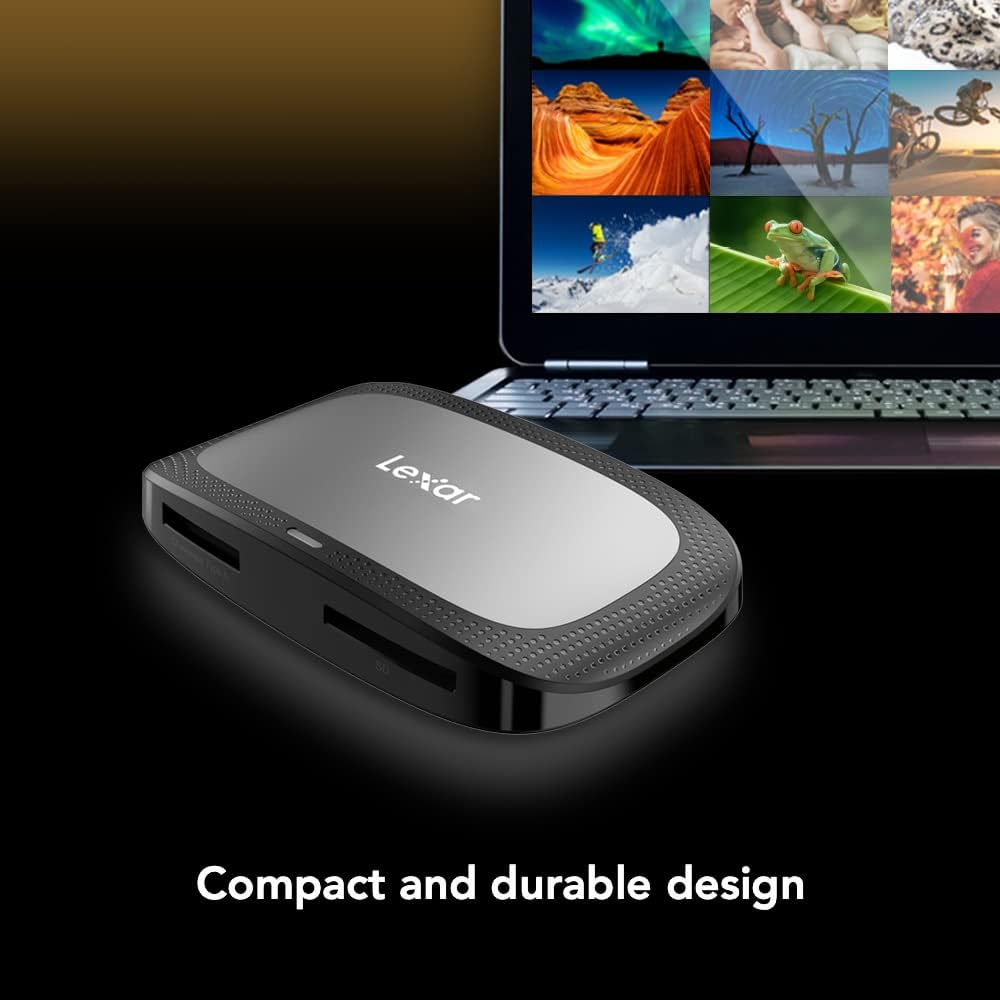
Image 4: The compact and durable design of the card reader, emphasizing its portability and robust build.
7. Kugadzirisa matambudziko
- Mudziyo Hauzivikanwe: If the reader is not recognized by your computer, ensure you are using the included high-speed USB cable. Older or standard USB cables may not support the required data transfer rates or power delivery, preventing the device from being detected. Try a different USB port or cable.
- Kufamba Kunononoka: Verify that your computer's USB port supports USB 3.2 Gen 2. If connected to a slower USB port (e.g., USB 2.0), transfer speeds will be limited. Also, ensure your memory cards are high-speed CFexpress Type A or SD UHS-II cards.
- Kuora kweData: Always safely eject the memory cards and the reader from your operating system before physical removal. Abrupt disconnection can lead to data corruption.
- Bent Pins: Exercise caution when inserting CFexpress cards. Bent pins can occur if cards are not inserted correctly. Always align the card properly before pushing it into the slot.
8. Zvinotsanangurwa
| Feature | Detail |
|---|---|
| Brand | Lexar |
| Series | Professional CFexpress Type A / SD USB 3.2 Gen 2 Reader |
| Model Number | LRW530U-RNBNG |
| Media Type | CFexpress Type A, SD UHS-II |
| Kubatana Technology | USB Type C (USB 3.2 Gen 2) |
| CFexpress Type A Transfer Speed | Up to 900MB/s (Read) |
| SD UHS-II Transfer Speed | Up to 312MB/s (Read) |
| Operating System Kuenderana | Mac OS 10.8+, Windows 11/10/8/7/Vista/XP |
| Item Weight | 2.72 ounces |
| Product Dimensions | 11.34 x 5.91 x 4.53 inches |
| Color | Nhema |
9. Ruzivo rweWaranti
The Lexar Professional CFexpress Type A / SD USB 3.2 Gen 2 Reader comes with a Makore maviri Akaganhurirwa Warranty. For detailed warranty terms and conditions, please refer to the official Lexar website or contact Lexar customer support.
10. Tsigiro
For further assistance, technical support, or to download the latest drivers, please visit the official Lexar support webwebhusaiti. Unogonawo kuwana mibvunzo inowanzo bvunzwa (FAQs) nezvimwe zvinhu ipapo.