
1. Nhanganyaya
The AMROOLOO Dual System Car Head-Up Display projects essential vehicle and driving data onto its screen, allowing you to monitor information such as speed, RPM, and more without diverting your gaze from the road. This device supports both OBD and GPS modes, offering broad compatibility across various vehicle types. It can be installed on your car's center console or windshield using the provided double-sided adhesive pad or suction cup bracket.

Image 1.1: The AMROOLOO Head-Up Display mounted on a car dashboard, showing various driving parameters.
2. Package Zviri mukati
Iva nechokwadi chekuti zvinhu zvese zvakanyorwa pazasi zvinosanganisirwa mupakeji yechigadzirwa chako:
- One (1) Main Head-Up Display Unit
- One (1) Dual-Purpose OBD Cable
- One (1) Suction Cup Bracket
- One (1) Double-Sided Adhesive Pad
- One (1) Instruction Manual

Image 2.1: All components included in the AMROOLOO Head-Up Display package.
3. Mudziyo Pamusoroview
Familiarize yourself with the main unit's components and connection points:

Mufananidzo 3.1: Mberi nekumashure view of the device with key features labeled.
- Setting Key: Used for navigating menus and confirming selections.
- Adjustment Key 1 & 2: Used for adjusting values or selecting options within menus.
- Manual Shutdown Key: Powers the device on or off manually.
- Photosensitive Hole: Light sensor for automatic screen brightness adjustment.
- Cable Jack: Port for connecting the OBD cable.
- Buzzer Hole: Speaker for audible alerts.
4. Kuiswa
Follow these steps to properly install your Head-Up Display:
- Sarudza Nzvimbo Inokwirisa: Select a flat, stable surface on your car's dashboard or windshield that does not obstruct your view yemugwagwa.
- Chenesa Nzvimbo: Ensure the chosen area is clean and dry for optimal adhesion.
- Batanidza Bracket:
- For Dashboard Mounting: Apply the double-sided adhesive pad to the bottom of the main unit or the provided bracket, then firmly press it onto the dashboard.
- For Windshield Mounting: Attach the suction cup bracket to the main unit, then press the suction cup firmly against the windshield and engage its locking mechanism.
- Connect the OBD Cable: Plug one end of the dual-purpose OBD cable into the 'Cable Jack' on the back of the Head-Up Display. Connect the other end to your vehicle's OBD-II port, typically located under the dashboard near the steering wheel.
- Route the Cable: Carefully route the cable to avoid interference with driving controls and to maintain a tidy appearance.
- Power On: Once connected, the device should power on automatically with the vehicle's ignition. If not, press the Manual Shutdown Key.
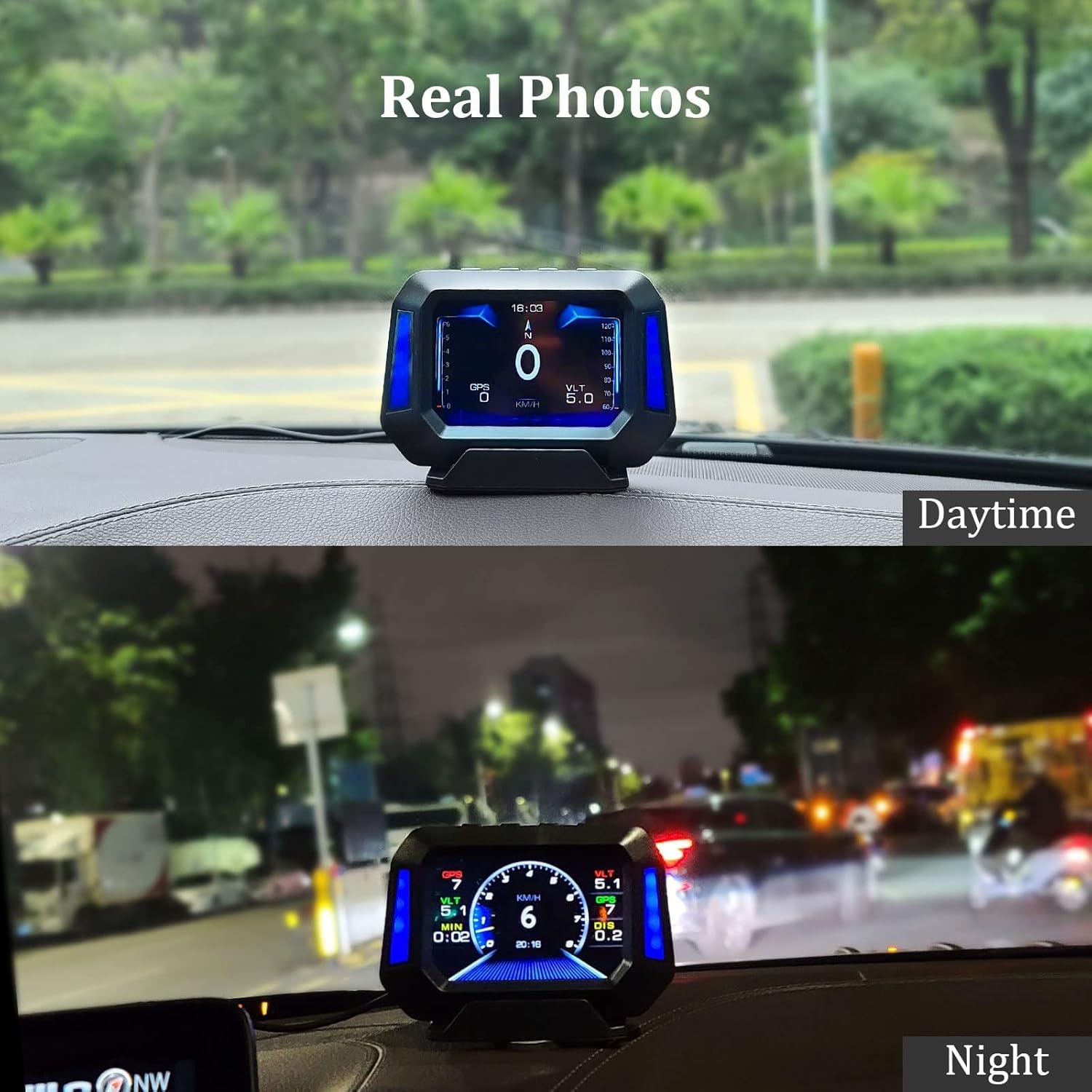
Mufananidzo 4.1: Eksamples of the Head-Up Display's appearance when installed, showing visibility in both day and night conditions.
5. Operation Modes and Compatibility
The device supports two primary operation modes:
- OBD Mode: This mode reads data directly from your vehicle's On-Board Diagnostics (OBD-II) system. It is generally compatible with most car models manufactured after 2008.
- GPS Mode: This mode uses satellite signals to obtain driving data. It is compatible with all vehicles, regardless of make or model year.
The device will automatically attempt to connect via OBD first. If OBD data is not detected or if your vehicle is not compatible, it will switch to GPS mode. You can also manually select the preferred mode through the device settings.

Image 5.1: The Head-Up Display is compatible with a wide range of vehicles, utilizing either OBD or GPS mode.
6. Ratidza Mabasa
The Head-Up Display can show a variety of vehicle and driving parameters. Use the Setting Keys to cycle through different display screens and customize the information shown.

Image 6.1: A visual representation of the numerous data points and functions available on the display.
Commonly displayed data includes:
- Speed (km/h or mph)
- Engine RPM (Revolutions Per Minute)
- Altitude
- Current Time
- Bhatiri Voltage
- Kutyaira Mileage
- Kutya Nguva
- Kushandiswa Kwemafuta
- Mvura Tembiricha
- Oiri Tembiricha
- Turbo Pressure
- Intake Air Pressure
- Gearbox Temperature
7. Alarm Mabasa
The device is equipped with various alarm functions to alert you to potential issues or exceeded limits, enhancing driving safety. These alarms can typically be configured in the device settings.

Image 7.1: Visual representation of the different alarm types provided by the device.
- Overspeed Alarm: Alerts you when the vehicle speed exceeds a preset limit.
- Engine Temperature Alarm: Warns if the engine coolant temperature becomes too high.
- Engine RPM Alarm: Notifies you if the engine RPM exceeds a safe operating range.
- Voltage Alarm: Indicates if the vehicle's battery voltage yakaderera zvakanyanya kana yakakwirira kwazvo.
- Tilt Angle Alarm: Alerts you if the vehicle's tilt angle (pitch or roll) exceeds a safe threshold, particularly useful for off-road driving.
8. Slope Meter Function
A distinctive feature of this Head-Up Display is its integrated inclinometer, or slope meter. This function provides real-time monitoring of your vehicle's driving angle, indicating both uphill and downhill inclinations. This feature is active in both OBD and GPS modes, offering continuous feedback for navigating varied terrains and ensuring driving stability.

Image 8.1: The slope meter function visually indicating vehicle inclination during uphill, downhill, and side-tilt scenarios.
9. Kugadzirisa matambudziko
If you encounter issues with your AMROOLOO Head-Up Display, refer to the following common troubleshooting steps:
- Hapana Simba/Display Off:
- Check if the OBD cable is securely connected to both the device and the vehicle's OBD-II port.
- Iva nechokwadi chekuti mota yabatidzwa.
- Try pressing the Manual Shutdown Key to power on the device.
- No Data Displayed (OBD Mode):
- Verify your vehicle is compatible with OBD mode (most cars after 2008).
- Ensure the OBD cable is not damaged.
- The device may automatically switch to GPS mode if OBD data is unavailable.
- Inaccurate Speed/GPS Data:
- Ita shuwa kuti mudziyo une yakajeka view yedenga kuitira kugashira chiratidzo cheGPS.
- Calibrate the speed setting in the device menu if there's a discrepancy with your vehicle's speedometer.
- Alarms Triggering Incorrectly:
- Review the alarm threshold settings in the device menu and adjust them as needed.
- Screen Brightness Issues:
- Ensure the Photosensitive Hole is not obstructed, as it controls automatic brightness adjustment.
- Adjust brightness manually through the device settings if automatic adjustment is not preferred.
If these steps do not resolve the issue, please consult the full instruction manual or contact customer support.
10. Zvinotsanangurwa
| Attribute | Value |
|---|---|
| Brand | AMROOLOO |
| Material | Plastiki |
| Zvinhu Zviyero (LxWxH) | 11.5 x 1.8 x 8.2 cm |
| Item Weight | 121 magiramu |
| EU Spare Part Availability | 10 Makore |
11. Safety Information
Please read and follow these safety guidelines to ensure safe operation and prevent damage to the device or your vehicle:
- Do not install the device in a location that obstructs your view yemugwagwa kana kukanganisa kushanda kweairbags kana zvimwe zvinhu zvekuchengetedza.
- Ensure all cables are securely connected and routed away from moving parts or areas that could cause entanglement.
- Rega kuisa mudziyo kune tembiricha yakanyanyisa, zuva rakananga kwenguva refu, kana hunyoro hwakanyanya.
- Usaedze kudimbura kana kugadzirisa mudziyo wega. Tarisa kune vashandi vanokwanisa.
- Always prioritize safe driving. Do not operate or adjust the device while driving if it distracts you from the road.
12. Warranty uye Tsigiro
This product comes with a standard manufacturer's warranty. For specific warranty terms, duration, and claim procedures, please refer to the documentation included in your package or contact the seller directly. For technical support or further assistance, please reach out to AMROOLOO customer service through the contact information provided with your purchase.