
Nhanganyaya
The j5create USB4 8K Multi-Function Hub (JCD403) is designed to expand the connectivity of your USB4, Thunderbolt 4, or Thunderbolt 3 host device. It provides multiple ports including HDMI for high-resolution video output, 2.5 Gigabit Ethernet for fast network access, USB-A and USB-C ports for data transfer, and Power Delivery for charging your host device. This manual provides instructions for setup, operation, and troubleshooting to ensure optimal performance.

Mufananidzo: Pamusoroview of the j5create USB4 8K Multi-Function Hub (JCD403) highlighting its various ports and compact design.
Product Features
- USB4 Technology: Provides up to 40Gbps data transfer rates and upgraded bandwidth for video and data. Backward compatible with Thunderbolt 4, Thunderbolt 3, and other USB-C host devices.
- 8K60 / 4K144 HDMI Output: Supports ultra-high-resolution video output up to 8K at 60Hz or 4K at 144Hz for a high-quality visual experience in both mirror and extended display modes.
- 2.5G Ethernet Port: Offers a wired network connection with speeds up to 2500Mbps (2.5Gbps) for faster file transfers and stable streaming.
- Power Delivery (PD) Charging: Features a USB-C PD port with up to 100W power delivery to charge your host laptop. The hub consumes approximately 5W for normal operation.
- High-Speed USB Data Ports: Includes two USB-A data ports and one USB-C data port, all supporting up to 10Gbps transfer speeds for connecting various peripherals.

Image: Diagram illustrating the internal components and high-speed capabilities of the USB4 technology within the hub.
Package Zviri mukati
- j5create USB4 8K Multi-Function Hub (JCD403)
- Bhuku reMirayiridzo
Setup Instructions
- Batanidza kune Host Device: Plug the integrated USB-C cable of the JCD403 hub into an available USB4, Thunderbolt 4, or Thunderbolt 3 port on your laptop or compatible device.
- Batanidza Power Adapter (Inosarudza asi Inokurudzirwa): For optimal performance and to charge your host device, connect your laptop's USB-C power adapter (up to 100W) to the USB-C PD input port on the JCD403 hub.
- Batanidza HDMI Display: Connect an HDMI cable from your monitor to the HDMI port on the JCD403. Ensure your monitor and HDMI cable support the desired resolution (e.g., 8K60Hz or 4K144Hz).
- Batanidza Ethernet Cable: For a wired network connection, plug an Ethernet cable into the 2.5G Ethernet port on the hub.
- Batanidza USB Peripherals: Connect your USB-A and USB-C devices (e.g., keyboard, mouse, external drives) to the corresponding data ports on the JCD403.

Image: The j5create JCD403 hub connected to a laptop, illustrating the various ports in use, including USB-C PD, USB-C data, USB-A data, RJ45 Ethernet, and HDMI.
Operating Instruction
- Kuona otomatiki: The hub is designed for plug-and-play operation. Your operating system should automatically detect the connected devices and external display.
- Ratidza Kugadziriswa: Access your computer's display settings to configure mirror or extended display modes, adjust resolution, and refresh rates for the connected HDMI monitor.
- Power Delivery: When a compatible USB-C power adapter is connected to the hub's PD port, it will pass power through to charge your host laptop while the hub is in use.
- Kuendesa Data: Use the USB-A and USB-C data ports to connect and transfer data with your external storage devices, keyboards, mice, and other USB peripherals.
- Network Access: The 2.5G Ethernet port provides a stable and high-speed wired internet connection. Ensure your network infrastructure supports 2.5G speeds for optimal performance.
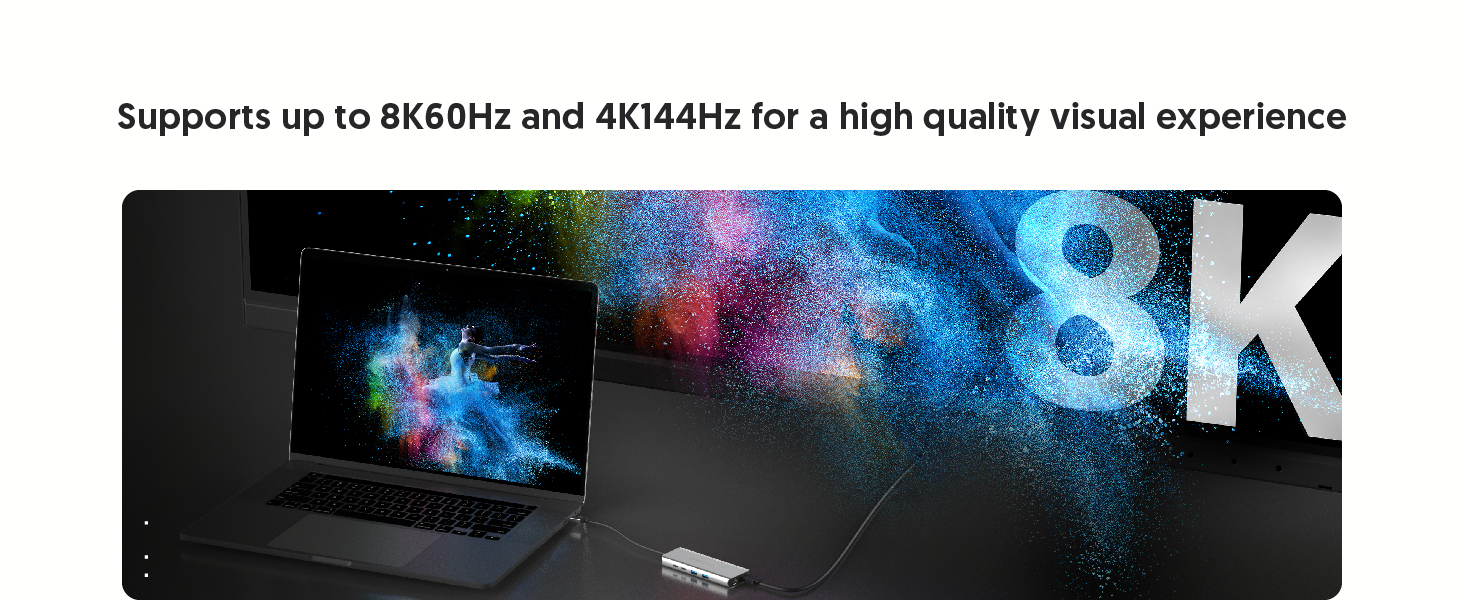
Image: A laptop connected to an external monitor via the hub, displaying an 8K resolution image, demonstrating the high-resolution HDMI output capability.
Maintenance
- Kuchenesa: Use a soft, dry cloth to clean the exterior of the hub. Avoid liquid cleaners or solvents.
- Kuchengeta: Store the hub in a cool, dry place away from direct sunlight and extreme temperatures when not in use.
- Kubvisa Kupisa: The aluminum housing and vent design assist in heat dissipation. Ensure the hub is placed in a well-ventilated area to prevent overheating during prolonged use.

Image: Illustration showing the aluminum housing and vent design of the JCD403 hub, indicating its effective heat dissipation capabilities.
Kugadzirisa matambudziko
- No Display Output or Incorrect Resolution:
- Ita shuwa kuti HDMI tambo yakabatana zvakachengeteka kune ese hub uye cheki.
- Verify that your host device, HDMI cable, and monitor all support the desired resolution and refresh rate.
- Check your computer's display settings to ensure the external monitor is detected and configured correctly (e.g., extended or mirrored).
- For macOS, note that HDR support with certain HDMI adapters may require specific monitor settings or EDID profile adjustments. macOS typically supports up to 4K60Hz with HDMI output.
- Slow Ethernet Speed:
- Confirm your Ethernet cable and network infrastructure (router/switch) support 2.5G speeds.
- Ensure your host device's drivers for the Ethernet adapter are up to date.
- Test with a different Ethernet cable or port if possible.
- USB Zvishandiso Hazvizivikanwe kana Slow Data Transfer:
- Ensure USB devices are properly connected to the hub's ports.
- Some high-power USB devices may require external power or a powered hub.
- Verify that your host device's USB drivers are current.
- Power Delivery Issues:
- Ensure your USB-C power adapter is connected to the hub's PD input port and is capable of providing sufficient wattage (kusvika ku100W).
- The hub itself consumes approximately 5W; ensure your power adapter provides enough wattage for both the hub and your laptop.
- Intermittent Connectivity or Device Instability:
- Bvisa uye batanidza zvakare hub kubva pamudziyo wako wekugamuchira.
- Ita shuwa kuti zvese zvinongedzo zvakachengeteka.
- If experiencing system crashes on macOS, ensure your operating system is updated and try connecting the hub and peripherals in a specific sequence (e.g., hub first, then power, then display, then USB devices).
Zvinotsanangurwa
| Model | JCD403 |
| Product Dimensions | 7.87 x 2.01 x 5.31 inches |
| Item Weight | 6 ounces |
| Hardware inowanikwa | Ethernet, HDMI, Thunderbolt, USB, USB 3.0, USB Type C |
| Special Feature | Fast Charging (Power Delivery up to 100W) |
| Color | Space Grey |
Kugarisana
The j5create USB4 8K Multi-Function Hub (JCD403) is compatible with a wide range of devices supporting Type-C, Thunderbolt 3, Thunderbolt 4, or USB4 interfaces. This includes:
- 2022 MacBook Pro/Air M2
- 2021 MacBook Pro 14-inch, 16-inch (M1 Pro)
- 2020 MacBook Pro/Air M1
- 2019/2018/2017/2016 MacBook Pro
- 2018 MacBook Air
- 2021 iMac M1, 2019/2017 iMac, iMac Pro
- Mac Mini M1
- 2022 iPad Air M1, 2021 iPad Pro M1, 2020/2018 iPad Pro, 2020 iPad Air
- Other laptops and devices supporting Type-C, Thunderbolt 3, Thunderbolt 4, or USB4 interfaces.

Image: Two laptops, one Windows and one macOS, connected to the JCD403 hub, illustrating its broad compatibility with Thunderbolt and USB4 devices.
Warranty uye Support
For warranty information and technical support, please refer to the official j5create websaiti kana kubata basa ravo revatengi zvakananga. Chengeta risiti yako yekutenga yezvichemo zvewaranti.