
MIABOO M23-002
MIABOO Wireless Lavalier Microphone User Manual
Muenzaniso: M23-002
1. Nhanganyaya
This manual provides detailed instructions for the setup, operation, maintenance, and troubleshooting of your MIABOO Wireless Lavalier Microphone system. Please read this manual thoroughly before using the product to ensure optimal performance and longevity.

Figure 1: MIABOO Wireless Lavalier Microphone System Components.
The image displays the MIABOO wireless lavalier microphone system, including a compact charging case, two microphone transmitters, and one receiver. The transmitters and receiver are black with a sleek design, featuring a green indicator light and the "MIABOO" logo. One transmitter is shown being inserted into the charging case, illustrating the magnetic charging connection. Another transmitter and the receiver are shown separately, highlighting their individual forms. The receiver is depicted with a Lightning connector, indicating compatibility with Apple devices.
2. Zviri Mupakeji Nezvikamu
Before proceeding, verify that all components are present in your package:
- Wireless Microphone Transmitter(s)
- Receiver (with Lightning or USB-C connector, depending on model)
- Portable Charging Case
- Chaja Cable (USB-C)
- User Manual
2.1 Chikamu Pamusoroview
Familiarize yourself with the main parts of your wireless microphone system:
- Maikorofoni Transmitter: Captures audio. Features a built-in clip for attachment to clothing.
- Receiver: Plugs into your recording device (phone, tablet). Receives audio from the transmitter.
- Nyaya yekuchaja: Stores and recharges the transmitter(s) and receiver.
3. Setup Guide
The MIABOO Wireless Lavalier Microphone system is designed for plug-and-play operation, requiring no complex setup or additional apps.
3.1 Kutanga Kuchaja
Before first use, ensure both the transmitter(s) and the charging case are fully charged. Place the transmitter(s) and receiver into the charging case. Connect the charging case to a power source using the provided USB-C cable. The indicator lights will show charging status.
3.2 Kubatanidza kune yako mudziyo
- Batanidza Mugamuchiri: Insert the receiver into the Lightning port (for iOS devices) or USB-C port (for compatible Android/iPad models) of your smartphone or tablet. Ensure it is firmly seated.
- Simba PaTransmitter: Press and hold the power button on the microphone transmitter until the indicator light illuminates. The transmitter and receiver will automatically pair. A solid green light on both indicates a successful connection.
- Batanidza Maikorofoni: Clip the microphone transmitter to your clothing, ideally near your mouth, for optimal audio capture.
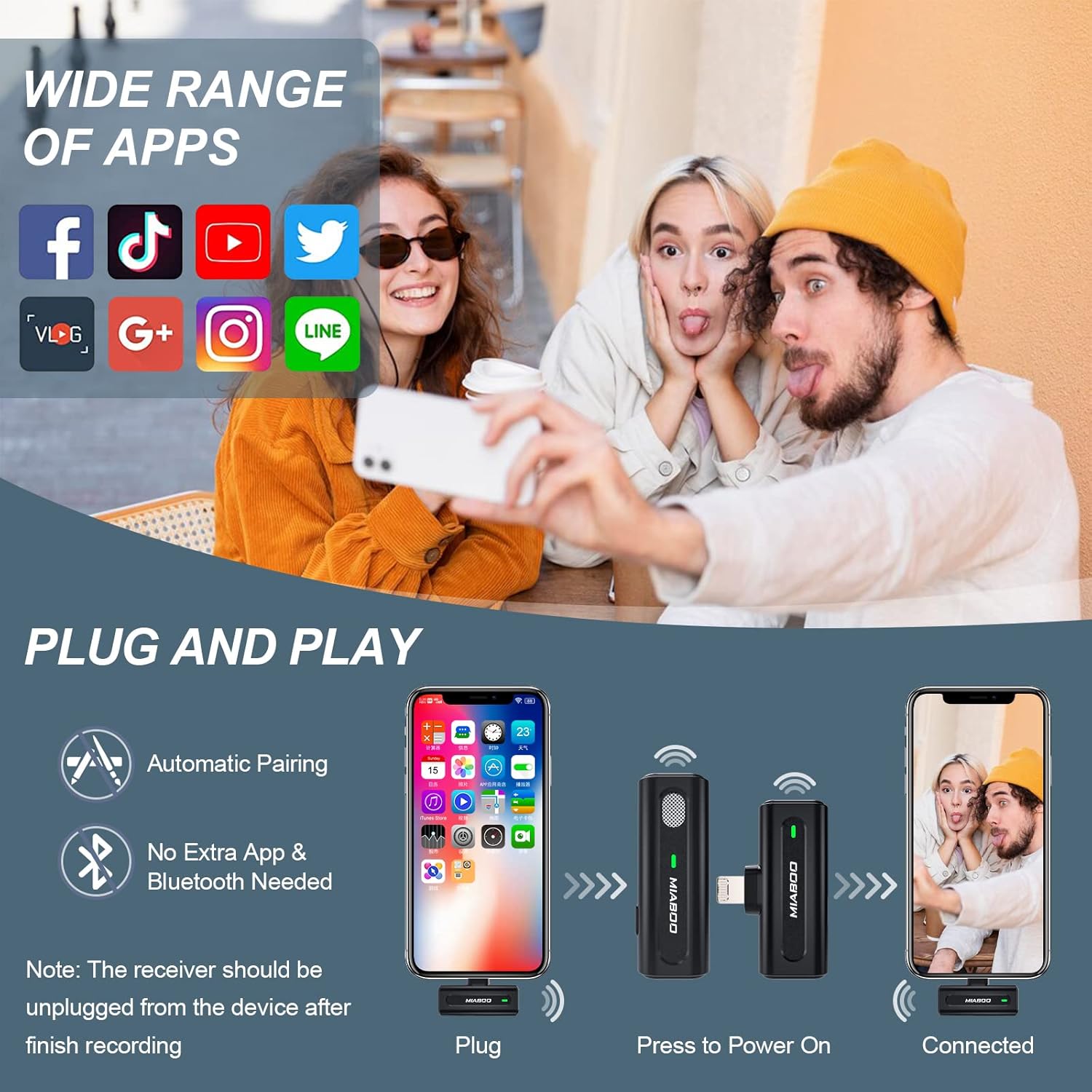
Figure 2: Plug and Play Setup.
This image illustrates the simple plug-and-play setup process. It shows a smartphone, the MIABOO receiver, and the microphone transmitter. The steps depicted are: 1) Plug the receiver into the phone, 2) Press the power button on the microphone, and 3) The devices are connected. Text overlays emphasize "Automatic Pairing" and "No Extra App & Bluetooth Needed." The image also highlights the wide range of compatible apps, including Facebook, TikTok, YouTube, Twitter, Vlog, Google+, Instagram, and LINE.
4. Operating Instructions
4.1 Kurekodha Audio
Once the microphone and receiver are paired, open your preferred audio or video recording application on your device (e.g., Camera app, Voice Memos, TikTok, YouTube, etc.). The system will automatically use the external microphone for audio input. Begin recording as you normally would within the app.
4.2 Intelligent Noise Reduction
The MIABOO microphone features intelligent noise reduction technology to filter out ambient sounds and enhance voice clarity. This function operates automatically to provide clear audio in various environments.

Figure 3: Intelligent Noise Reduction.
This image visually represents the intelligent noise reduction capability of the microphone. It shows a "Before" section with a wavy, noisy audio waveform and an "After" section with a cleaner, more defined waveform, indicating the reduction of background noise. The microphone itself is depicted with blue circular waves emanating from it, symbolizing sound processing. The background shows two individuals engaged in a conversation, suggesting use in an interview or discussion setting.
4.3 Real-time Monitoring
The receiver is equipped with a 3.5mm audio jack, allowing you to plug in headphones for real-time audio monitoring. This enables you to listen to the audio being recorded as it happens, ensuring optimal sound quality.

Figure 4: Smart Features.
This image highlights two key features: "Smart Charging Port Design" and "Real-time Monitoring Function." The smart charging port is shown on the receiver, allowing a phone to be charged simultaneously while recording. The real-time monitoring function is illustrated by headphones plugged into the receiver's 3.5mm audio jack, enabling users to monitor audio status during recording. The image also shows a professional setting with individuals using the microphone for recording.
4.4 Simba Kudzima
To power off the microphone transmitter, press and hold the power button until the indicator light turns off. To power off the receiver, simply unplug it from your device. It is recommended to unplug the receiver from your device after finishing recording to conserve battery.
5. Kuchengeta uye Kuchengeta
Proper care will extend the life of your MIABOO Wireless Lavalier Microphone system:
- Kuchenesa: Use a soft, dry cloth to clean the microphone, receiver, and charging case. Do not use liquid cleaners or solvents.
- Kuchengeta: Store the system in its charging case when not in use to protect it from dust and damage. Store in a cool, dry place.
- Battery Care: For optimal battery life, avoid fully discharging the batteries frequently. Recharge the system regularly, even if not in constant use.
6. Kugadzirisa matambudziko
If you encounter issues with your MIABOO Wireless Lavalier Microphone, refer to the following common solutions:
| Dambudziko | Zvinogona Kukonzera | Solution |
|---|---|---|
| No sound recorded / Microphone not working. |
|
|
| Poor audio quality / Static. |
|
|
| Hupenyu hupfupi hwebhatiri. |
|
|
7. Zvinotsanangurwa
| Feature | Detail |
|---|---|
| Model Number | M23-002 |
| Brand | MIABOO |
| Kubatana | Wireless (2.4GHz) |
| Receiver Connector | Lightning (for iOS devices) / USB-C (for compatible Android/iPad models) |
| Monitoring Port | 3.5mm Audio Jack (on receiver) |
| Transmission Range | Up to 70 feet (approx. 21 meters) in open areas |
| Hupenyu hweBhatiri (Transmitter) | Approx. 6 hours per single charge |
| Kuchaja Capacity | Provides more than 4 full recharges for the microphone |
| Hupenyu Hwebhatiri Hwakazara (nekesi) | Kusvikira kumaawa makumi maviri nemashanu |
| Noise Reduction | Intelligent Noise Reduction |
| Kugarisana | Smartphones, Tablets (iOS devices with Lightning port, select Android/iPad models with USB-C) |
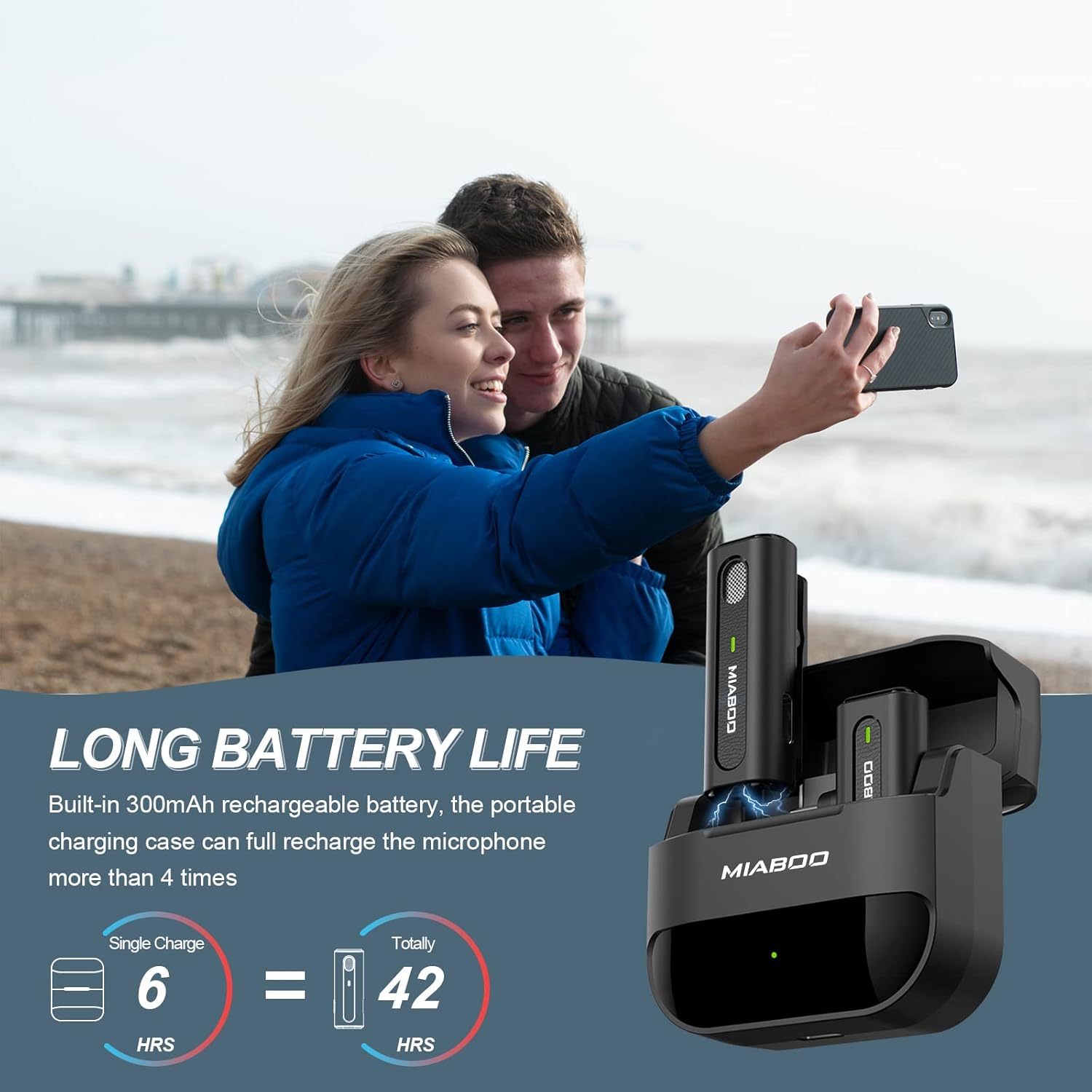
Mufananidzo 5: Hupenyu hweBhatiri Hwakawedzerwa.
This image highlights the long battery life of the MIABOO wireless microphone system. It states that the built-in 300mAh rechargeable battery in the portable charging case can fully recharge the microphone more than 4 times. Visuals show "Single Charge = 6 HRS" and "Totally = 42 HRS," indicating the microphone's individual battery life and the total usage time with the charging case. The background features two individuals taking a selfie, suggesting the product's use for content creation.

Figure 6: Stable Transmission Range.
This image emphasizes the "Long Stable Transmission & Low Latency" features. It shows a graphic indicating "High Sensitivity" and "Stable Signal." A diagram illustrates a "Long Working Range" of 70 feet for the wireless lavalier microphone compared to 6.6 feet for a traditional microphone. The background features a person playing a guitar and recording with a smartphone, demonstrating the product's use in a creative context.

Figure 7: Device Compatibility.
This image details the compatibility of the MIABOO wireless microphone with various Apple devices. It lists compatible iPhone models from iPhone 6/6 Plus up to iPhone 13/13 Pro/13 Pro Max, and iPad models including iPad 2nd/3rd/4th gen, iPad Air series (except 4th gen), and iPad Mini (except 6th gen). It explicitly states that iPad Pro series with Type-C port are not supported, reinforcing the Lightning connector focus for this specific model. The image also shows various use cases like live streaming, interviews, video recording, and vlogging.
8. Warranty uye Tsigiro
MIABOO products come with a standard manufacturer's warranty. For specific warranty terms and conditions, please refer to the product packaging or contact MIABOO customer support directly. If you require technical assistance or have questions not covered in this manual, please reach out to our support team.
Tsigiro yeVatengi:
- For the most up-to-date contact information, please visit the official MIABOO webtsvaga webhusaiti kana kuti tarisa magwaro ako ekutenga.
Ask a question about this manual
Ask about setup, troubleshooting, compatibility, parts, safety, or missing instructions. Manuals+ will review the question and use this page’s manual context to help answer it.