
j5create JCC157-1N
J5create JCC157 USB-C kuenda kuHDMI 2.1 8K Cable Bhuku Rekushandisa
Model: JCC157-1N
Nhanganyaya
The J5create JCC157 USB-C to HDMI 2.1 8K Cable is designed to provide high-quality video and audio transmission from your USB-C enabled device to an HDMI display. Supporting resolutions up to 8K, this cable is ideal for gaming, professional presentations, and high-definition media consumption. It features a unique RGB indicator light, enhancing your setup's aesthetics and providing visual feedback.

Mufananidzo 1: The J5create JCC157 USB-C to HDMI 2.1 8K Cable, showcasing its sleek design and RGB indicator.
Features
- 8K Resolution Tsigiro: Experience stunning visuals with support for resolutions up to 8K, ensuring crisp and clear images.
- USB-C to HDMI 2.1: Connects modern USB-C devices to HDMI 2.1 compatible displays for high-bandwidth video and audio.
- Wide Compatibility: Fully compatible with Windows, MacOS, and Chrome OS operating systems.
- RGB Indicator Light: Features an integrated RGB light, providing visual flair and status indication, especially suited for gaming setups.
- Plug uye Tamba: No drivers required for most operating systems, allowing for easy setup and immediate use.
- Mhando dzakasiyana-siyana dzekuratidzira: Supports both Extended and Mirror display modes for various productivity and entertainment needs.

Mufananidzo 2: The RGB indicator light on the JCC157 cable, capable of displaying various colors.
Setup Instructions
- Batanidza USB-C End: Insert the USB-C connector of the JCC157 cable into a compatible USB-C port on your source device (e.g., laptop, computer). Ensure the port supports video output (DisplayPort Alternate Mode).
- Connect HDMI End: Insert the HDMI connector of the JCC157 cable into an available HDMI input port on your display device (e.g., monitor, TV, projector).
- Simba Pamidziyo: Iva nechokwadi chekuti mudziyo wako wekutanga nemudziyo wekuratidza zvese zviri kushanda.
- Sarudza Input: On your display device, select the correct HDMI input source that the cable is connected to.
- Verify Connection: The RGB indicator light on the cable will illuminate, indicating a successful connection and active signal. Your display should show the output from your source device.

Mufananidzo 3: A pedyo-up view of the JCC157 cable's connectors and the illuminated RGB indicator, demonstrating a ready state.
Operating Instruction
Once connected, your operating system will typically detect the external display automatically. You can configure the display settings to suit your needs.
- Yakawedzerwa Nzira: This mode allows you to extend your desktop across multiple screens, providing more workspace. To enable, go to your operating system's display settings and select "Extend these displays."
- Mirror Mode (Duplicate Mode): This mode duplicates your primary display onto the external monitor, showing the same content on both screens. To enable, go to your operating system's display settings and select "Duplicate these displays."

Mufananidzo 4: Visual representation of Extended Mode (left) and Mirror Mode (right) display configurations, illustrating how the JCC157 cable facilitates both.
The RGB indicator light will remain illuminated when a signal is active. Its color may vary based on the device's status or specific J5create software settings, if applicable.
Maintenance
To ensure the longevity and optimal performance of your J5create JCC157 cable, follow these maintenance guidelines:
- Bata Nekungwarira: Avoid bending the cable sharply or pulling it by the cord. Always grasp the connector ends when plugging or unplugging.
- Ramba Wakachena: Shandisa jira rakapfava, rakaoma kupukuta tambo nezvinobatanidza zvinyoro nyoro. Usashandise zvinhu zvinochenesa mvura kana zvinhu zvinokwesha.
- Chengeta Nemazvo: Kana usingashandise, sunga waya yacho zvisina kusimba woichengeta munzvimbo inotonhorera, yakaoma kure nezuva rakananga uye tembiricha dzakanyanya.
- Dzivisa Unyoro: Do not expose the cable to water or high humidity, as this can damage the internal components.
Kugadzirisa matambudziko
| Dambudziko | Zvinogona Kukonzera | Solution |
|---|---|---|
| Hapana kuratidzwa pamonitor. |
|
|
| Low resolution or flickering display. |
|
|
| RGB indicator not lighting up. |
|
|
Zvinotsanangurwa
| Feature | Detail |
|---|---|
| Model Number | JCC157-1N |
| Connector Type | USB-C Male to HDMI 2.1 Male |
| Max Resolution Tsigiro | Up to 8K (7680x4320) |
| Cable Length | 1.8 metres (6 tsoka) |
| Inowirirana Operating Systems | Windows, MacOS, Chrome OS |
| Special Features | RGB Indicator Chiedza |
| Inowirirana Devices | Computer, Laptop |
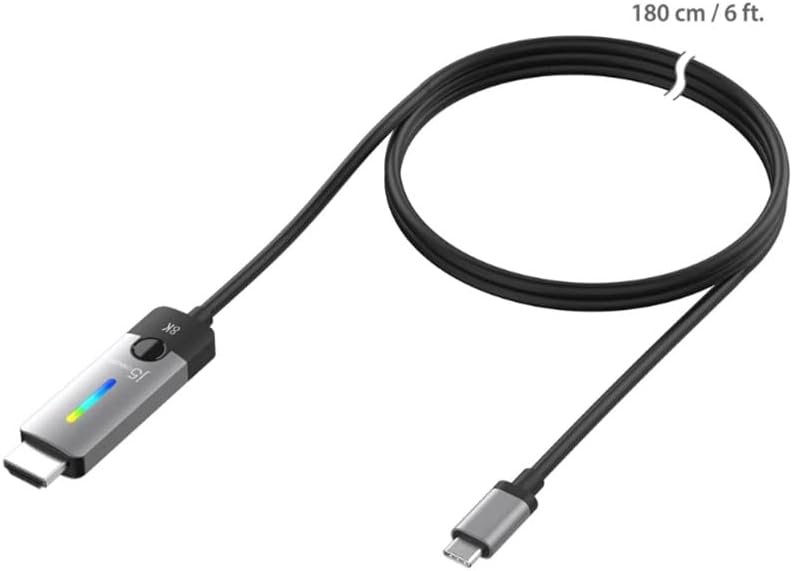
Mufananidzo 5: The JCC157 cable, illustrating its 180 cm (6 ft) length.
Warranty uye Support
For warranty information and technical support, please refer to the documentation included with your purchase or visit the official j5create website. Warranty mazwi uye mamiriro anogona kusiyana nedunhu uye mutengesi.
Mugadziri: J5CREATE