
1. Nhanganyaya
This manual provides essential information for the proper use and maintenance of your MOVE SPEED Vpro Series 256GB USB 3.2 Gen2 Dual Interface SSD Thumb Drive. Please read this manual thoroughly before using the device to ensure optimal performance and longevity.
The MOVE SPEED Vpro Series SSD Thumb Drive offers high-speed data transfer with both USB 3.2 Gen2 Type-A and Type-C interfaces, providing versatile compatibility across various devices.
2. Chii chiri muBhokisi
- MOVE SPEED Vpro Series 256GB SSD Thumb Drive x1
- Keychain Leather Case x1
- Mushandisi Chinyorwa x1

Image: The MOVE SPEED Vpro Series SSD Thumb Drive and its included leather case.
3. Setup
3.1 Kubatana Kwemuviri
The MOVE SPEED Vpro Series SSD Thumb Drive features a dual-interface design, offering both USB 3.2 Gen2 Type-A and Type-C connectors. To use, simply flip open the protective cover to reveal the desired connector.
- Identify the appropriate port on your device (computer, laptop, smartphone, etc.).
- Gently insert the corresponding connector (USB-A or USB-C) of the thumb drive into the device's port. Ensure a firm connection.

Image: The thumb drive with its dual USB-A and USB-C interfaces.
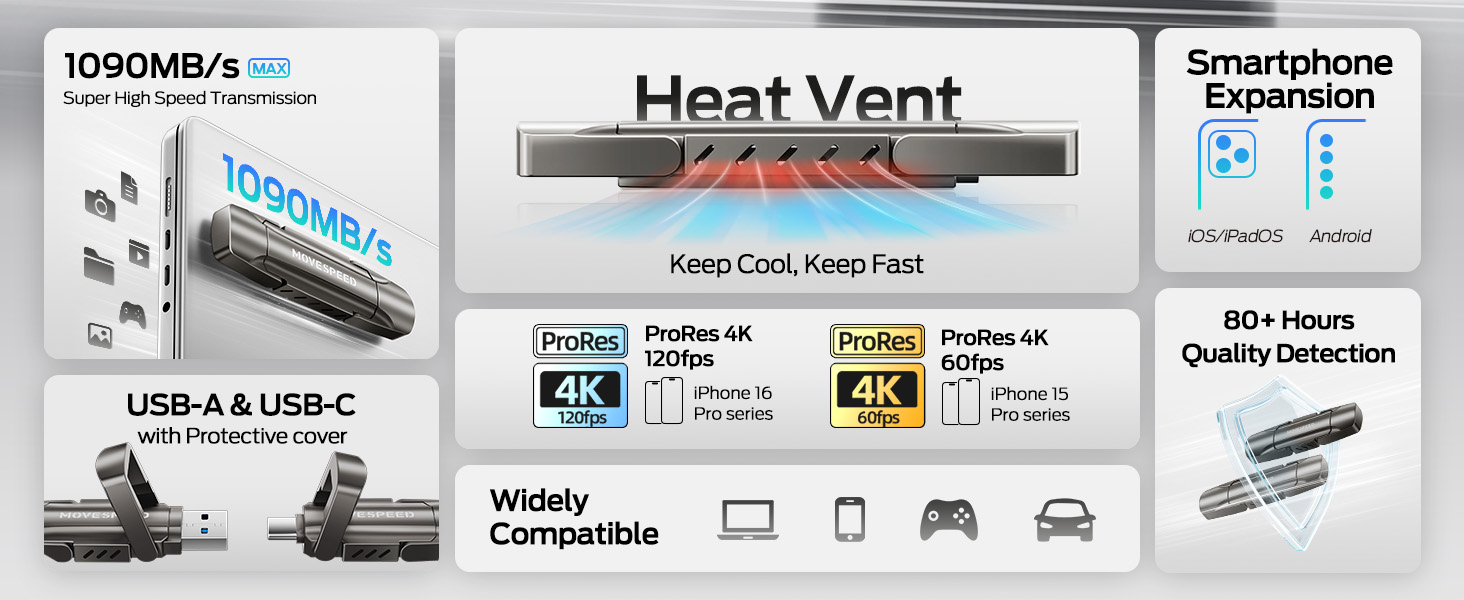
Image: The drive connected to both a laptop and a smartphone, demonstrating its dual interface functionality.
3.2 Kuzivikanwa Kwekutanga
The device is plug-and-play. Upon successful connection, your operating system (Windows, macOS, Android, iOS) should automatically detect the drive and make it accessible. It may appear as a removable disk or external storage device.
4. Kushanda
4.1 Kuendesa Data
The MOVE SPEED Vpro Series SSD Thumb Drive supports read and write speeds of up to 1000MB/s when connected to a compatible USB 3.2 Gen2 (10Gbps) port or above. Actual speeds may vary based on the host device, file saizi, uye sisitimu yekushandisa.
- To Copy Files: Dhonza udonhedze files or folders from your device to the thumb drive's directory, or use the 'Copy' and 'Paste' functions.
- To Move Files: Dhonza udonhedze files or folders from your device to the thumb drive's directory while holding the 'Shift' key (Windows) or 'Command' key (macOS), or use the 'Cut' and 'Paste' functions.
Video: Demonstrates the high-speed data transfer capabilities of the MOVE SPEED Vpro Series SSD Thumb Drive, showing quick file kutamisa pakati pemidziyo.
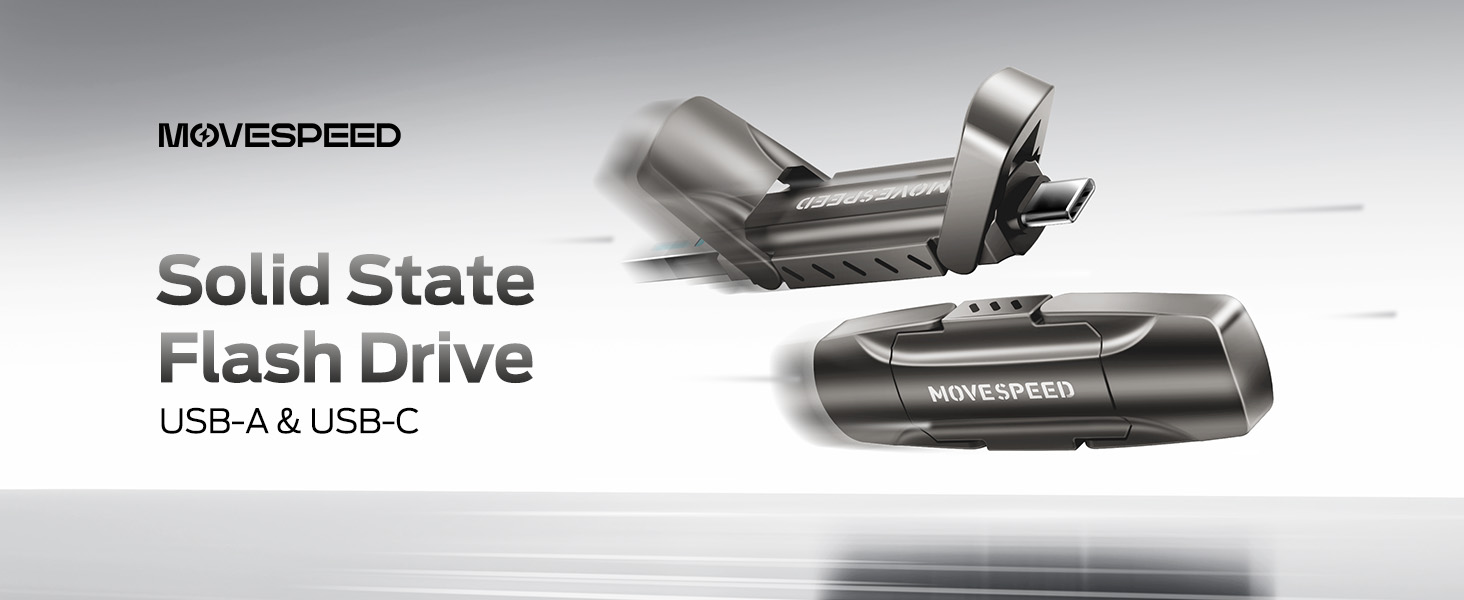
Image: A visual comparison illustrating the superior data transfer speed of the MOVE SPEED YV Pro drive compared to older USB technologies.
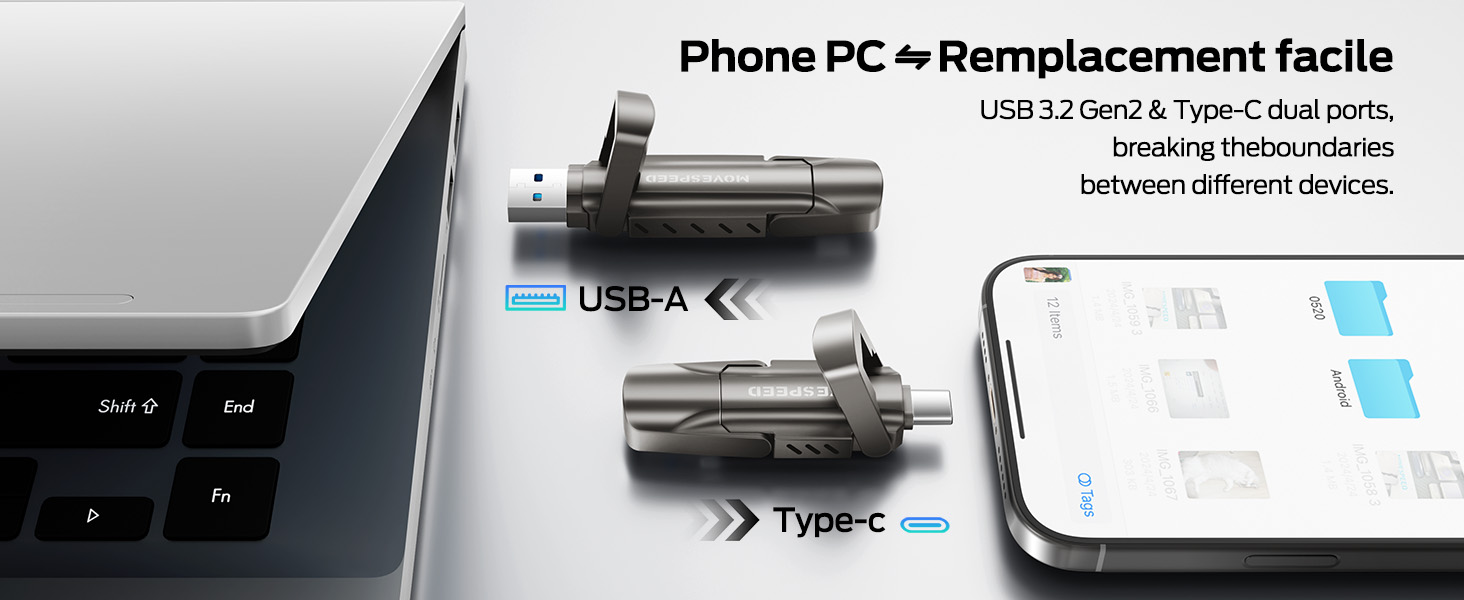
Image: A performance graph demonstrating the stable and high write speeds of the MOVE SPEED Vpro Series SSD Thumb Drive.
4.2 Usage with Various Devices
The dual interface ensures broad compatibility:
- Computers/Laptops: Connect via USB-A or USB-C port. Ideal for transferring large files, backups, or expanding storage.
- Mafoni/Mahwendefa: Connect via USB-C port (e.g., iPhone 15/16/17 Series, Android phones with USB-C). Use for direct photo/video backup, expanding phone storage, or playing media directly.
- Car Audio Systems/Smart TVs: Connect via USB-A port for media playback.
- Game Consoles: Plug and Play compatibility with various consoles for storage expansion or game data transfer.

Image: The thumb drive being used with a smartphone, laptop, and game console, highlighting its wide compatibility.

Image: An iPhone recording 4K 120fps ProRes video directly to the connected MOVE SPEED SSD Thumb Drive.

Image: A smartphone connected to the thumb drive, illustrating its use for storage expansion and data backup.
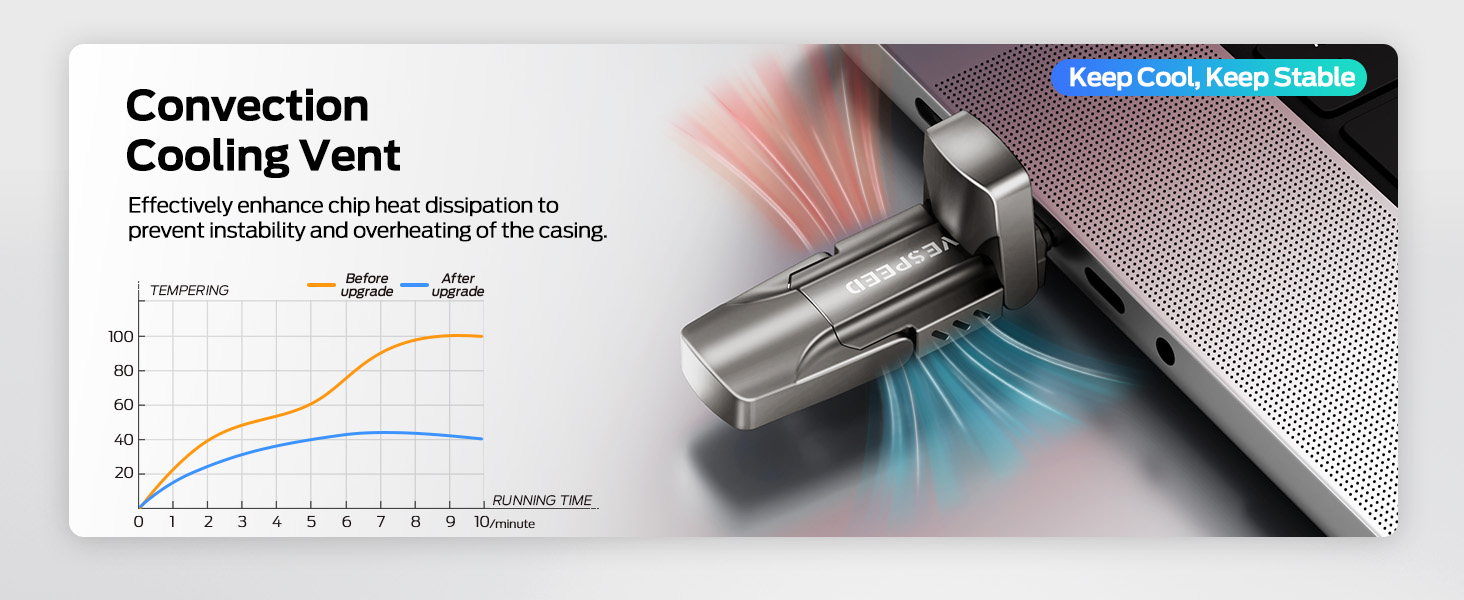
Image: A game console connected to the MOVE SPEED SSD Thumb Drive, indicating compatibility for gaming storage.
4.3 Kubvisa Kupisa
The upgraded SSD class thumb drive features improved heat dissipation performance. During prolonged high-speed transfers, it may become warm, which is normal and indicates efficient heat management to maintain stable performance.

Image: A diagram illustrating the convection cooling vent and a graph comparing temperature performance before and after the heat dissipation upgrade.
5. Kuchengeta
5.1 Kugara kwenguva refu
The drive is constructed with an SSD-level chip and a high-quality zinc alloy metal case, providing excellent waterproof, dust-proof, anti-drop, high temperature, and anti-magnetic properties. The included leather case offers additional protection during transport.
5.2 Kubviswa Kwakachengeteka
Always safely eject the drive from your operating system before physically disconnecting it. This prevents data corruption and ensures the longevity of the device.
- Windows: Right-click the drive icon in 'This PC' or the taskbar, then select 'Eject'.
- macOS: Drag the drive icon to the Trash, or click the 'Eject' icon next to the drive in Finder.
- Android/iOS: Follow your device's specific instructions for safely unmounting external storage.
6. Kugadzirisa matambudziko
- Kutyaira Kusingazivikanwe:
- Iva nechokwadi chekuti dhiraivha yakaiswa zvizere muchiteshi che USB.
- Edza imwe USB port pane yako kifaa.
- Tangazve komputa yako kana mudziyo.
- Check your device's Disk Management (Windows) or Disk Utility (macOS) to see if the drive is detected but unformatted.
- Kufamba Kunononoka:
- Ensure you are using a USB 3.2 Gen2 (10Gbps) compatible port on your device. Older USB 2.0 or 3.0 ports will result in lower speeds.
- Vhara mamwe maapplication angave achishandisa zviwanikwa zvesystem kana kuita background transfers.
- Nhamba huru dzezvidiki files transfer slower than a single large file yehukuru hwakafanana.
- Drive Gets Warm During Use:
- This is normal during high-speed data transfers due to the SSD's performance and efficient heat dissipation. If it becomes excessively hot or causes performance issues, ensure adequate airflow around the drive.
7. Zvinotsanangurwa
| Feature | Detail |
|---|---|
| Brand | SPEEDZERA SPEED |
| Model Name | Vpro Series |
| Capacity | 256GB Yakagadzika State Drive |
| Read Speed | Kusvikira ku1000 MB/s |
| Nyora Speed | Kusvikira ku1000 MB/s |
| Hardware inowanikwa | USB 3.2 Gen 2 (USB Type A, USB Type C) |
| Flash Memory Type | USB SSD |
| Special Features | High Speed, Better Heat Dissipation, Dual Interface, SSD Level Chip Technology, Durable Metal Case (Waterproof, Dust-proof, Anti-drop, High Temperature, Anti-magnetic) |
| Kugarisana | Android USB-C Phone, iPhone 15/16/17 Series, Desktop, Laptop, Car Audio, Smart TV, Game Consoles |
| Item Weight | 3.84 ounces |
| Package Dimensions | 5.83 x 5.2 x 1.93 inches |

Image: A table detailing the storage capacity of different drive sizes and the estimated number of files they can hold.
8. Warranty uye Tsigiro
For warranty information and customer support, please refer to the official MOVE SPEED websaiti kana kubata mutengesi wako. Chengeta risiti yako yekutenga yezvichemo zvewaranti.
Unogonawo kushanyira MOVE SPEED Store on Amazon kune rumwe ruzivo rwechigadzirwa uye zviwanikwa zvekutsigira.