
WeHere KB501
Bhuku rekushandisa reWeHere Smart Key Lock Box
Muenzaniso: KB501
1. Nhanganyaya
This manual provides comprehensive instructions for the installation, operation, and maintenance of your WeHere Smart Key Lock Box (Model KB501). This device offers multiple secure unlocking methods, including app-based Bluetooth, temporary passcodes, and remote Wi-Fi access (with optional bridge), along with a traditional physical key backup. Designed for durability and convenience, it is an ideal solution for secure key management in various settings such as homes, apartments, offices, and for realtors or service providers.

Figure 1.1: WeHere Smart Key Lock Box with its mobile application interface.
2. Package Zviri mukati
Ndokumbira utarise kuti zvinhu zvese zvakanyorwa pazasi zvinosanganisirwa mupakeji yako:
- WeHere Smart Key Lock Box (Model KB501)
- WeHere B100 Smart Lock (integrated)
- 2 x Physical Keys
- Mounting Hardware (screws, anchors)
- Mushandisi Chinyorwa (gwaro iri)
3. Setup
3.1 Kuiswa kwebhatiri
The WeHere Smart Key Lock Box requires 2 alkaline batteries for operation. The external battery compartment design allows for easy replacement without needing to access the main key storage area.
- Locate the external battery compartment on the lock box.
- Vhura chivharo chekamuri.
- Insert 2 alkaline batteries, ensuring correct polarity (+/-).
- Vhara chivharo chekamuri zvakachengeteka.
Note: The key box will resume operation immediately after battery replacement. Fully charged batteries can last for approximately six months.
3.2 Kurodha uye kuseta
The WeHere Smart Key Lock Box is controlled via a mobile application available for both Android and iOS devices.
- Tsvaga the "WeHere" app in your device's app store (Google Play Store for Android, Apple App Store for iOS).
- Dhawunirodha uye isa iyo application.
- Open the app and follow the on-screen instructions to create an account and pair your lock box via Bluetooth. Ensure Bluetooth is enabled on your smartphone.

Figure 3.1: Secure storage and convenient access with the WeHere Smart Key Lock Box.
3.3 Mounting the Lock Box
The lock box is designed for wall mounting. Choose a secure location that is protected from direct rain exposure, as recommended for optimal product longevity.
- Sarudza nzvimbo yakakodzera yekuisa.
- Mark the drilling points using the lock box as a template.
- Boora maburi ekupirinda uye isa zvitsigiso zvemadziro kana zvichidikanwa.
- Secure the lock box to the wall using the provided screws.
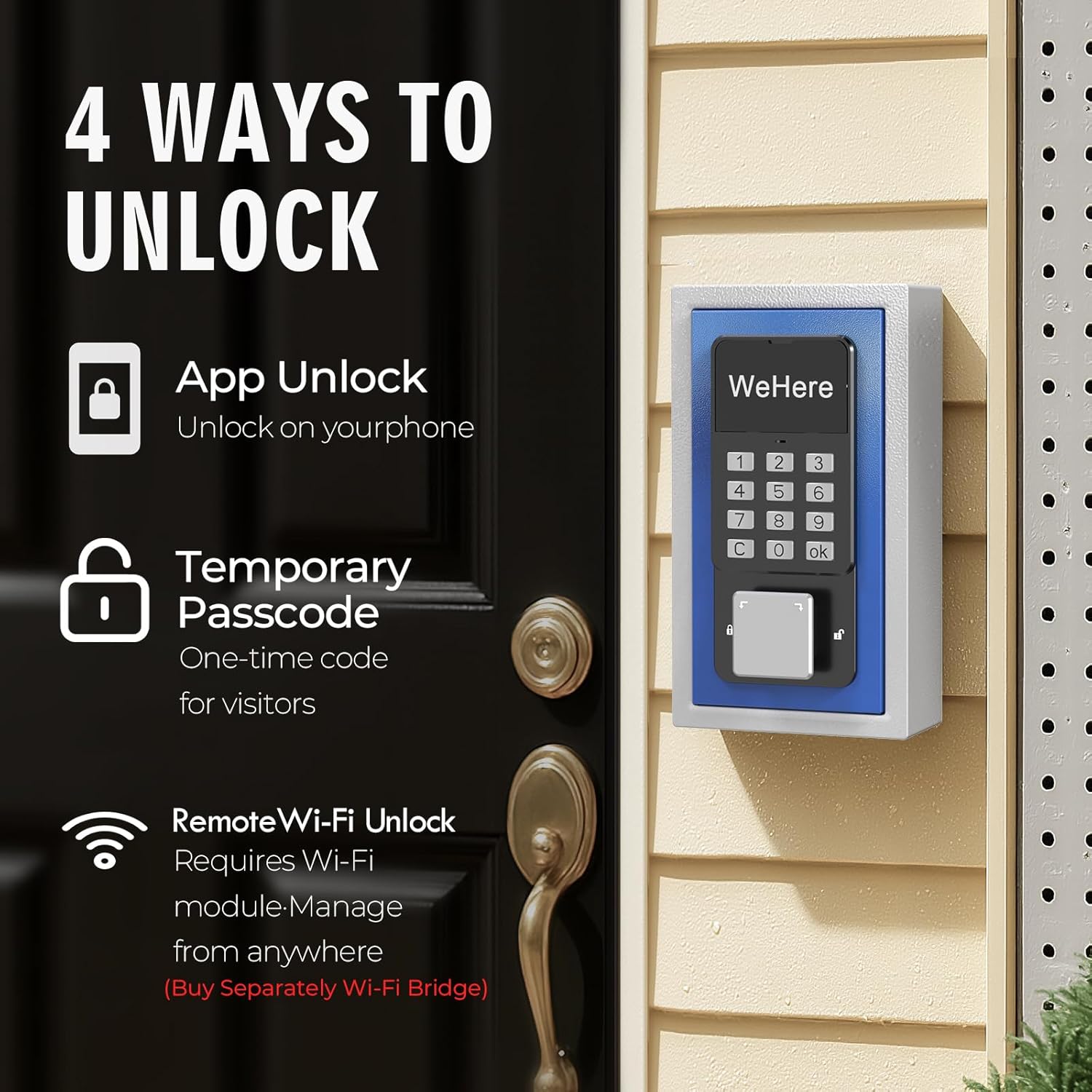
Figure 3.2: Wall-mounted installation of the WeHere Smart Key Lock Box.
4. Operating Instructions
The WeHere Smart Key Lock Box offers multiple convenient unlocking methods.
4.1 App Unlock (Bluetooth)
Unlock the key box directly via Bluetooth using the WeHere app when you are within range.
- Ensure Bluetooth is enabled on your smartphone and the app is open.
- Within the app, select your lock box and tap the "Unlock" button.
- The lock box will open, allowing access to the contents.
4.2 Passcode Unlock (OTP/Fixed)
Access the lock box using a numerical passcode entered on the keypad.
- One-Time Passcode (OTP): Generate temporary, time-sensitive passcodes through the WeHere app for visitors or one-time access. These codes expire after a single use or a set duration.
- Fixed Passcode: Set permanent passcodes via the app for regular users.
To use a passcode:
- Enter the valid passcode on the lock box keypad.
- Press the "OK" button (or equivalent) on the keypad.
- The lock box will open.
4.3 Remote Wi-Fi Unlock (Requires WeHere W100 Bridge)
For remote unlocking from anywhere, the WeHere W100 Bridge (sold separately) is required. This bridge connects your lock box to your home Wi-Fi network.
- Ensure your WeHere W100 Bridge is properly set up and connected to your Wi-Fi network and paired with your lock box.
- Open the WeHere app on your smartphone.
- Select your lock box and use the remote unlock function within the app.
- The lock box will receive the command via the Wi-Fi bridge and unlock.

Figure 4.1: Remote unlocking capability with the optional WeHere Wi-Fi Bridge.
4.4 Physical Key Unlock
A traditional physical key is provided as a backup unlocking method.
- Insert the physical key into the keyhole on the lock box.
- Turn the key to unlock the box.
- Open the lock box door.
5. Kuchengeta
5.1 Kutsiviwa kwebhatiri
When the battery level is low, the lock box may indicate this through the app or a visual/audible cue. Replace batteries promptly to ensure continuous operation. Refer to Section 3.1 for detailed battery installation instructions.
5.2 Kuchenesa
Clean the exterior of the lock box with a soft, damp jira. Dzivisa kushandisa zvinochenesa zvinogumbura kana zvinonyungudutsa zvinogona kukuvadza magumo kana zvikamu zvemagetsi.
6. Kugadzirisa matambudziko
| Dambudziko | Zvinogona Kukonzera | Solution |
|---|---|---|
| Lock box does not respond to app unlock. | Low batteries; Bluetooth off; Out of range; App not connected. | Replace batteries; Ensure Bluetooth is on; Move closer to the lock box; Reconnect app. |
| Passcode not working. | Incorrect passcode entered; Passcode expired (OTP); Keypad issue. | Verify passcode; Generate new OTP; Check battery level. |
| Remote Wi-Fi unlock fails. | WeHere W100 Bridge not connected/powered; Wi-Fi issue. | Check W100 Bridge power and Wi-Fi connection; Ensure bridge is paired with lock box. |
| Physical key does not unlock. | Incorrect key; Obstruction in keyhole. | Ensure you are using the correct key; Check for debris in the keyhole. |
7. Zvinotsanangurwa
| Feature | Detail |
|---|---|
| Brand | WeHere |
| Model Name | KB501 |
| Kiya Type | Electronic Lock, Mechanical Lock |
| Special Feature | Smart lock |
| Material | Simbi inotonhora |
| Color | Bhuruu |
| Dimensions (L x W x H) | 4.1 x 2 x 7.3 inches (105 x 45 x 185 mm) |
| Item Weight | 8.8 ounces |
| Kubatana Protocol | Bluetooth, Wi-Fi (with optional WeHere W100 Bridge) |
| Controller Type | Android, iOS App |
| Simba Source | 2 x Alkaline Batteries (not included) |
| Yakakurudzirwa Shandisa Nzvimbo | Install in a location where it won't be exposed to rain. |
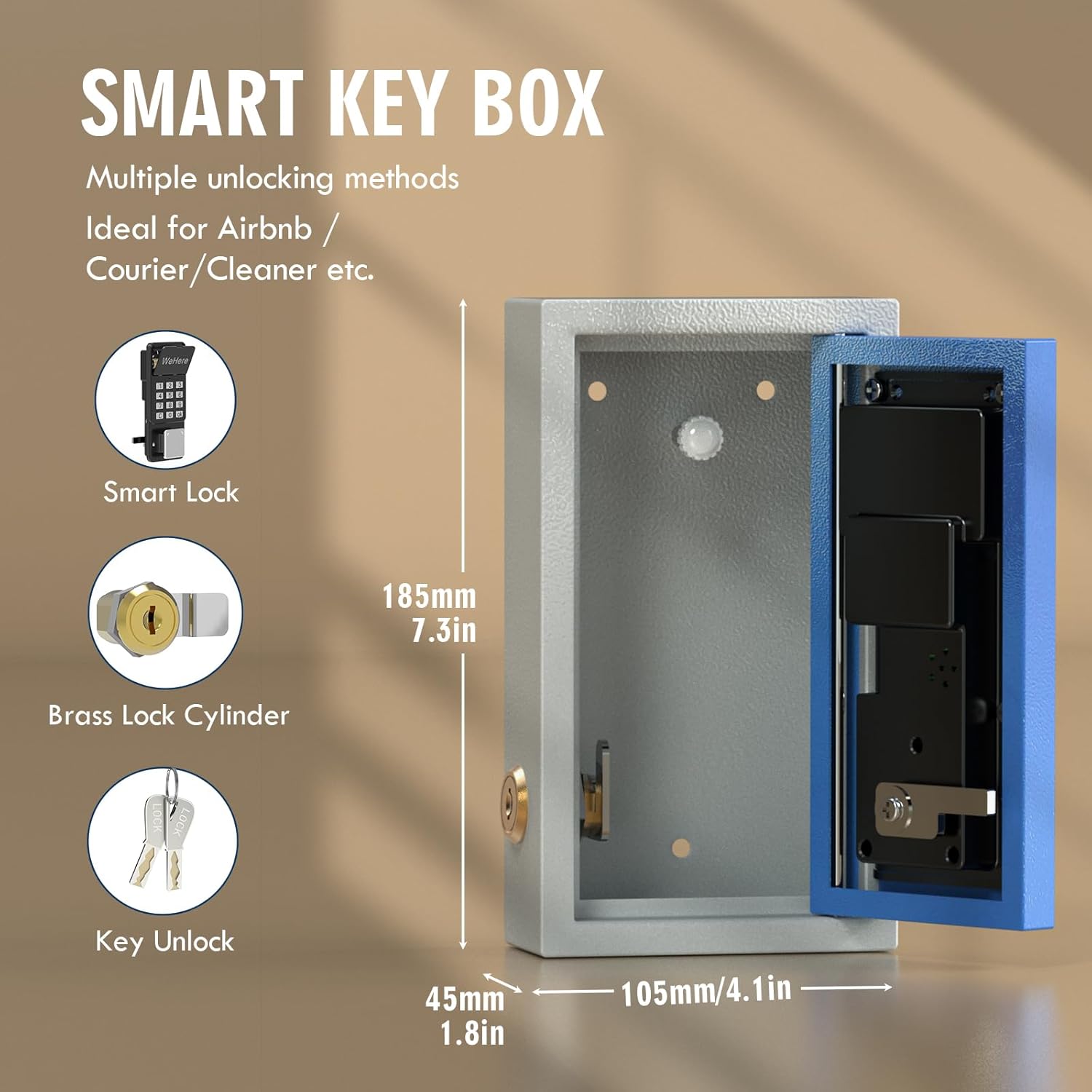
Figure 7.1: Key dimensions and components of the Smart Key Box.
8. Warranty uye Tsigiro
WeHere is committed to delivering high-quality and secure products. For any questions, technical assistance, or warranty inquiries, please contact WeHere customer support.
- Rutsigiro rwepamhepo: Visit the official WeHere websaiti ye FAQ uye zviwanikwa zvekutsigira.
- Email Support: Refer to your product packaging or the WeHere websaiti yekero ye email yebasa revatengi.
Please retain your purchase receipt for warranty validation.