1. Nhanganyaya
This manual provides detailed instructions for the installation, operation, and maintenance of your Hodozzy Carplay Autoradio, designed specifically for Seat Ibiza models manufactured between 2009 and 2013. Please read this manual thoroughly before using the product to ensure proper functionality and safety.
2. Setup uye Kuiswa
The Hodozzy Carplay Autoradio is designed for direct plug-and-play installation in compatible Seat Ibiza models. No additional parts or cables are typically required beyond what is included in the package. Ensure the vehicle's power is off before beginning installation.
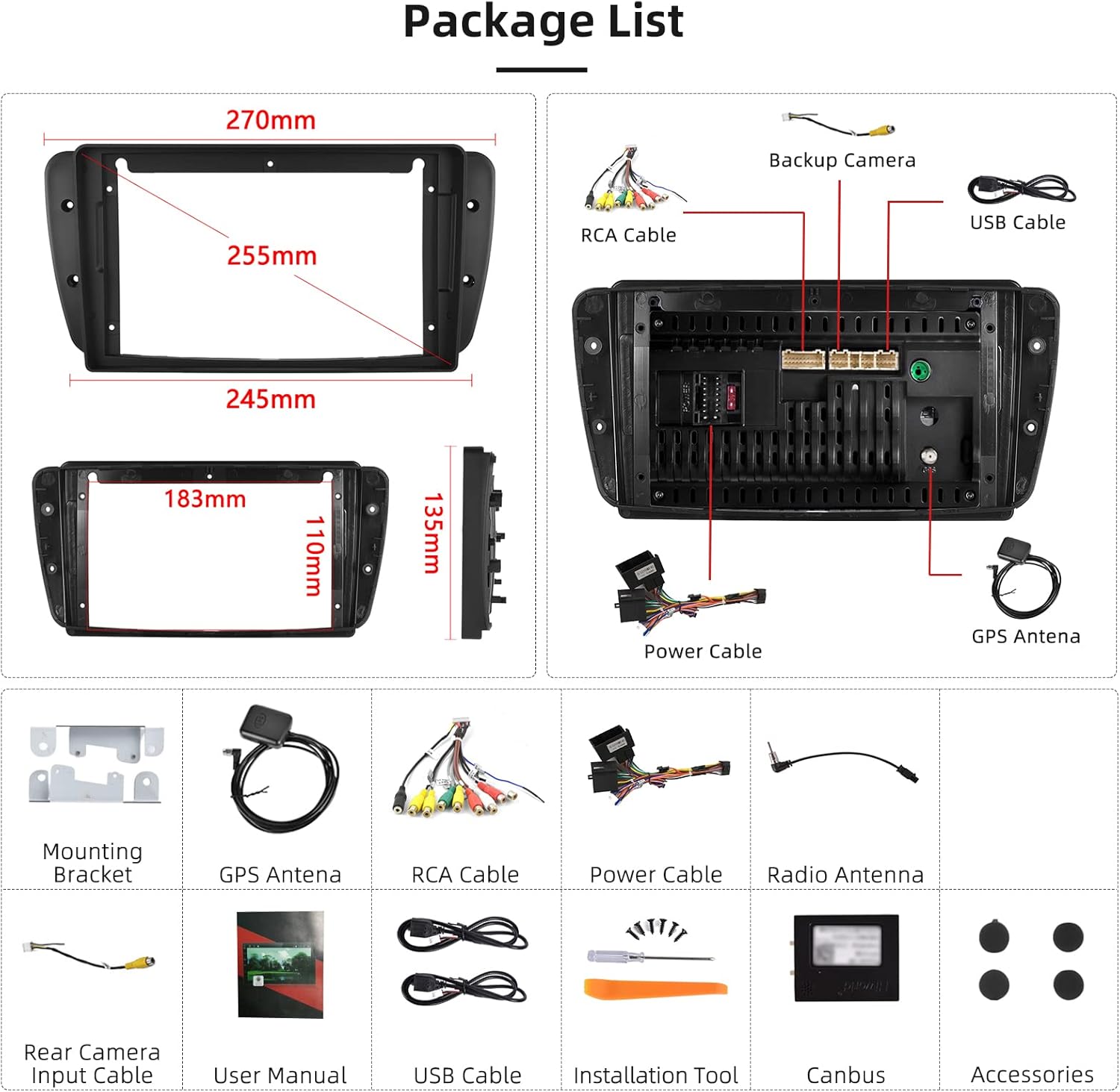
2.1 Package Zviri mukati
Iva nechokwadi chekuti zvese zvakanyorwa pazasi zviripo mupakeji yako:
Mufananidzo uyu unopa ruzivo rwakakwana view of the package contents and the dimensions of the Hodozzy car stereo unit. It includes illustrations of the main unit, mounting bracket, GPS antenna, RCA cable, power cable, radio antenna, rear camera input cable, user manual, USB cables, installation tool, and Canbus decoder.
- Main Head Unit (9-inch touchscreen)
- Kuisa Bracket
- GPS Antenna
- RCA Cable
- Power Cable
- Radio Antenna
- Waya Yekuisa Kamera Yekumashure (kana ichibatanidzwa)
- User Manual
- USB Cables (Dual interface)
- Installation Tool
- Kudhinda kweCanbus
2.2 Matanho ekuisa
Refer to the visual guide for a general overview yegadziriro yekuisa:

This image shows the car dashboard before and after the installation of the Hodozzy car stereo. The 'Before' section displays the original car radio, while the 'After' section shows the new 9-inch touchscreen unit seamlessly integrated into the dashboard, displaying the main interface with navigation, music, and app icons.
- Bvisa Chigadzirwa Chekutanga: Carefully remove the existing car radio from your Seat Ibiza dashboard. Consult your vehicle's service manual for specific instructions on panel removal.
- Batanidza Wiring: Connect the provided power cable, RCA cable, GPS antenna, and radio antenna to the corresponding ports on the Hodozzy unit and your vehicle's wiring harness. Ensure the Canbus decoder is correctly connected.
- Isa Chibhuraki Chekukwirisa: Secure the mounting bracket to the Hodozzy unit, then slide the unit into the dashboard opening.
- Secure Unit: Fasten the unit using the appropriate screws or clips to ensure it is stable and flush with the dashboard.
- Test Mashandiro: Reconnect the vehicle's power and turn on the unit to test all functions, including audio, touchscreen response, and connectivity.
3. Operating Instructions
3.1 Touchscreen Interface
The unit features a 9-inch touchscreen with a resolution of 1024x600. Navigate through menus and applications by tapping, swiping, and pinching gestures similar to a smartphone.
3.2 Split Screen Basa
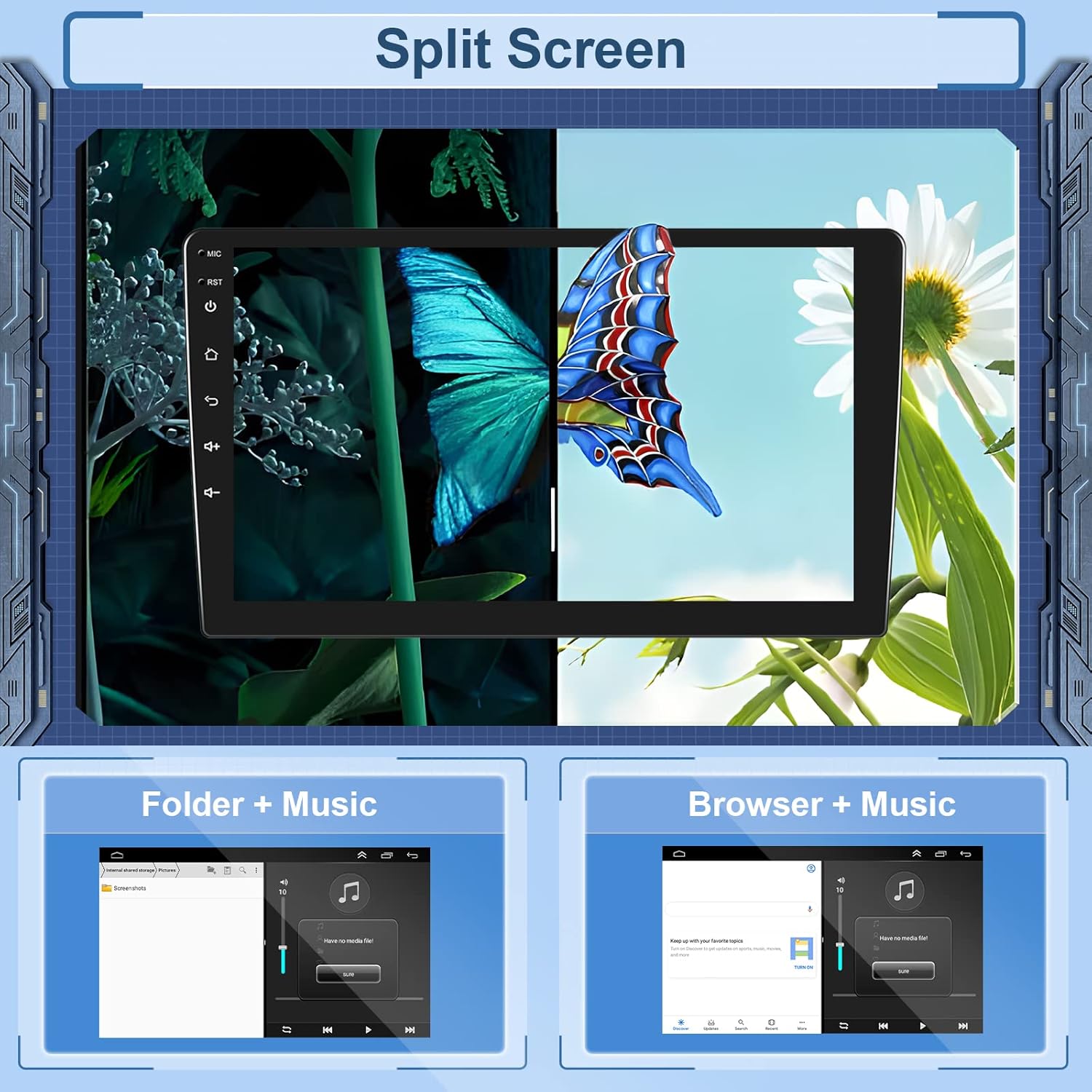
The split-screen feature allows you to run two applications simultaneously, enhancing multitasking capabilities. For exampLe, unogona kushandisa navigation uchiteerera mimhanzi.
This image illustrates the split-screen feature, allowing two applications to run side-by-side on the car stereo display. The top section shows a split screen with a nature image on one side and a browser on the other. The bottom section provides examples of common split-screen combinations like 'Folder + Music' and 'Browser + Music'.
3.3 Kudzora Wheel (SWC)
The unit supports steering wheel control functionality, allowing you to manage audio and other features without taking your hands off the wheel. The system includes a 'Steering Learn' interface for custom button assignments.

This image demonstrates the steering wheel control functionality. The upper part shows the car stereo's 'Steering Learn' interface, where users can assign functions to steering wheel buttons. The lower part provides a view of a car's steering wheel, indicating how physical buttons can interact with the system.
4. Zvinhu zveKubatana
4.1 Wireless Carplay and Android Auto
The Hodozzy Autoradio is compatible with both Apple CarPlay and Android Auto, supporting both wireless and wired connections. This allows seamless integration with your smartphone for navigation, communication, and entertainment.

This image demonstrates the capabilities of wireless and wired Apple CarPlay and Android Auto. It shows the main car stereo display with various app icons, and two smaller insets illustrating the CarPlay interface (left) and Android Auto interface (right) on a smartphone screen, highlighting phone, music, and navigation features.
Nzira dzekubatanidza:
- Wi-Fi Hotspot: Connect your phone to the unit's Wi-Fi hotspot.
- USB Data Cable: Connect your phone via a USB cable.
- Bluetooth: Gadzira kubatana kweBluetooth.
4.2 Makaralı
The integrated Bluetooth module enables hands-free calling and Bluetooth music streaming. You can synchronize contacts and manage calls directly from the unit's touchscreen.
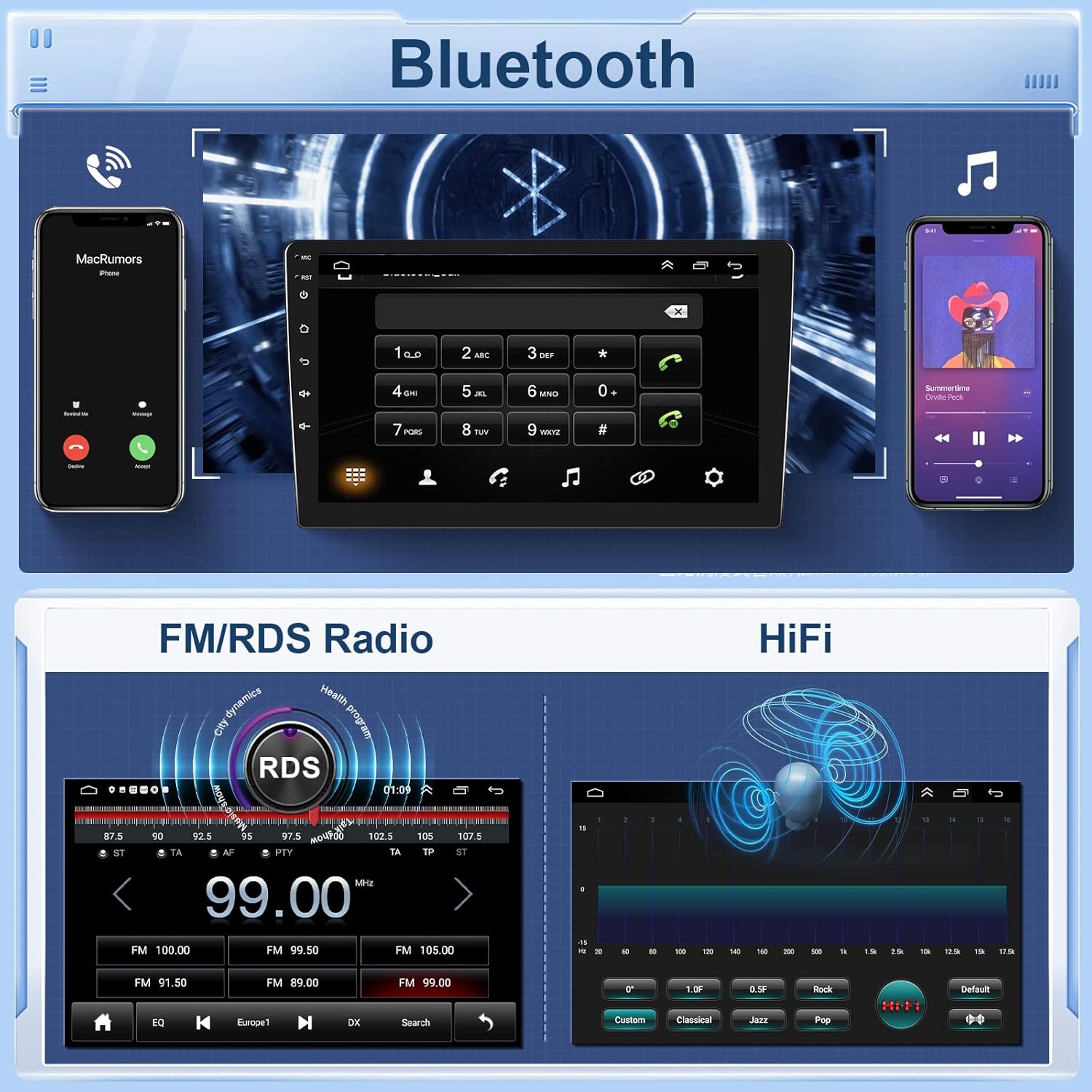
This image combines three features: Bluetooth, FM/RDS Radio, and HiFi audio. The top section shows the Bluetooth interface for phone calls and music playback. The middle section displays the FM/RDS radio tuner with frequency selection. The bottom section illustrates the HiFi audio equalizer settings for sound customization.
4.3 WiFi
The unit features built-in Wi-Fi, supporting Wi-Fi hotspot connections. This allows you to download additional applications and access online services directly on the autoradio.
5. GPS Navigation
The Hodozzy Autoradio includes an integrated GPS receiver. You can download offline maps from applications like 'Here We Go' for navigation without an internet connection. Online map applications are also supported when connected to Wi-Fi.
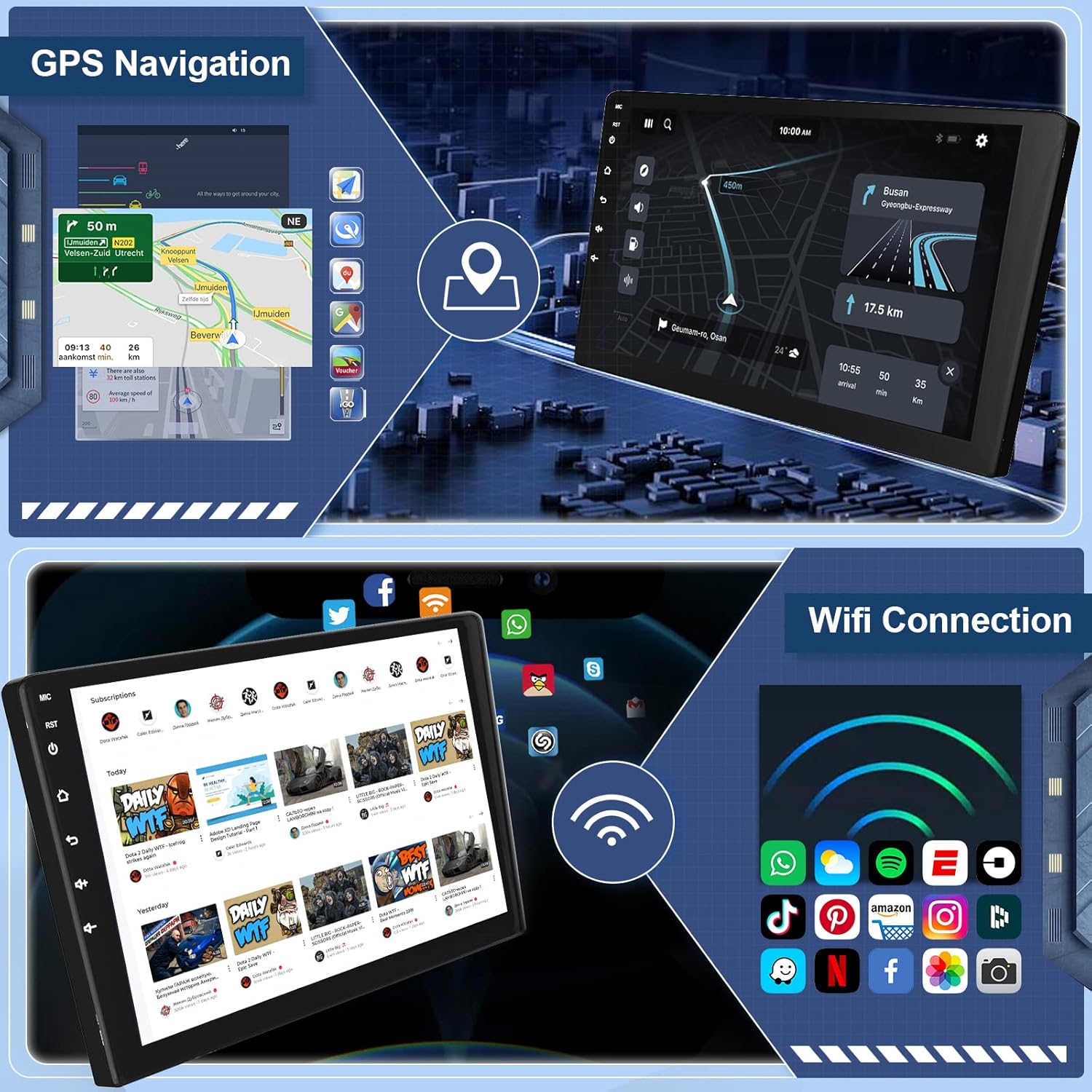
This image displays two main features: GPS Navigation and WiFi Connection. The upper part shows the car stereo displaying a navigation map with route details and points of interest. The lower part illustrates the WiFi connection interface, showing various app icons that can be downloaded or accessed via WiFi.
6. Audio Features
6.1 FM/RDS Redhiyo
The unit features an FM/RDS radio tuner (87.5 MHz-107.5 MHz). It supports automatic station search and preset stations, allowing you to access various radio channels.
This image shows the FM/RDS radio tuner interface in the middle section, displaying frequency selection and RDS information. The bottom section illustrates the HiFi audio equalizer settings for sound customization.
6.2 HiFi Audio
Experience high-fidelity sound with the integrated HiFi audio capabilities, providing immersive and clear audio playback for music enthusiasts.
7. Kuchengeta
- Kuchenesa Screen: Shandisa jira rakapfava, risina ruvara kuti upukute zvinyoro nyoro touchscreen. Dzivisa zvinochenesa kana zvinonyungudutsa.
- Zvigadziriso zveSoftware: Nguva nenguva tarisa kana software yakagadziridzwa kuti uve nechokwadi chekuti inoshanda zvakanaka uye kuti uwane zvinhu zvitsva. Zvigadziriso zvinogona kudhawunirodhwa kuburikidza neWi-Fi.
- Environmental Conditions: Operate the unit within the specified temperature range (-20 ℃ to 75 ℃) to prevent damage.
8. Kugadzirisa matambudziko
| Dambudziko | Zvinogona Kukonzera | Solution |
|---|---|---|
| Unit haibatike | Incorrect wiring; Blown fuse; Vehicle power issue | Check all power connections; Inspect vehicle fuses; Consult a professional if issues persist. |
| Hapana inzwi rinobuda | Speaker wiring issue; Volume too low; Mute activated | Verify speaker connections; Increase volume; Check if mute function is active. |
| GPS signal lost or inaccurate | GPS antenna obstruction; Poor satellite reception | Ita shuwa kuti antenna yeGPS ine tambo yakajeka view of the sky; Move to an open area. |
| Bluetooth nyaya dzekubatanidza | Device not paired; Bluetooth off on phone/unit | Ensure Bluetooth is enabled on both devices; Re-pair the devices; Clear previous pairings. |
| Touchscreen haidaire | Temporary software glitch; Screen damage | Restart the unit; If issue persists, contact support. |
9. Zvinotsanangurwa
- Memory: 2GB RAM + 64GB ROM
- Screen Resolution: 1024 x 600
- Radio Chip: MT6625
- Output Power: 4 x 45W
- Operating Temperature: -20 ℃ kusvika 75 ℃
- Kudzora Wheel: Inotsigirwa
- Simba AmpLifier Chip: TDA7388
- Radio Band: FM/RDS (87.5 MHz-107.5 MHz)
- Vhidhiyo Inobuda: Inotsigirwa
- Reversing Input: AHD/CVBS
- Maikorofoni Yekunze: Inotsigirwa
- Split Screen: Inotsigirwa
- Mepu: Built-in offline maps (requires internet for data download)
- Wi-Fi: Inotsigirwa
- USB: Dual USB interface
- Audio Fomu Rutsigiro: APE/FLAC/WAV/MP3/WMA, etc.
- Vhidhiyo Format Tsigiro: MKV/RMVB/AVI/MP4/MDV, etc.
- Image Format Support: PNG/JPEG/JPG/GIF/WBMP/BNP, etc.
- Factory Setting Keyword: 888
- Mitauro Chinese, English, French, Italian, Korean, Japanese, Arabic, Spanish, Portuguese, Russian, Turkish, Vietnamese, Hebrew, Polish, German
- Kurema 1.2 makirogiramu
10. Warranty uye Tsigiro
10.1 Ruzivo rweWaranti
Hodozzy provides a 2-gore vimbiso yehutano for this product. This warranty covers manufacturing defects and ensures the product meets quality standards under normal use.
10.2 Return Policy
A 30-day disclaimer applies to returns. Please refer to your purchase agreement or retailer's policy for specific return conditions and procedures.
10.3 Mutengi Tsigiro
For technical assistance, troubleshooting, or warranty claims, please contact Hodozzy customer support. Online replies are typically provided within 14 maawa.
For further information, please visit the official Hodozzy websaiti kana kubata mutengesi wako.