
1. Nhanganyaya
Thank you for choosing the BINNUNE 2.4GHz Wireless Gaming Headset. This manual provides detailed instructions to help you set up, operate, and maintain your headset for an optimal gaming and audio experience across various platforms including PS5, PS4, PC, Mac, and mobile devices via Bluetooth.
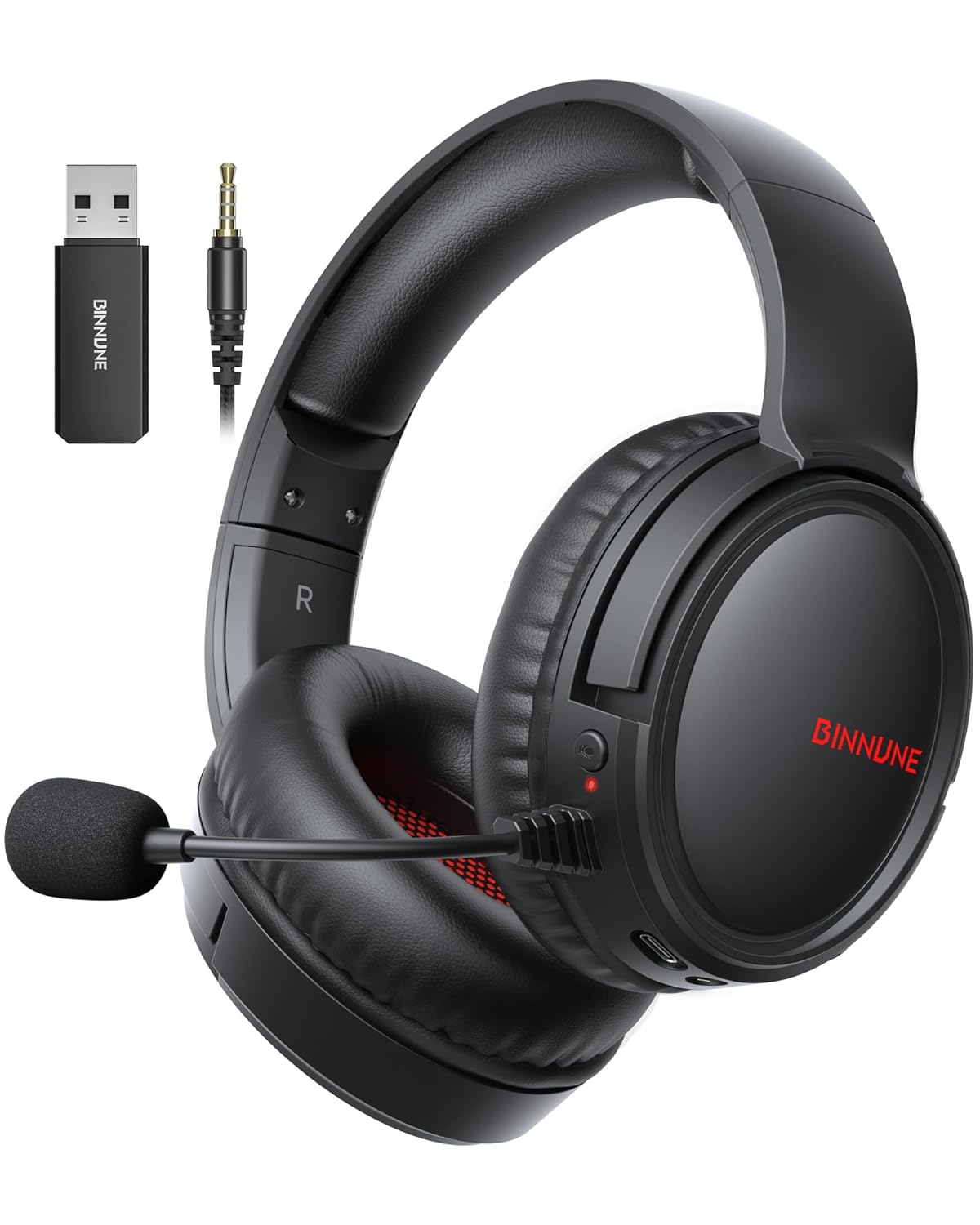
Figure 1: BINNUNE Wireless Gaming Headset (Model BW02-BT) with included accessories.
2. Chii chiri muBhokisi
- BINNUNE Wireless Gaming Headset (BW02-BT)
- 2.4GHz USB Dongle
- 3.5mm Audio Cable
- USB-C Kuchaja Cable
- User Manual

Figure 2: All components included with your BINNUNE Gaming Headset.
3. Chigadzirwa Pamusoroview uye Zvinodzora
Familiarize yourself with the headset's controls and ports for seamless operation.
- Maikorofoni: Dual beamforming microphones with rotatable design for clear communication. Features ENC noise-canceling technology.
- USB-C Chiteshi: Yekuchaja mahedhifoni.
- 3.5mm Audio Jack: For wired connection to compatible devices.
- Chiratidzo che LED: Displays power status, charging status, and connection mode.
- Bhatani reSimba: Dzvanya uye ubate kuti ubatisise/kudzima.
- Vhiri Vhiri: Inogadzirisa vhoriyamu yekuteerera.
- Mute Bhatani: Inodzima/inodzima maikorofoni.
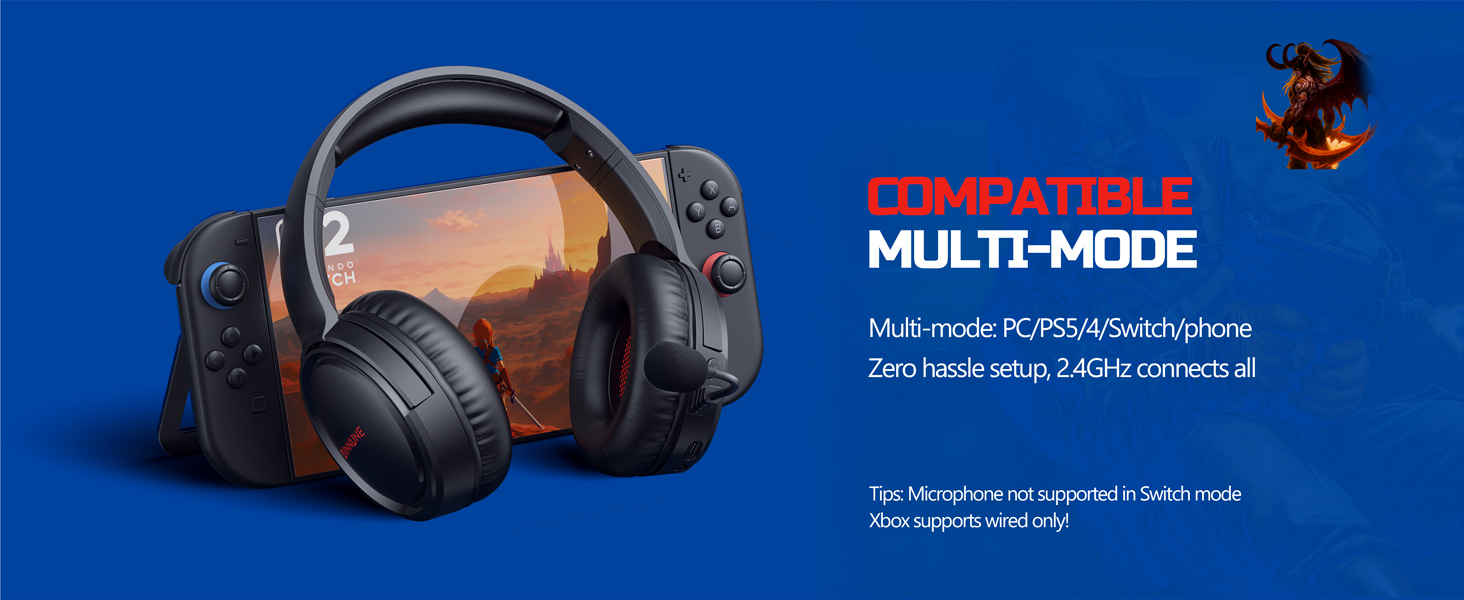
Figure 3: Key controls and ports on the BINNUNE Wireless Gaming Headset.
Vhidhiyo 1: Kupera nekukurumidzaview of the BINNUNE Gaming Headset's features and controls.
4. Setup uye Connection
4.1 Kutanga Kuchaja
Before first use, fully charge your headset. Connect the USB-C charging cable to the headset's USB-C port and the other end to a USB power source. The LED indicator will show charging status and turn off when fully charged. A full charge takes approximately 6 hours.

Figure 4: The headset offers up to 40 hours of battery life on a single charge.
4.2 2.4GHz Wireless Connection (USB Dongle)
This mode provides ultra-low latency audio (≤38ms) for gaming on PS5, PS4, PC, and Mac.
- Plug the 2.4GHz USB dongle into an available USB port on your PS5/4, PC, or Mac.
- Power on your BINNUNE headset by pressing and holding the power button.
- The headset will automatically connect to the dongle. The LED indicator will show a stable light when connected.
Cherechedza: The microphone is not available when connected to Nintendo Switch in 2.4GHz mode. Not compatible with XBOX.

Figure 5: The 2.4GHz USB dongle ensures a fast and stable connection.
4.3 Bluetooth Connection
Use Bluetooth mode for mobile phones, tablets, iPads, and other smart devices.
- Ita shuwa kuti headset inogoneswa.
- Pamudziyo wako, enda kuBluetooth settings wobva wagonesa Bluetooth.
- Select "BINNUNE BW02-BT" from the list of available devices to pair.
- The LED indicator will flash during pairing and show a stable light once connected.
Cherechedza: Bluetooth mode is not compatible with PS5/4. The microphone is not available when connected to Nintendo Switch in Bluetooth mode.
4.4 Wired Connection (3.5mm Audio Cable)
For devices that do not support wireless connectivity or when battery is low.
- Batanidza mugumo mumwe wetambo yekuteerera ye3.5mm kune jeki yekuteerera ye3.5mm yehedhifoni.
- Connect the other end to the 3.5mm audio port on your gaming device (e.g., PS5/4 controller, PC, phone).
Cherechedza: The microphone may not be available on some devices when using the wired connection.

Figure 6: Multiplatform compatibility of the BINNUNE headset across 2.4G, Bluetooth, and Wired modes.
Video 2: Demonstrating the multi-mode connectivity of BINNUNE Gaming Headsets for PS4/PS5/PC.
5. Operating Instructions
5.1 Simba On/Kudzima
Press and hold the Power Button for 3 seconds to turn the headset on or off. The LED indicator will light up or turn off accordingly.
5.2 Kudzora Inzwi
Rotate the Volume Wheel up (+) to increase volume or down (-) to decrease volume.
5.3 Kushandisa Maikorofoni
The headset features a rotatable microphone. Flip the microphone down to use it. Press the Mute Button to toggle microphone mute on or off. The ENC noise-canceling technology helps ensure clear voice transmission.
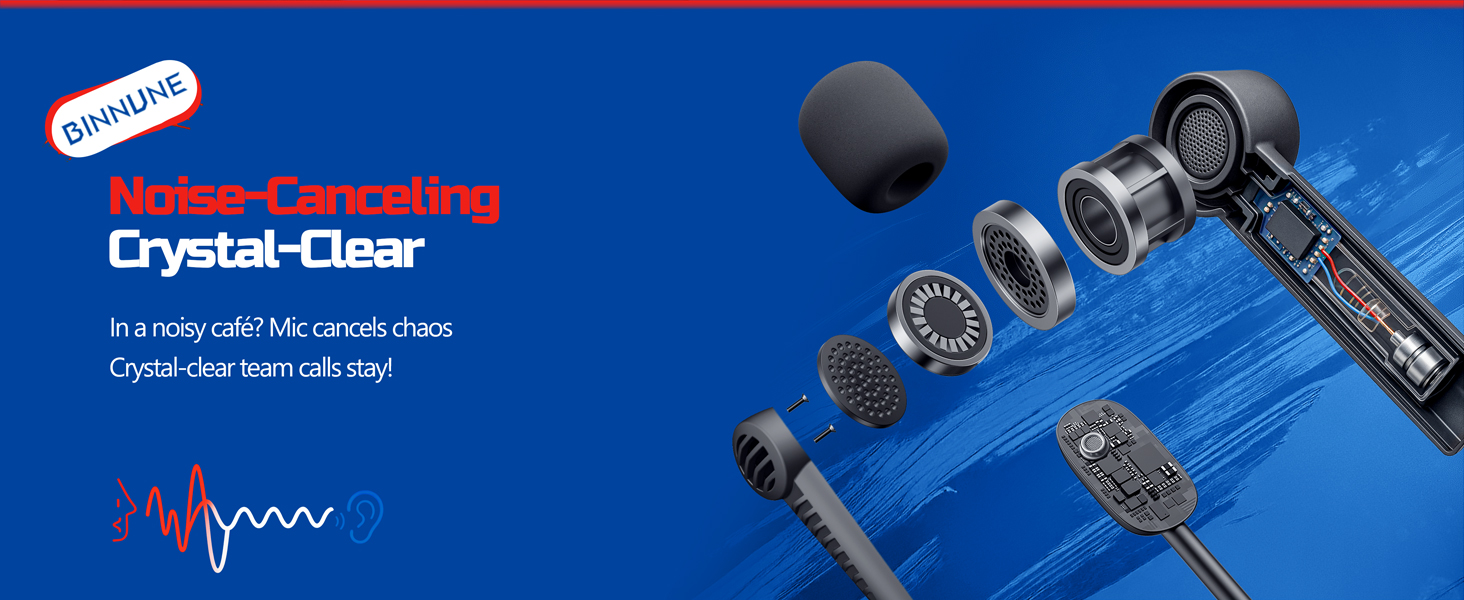
Figure 7: The noise-canceling microphone ensures crystal-clear voice calls by reducing background noise.
5.4 Kuchinja pakati peModes
The headset supports seamless switching between 2.4GHz and Bluetooth modes. Refer to section 4 for specific connection steps for each mode. The headset prioritizes the 2.4GHz connection when the dongle is active.
6. Kuchengeta
- Kuchenesa: Shandisa jira rakapfava, rakaoma kuchenesa headset. Dzivisa kushandisa zvinochenesa zvinogumbura kana zvinonyungudutsa.
- Kuchengeta: Chengetedza mahedhifoni munzvimbo inotonhorera, yakaoma kure nechiedza chezuva uye tembiricha yakanyanyisa.
- Battery Care: Kuti bhatiri rirambe richishanda kwenguva refu, dzivisa kuburitsa mahedhifoni ese nguva nenguva. Ichaje nguva dzose, kunyangwe isingashandiswe kwenguva yakareba.
7. Kugadzirisa matambudziko
| Dambudziko | Zvinogona Kukonzera | Solution |
|---|---|---|
| Hapana ruzha kubva kumahedhifoni. | Headset not powered on, low battery, incorrect connection mode, volume too low. | Ensure headset is on and charged. Check connection mode (2.4GHz/Bluetooth/Wired). Increase volume. |
| Maikorofoni haisi kushanda. | Microphone muted, incorrect input device selected on computer/console, compatibility issue in certain modes. | Unmute microphone. Check audio settings on your device to ensure BINNUNE headset is selected as input. Note mode limitations (e.g., Switch, some wired connections). |
| Cannot connect via 2.4GHz dongle. | Dongle not properly inserted, interference, headset too far from dongle. | Ensure dongle is fully inserted. Move closer to the dongle. Try a different USB port. |
| Haikwanise kubatana neBluetooth. | Headset not in pairing mode, device Bluetooth off, already connected to another device. | Ensure headset is discoverable. Turn Bluetooth on your device. Disconnect from other devices. |
8. Zvinotsanangurwa
| Feature | Detail |
|---|---|
| Model Name | BW02-BT |
| Kubatana Technology | Wireless (2.4GHz, Bluetooth 5.3), Wired (3.5mm Jack) |
| Audio Driver Size | 50 mm |
| Frequency Response | 20 Hz - 20,000 Hz |
| Sensitivity | 96 dB |
| Audio Latency (2.4GHz) | 32 Milliseconds (≤38ms advertised) |
| Hupenyu hwebhatiri | Kusvikira kuMaawa mashanu |
| Kuchaja Nguva | 6 Maawa |
| Maikorofoni | Dual Beamforming with ENC Noise-Canceling |
| Material | Plastic (Headset), Leather (Ear Cushions) |
| Kurema | 13.4 ounces |
| Inowirirana Devices | Gaming Consoles (PS4, PS5), PC, Mac, Telephones, Laptops, Desktops |
9. Warranty uye Tsigiro
BINNUNE products are manufactured with high-quality standards. For any product-related inquiries, technical support, or warranty claims, please refer to the official BINNUNE store or contact their customer service directly.
Visit the BINNUNE Store on Amazon kuti uwane rumwe ruzivo nerutsigiro.