Nhanganyaya
This manual provides essential instructions for the installation, operation, maintenance, and troubleshooting of your new Generic Laptop Backlit Keyboard, designed for various LG 16Z90RS series laptops. Please read this manual carefully before proceeding with installation or use to ensure proper function and longevity of the product.
Product Overview
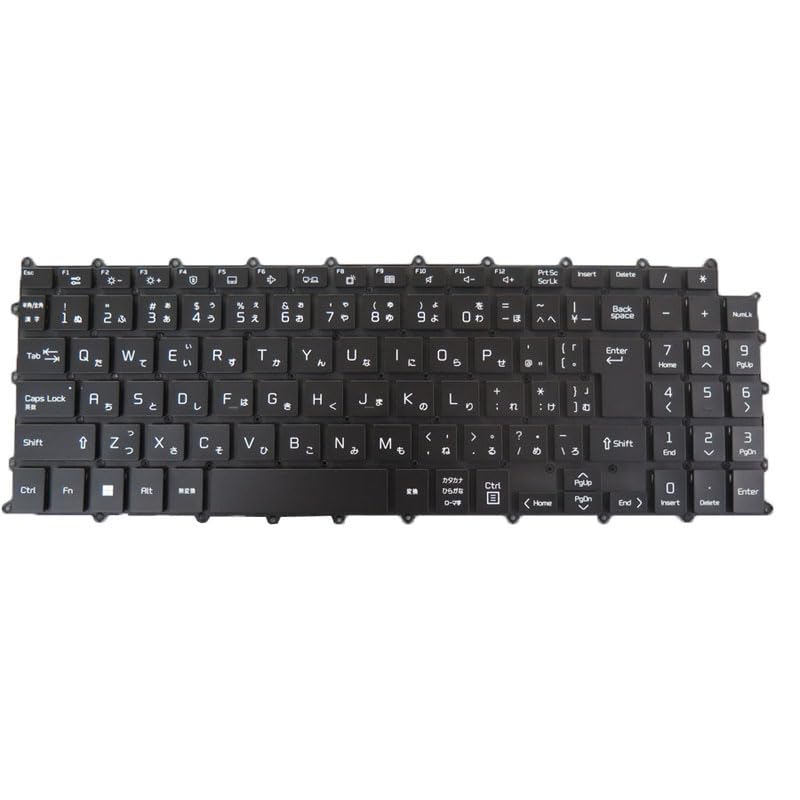
Image: Generic Japanese JP Black Backlit Laptop Keyboard. This image displays the full keyboard layout, highlighting the Japanese character set and the black keycaps, indicating its design for LG 16Z90RS series laptops.
This product is a replacement backlit keyboard for specific LG 16Z90RS series laptop models. It features a Japanese (JP) layout and includes backlighting for improved visibility in low-light conditions. The keyboard is designed without a frame, requiring integration with your laptop's existing frame structure.
Zvinokosha:
- Kuenderana: Designed for LG 16Z90RS, 16Z90RS-G, 16Z90RS-G.AD74B, 16Z90RS-GA50K, GA70K, 16Z90RS-K, 16Z90RS-K.ADW8U1, ADC9U1, AAW7U1 models.
- Magadzirirwo: Japanese (JP) keyboard layout.
- Backlight: Integrated backlighting for enhanced usability.
- Dhizaini: No frame design, intended for direct replacement.
Setup uye Installation
Installing a laptop keyboard requires careful handling and technical knowledge. It is highly recommended that installation be performed by a qualified technician to avoid damage to the keyboard or your laptop.
Nhungamiro Dzekugadzika Dzinowanzoitwa (dzekutsvagisa nenyanzvi):
- Power Off: Ensure the laptop is completely powered off and disconnected from all power sources. Remove the battery if possible.
- Kubvarura: Carefully disassemble the laptop components necessary to access the existing keyboard. This may involve removing the bottom cover, battery, and other internal components.
- Remove Old Keyboard: Disconnect the ribbon cables connecting the old keyboard to the motherboard. Carefully unclip or unscrew the old keyboard from its housing.
- Install New Keyboard: Position the new keyboard into the laptop's frame. Connect the ribbon cables securely to the motherboard connectors. Ensure all connections are firm and correctly aligned.
- Reassembly: Reassemble the laptop, ensuring all screws and clips are properly secured.
- Muedzo: Power on the laptop and test all keys, including the backlight function, to ensure proper operation before full reassembly.
Disclaimer: Improper installation can lead to damage to your laptop or the new keyboard. The manufacturer is not responsible for damages incurred due to incorrect installation.
Operating Instruction
Once installed, your new backlit keyboard operates like a standard laptop keyboard with the added functionality of backlighting.
Basic Keyboard Usage:
- Kunyora: Press keys firmly but gently for character input.
- Makiyi Ekuita (Fn): Utilize the 'Fn' key in combination with other keys (e.g., F1-F12) for specific laptop functions such as volume control, screen brightness, or external display toggling. Refer to your laptop's original user manual for specific Fn key combinations.
Backlight Control:
The keyboard backlight can typically be controlled using a specific function key combination. Common combinations include:
- Fn + F8
- Fn + F9
- Fn + Spacebar
Pressing the combination repeatedly may cycle through different backlight brightness levels or turn the backlight on/off. Consult your LG laptop's documentation for the exact key combination for backlight control.
Maintenance
Kugadzirisa kwakaringana kunovimbisa hupenyu hurefu uye kuita kwakakwana kwekhibhodi yako.
Kuchenesa:
- Kubvisa Dust: Use a can of compressed air to remove dust and debris from between the keys. Hold the can upright and spray in short bursts.
- Kucheneswa Kwepamusoro: Gently wipe the keycaps and keyboard surface with a soft, lint-free cloth slightly dampened with water or a mild, non-abrasive electronic cleaner. Avoid excessive moisture.
- Dzivisa: Do not use harsh chemicals, abrasive cleaners, or spray liquids directly onto the keyboard.
General Kutarisira:
- Avoid spilling liquids on the keyboard.
- Do not apply excessive force to the keys.
- Keep the laptop in a clean, dry environment.
Kugadzirisa matambudziko
If you encounter issues with your keyboard, refer to the following common problems and solutions.
Matambudziko Anowanikwa uye Mhinduro:
- Makiyi asiri Kupindura:
- Ensure the keyboard ribbon cables are securely connected to the motherboard.
- Tangazve laptop yako.
- Check for any physical obstructions under the non-responsive keys.
- Verify that the correct keyboard drivers are installed (usually handled automatically by the operating system).
- Backlight Haisi Kushanda:
- Ensure the backlight ribbon cable is properly connected.
- Try the backlight function key combination (e.g., Fn + F8/F9/Spacebar) multiple times to cycle through settings.
- Check your laptop's power settings; some power-saving modes may disable backlighting.
- Incorrect Character Input:
- Verify that your operating system's keyboard language setting is set to Japanese (JP).
If these steps do not resolve the issue, consider contacting the seller or a professional technician for further assistance.
Zvinotsanangurwa
- Tsanangudzo yechinhu:
- Laptop Parts
- Zviyero zvechigadzirwa:
- 11.81 x 7.87 x 3.94 inches
- Chinhu Weight:
- 2.2 makirogiramu
- Mugadziri:
- Generic
- ASIN:
- B0DDB484NK
- Nhamba yemuenzaniso wechinhu:
- 16Z90RS Keyboard JP
- Zuva Rokutanga Kuwanikwa:
- Nyamavhuvhu 16, 2024
Warranty Information
Ichi chigadzirwa chinouya ne 90-mazuva waranti from the date of purchase. This warranty covers manufacturing defects and ensures the product is free from material and workmanship flaws under normal use.
The warranty does not cover damage caused by improper installation, misuse, accidents, unauthorized repairs, or normal wear and tear. Please retain your proof of purchase for warranty claims.
Support
For technical assistance, warranty claims, or any questions regarding your Generic Laptop Backlit Keyboard, please contact the seller directly through your purchase platform. Ensure you have your order details and product model number (16Z90RS Keyboard JP) ready when contacting support.
As per the seller's recommendation, please check your registered email after payment for any important communications regarding your order.
Official Product Videos
No official product videos from the seller were found to be relevant or useful for inclusion in this manual.


