
Nhanganyaya
This manual provides comprehensive instructions for the setup, operation, maintenance, and troubleshooting of your Divoom Ditoo and Tiivoo-2 Pixel Art Bluetooth Speakers. Please read this manual carefully before using your device to ensure optimal performance and longevity.
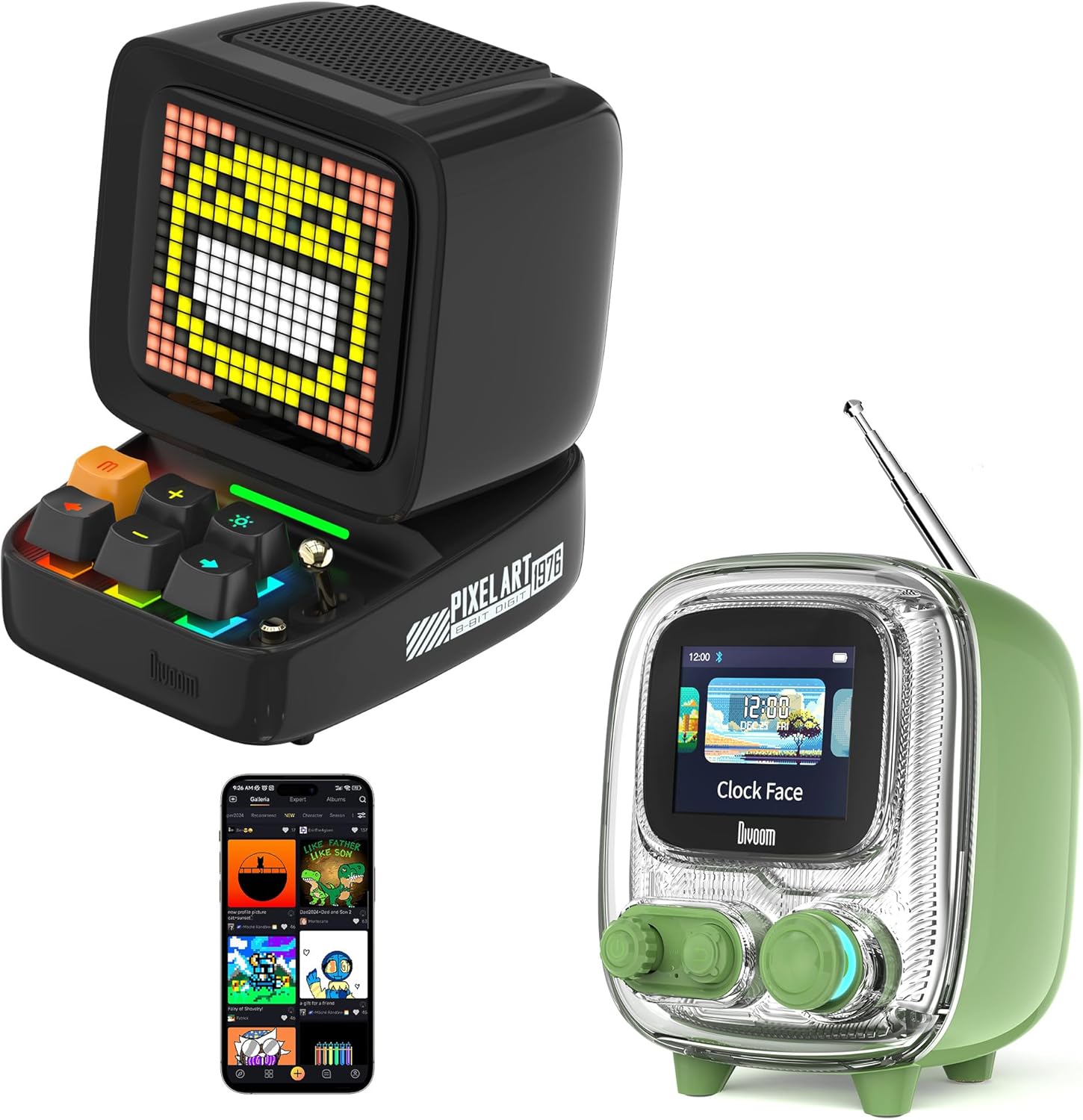
Image: The Divoom Ditoo (left) and Tiivoo-2 (right) Pixel Art Bluetooth Speakers, showcasing their distinct retro designs and pixel displays.
1. Setup
1.1 Unboxing uye Package Zviri mukati
Carefully unpack your Divoom speaker and verify that all components are present.
- Divoom Ditoo or Tiivoo-2 Speaker
- Power Cord
- Power Adapter
- Mushandisi Chinyorwa (gwaro iri)
1.2 Kubatidza uye Kuchaja
Before first use, it is recommended to fully charge your speaker. Connect the provided power cord and adapter to the speaker's charging port and a power outlet. The charging indicator will show the charging status.
1.3 Bluetooth Pairing
- Ensure your Divoom speaker is powered on.
- Shandisa Bluetooth pafoni yako (smartphone, tablet, nezvimwewo).
- Tsvaga zviripo Bluetooth zvishandiso.
- Select "Divoom Ditoo" or "Divoom Tiivoo-2" from the list to pair.
- A confirmation sound or message on the speaker's display will indicate successful pairing.
1.4 Divoom App Installation
To unlock the full potential of your Divoom speaker, download the official Divoom app. The app allows for pixel art creation, access to the pixel art community, advanced settings, and more.
- Zvemidziyo yeIOS: Tsvaga "Divoom" in the Apple App Store.
- Zvemidziyo yeAndroid: Tsvaga "Divoom" in the Google Play Store.

Image: The Divoom Ditoo speaker displaying pixel art, alongside a smartphone screen showing the Divoom app interface for pixel art creation.
2. Operating Instructions
2.1 Basic Controls (Ditoo)
The Ditoo speaker features a retro keyboard and joystick for intuitive control.

Mufananidzo: Kuvhara view of the Divoom Ditoo speaker, highlighting its mechanical keyboard-style buttons and joystick for interaction.
- Bhatani reSimba: Dzvanya wobata kuti ubate/udzime. Dzvanya pfupi kuti uchinje mamodhi ekuratidza.
- Joystick: Navigate menus, adjust volume, or change tracks depending on the mode.
- Keyboard Buttons: Specific functions vary by mode (e.g., play/pause, next/previous track, confirm selection). Refer to the in-app guide for detailed button mappings.
2.2 Basic Controls (Tiivoo-2)
The Tiivoo-2 speaker features rotary knobs and buttons for control, resembling a vintage television.

Mufananidzo: Kuvhara view of the Divoom Tiivoo-2 speaker, showing its two rotary knobs and central display, designed to resemble a retro TV.
- Mapfundo eRotary: Typically control volume, menu navigation, or FM radio tuning.
- Mabhatani: Power, play/pause, mode selection, etc.
2.3 Pixel Art Creation and Community
Utilize the Divoom app to design your own pixel art. You can draw images, create animations, and share them with a global community of over 1000 designers. Explore the gallery for inspiration and download existing pixel art to display on your speaker.

Image: The Divoom Tiivoo-2 speaker displaying pixel art, with a smartphone screen showing the Divoom app's pixel art creation interface, surrounded by various pixel art designs.
2.4 Kuridza Mumhanzi
Once paired via Bluetooth, your Divoom speaker functions as a high-quality audio output device. Play music from your connected device, and control playback (play/pause, skip tracks, volume) using the speaker's physical controls or the Divoom app.

Image: A Divoom Ditoo speaker displaying an equalizer, with text overlays indicating "Super Bass," "360° Surround Sound," and "10H Playback Time," emphasizing its audio capabilities.
2.5 FM Radio (Tiivoo-2 Specific)
The Tiivoo-2 model includes an FM radio tuner. Extend the antenna for better reception. Use the rotary knobs to scan for and select FM stations. The current station frequency will be displayed on the screen.
2.6 Smart Alarm and Clock Functions
Your Divoom speaker can function as a smart alarm clock. Set alarms, customize alarm tones, and utilize built-in white noise features through the Divoom app to aid sleep or focus. The speaker can display time and weather conditions.
2.7 Social Media Notifications
Configure the Divoom app to receive visual notifications from your social media accounts directly on the speaker's display.
2.8 Pixel Games
The Divoom app offers a selection of pixel games that can be played directly on your speaker's display, providing entertainment and interaction.
2.9 Photo Album Casting
The Divoom app allows you to cast images from your photo album to the speaker's display, turning it into a digital photo frame for preserving moments.
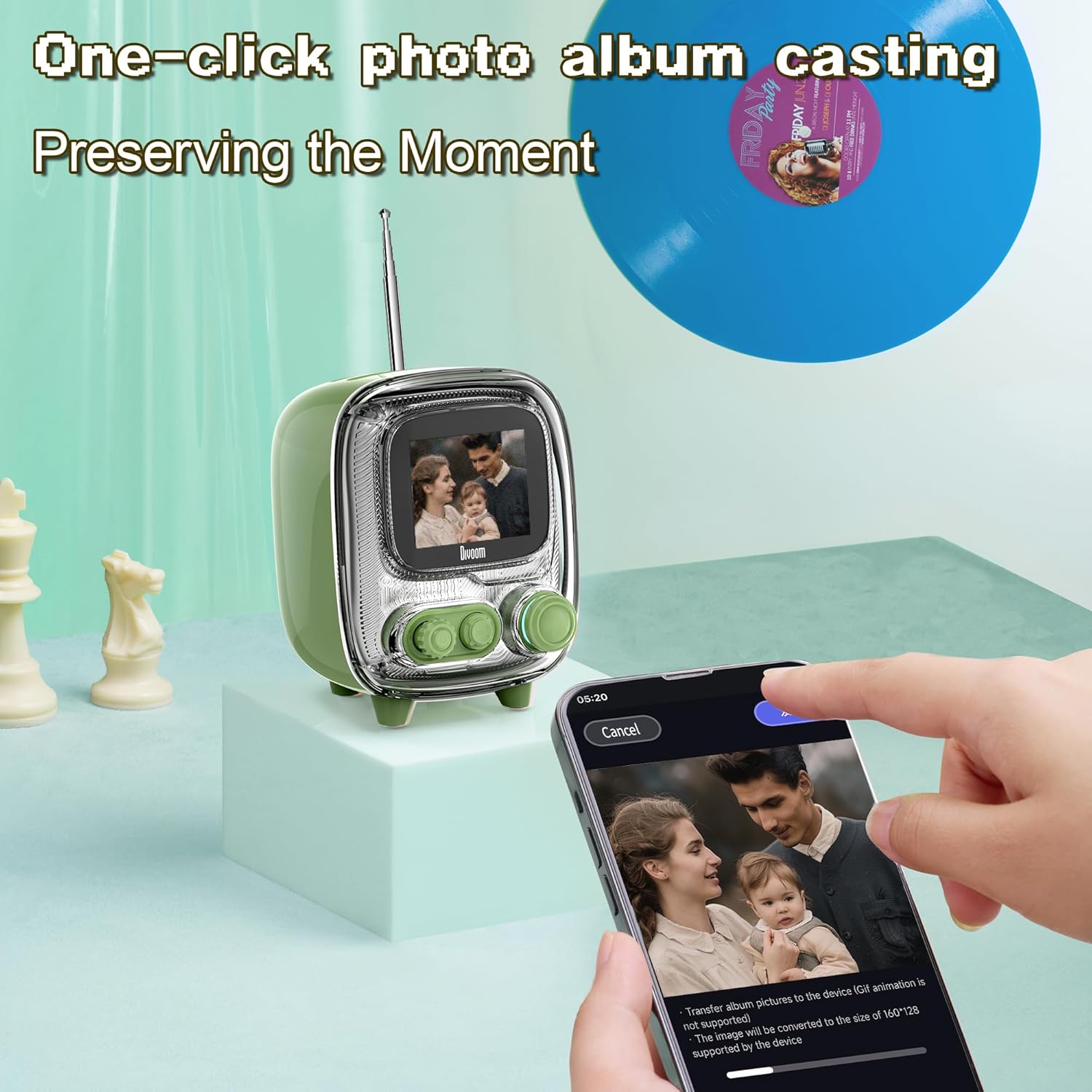
Image: The Divoom Tiivoo-2 speaker displaying a family photo, with a smartphone screen showing the Divoom app's interface for casting images from a photo album.

Mufananidzo: Collage showcasing four key features of the Divoom speakers: White Noise for sleeping aid, Alarm Clock with countdown timer, Pixel Games with 15 relaxation games, and DIY Pixel Art creation.
3. Kuchengeta
To ensure the longevity and optimal performance of your Divoom speaker, follow these maintenance guidelines:
- Kuchenesa: Use a soft, dry, lint-free cloth to clean the speaker's exterior. Avoid abrasive cleaners, solvents, or spray cleaners directly on the device.
- Kuchengeta: Kana isingashandiswi kwenguva yakareba, chengeta mukurukuri munzvimbo inotonhorera, yakaoma pasina chiedza chezuva uye tembiricha yakanyanyisa.
- Kuratidzwa kwemvura: The speaker is not waterproof. Avoid exposing it to water or high humidity.
- Kuchaja: Use only the provided power cord and adapter.
4. Kugadzirisa matambudziko
If you encounter issues with your Divoom speaker, refer to the following common solutions:
- Sipika haisi kubatidza: Ensure the speaker is charged. Connect it to the power adapter and allow it to charge for at least 30 minutes before attempting to power on again.
- Haikwanise kubatanidza kuburikidza neBluetooth:
- Ensure Bluetooth is enabled on your mobile device and the speaker.
- Make sure the speaker is in pairing mode (usually indicated by a blinking Bluetooth icon on the display).
- Svedzera mudziyo wako pedyo nesipika.
- Edza kusabatanidza uye kubatanidza zvakare mudziyo.
- Restart both the speaker and your mobile device.
- Hapana ruzha kana vhoriyamu yakaderera:
- Tarisa huwandu hwevhoriyamu paspika nepamudziyo wako wakabatana.
- Iva nechokwadi chekuti sipika yakabatana zvakanaka uye yakabatana.
- Edza kutamba odhiyo kubva kune imwe application kana sosi yakasiyana.
- App not connecting to speaker:
- Ensure Bluetooth is active and the speaker is paired with your phone.
- Verify that the Divoom app has necessary permissions (e.g., location, Bluetooth).
- Restart the app and the speaker.
- FM Radio reception poor (Tiivoo-2):
- Wedzera antenna zvizere.
- Edza kuisazve mutauri kuti uvandudze matambiro echiratidzo.
- Scan for stations again.
If problems persist, contact Divoom customer support for further assistance.
5. Zvinotsanangurwa
| Feature | Detail |
|---|---|
| Brand | Divoom |
| Muenzaniso Nhamba | Ditoo, Tiivoo-2 (Internal: 813ac9f0-874d-4e1b-872a-503bb163ca4f) |
| Kubatana Technology | Bluetooth |
| Special Features | Bluetooth, Pixel Art Display, Smart Alarm, Notifications, Games |
| Display Technology | LCD |
| Simba Source | Corded Electric |
| Tuner Technology (Tiivoo-2) | FM |
| Inosanganisirwa Zvikamu | Power Cord, Power Adapter |
| Inokurudzirwa Zvishandiso | Music, News, Pixel Art Display, Alarm Clock |
6. Warranty uye Tsigiro
For warranty information and customer support, please refer to the official Divoom websaiti kana kubata dhipatimendi ravo rebasa revatengi. Chengeta risiti rako rekutenga seumboo hwekutenga.
You can visit the Divoom store for more information: Divoom Official Store