
Nhanganyaya
This manual provides detailed instructions for the installation, operation, maintenance, and troubleshooting of your ASUS TUF GAMING Z890-PLUS WIFI motherboard. Designed for Intel Core Ultra 200S Plus and 200S Series processors, this ATX motherboard features DDR5 memory support, PCIe 5.0, Wi-Fi 7, and Intel 2.5 Gb Ethernet, offering a robust foundation for high-performance computing.
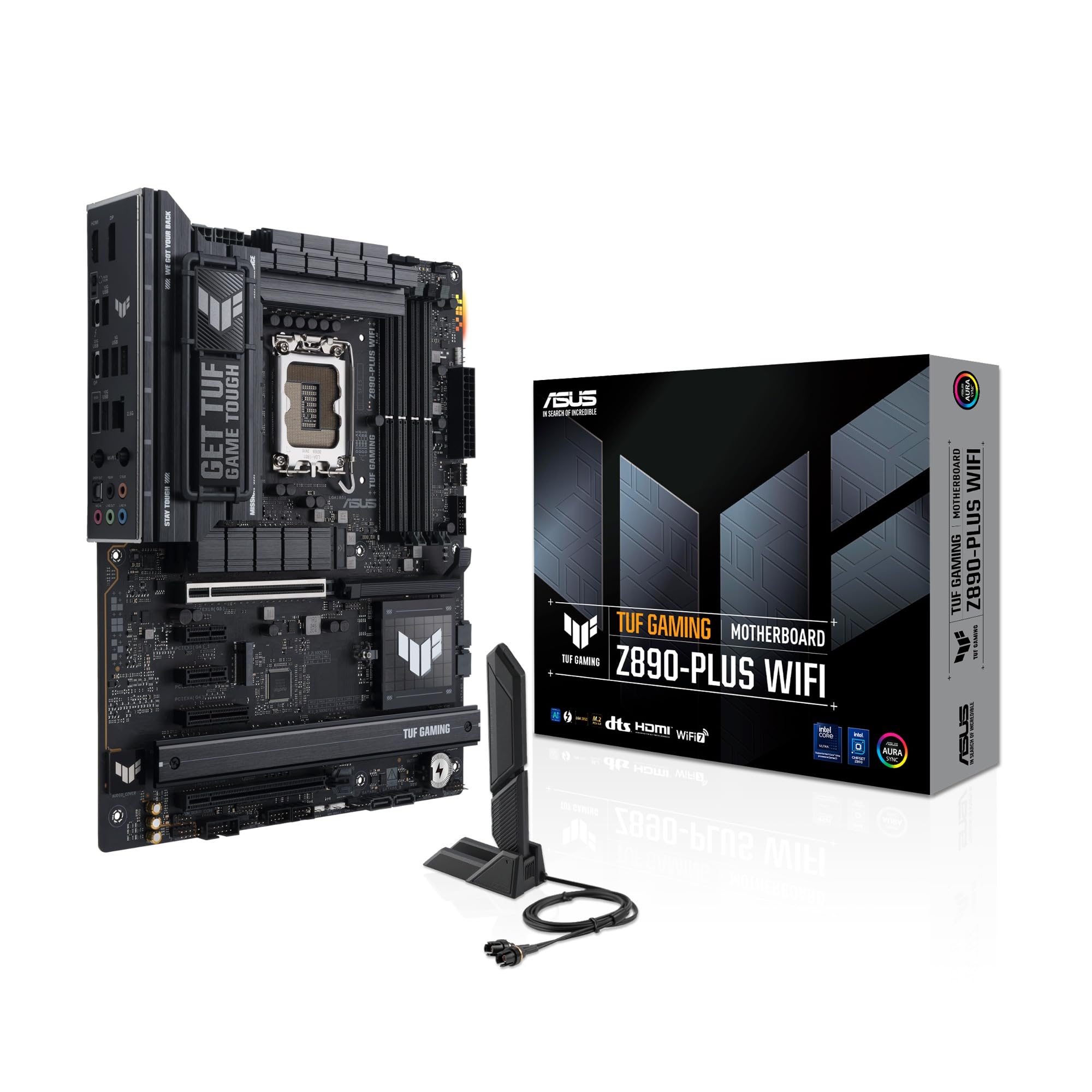
Figure 1: ASUS TUF GAMING Z890-PLUS WIFI Motherboard with its retail packaging and included Wi-Fi antenna.
Setup uye Installation
Tevedza aya matanho ekumisikidza kwakaringana kwebhodhi rako reamai uye zvikamu zvaro.
1. Kusunungura uye Kuongorora Kwekutanga
Carefully remove all components from the packaging. Verify that all items listed in the 'What's in the Box' section are present and inspect the motherboard for any visible damage.

Figure 2: Contents typically found in the ASUS TUF GAMING Z890-PLUS WIFI retail box.
2. Kuiswa kweCPU (LGA 1851)
Open the CPU socket retention lever. Align the triangular mark on your Intel processor with the corresponding mark on the socket. Gently place the CPU into the socket, ensuring it sits flush. Close the retention lever to secure the CPU.

Mufananidzo 3: Kupfuuraview of the motherboard layout, showing the LGA 1851 CPU socket.
3. Memory (RAM) Kuiswa
This motherboard supports DDR5 memory modules. Open the clips on the DIMM slots. Align the notch on the DDR5 memory module with the key in the DIMM slot. Press down firmly on both ends of the memory module until the clips snap into place. The motherboard supports up to 256GB of DDR5 RAM across its four slots.
4. Kuchengetedza (M.2 SSD) Kuiswa
The motherboard features multiple M.2 slots for high-speed NVMe SSDs. Utilize the ASUS M.2 Q-Latch and M.2 Q-Release features for tool-less installation. To install, remove the M.2 heatsink (if present) by tapping the M.2 Q-Release button. Insert the M.2 SSD into the slot, then secure it with the M.2 Q-Latch mechanism. The M.2 Q-Slide design accommodates various SSD sizes.

Figure 4: EZ PC DIY features for simplified component installation, including M.2 Q-Latch and Q-Release.

Figure 5: Demonstrating the M.2 heatsink removal process.
5. Kuisa Kadhi Rekuwedzera (PCIe)
Insert your graphics card or other PCIe expansion cards into the appropriate PCIe slots. The primary PCIe 5.0 x16 slot is designed for next-generation GPUs. Use the PCIe Slot Q-Release button to easily unlock the security latch for card removal.

Figure 6: Layout of PCIe slots, indicating PCIe 5.0 and PCIe 4.0 compatibility.
6. Kubatanidza Peripherals uye Simba
Connect your power supply unit (PSU) cables to the motherboard's 24-pin ATX power connector and CPU power connectors. Attach front panel connectors (USB, audio, power/reset switches) to their respective headers. Install the included Wi-Fi antenna to the rear I/O panel for Wi-Fi 7 connectivity. Connect USB devices, Ethernet cables, and display outputs as needed.

Figure 7: Detail of a USB header for connecting front panel USB ports.

Figure 8: The rear input/output panel, showing various ports and the Wi-Fi antenna connection.
Operating Your Motherboard
Once assembled, power on your system and configure the BIOS/UEFI settings.
1. Kugadziriswa kweBIOS/UEFI
Access the BIOS/UEFI setup utility by pressing the 'Delete' or 'F2' key during system startup. The intuitive interface allows for easy navigation and configuration of system settings, boot order, and hardware parameters.
2. AI Intelligence Features
The ASUS TUF GAMING Z890-PLUS WIFI motherboard integrates several AI-powered features to enhance user experience and system performance:
- AI Advisor: Utilizes AI technology to understand natural-language questions, helping users explore motherboard functionality and BIOS settings.
- AI Cooling II: Optimizes thermal performance and reduces noise through dynamic adjustment of fan speeds based on CPU temperatures.
- Kubatana kweAI II: Optimizes network performance for seamless connectivity and maximized Wi-Fi 7 speeds.

Mufananidzo 9: Kupfuuraview of the motherboard's AI Intelligence features.

Figure 10: The AI Advisor interface, providing assistance with motherboard functions.
3. Performance Optimization
Leverage advanced features for optimal system performance:
- AEMP III: Advanced firmware for unparalleled memory performance with cutting-edge DDR5 modules.
- DIMM FIT: An ASUS-exclusive BIOS feature that precisely analyzes individual memory modules to optimize performance and pinpoint potential issues.
- NPU BOOST: This BIOS feature overclocks the NPU with one click, increasing performance by up to 24%.

Figure 11: Key performance enhancement features of the motherboard.
Maintenance
Kugadziriswa kwakakodzera kunovimbisa kugara kwenguva refu uye kushanda kwakasimba kwebhodhi rako reamai.
1. Thermal Management
The motherboard features an optimized thermal design, including large VRM heatsinks, M.2 heatsinks, and PCH heatsinks, along with hybrid fan headers and Fan Xpert 4 with AI Cooling II. Ensure proper airflow within your PC case and regularly clean dust from fans and heatsinks to maintain optimal temperatures.

Figure 12: The motherboard designed for efficient cooling, compatible with advanced cooling solutions.

Figure 13: AI Cooling II dynamically adjusts fan speeds for optimal thermal performance.
2. Kuchenesa
Periodically clean the motherboard and internal components of your PC using compressed air to remove dust buildup. Ensure the system is powered off and unplugged before cleaning.
Kugadzirisa matambudziko
If you encounter issues, consider the following basic troubleshooting steps:
- Hapana Simba: Check all power connections from the PSU to the motherboard and components. Ensure the power supply is switched on.
- Hapana Chiratidziro: Verify that the graphics card is properly seated and connected to the monitor. Test with a different display cable or monitor if possible.
- Kusagadzikana kweSystem: Ensure RAM modules are correctly installed. Check for proper CPU cooler installation. Update BIOS to the latest version.
- Network Issues: Confirm Wi-Fi antenna is securely attached. Check Ethernet cable connections. Utilize the AI Networking II feature for diagnostics.
- Consult AI Advisor: For specific issues, the AI Advisor can provide guidance based on natural language queries.
For more detailed troubleshooting, refer to the official ASUS support websaiti kana iyo yakazara mushandisi bhuku rePDF.
Zvinotsanangurwa
Key technical specifications for the ASUS TUF GAMING Z890-PLUS WIFI motherboard:

Mufananidzo 14: Kupfuuraview of advanced connectivity and memory features.
| Feature | Detail |
|---|---|
| Brand | ASUS |
| Model Name | 90MB1IQ0-M0EAY0 |
| CPU Socket | LGA 1851 |
| Inowirirana processors | Intel Core Ultra 200S Plus and 200S Series |
| Chipset Type | Intel Z890 |
| Tekinoroji yeRAM | DDR5 |
| Memory Clock Speed | Kusvika ku8600 MHz |
| Kugona Kwakanyanya kwe RAM | 256 GB |
| Ndangariro Slots | 4 |
| Graphics inowanikwa | PCI-Express x16 (PCIe 5.0 supported) |
| Total PCI Slots | 4 |
| Total SATA Ports | 6 |
| Total USB Ports | 15 (various types including USB4, USB 20Gbps) |
| Ethernet | Intel 2.5 Gb Ethernet |
| Wireless Kubatana | Wi-Fi 7 (802.11be) |
| Dimensions (LxWxH) | 24.4L x 24.4W x 1H masendimita |
| Kurema | 1.5 makirogiramu |

Figure 15: Highlighting the DDR5 memory speed support.

Figure 16: The integrated Intel 2.5 Gb Ethernet controller.
Warranty uye Support
1. Product Warranty
This ASUS motherboard comes with a 2-gore chigadzirwa waranti kubva pazuva rekutenga. Ndapota chengetedza humbowo hwako hwekutenga kwezvichemo zvewaranti.
2. Manufacturer Contact Information
For technical support, warranty inquiries, or further assistance, please contact ASUS:
- Mugadziri: ASUS Komputa GmbH
- Email: LegalCompliance@asus.com
- Websaiti: https://www.asus.com/it/
- Kero: Harkortstraße 21-23, Ratingen, 40880, Germany
3. Zvimwe Zvinyorwa
Further detailed information can be found in the official PDF documents: