
Nhanganyaya
The Xiaomi Smart Camera C500 is an advanced indoor surveillance camera designed to provide comprehensive monitoring for your home. Featuring a dual-lens system, 4-megapixel resolution, and dual-band Wi-Fi 6 connectivity, it offers enhanced security features such as human tracking, crying detection, and pet tracking. This manual provides detailed instructions for setting up, operating, and maintaining your camera to ensure optimal performance.
Safety Information
- Ensure the camera is installed in a stable location to prevent it from falling.
- Shandisa chete yekutanga magetsi adapta yakapihwa nemudziyo.
- Do not expose the camera to extreme temperatures, humidity, or direct sunlight.
- Keep the camera away from water or other liquids. This product is not water-resistant.
- Do not attempt to disassemble or repair the camera yourself. Contact authorized service personnel for assistance.
- Chengetedza pasingasvikirwi nevana.
Package Zviri mukati
Ona kuti zvinhu zvese zviripo mupasuru yako:
- 1 × Xiaomi Smart Camera C500 4MP Dual Lens with Wi-Fi 6 Dual-Band
- Power Adapter
- Mounting Accessories (if applicable for ceiling/wall mount)
- User Manual
Product Overview
The Xiaomi Smart Camera C500 features a compact dome design with dual lenses for extended coverage. It includes a power port, status indicator light, and a microSD card slot for local storage.
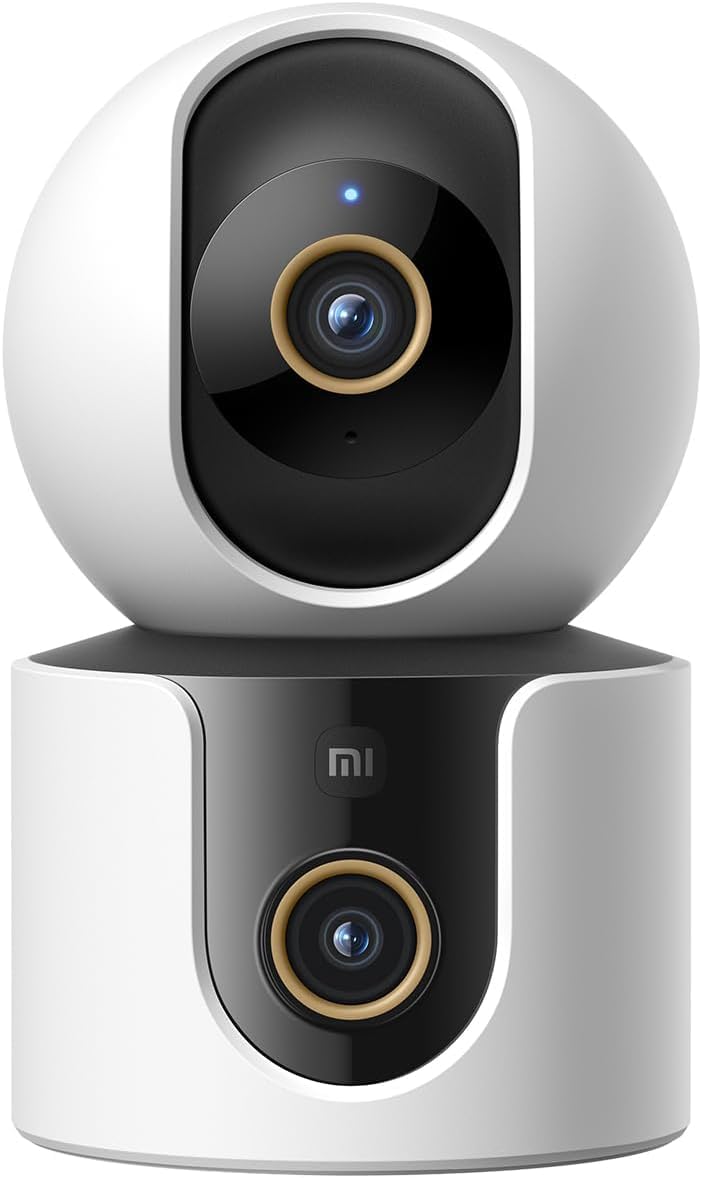
Mufananidzo 1: Mberi view of the Xiaomi Smart Camera C500, showing its dual-lens design and white and black casing.

Mufananidzo 2: Pamusoro-pasi view of the Xiaomi Smart Camera C500, highlighting its spherical upper section and ventilation holes.

Mufananidzo 3: Rutivi view of the Xiaomi Smart Camera C500, showing the power input and other ports on the base.
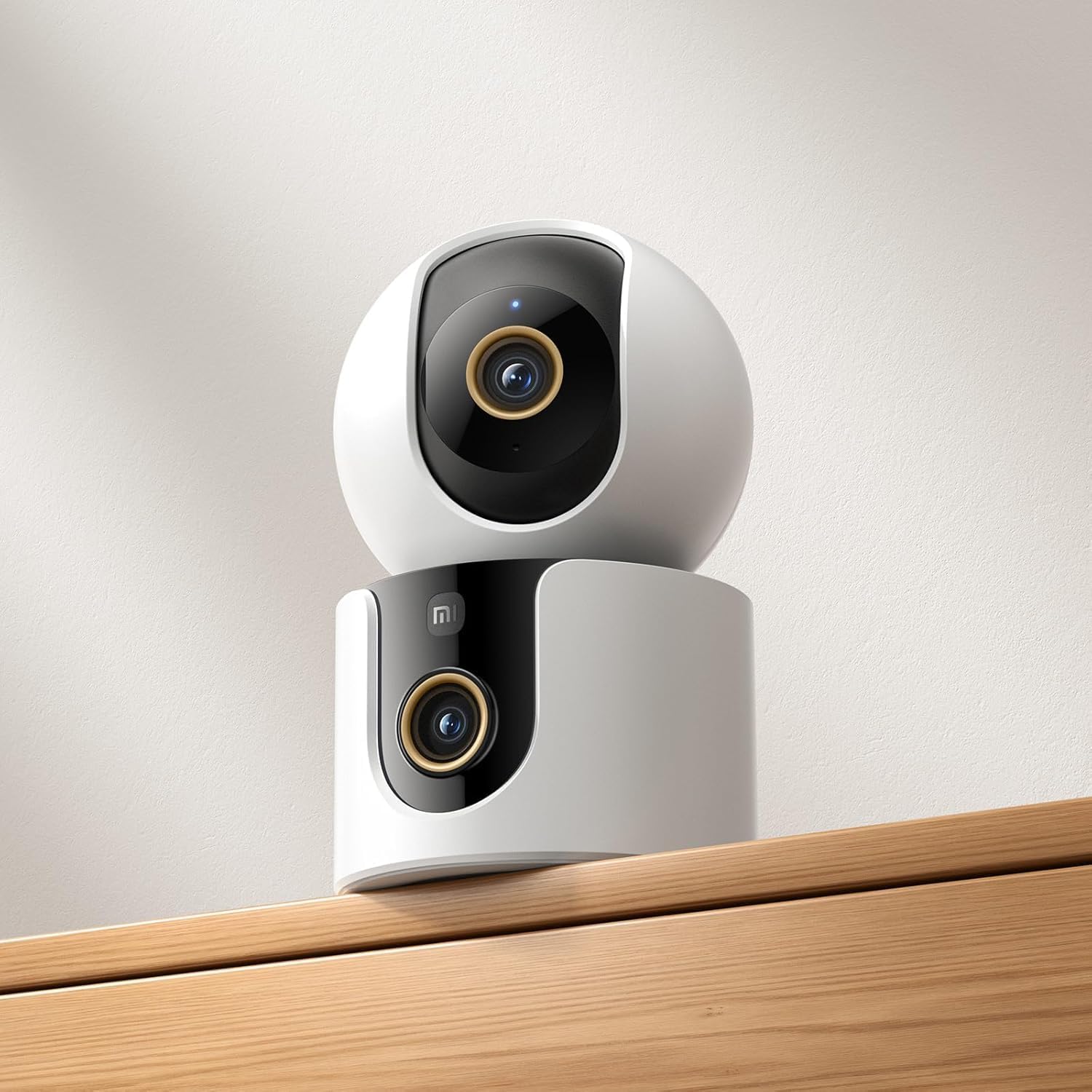
Figure 4: The Xiaomi Smart Camera C500 positioned on a wooden shelf, demonstrating its compact size and discreet placement.
Gadzirira
1. Powering On
- Batanidza adapta yemagetsi kune pombi yekuisa simba yekamera.
- Batanidza adapta yemagetsi mudura repamadziro.
- The camera will automatically power on, and the indicator light will begin to flash, indicating it is ready for connection.
2. Kuiswa kweApp
- Download the Xiaomi Kumba app kubva kuchitoro cheapp che smartphone yako (Google Play Store yeAroid kana Apple App Store ye iOS).
- Open the app and create a Xiaomi account or log in if you already have one.
3. Kubatanidza neApp
- In the Xiaomi Home app, tap the "+" icon in the top right corner to add a new device.
- Select the Xiaomi Smart Camera C500 from the list of available devices.
- Follow the on-screen instructions to connect the camera to your Wi-Fi network. Ensure your phone is connected to a 2.4GHz or 5GHz Wi-Fi network (the camera supports dual-band Wi-Fi 6).
- Scan the QR code displayed on your phone screen using the camera lens. You will hear a voice prompt confirming successful scanning.
- Once connected, you can name your camera and assign it to a specific room.
4. Kuisa Kamera
The camera supports tabletop placement or ceiling/wall mounting.
- Tabletop Mount: Isa kamera panzvimbo yakati sandara, yakagadzikana.
- Ceiling/Wall Mount: Use the provided mounting base and screws to secure the camera to a desired location. Ensure the camera is securely attached and has a clear field of view.
Operating Instruction
1. Rarama View
Open the Xiaomi Home app and select your camera to view the live feed. You can pan and tilt the camera remotely using the controls in the app to achieve 360-degree coverage.
2. Kurekodha uye Kutamba
- Nzvimbo Yekuchengetera: Insert a microSD card (up to 256GB) into the camera's slot for continuous or event-triggered recording.
- Cloud Storage: Optional cloud storage services may be available through the Xiaomi Home app for secure backup of recordings.
- Kutamba Svika yakanyorwa footage through the app's playback feature, navigating by date and time.
3. Ruzha rwenzira mbiri
Use the microphone and speaker icon in the live view interface to enable two-way communication. This allows you to speak through the camera and hear audio from its location.
4. Motion Detection and Human Tracking
The camera can detect motion and intelligently track human figures. Enable these features in the app settings to receive alerts and automatically record when activity is detected.
5. Crying Detection
For parents, the crying detection feature can be enabled to send instant notifications to your phone when a baby's cry is detected, allowing for quick response.
6. Pet Tracking
The camera can also track pets, providing alerts and recording their movements. This feature is useful for monitoring your furry companions throughout the day.
7. Night Vision
The camera automatically switches to ultra-low light color mode or infrared night vision in dim conditions, ensuring clear visibility up to 15 meters even in complete darkness.
Maintenance
- Kuchenesa: Pukuta lenzi yekamera nemuviri wayo zvinyoro nyoro nejira rakaoma uye rakapfava. Usashandise makemikari akasimba kana mishonga inokwesha.
- Firmware Dzokorora: Regularly check for and install firmware updates through the Xiaomi Home app to ensure optimal performance and access to new features.
- MicroSD Kadhi: If using a microSD card, periodically check its status and format it if necessary to maintain recording quality and prevent data corruption.
Kugadzirisa matambudziko
| Nyaya | Possible Solution |
|---|---|
| Kamera yakundikana kubatana neWi-Fi | Ensure your Wi-Fi network is 2.4GHz or 5GHz. Check Wi-Fi password. Move camera closer to router. Reset camera and try pairing again. |
| Kwete live view kana kurekodha | Check power connection. Ensure Wi-Fi is stable. Verify microSD card is inserted correctly and not full. Check app permissions. |
| Hunhu hwevhidhiyo husina kunaka | Clean the camera lens. Ensure adequate lighting. Check Wi-Fi signal strength. Adjust video resolution settings in the app. |
| Zviziviso hazvina kugamuchirwa | Check app notification settings on your phone. Ensure motion/crying detection is enabled in the camera settings. Verify app has necessary permissions. |
| Two-way audio haisi kushanda | Check microphone and speaker settings in the app. Ensure phone volume is up. Avoid placing camera in noisy environments. |
Zvinotsanangurwa
| Feature | Detail |
|---|---|
| Brand Name | Xiaomi |
| Model Name | Surveillance Camera |
| Model Number | C500 Dual |
| Zvinokurudzirwa Zvishandiso zveChigadzirwa | Indoor Security |
| Kubatana Technology | Wireless |
| Special Features | High Definition |
| Kushandisa Kwemukati/Kunze | Indoor |
| Inowirirana Devices | Smartphone |
| Simba Source | Corded Electric |
| Kukurukurirana Protocol | Wi-Fi Network |
| Controller Type | Amazon Alexa |
| Mounting Type | Tabletop Mount, Freestanding |
| Color | Chena |
| Fomu Factor | Dome |
| Material | Acrylonitrile Butadiene Styrene (ABS) |
| Mvura Resistance Level | Kwete Kudzivirira Mvura |
| Item Shape | Dome |
| Alert Type | Audio uye Motion |
| Room Type | Office |
| Light Source | Infrared |
| Image Sensor Resolution | 4 Megapixels |
| Kudzora Nzira | Via App |
| Voltage | 5.0 |
| Wattage | 10.0 |
| Mabhatiri Anodiwa? | Aihwa |
| Nhamba yeChannels | 2 |
| Vhidhiyo Encoding | H.265 |
| Vhidhiyo Capture Format | MPEG-4 |
| Night Vision Range | 15 mamita |
| Night Vision | Night Color |
| Number of Infrared LED Lights | 10 |
| Flash Memory Type | Micro SD |
| Maximum Supported Flash Memory Size | 256 GB |
| Nhamba Yezvinhu | 1 |
| Chaiyo Chigadzirwa Mashandisirwo | 360 Dhigirii Kuvhara, Kuongorora |
| Mugadziri | Xiaomi |
| Wireless Communication Technology | Wi-Fi |
| Vhidhiyo Capture Resolution | 1080p |
| Frame Rate | 25 mafuremu pasekondi |
| Viewing Angle | 360 madhigirii |
| Focus Type | Auto Focus |
| Image Sensor Technology | CMOS |
| Item Dimensions | 7.8 x 7.8 x 11.5 cm |
| Item Weight | 327 magiramu |
| Unit Count | 1.0 Verenga |
Warranty uye Support
For warranty information, please refer to the warranty card included in your product packaging or visit the official Xiaomi website. For technical support, troubleshooting assistance, or to report issues, please contact Xiaomi customer service through their official channels or the Xiaomi Home app.
You can find additional resources and FAQs on the Xiaomi official support page.