Nhanganyaya
Thank you for choosing the Dragon Touch L01 Wireless Mini Projector. This portable projector is designed to provide a vivid and immersive viewing experience, supporting 4K video projection with native 1080P resolution and 350 ANSI brightness. Equipped with high-speed WiFi 6 and Bluetooth 5.2, it offers versatile connectivity for various devices, making it ideal for home cinema, outdoor entertainment, business presentations, and educational purposes. This manual provides essential information on setup, operation, maintenance, and troubleshooting to ensure optimal performance and longevity of your projector.

The Dragon Touch L01 projector, designed for cinematic brilliance in both home and outdoor environments.
Chii chiri muBhokisi
Ndokumbira utarise zviri mukati mepakeji pane unboxing kuti uone kuti zvinhu zvese zviripo:
- Dragon Touch L01 Wireless Mini Projector
- HDMI Cable
- Power Cable
- Kudzora Kure (mabhatiri eAAA haana kubatanidzwa)
- Mushandisi Chinyorwa (gwaro iri)

Illustration of the projector and its included accessories: HDMI cable, power cable, and remote control.
Product Features
The Dragon Touch L01 projector is equipped with advanced features for a superior viewchiitiko:
- Native 1080P Resolution & 4K Tsigiro: Delivers crisp, clear images with a native 1920x1080 resolution and supports 4K video input for enhanced detail.
- 350 ANSI Brightness: Provides a bright and vivid projection, suitable for various lighting conditions.
- High-Speed WiFi 6 (5G & 2.4G Dual-Band): Ensures faster and more stable wireless phone projection and streaming.
- Electric Focus: Allows for convenient focus adjustments via remote control, eliminating the need for manual lens rotation.
- Keystone Kugadziriswa: Features automatic vertical keystone correction for quick image alignment.
- Makaralı 5.2: Enables seamless connection to external audio devices like Bluetooth speakers or headphones for enhanced sound.
- Built-in 2*5W Speakers: Provides clear and robust audio directly from the projector.
- Multimedia Connectivity: Equipped with HDMI, USB 2.0, and Audio Out ports for connecting a wide range of devices including TV sticks, game consoles, PCs, smartphones, and USB drives.
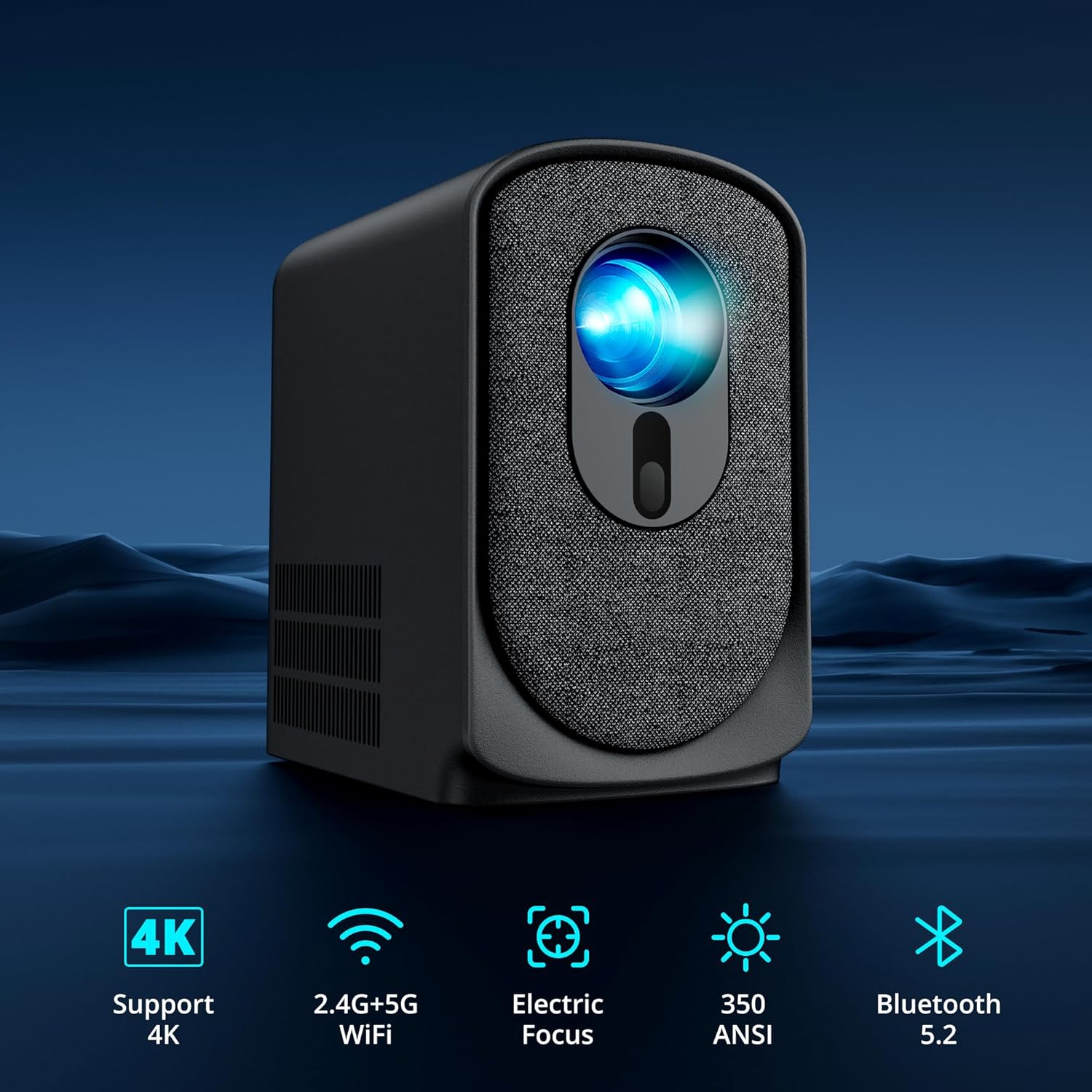
Key features of the L01 projector, including 4K support, dual-band WiFi, electric focus, 350 ANSI lumens, and Bluetooth 5.2.
Setup Guide
- Kuiswa: Place the projector on a stable, flat surface. Ensure there is adequate ventilation around the device. For optimal viewing, project onto a smooth, light-colored wall or a dedicated projector screen. Refer to the projection distance table in the specifications for recommended distances.
- Power Connection: Connect the power cable to the projector's power input port and then plug the other end into a power outlet. The power indicator light will illuminate.
- Kutanga Kubatidza Dzvanya bhatani remagetsi papurojekita kana remote control kuti ubatidze mudziyo.
- Focus Adjustment: Once powered on, the projector will perform an electric focus adjustment. If needed, use the F+ or F- buttons on the remote control to fine-tune the focus until the image is clear.
- Kwakabva Sarudzo Use the input source button on the remote or projector to select your desired input (HDMI, USB, Screen Mirroring).
Operating Instruction
Simba On/Kudzima
- Power On: Dzvanya bhatani remagetsi papurojekita kana remote control.
- Power Off: Press the power button again. A confirmation message may appear; select 'Power Off'.
Focus uye Keystone Kururamisa
The L01 projector features electric focus and automatic keystone correction for easy image adjustment.
- Electric Focus: Shandisa iyo F+ uye F- buttons on the remote control to adjust the image sharpness. This eliminates the need to manually turn a focus ring on the lens.
- Keystone Kugadziriswa: The projector automatically corrects vertical distortion. For manual adjustments or horizontal correction, navigate to the settings menu.

Electric focus and keystone correction allow for precise image adjustment using the remote control.
Kubatanidza Midziyo
The projector offers multiple connectivity options:
- HDMI: Connect your TV Stick/Box, game console, PC, or laptop using the included HDMI cable. Select 'HDMI' as the input source.
- USB: Insert a USB flash drive into the USB 2.0 port to play media files directly. Select 'USB' as the input source.
- Wireless (WiFi 6): For screen mirroring from smartphones or tablets, select the 'Screen Mirroring' option. Follow the on-screen instructions to connect your device via 5G or 2.4G WiFi. Note: Due to HDCP copyright restrictions, direct screen mirroring of Netflix, Amazon Prime, and Hulu is not supported. Use an Amazon Fire Stick or TV Stick for these services.
- Makaralı 5.2: To connect external Bluetooth speakers or headphones, go to the Bluetooth settings in the projector's menu, enable Bluetooth, and pair with your desired audio device.

The projector is compatible with a wide array of devices for diverse entertainment and productivity needs.
Audio Options
The projector offers flexible audio solutions:
- Vakavakwa-Vatauri: The 2*5W internal speakers provide clear and sufficient sound for most environments.
- External Audio via Bluetooth: For enhanced sound quality, connect to external Bluetooth speakers or soundbars.
- Audio Out: Use the 3.5mm audio out port to connect wired headphones or external wired speakers.

Connect external Bluetooth speakers for a more immersive audio experience.
Maintenance
Proper maintenance ensures the longevity and optimal performance of your projector:
- Kuchenesa Lens: Use a soft, lint-free cloth specifically designed for optical lenses to gently wipe the projector lens. Avoid using abrasive cleaners or excessive force.
- Kubvisa Dust: Regularly clean the projector's vents and exterior with a soft, dry cloth or a small brush to prevent dust buildup, which can affect cooling and performance.
- Kuchengeta: When not in use for extended periods, store the projector in a cool, dry place, away from direct sunlight and extreme temperatures. Use the original packaging or a protective case to prevent dust and damage.
- Dzivisa Kuvhiringidza: Ensure that the ventilation openings are not blocked during operation to prevent overheating.
Kugadzirisa matambudziko
Kana ukasangana nematambudziko nepurojekita yako, tarisa kune anotevera akajairika matambudziko uye mhinduro:
| Dambudziko | Zvinogona Kukonzera | Solution |
|---|---|---|
| Hapana mufananidzo pachiratidziri | Power not connected; Incorrect input source; Loose HDMI/USB cable; Projector in standby mode. | Check power connection; Select correct input source; Reconnect cables securely; Press power button to wake. |
| Mufananidzo hauna kujeka | Focus isina kugadziriswa; Projector iri padhuze zvakanyanya/kure nescreen. | Use F+ / F- buttons on remote to adjust electric focus; Adjust projection distance. |
| Hapana ruzha | Volume too low/muted; External audio device not connected/paired; Incorrect audio output selected. | Increase volume; Check Bluetooth connection or 3.5mm cable; Ensure internal speakers are enabled if no external device is used. |
| Cannot screen mirror Netflix/Hulu/Prime Video | HDCP copyright restrictions. | Use an Amazon Fire Stick or other TV Stick connected via HDMI for these services. |
| Remote control haisi kushanda | Batteries low/dead; Obstruction between remote and projector; Remote sensor blocked. | Replace batteries (AAA); Ensure clear line of sight to projector's IR sensor. |
| Projector overheating / Fan noise | Kuvharika kwemhepo; Kushandiswa kwenguva refu. | Ensure vents are clear; Allow projector to cool down after extended use. |
Zvinotsanangurwa
Detailed technical specifications for the Dragon Touch L01 Projector:
- Muenzaniso: L01
- Ratidza Resolution: Native 1920 x 1080P (Supports 4K video input)
- Kupenya: 350 ANSI MaLumens
- Kubatana Technology: Bluetooth 5.2, HDMI, USB 2.0, Wi-Fi 6 (5G & 2.4G)
- Special Features: Built-In Speaker, Built-In Wi-Fi, Portable, Electric Focus
- Zvinokurudzirwa Zvishandiso: Business, Education, Home Cinema
- Audio: 2 x 5W Built-in Speakers
- Chinhu Weight: 2.9 pounds (approx. 1.32 kg)
- Package Dimensions: 9.02 x 7.91 x 4.88 inches (approx. 22.9 x 20.1 x 12.4 cm)
- Mugadziri: Dragon Touch
- ASIN: B0DMD85YDF
Projection Distance uye Screen Saizi
| Screen saizi (inches) | Projection Distance (feet) |
|---|---|
| 70 | 6.4 |
| 100 | 9.08 |
| 120 | 10.9 |
| 200 | 17.06 |

Recommended projection distances for optimal screen sizes.
Warranty uye Support
Dragon Touch products are designed for reliability and performance. For warranty information and customer support, please refer to the official Dragon Touch websaiti kana kubata basa ravo revatengi zvakananga. Chengetedza risiti yako yekutenga sehumbowo hwekutenga kwezvichemo zvewaranti.
Optional dziviriro zvirongwa zviripo kune yakawedzera kufukidzwa:
- 2-Yegore Dziviriro Chirongwa
- 3-Yegore Dziviriro Chirongwa
- Complete Protect (monthly billing, covers eligible past and future purchases)
Kuti uwane rumwe rubatsiro, ndapota shanyira iyo Dragon Touch Store on Amazon.