
1. Chigadzirwa Pamusoroview
The TOWODE Light Bulb Security Camera (Model TAHEIS) is a versatile surveillance device designed for indoor use, primarily in areas like garages, homes, and offices. It features 3MP HD video, AI human detection, two-way audio, color night vision, and compatibility with Alexa. The camera is designed for easy installation into a standard E27 light socket.

Figure 1: Product components including the camera, mobile application interface, 64GB TF card, and power adapter.
Zvinokosha:
- 3MP HD Video: Provides clear 2K resolution video for detailed monitoring.
- Pan ye355° & Kurereka kwe90°: Offers wide-angle viewing to cover large areas and reduce blind spots.
- AI Human Detection & Motion Tracking: Intelligently identifies human movement and tracks subjects.
- Mbiri-Nzira Audio: Enables communication through the camera's built-in microphone and speaker.
- Color Night Vision: Utilizes LED lights for full-color video in low-light conditions, with an infrared option.
- Alexa kuenderana: Integrates with Alexa-enabled devices for voice control and viewing.
- Nzvimbo Yekuchengetera Zvinhu Zvemunharaunda Nepagore: Supports up to 64GB TF card (included) and optional cloud storage for video recording.
- 30W 3000 Lumens LED Lighting: Functions as an adjustable LED light source.
2. Setup uye Kuiswa
Package Zviri mukati:
- TOWODE Light Bulb Security Camera (Model TAHEIS)
- 64G TFcard
- Power Adapter (if applicable for non-E27 direct installation)
- Mounting Screws (if applicable for alternative mounting)
Kuiswa Kwemuviri:
- Ziva Nzvimbo Yekuisa: Choose an indoor E27 light socket in your desired monitoring area (e.g., garage, living room, basement). Ensure the socket is powered off before installation.
- Isa Kadhi reTF: Locate the SD card slot on the camera body. Gently insert the included 64GB TF card until it clicks into place.
- Screw in Camera: Carefully screw the camera into the E27 light socket. Ensure it is securely fastened.
- Power On: Turn on the power to the light socket. The camera will initiate its startup sequence.

Video 1: Demonstrates the location of the SD card slot and reset button on the camera.

Figure 2: Visual guide for screwing the camera into a standard E27 light socket for power and mounting.
App Download uye Connection:
- Dhaunirodha App: Scan the QR code in the product packaging or search for the 'AJCloud' app in your smartphone's app store (iOS/Android).
- Bhalisa Akaundi: Open the AJCloud app and follow the on-screen instructions to register a new account. This typically requires an email address and phone number.
- Wedzera Mudziyo: In the app, select 'Add Device' or the '+' icon. Choose 'Light Bulb Camera' from the device list.
- Batanidza kuWi-Fi: The app will guide you through connecting the camera to your Wi-Fi network. Ensure your Wi-Fi is 2.4GHz, as 5GHz networks may not be supported. Enter your Wi-Fi password when prompted.
- Kubatanidza: Follow the app's instructions for pairing. This may involve scanning a QR code displayed on your phone with the camera or listening for an audible prompt.
- Zita mudziyo: Once paired, name your camera (e.g., "Garage Camera", "Living Room").
Video 2: Demonstrates the process of connecting the light bulb camera to the mobile application, including Wi-Fi setup and device pairing.
3. Operating Instructions
Rarama View and Control:
- Pinda muLive Feed: Open the AJCloud app and select your camera to view iyo live vhidhiyo feed.
- Kudzora Pan/Kutsvedza: Use the on-screen joystick or swipe gestures to remotely control the camera's 355° pan and 90° tilt movements.
- Mbiri-Nzira Audio: Tap the microphone icon in the app to speak through the camera's speaker, and listen through its microphone.
- Light Control: The camera features a 30W LED light. Use the app to turn the light on/off and adjust its brightness (stepless adjustment).
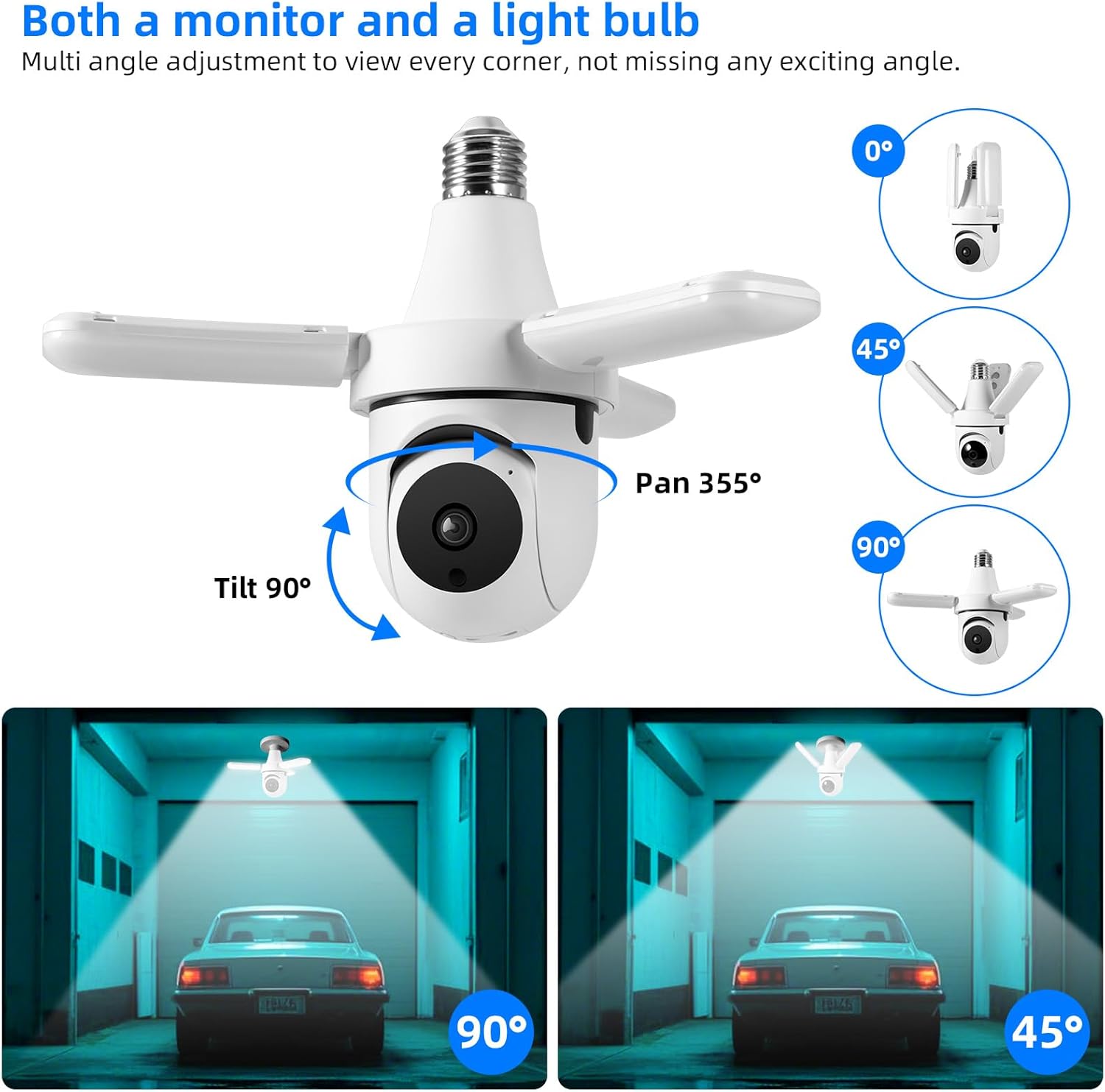
Figure 3: The camera offers extensive pan and tilt functionality to monitor a wide area.

Figure 4: Control the camera's integrated 30W LED light directly from the mobile application.
Recording and Alerts:
- Kuonekwa Kwekufamba: The camera is equipped with AI human detection. When motion is detected, the camera can automatically track the subject and send alerts to your phone.
- Night Vision: The camera offers both color night vision (with LED lights on) and infrared night vision (LED lights off) for clear visibility in the dark.
- Kuchengeta Vhidhiyo: Recordings are saved to the installed 64GB TF card. You can review playback directly from the app. Cloud storage options may also be available through the app for an additional subscription.
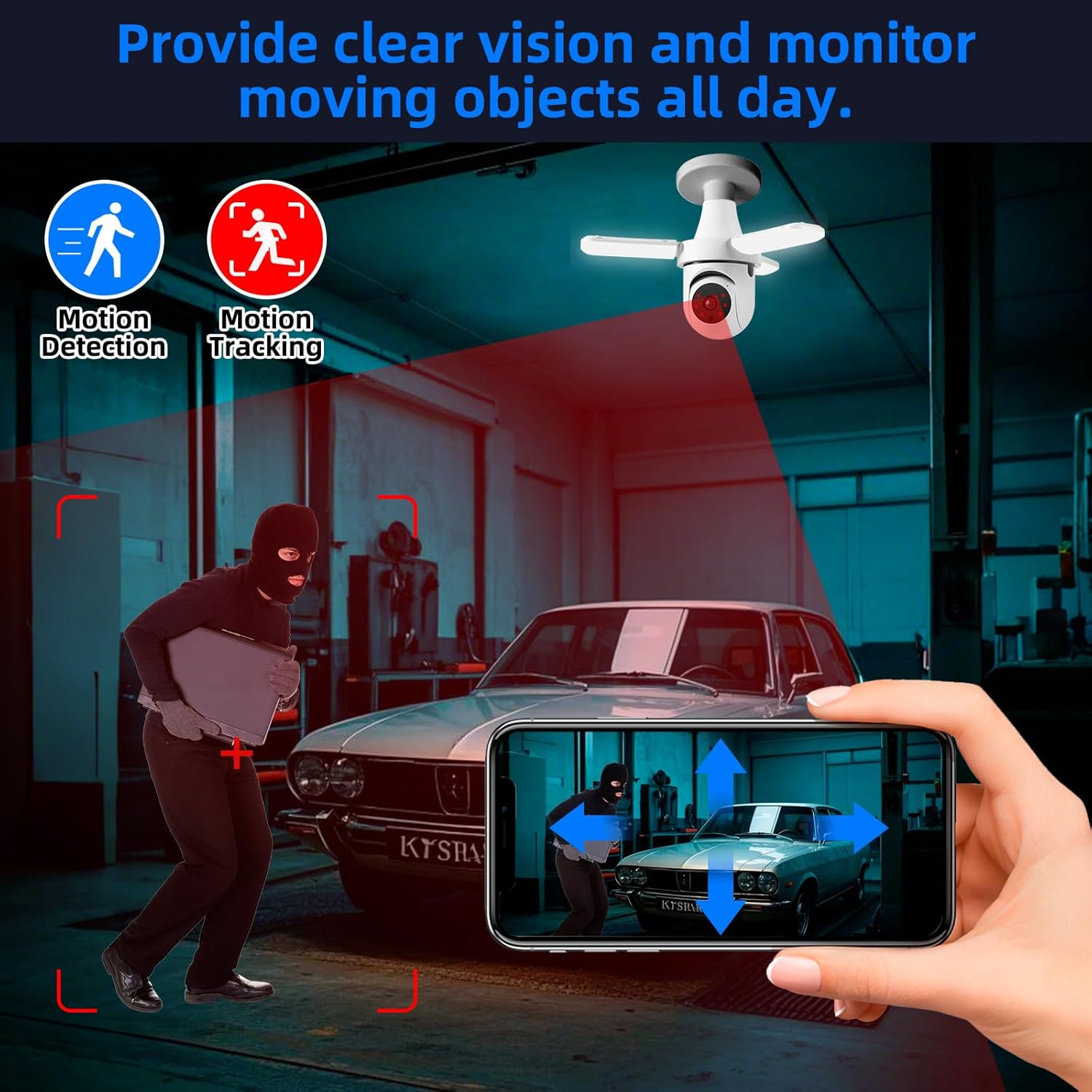
Figure 5: The camera's motion detection and tracking features provide real-time alerts and continuous monitoring.

Figure 6: Experience clear visibility day and night with 3MP HD video and color night vision capabilities.
Smart Home Kubatanidzwa:
- Alexa kuenderana: The camera is compatible with Alexa. Link your AJCloud account to your Alexa app to enable voice commands for viewing the camera feed on compatible Alexa devices with screens.
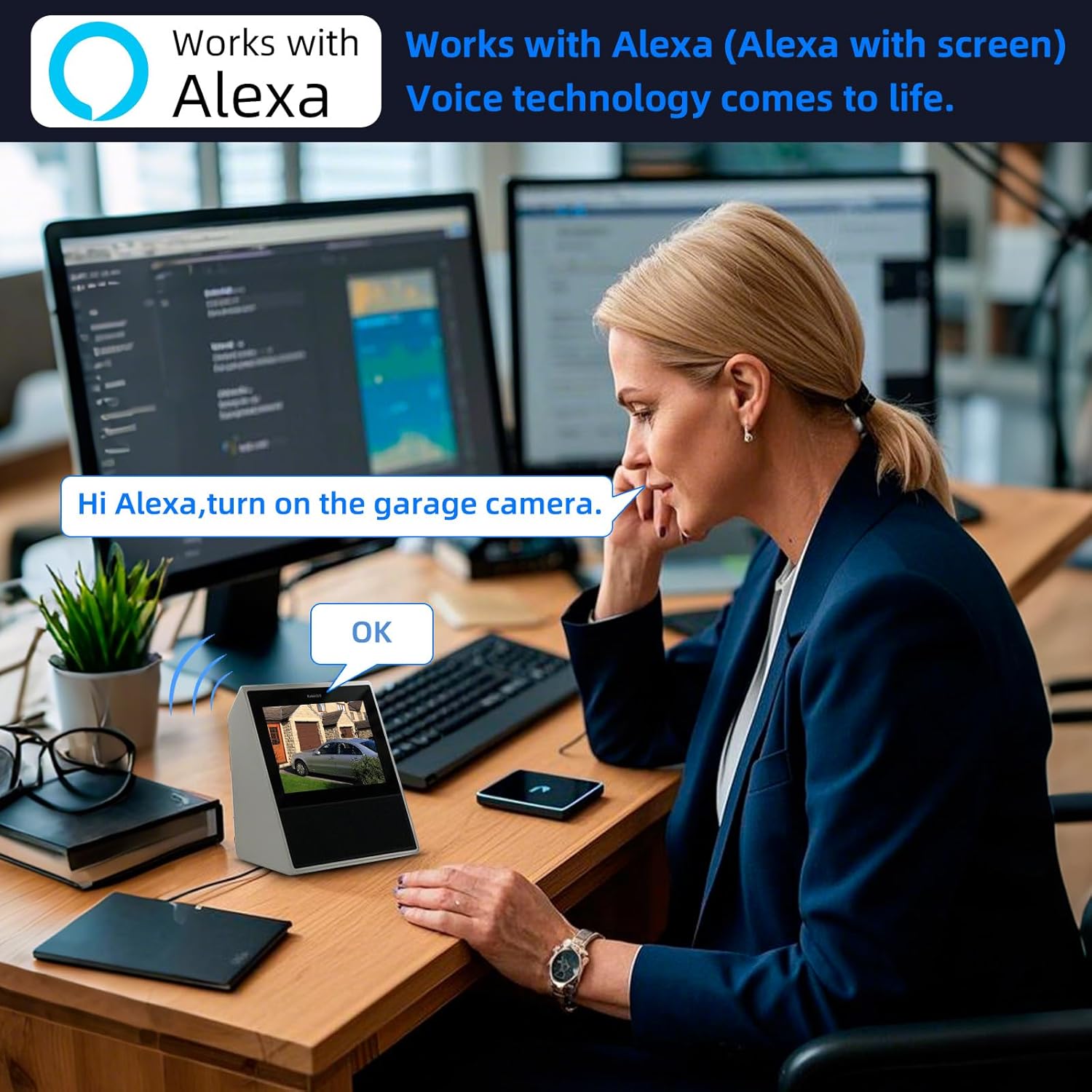
Figure 7: Control and view your camera feed using Alexa voice commands on compatible smart displays.
4. Kuchengeta
- Kuchenesa: Regularly wipe the camera lens and body with a soft, dry cloth to remove dust and smudges. Do not use harsh chemicals or abrasive cleaners.
- TF Kadhi Management: Periodically check the TF card storage status in the app. Format the card if necessary to ensure continuous recording. Back up important footage usati wagadzira mafomati.
- Firmware Dzokorora: Check the AJCloud app regularly for available firmware updates. Keeping the firmware updated ensures optimal performance and security.
- Power Cycle: If the camera experiences issues, try turning off the power to the light socket for a few seconds, then turning it back on to restart the device.
5. Kugadzirisa matambudziko
- Kamera Haisi Kubatana neWi-Fi:
- Iva nechokwadi chekuti network yako yeWi-Fi iri 2.4GHz. Kamera haitsigire Wi-Fi ye5GHz.
- Tarisa kuti password yeWi-Fi yakarurama.
- Check the camera's proximity to the Wi-Fi router for a strong signal.
- Perform a factory reset on the camera by pressing the reset button (often located near the SD card slot) for several seconds until you hear a prompt. Then, attempt to pair again.
- Hapana Zviziviso zvekufamba:
- Check the motion detection settings in the AJCloud app. Ensure it is enabled and sensitivity is adjusted appropriately.
- Iva nechokwadi chekuti zviziviso zveapp zvinogoneswa pa smartphone yako.
- No Recording/Playback Issues:
- Ensure the 64GB TF card is correctly inserted and not full. Format the card if needed (this will erase all data).
- If using cloud storage, verify your subscription is active.
- Hunhu Hwakashata hweVhidhiyo:
- Tarisa simba rechiratidzo cheWi-Fi yako. Chiratidzo chisina kusimba chinogona kukanganisa kunaka kwevhidhiyo.
- Iva nechokwadi chekuti lenzi yekamera yakachena uye haina zvipingamupinyi.
- Mbiri-Nzira Audio Haisi Kushanda:
- Tarisa marongero emamaikorofoni nemasipika ari muapp.
- Ensure your phone's volume is up and the app has microphone permissions.
6. Zvinotsanangurwa
| Feature | Tsanangudzo |
|---|---|
| Model Name | TAHEIS |
| Inoshanda Zvakadaro Resolution | 3 MP |
| Vhidhiyo Capture Resolution | 2K |
| Viewing Angle | Madhigirii 360 (Pani 355°, 90° Kurereka) |
| Night Vision Range | 20 Tsoka |
| Chiedza Chinyorwa Type | LED (30W, 3000 Lumens) |
| Kubatana Technology | Waya isina waya (Wi-Fi 2.4GHz) |
| Inowirirana Devices | iOS, Smartphone, Alexa |
| Mounting Type | Light Socket (E27) |
| Inosanganisirwa Zvikamu | 64G TFcard |
| Simba Source | Corded Electric |
| Indoor / Outdoor Kushandiswa | Indoor |
| Material | Plastiki |
| Product Dimensions | 6 x 3 x 3 inches |
| Item Weight | 11.7 ounces |
7. Warranty uye Tsigiro
Ruzivo rwewaranti: For detailed warranty terms and conditions, please refer to the product packaging or the official TOWODE website. Chengeta risiti yako yekutenga yezvichemo zvewaranti.
Tsigiro yehunyanzvi: If you encounter any issues not covered in this manual or require further assistance, please contact TOWODE customer service through their official webnzvimbo kana chikuva chakatengwa chigadzirwa.