
1. Nhanganyaya
Thank you for choosing the Titan Metal Gaming Keyboard. This wired keyboard is engineered for gamers, offering a robust design, responsive keys, and customizable RGB backlighting. Its 19-key anti-ghosting capability ensures precise command input during intense gaming sessions. This manual provides essential information on setting up, operating, maintaining, and troubleshooting your new gaming keyboard.
2. Package Zviri mukati
Ndokumbira utarise kuti zvinhu zvese zvirimo mupasuru yako:
- Titan Metal Gaming Keyboard with Integrated USB Cable
- Mushandisi Chinyorwa (gwaro iri)

Mufananidzo 2.1: Mberi view of the Titan Metal Gaming Keyboard retail packaging.
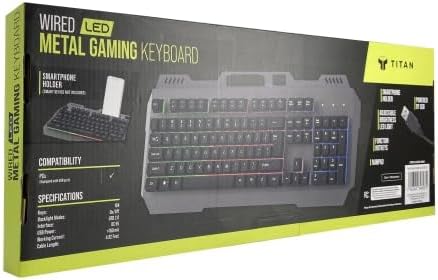
Mufananidzo 2.2: Rutivi view of the Titan Metal Gaming Keyboard retail packaging, showing compatibility and features.
3. Setup Instructions
Setting up your Titan Metal Gaming Keyboard is a simple plug-and-play process.
- Bvisa kiyibhodhi: Bvisa kiibhodhi nokungwarira kubva pakurongedza kwayo.
- Batanidza kuChishandiso Chako: Locate an available USB-A port on your computer (PC, Laptop, or Gaming Console). Insert the integrated USB cable from the keyboard firmly into the USB port.
- Kuiswa kwemutyairi: The keyboard is plug-and-play and does not require additional driver installation for basic functionality on Windows 10/XP and Mac OS 10.6 or later. Your operating system will automatically detect and install the necessary drivers.
- Yakagadzirira Kushandiswa: Once the drivers are installed (which usually takes a few seconds), your keyboard is ready for use.

Figure 3.1: The Titan Metal Gaming Keyboard, ready for connection.
4. Operating Instructions
4.1 Key Functions and Anti-Ghosting
The Titan Metal Gaming Keyboard features a standard full-size layout with durable mechanical keys designed for precise and responsive typing. It supports 19-key anti-ghosting, meaning up to 19 simultaneous key presses will be registered accurately, preventing input conflicts during fast-paced gaming.
4.2 RGB LED Backlighting
The keyboard features 7-color RGB LED backlighting, enhancing visibility and gaming ambiance. The lighting is always active when the keyboard is connected. Specific controls for lighting modes or brightness are typically managed via dedicated function key combinations (e.g., Fn + Scroll Lock or Fn + specific F-keys, if available on your model).
4.3 Multimedia Hotkeys
The keyboard includes 12 dedicated multimedia hotkeys for quick access to common functions. These keys are usually located on the F1-F12 row and are activated by pressing the 'Fn' key simultaneously with the desired F-key. Functions typically include:
- Media Player control (Play/Pause, Stop, Previous, Next)
- Kudzora Vhoriyamu (Nyarara, Dzora Vhoriyamu, Simudza Vhoriyamu)
- Web Browser
- Calculator
- Computer yangu
4.4 Kiyi yeMahwindo
To prevent accidental interruptions during gaming, the keyboard may feature a Windows key lock function. This is typically activated or deactivated by pressing the 'Fn' key in combination with the Windows key. Refer to the keycap legends for specific icons indicating this function.
5. Kuchengeta uye Kuchengeta
To ensure the longevity and optimal performance of your Titan Metal Gaming Keyboard, follow these care guidelines:
- Kuchenesa: Use a soft, dry cloth to wipe down the keyboard surface. For dust and debris between keys, use compressed air. Avoid using harsh chemicals or abrasive materials.
- Mvura Inorasika: In case of a liquid spill, immediately disconnect the keyboard from your computer. Turn it upside down to drain excess liquid and allow it to dry completely before reconnecting. Do not use a hairdryer as excessive heat can damage components.
- Kuchengeta: Chengetedza kiibhodhi munzvimbo inotonhorera, yakaoma kure nechiedza chezuva uye tembiricha yakanyanyisa.
- Kubata: Avoid dropping the keyboard or subjecting it to strong impacts, as this can damage internal components or the metal frame.
6. Kugadzirisa matambudziko
If you encounter issues with your Titan Metal Gaming Keyboard, please refer to the following common solutions:
- Kiyibhodhi Haisi Kupindura:
- Iva nechokwadi chekuti tambo yeUSB yakabatanidzwa zvakanaka muchiteshi cheUSB chiri kushanda pakombuta yako.
- Edza kubaya kiibhodhi mune imwe USB port yakasiyana.
- Tangazve komputa yako.
- Edza kiibhodhi pane imwe komputa kuti uone kana nyaya iri nekhibhodi kana system yako.
- Keys Not Registering / Ghosting:
- Ensure no debris is lodged under the keycaps.
- While the keyboard has anti-ghosting, ensure you are not pressing more than 19 keys simultaneously.
- Gadziridza sisitimu yako yekushandisa kune yazvino vhezheni.
- RGB Mwenje Haisi Kushanda:
- Iva nechokwadi chekuti kiyibhodhi yakabatana zvakanaka uye kuti simba rayo riri kugamuchira.
- Check if any lighting control key combinations (e.g., Fn + Scroll Lock) have been pressed to turn off or change the lighting mode.
- Multimedia Keys Not Functioning:
- Ensure you are pressing the 'Fn' key simultaneously with the desired multimedia F-key.
- Some multimedia functions may require specific software or drivers for your operating system.
Kana dambudziko rikaramba riripo mushure mekuedza matanho aya, ndapota taura nerutsigiro rwevatengi kuti uwane rumwe rubatsiro.
7. Zvinotsanangurwa
| Feature | Detail |
|---|---|
| Model Number | Titan 1 |
| Kubatana Technology | Wired USB-A |
| Anti-Ghosting | 19-Kiyi |
| Backlighting | 7-Color RGB LED |
| Multimedia Hotkeys | 12 |
| Inowirirana Devices | Laptop, PC, Gaming Console |
| Operating System Kuenderana | Windows 10/XP, Mac OS 10.6 or later |
| Color | Metal Black (keyboard body) |
| Item Weight | 1 makirogiramu |
| Package Dimensions | 18 x 6 x 3 inches |
| Nyika Yekwakabva | China |
8. Warranty uye Tsigiro
For warranty information and customer support, please refer to the purchase documentation or contact the retailer/manufacturer directly. Keep your proof of purchase for any warranty claims.
If you require technical assistance or have questions not covered in this manual, please reach out to the customer support team of your point of purchase.