
Nhanganyaya
Welcome to your BOXPUT BPR1S Air Mouse Remote Control. This manual will guide you through the setup, operation, and maintenance of your device. Please read these instructions carefully before use to ensure optimal performance and longevity of your remote control.
Product Overview
The BOXPUT BPR1S is a versatile remote control designed for use with PCs and most Android devices. It features Bluetooth connectivity, voice input, a 6-axis gyroscope for air mouse functionality, and infrared (IR) learning capabilities.
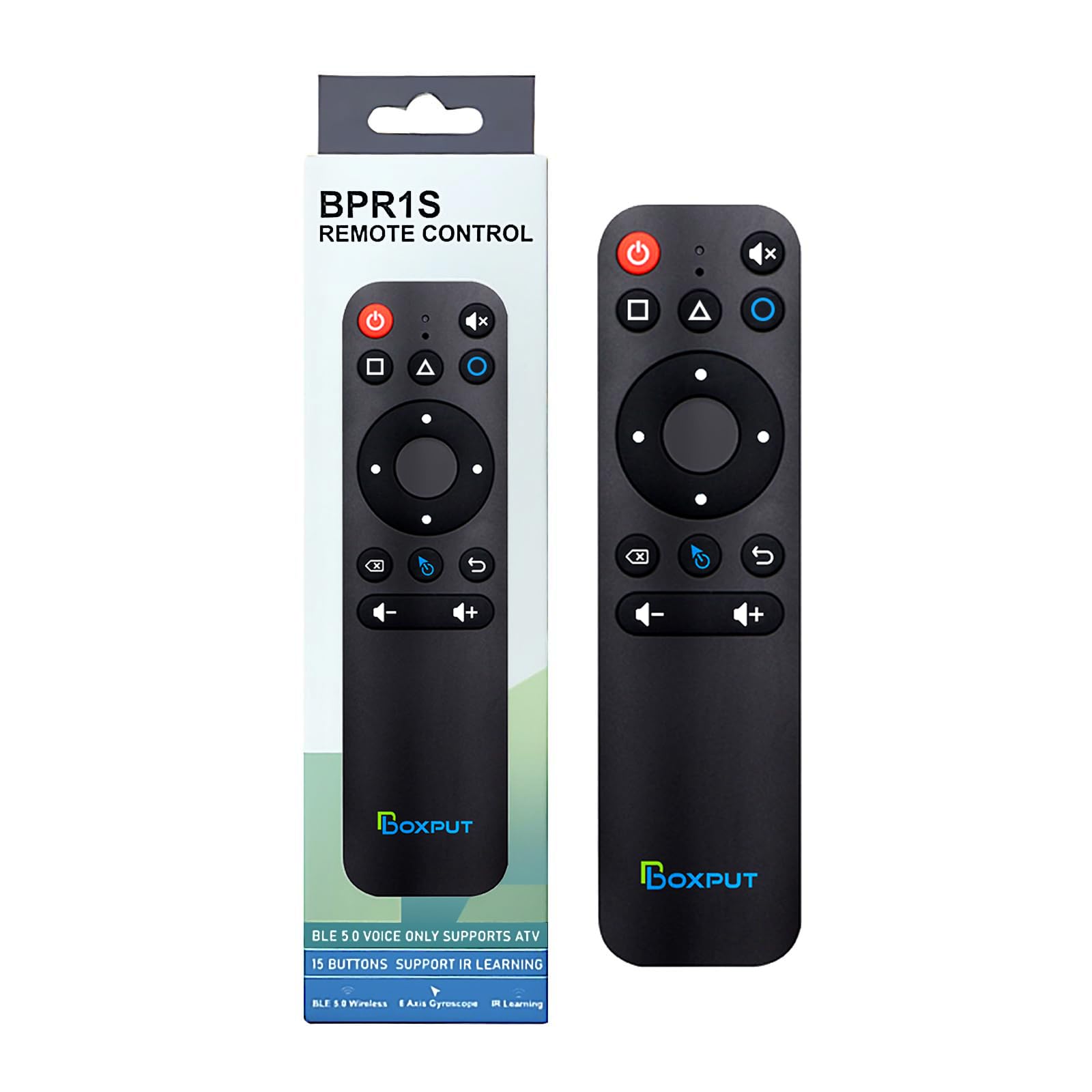
This image illustrates the front and back of the BOXPUT BPR1S remote control, highlighting its various buttons and the QR code for the electronic manual on the reverse side.
Gadzirira
1. Kuiswa kwebhatiri
The remote control requires two AAA batteries (not included). Open the battery compartment cover on the back of the remote and insert the batteries, ensuring correct polarity (+/-). Replace the cover securely.
2. Bluetooth Kubatanidza
To pair the remote control with a new device via Bluetooth:
- Dzvanya uye ubate iyo OK bhatani uye Back button simultaneously until the indicator light flashes.
- Place the remote control within 1 meter of your device to facilitate faster pairing.
- On your device, open Bluetooth settings, search for "BOXPUT BPR1S Plus", and select it to complete pairing.
3. PC Firmware Switch
The remote has two firmware modes: one for Android devices and one for PCs. The default setting is for Android devices.
- To switch to PC firmware: Press and hold the OK bhatani uye Mouse button simultaneously until the indicator light flashes. This indicates the switch to PC-specific firmware is complete.
- To switch back to Android firmware: Press and hold the OK bhatani uye Mouse bhatani panguva imwe chete zvakare.
Operating Instruction
1. Voice Input
The BPR1S supports voice input for convenient control, search, and navigation on Android TV and media players.
To use voice input, press the Voice button (microphone icon) and speak your command. This allows for text input, channel search, and video/app control.
Cherechedza: Voice search functionality is typically limited to the built-in voice search box or compatible applications. It does not function across all applications.

This image shows a family using the remote to control a TV with voice commands, demonstrating its ease of use for tasks like playing music, opening YouTube, checking the weather, or adjusting volume.
2. 6-Axis Gyroscope (Air Mouse)
The remote features a built-in 6-axis gyroscope sensor, enabling precise air mouse control for Android TV boxes and PCs.
Move your wrist to control the cursor on the screen, allowing for remote operation of computers and projectors.

This image illustrates the remote control being used from a distance, highlighting its effective operating range of 10 meters and a quick response time of 0.2 seconds, enabled by the 6-axis gyroscope.
3. IR Learning Function
All buttons on the BPR1S remote support infrared (IR) learning. This allows you to program functions from other IR remotes onto the BPR1S.
- Place the BPR1S and the original IR remote on a flat surface, facing each other, with their IR emitters as close as possible.
- Press and hold the desired button on the BPR1S that you wish to program. The indicator light will flash slowly.
- Press the corresponding button on the original IR remote. The indicator light on the BPR1S will flash rapidly, then stay solid, indicating successful learning.
- Repeat for other buttons as needed.
- After IR learning is complete, the power button will prioritize sending the IR signal in Bluetooth mode.
Cherechedza: For Samsung TVs, only the Power, Mute, Volume+, and Volume- buttons can be programmed via IR learning. Other buttons do not support IR learning for Samsung TVs.

This image illustrates the process of infrared learning, where the BPR1S remote is positioned opposite an original remote to copy its functions.
4. Bhatani Mabasa
Tarisa dhayagiramu iri pazasi kuti uwane overview of the remote's buttons and their primary functions.
This diagram provides a visual guide to each button on the BOXPUT BPR1S remote, including Power, Home, Menu, Mute, Voice, Directional Pad (Up, Down, Left, Right, OK), Delete, Mouse toggle, Back, Volume Up, and Volume Down. The back of the remote shows the model number and a QR code for the electronic manual.
Kugarisana
This multi-functional remote control is compatible with PCs and most Android devices, serving as a replacement for many media player remotes.
Zvishandiso Zvinoenderana: Android TV boxes, Android TV sticks, and other Android devices.
Zvishandiso Zvisingaenderani: Secondary customized Android devices and Linux devices (e.g., Fire TV Stick, DVB set-top boxes, ROKU set-top boxes, MAG set-top boxes, Apple TV, and some TVs).
If you have concerns about compatibility, please inquire before purchase.

This image displays various streaming devices and set-top boxes, categorizing them into compatible (Android TV boxes, Android TV sticks) and incompatible (Fire TV Stick, Apple TV, Roku, etc.) devices for the BPR1S remote.
Maintenance
Kuti uve nechokwadi chekuti remote control yako inogara kwenguva refu uye inoshanda zvakanaka:
- Chengeta remote yakachena nekuipukuta nejira rakapfava, rakaoma.
- Dzivisa kuisa kure kure pakupisa kwakanyanya, hunyoro, kana kuti pazuva rakananga.
- Usadonhedze kana kuisa kure kure kune zvinokanganisa zvakasimba.
- Bvisa mabhatiri kana remote isingazoshandiswi kwenguva yakareba kudzivirira kubuda kwemvura.
Kugadzirisa matambudziko
Matambudziko Anowanikwa uye Mhinduro
- OK button not working in Google login screen (Mouse mode): This is a known limitation. Use the directional keys or switch out of mouse mode if possible.
- IR learning issues: Ensure Bluetooth is disconnected before performing IR learning.
- Initial TV connection: An original TV remote may be required for the initial connection setup.
- Kubviswa kweBluetooth: If Bluetooth frequently disconnects, try reconnecting Bluetooth or restarting the device.
- Battery cover loose: If the battery cover feels loose, ensure it is properly seated. If the issue persists, contact customer support.
- Electronic Manual QR code unreadable: If the QR code on the remote is unreadable, refer to the product page for instructions or contact customer support.
Zvinotsanangurwa
| Attribute | Detail |
|---|---|
| Brand | BOXPUT |
| Model Number | BPR1S |
| Color | Nhema |
| Features | Dual-sided 6-axis gyroscope, Wide compatibility with Android devices, IR & Bluetooth, Voice search |
| Max Nhamba Yemidziyo Inotsigirwa | 1 |
| Inowirirana Devices | Zvishandiso zvekufambisa |
| Kubatanidza Inowanikwa | Bluetooth |
| Nhamba yeMabhatani | 10 |
| Controller Type | Bhatani Kudzora |
| Maximum Range | 10 mamita |
| Bhatiri Type | AAA x 2 (not included) |
| Mugadziri Model Number | 10500009 |
Warranty uye Support
The BOXPUT BPR1S Air Mouse Remote Control comes with a 1-year warranty from the date of purchase. For support, please refer to the electronic manual accessible via the QR code on the back of the remote, or contact BOXPUT customer service through the retailer where you purchased the product.
The electronic manual is provided in English by default but can be translated into your preferred language using your browser's translation functions.