1. Nhanganyaya
This manual provides detailed instructions for the installation, operation, and maintenance of the Generic MT7925 WiFi 7 Network Card. This M.2 NGFF wireless adapter offers WiFi 7 (802.11be) connectivity with tri-band support (2.4GHz, 5GHz, 6GHz) and Bluetooth 5.3 capabilities, designed for Windows 10 and Windows 11 systems.
2. Safety Information
- Gara uchibvisa simba kubva pakombuta yako usati waisa kana kubvisa chero zvikamu zvemukati.
- Bata kadhi renetwork nemucheto waro kuti usabata zvinobatanidza zvegoridhe kana zvinhu zvinonzwa.
- Use appropriate anti-static precautions (e.g., anti-static wrist strap) to prevent electrostatic discharge (ESD) damage.
- Chengeta mudziyo kure nehunyoro uye tembiricha yakanyanya.
3. Package Zviri mukati
Tarisa uone kuti zvinhu zvese zviripo mupakeji:
- 1 x MT7925 WiFi Card
4. Setup uye Kuiswa
4.1 Pre-installation Checklist
- Ensure your computer has an available M.2 NGFF slot (Key E).
- Confirm your operating system is Windows 10 or Windows 11 (64-bit).
- Download the latest drivers for the MT7925 from the manufacturer's or chipset provider's website onto a USB drive or accessible location before installation.
4.2 Kuiswa Kwenyama
The MT7925 network card is designed for M.2 NGFF Key E slots found in both desktop motherboards and laptops.

Mufananidzo: Mberi uye kumashure view of the MT7925 WiFi 7 network card, highlighting the Key E connector for installation.
- Dzima komputa yako uye bvisa tambo dzese.
- Open your computer case (for desktop) or access the M.2 slot compartment (for laptop). Refer to your computer's manual for specific instructions.
- Locate an available M.2 NGFF slot (Key E).
- Carefully insert the MT7925 card into the M.2 slot at a slight angle.
- Gently press down the card and secure it with the screw provided with your motherboard or laptop.
- Connect the antenna cables (if applicable) to the corresponding 'Main' and 'Aux' connectors on the card.
- Close your computer case or compartment.
- Batanidza tambo dzese nesimba pakombuta yako.
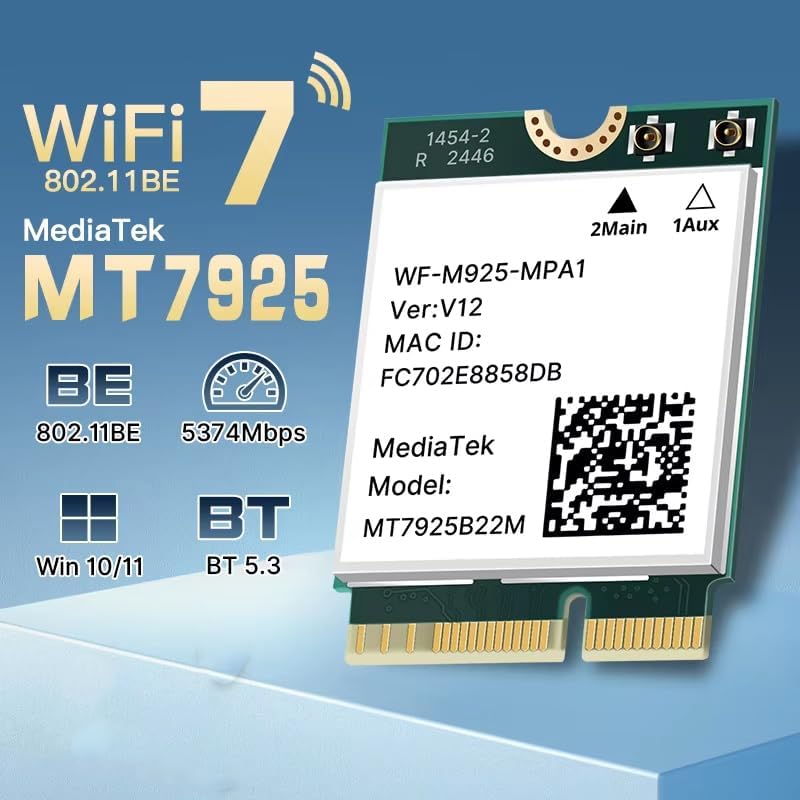
Image: Illustration of M.2 slot availability for both desktop and laptop installations. The image indicates 'Available' and 'Unavailable' slots for clarity.
4.3 Kuiswa kwemutyairi
- After booting into Windows, open Device Manager.
- Look for an unknown device or a network adapter with a yellow exclamation mark under 'Network adapters' or 'Other devices'.
- Right-click on the device and select 'Update driver'.
- Choose 'Browse my computer for drivers' and navigate to the folder where you saved the downloaded drivers.
- Tevedza zviri pa-skrini kuti upedze kuisa mutyairi.
- Tangazve komputa yako kana ikakurudzirwa.
5. Operating Instructions
5.1 Kubatanidza kuWi-Fi
Once drivers are installed, the MT7925 card will enable Wi-Fi functionality. You can connect to available networks:
- Click the Wi-Fi icon in the Windows taskbar.
- Sarudza network yako yaunoda kubva pane iyo rondedzero.
- Enter the network password if required and click 'Connect'.
- The MT7925 supports tri-band operation (2.4GHz, 5GHz, 6GHz) for optimal performance.

Image: Visual representation of the MT7925's data rates across different frequency bands: 6GHz (2400Mbps), 5GHz (2400Mbps), and 2.4GHz (574Mbps).
5.2 Bluetooth Pairing
The MT7925 also provides Bluetooth 5.3 connectivity.
- Enda kuWindows Settings > Devices > Bluetooth & mamwe ma device.
- Ensure Bluetooth is turned 'On'.
- Click 'Add Bluetooth or other device' and select 'Bluetooth'.
- Isa yako kifaa cheBluetooth mune pairing mode.
- Sarudza mudziyo wako kubva pane rondedzero uye tevera chero zvikumbiro zviri pachidzitiro kuti upedzise kuibatanidza.

Image: An illustration demonstrating the compatibility of the upgraded Bluetooth 5.3 with various devices, including printers, keyboards, gamepads, mice, headsets, speakers, cell phones, and tablets.
5.3 Operating System Kuenderana
The MT7925 network card is compatible with 64-bit versions of Windows 10 and Windows 11.

Image: Logos for Windows 10 and Windows 11, confirming support for 64-bit versions of these operating systems.
6. Kuchengeta
- Zvigadziriso zvemutyairi: Regularly check for updated drivers on the manufacturer's or chipset provider's websaiti kuti ive nechokwadi chekuita kwakanyanya uye kuchengetedzeka.
- Kuongororwa Kwenyama: Periodically inspect the card and antenna connections (if external) for any signs of damage or loose connections.
- Kuchenesa: If necessary, gently clean the card with compressed air to remove dust buildup. Ensure the computer is powered off and unplugged before cleaning.
7. Kugadzirisa matambudziko
7.1 No Wi-Fi or Bluetooth Connectivity
- Tarisa Chinogadzirisa Chishandiso: Verify that the MT7925 card is recognized and has no error symbols. Reinstall drivers if necessary.
- Physical Connection: Iva nechokwadi chekuti kadhi rakaiswa zvakanaka muM.2 slot uye kuti tambo dzeantenna dzakabatana zvakanaka.
- BIOS/UEFI Settings: Some motherboards may require enabling the M.2 slot or Wi-Fi/Bluetooth functionality in the BIOS/UEFI settings.
7.2 Inononoka Wi-Fi Yekumhanya
- Mutyairi Update: Ita shuwa kuti une madhiraivha achangoburwa akaiswa.
- Router kuiswa: Move closer to your Wi-Fi router or ensure there are no significant obstructions.
- Frequency Band: Connect to the 5GHz or 6GHz band for higher speeds, if available and supported by your router.
- Kupindira: Other electronic devices can cause interference. Try changing your router's Wi-Fi channel.
7.3 Bluetooth Device Haisi Kubatana
- Bluetooth Yakabatidzwa: Confirm Bluetooth is enabled in Windows settings.
- Maitiro Ekubatanidza Midziyo: Iva nechokwadi chekuti Bluetooth device yako iri mu pairing mode.
- Distance: Keep the Bluetooth device close to your computer during pairing.
- Kupindira: Minimize other wireless devices nearby during pairing.
8. Zvinotsanangurwa
| Model | MT7925 |
| Wireless Standard | WiFi 7 (802.11be) |
| Data Transfer Rate | Up to 5400Mbps (2400Mbps on 6GHz, 2400Mbps on 5GHz, 574Mbps on 2.4GHz) |
| Frequency Bands | 2.4GHz, 5GHz, 6GHz (Tri-Band) |
| Bluetooth Version | Bluetooth 5.3 |
| Interface | M.2 NGFF (Key E) |
| Inowirirana Operating Systems | Windows 10 (64-bit), Windows 11 (64-bit) |
| Wireless Protocols | 802.11n, 802.11ax (WiFi 6), 802.11a/g, 802.11ac, 802.11be (WiFi 7) |
| Hardware inowanikwa | 802.11 ac/b/g/n |
| Item Weight | 0.48 onzi (13.61 g) |
9. Warranty uye Tsigiro
This product is sold under the 'Generic' brand. For specific warranty terms and conditions, please refer to the seller or retailer from whom you purchased this product. Keep your proof of purchase for any warranty claims.
For technical support, driver updates, or further assistance, please visit the website of the chipset manufacturer (MediaTek) or contact your product vendor.


