
1. Nhanganyaya
This manual provides detailed instructions for the setup, operation, and maintenance of your Raynic CR1029 Digital Date Clock. Please read this manual thoroughly before using the device to ensure proper functionality and to maximize your user experience. This clock is designed to display time, date, and day of the week clearly, offering various customization options for alarms, reminders, and display themes.
2. Package Zviri mukati
Ona kuti zvinhu zvese zviripo mupasuru yako:
- Raynic CR1029 Digital Date Clock
- AC Simba Adapter
- USB Cable
- Mushandisi Chinyorwa (gwaro iri)

Image: The Raynic CR1029 Digital Date Clock, AC power adapter, USB cable, and user manual are shown as included items.
3. Chigadzirwa Pamusoroview
The Raynic CR1029 Digital Date Clock features a clear display and multiple functions to assist with daily time management and reminders.

Image: A white-framed digital clock displaying 'TUESDAY LATE EVENING 8:30 PM OCTOBER 7 2025' with a moon icon, indicating its primary function as a date and time display.
Zvinokosha:
- Multifunctional Display: Combines time-keeping and date tracking.
- Clear Readability: Large, easy-to-read digital display.
- Madingindira Anogona Kugadziriswa: 12 distinct display themes to personalize the clock's appearance.
- Extensive Alarms: Up to 20 programmable alarms with 18 customizable ringtones.
- Schedule Reminders: Up to 20 customizable reminders for various daily tasks.
- Semi-Automatic Dimming: Adjusts brightness based on ambient light or user-defined time periods.
- Nguva Mafomu: Supports 12-hour and 24-hour time display.
- Automatic DST: Automatically adjusts for Daylight Saving Time.
- Multi-Language Support: Available in 6 languages (English, French, Italian, German, Spanish, Japanese).
- Digital Photo Frame Function: Displays personal photos via USB or TF card.
- Battery Backup: Maintains settings during power outages (mabhatiri haana kubatanidzwa).
4. Setup
4.1 Kuisa Simba paChishandiso
- Connect the USB cable to the clock's power input port.
- Batanidza adapta yemagetsi yeAC muchikamu chemagetsi chakajairika.
- The clock will power on automatically.

Image: The clock is shown connected to an AC power outlet, illustrating its primary power source. Another image shows the battery compartment on the back, indicating the option for battery backup.
4.2 Installing Battery Backup (Optional)
Yekushanda kusingadzoreki panguva yemagetsitages, isa mabhatiri ekuchengetedza.
- Tsvaga nzvimbo yebhatiri kuseri kwewachi.
- Vhura chivharo chekamuri.
- Isa mabhatiri maviri eAAA (haasanganisirwe), zvichiita kuti pave ne polarity yakakwana (+/-).
- Vhara chivharo chebhatiri.
5. Operating Instructions
The clock can be operated using the buttons on the back or the included remote control.
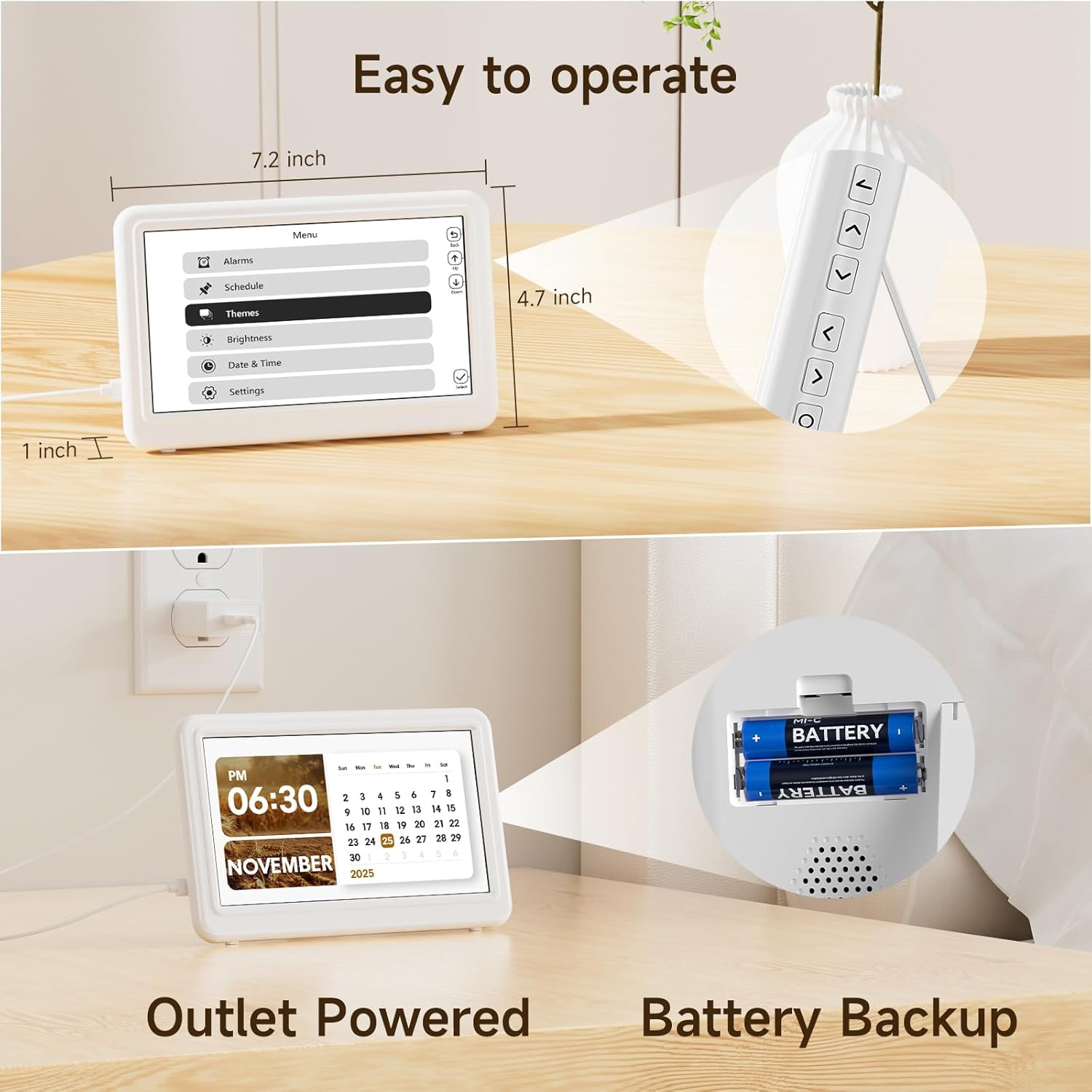
Image: The Raynic clock is shown with its remote control, highlighting its ease of operation. Dimensions of the clock (7.2 inches wide, 4.7 inches high, 1 inch thick) are also indicated.
5.1 Kuisa Nguva neDate
- Access the 'Date & Time' settings from the main menu.
- Use the navigation buttons on the remote or back of the clock to adjust hours, minutes, year, month, and day.
- Simbisa gadziriro yega yega kuti uchengetedze.
5.2 Managing Alarms
The clock supports up to 20 alarms.
- Navigate to the 'Alarms' section in the menu.
- Select 'Add new alarm' or choose an existing alarm to edit.
- Set the alarm time, recurrence (e.g., daily, weekdays), and desired ringtone from 18 available options.
- Enable or disable the alarm as needed.

Image: A person is shown sleeping peacefully, while the Raynic clock displays an alarm setting interface, indicating its alarm functionality with up to 20 settings and various ringtones.
5.3 Setting Reminders
The clock supports up to 20 reminders for various activities.
- Go to the 'Schedule' or 'Reminders' menu.
- Select 'Add new reminder' and input the reminder text, time, and frequency.
- Confirm to save the reminder.
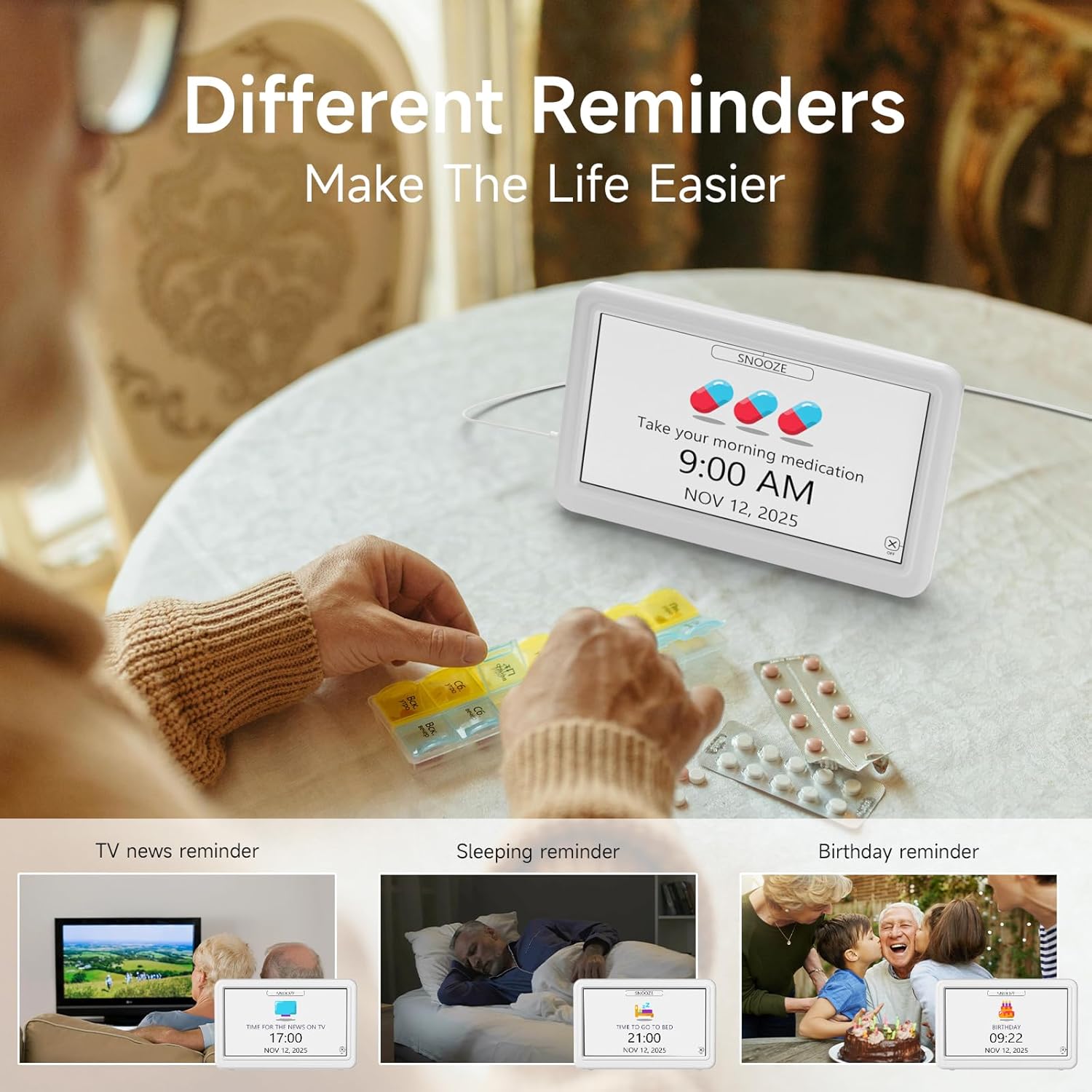
Image: The clock displays a 'Take your morning medication' reminder. Surrounding images depict various reminder use cases such as TV news, sleeping, and birthday reminders, emphasizing the clock's utility for daily scheduling.
5.4 Changing Display Themes
Choose from 12 different display themes to customize the clock's appearance.
- Access the 'Themes' option in the menu.
- Browse through the available themes using the navigation buttons.
- Select your preferred theme to apply it.

Image: The Raynic clock is shown with a 'THURSDAY MORNING 10:30 AM DECEMBER 25 2025' display. Above it, 12 different display themes are previewed, including Minimalist, Urban Tempo, Round Dial, Seasonal Calendar, Time Album, and Dynamic Prompts.
5.5 Kugadzirisa Kupenya
The clock features semi-automatic dimming and 10 levels of manual brightness adjustment.
- Go to the 'Brightness' settings in the menu.
- You can choose between automatic dimming (default 7:00 AM-7:00 PM for day, 7:00 PM-7:00 AM for night) or manual adjustment.
- For manual adjustment, select a brightness level from 10% to 100%.

Image: A slider indicates 10 levels of brightness from 10% to 100%. The clock is shown in two states: a bright display for daytime (7:00 AM-7:00 PM) and a dimmer display for nighttime (7:00 PM-7:00 AM), illustrating the semi-automatic dimming feature.
5.6 Setting 12/24 Hour Format and Auto DST
- In the 'Date & Time' or 'Settings' menu, locate the option for 'Time Format'.
- Select either '12H' or '24H' as preferred.
- Ensure 'Auto DST' is enabled for automatic Daylight Saving Time adjustments.

Image: Three clocks are displayed side-by-side, showing '1:30 PM' (12H format), '13:30' (24H format), and '14:30' with 'DST' indicated, demonstrating the clock's ability to switch between time formats and handle Daylight Saving Time.
5.7 Kusarudzwa kweMutauro
The clock supports 6 languages.
- Navigate to 'Settings' and then 'Language'.
- Choose from English, French, Italian, German, Spanish, or Japanese.

Image: Flags representing English, French, Italian, German, Spanish, and Japanese are displayed, indicating the clock's multi-language support. The clock itself shows 'THURSDAY NOON 12:00 PM DECEMBER 25 2025'.
5.8 Digital Photo Frame Function
The clock can display photos from a USB drive or TF card.
- Insert a USB drive or TF card containing image files kupinda pachiteshi chakasarudzwa.
- Access the 'Time Album' or 'Photo Frame' option in the menu.
- Configure settings such as slideshow interval and display order.

Image: The Raynic clock displays a scenic landscape photo, demonstrating its digital photo frame capability. Icons for USB and TF card indicate supported media types.
5.9 One-Click Sleep Mode
To quickly turn off the display for undisturbed sleep:
- Press the dedicated 'Sleep' button on the remote control or the corresponding button on the back of the clock.
- The screen will turn off. Press any button to reactivate the display.

Image: The clock is shown displaying a photo, and an arrow indicates pressing a button to activate '1 Click Sleep Mode', which turns the screen black.
6. Kuchengeta
To ensure the longevity and optimal performance of your Raynic Digital Date Clock, follow these maintenance guidelines:
- Kuchenesa: Use a soft, dry cloth to gently wipe the screen and body of the clock. Avoid abrasive cleaners or solvents that may damage the surface.
- Kuiswa: Place the clock on a stable, flat surface. Avoid direct sunlight, extreme temperatures, and high humidity.
- Simba: Always use the provided AC power adapter. If using battery backup, replace batteries annually or when low power is indicated.
7. Kugadzirisa matambudziko
If you encounter issues with your Raynic Digital Date Clock, refer to the following common problems and solutions:
| Dambudziko | Zvinogona Kukonzera | Solution |
|---|---|---|
| Wachi haibatidzi. | No power supply or faulty adapter. | Ensure the AC adapter is securely plugged into both the clock and a working power outlet. Test the outlet with another device. |
| Chiratidziro chakanyanya kuderera kana kupenya zvakanyanya. | Brightness settings incorrect or automatic dimming active. | Adjust brightness manually in the 'Brightness' settings. Check if 'Auto Dimming' is enabled and adjust its time periods if necessary. |
| Alarms or reminders do not sound. | Alarm/reminder disabled or volume too low. | Verify that the specific alarm/reminder is enabled in the settings. Check the system volume level. |
| Nguva kana zuva hazvina kururama. | Manual setting error or DST issue. | Re-enter the correct time and date in the 'Date & Time' settings. Ensure 'Auto DST' is enabled if applicable to your region. |
| Digital photo frame not displaying images. | Hazvina kururama file format, unsupported media, or loose connection. | Ensure images are in a supported format (e.g., JPEG). Check that the USB drive or TF card is properly inserted. Try a different USB drive or TF card. |
8. Zvinotsanangurwa
| Feature | Detail |
|---|---|
| Brand | Raynic |
| Model Number | CR1029 |
| Display Type | Digital |
| Color | Chena |
| Product Dimensions | 14.01"W x 7.4"H |
| Item Weight | 11.7 ounces |
| Simba Source | AC Adapter Powered |
| Battery Backup | Yes (Batteries not included) |
| Material | Acrylonitrile Butadiene Styrene (ABS) |
| Mounting Type | Tabletop |
| Special Features | 12 Themes, 20 Alarms, 20 Reminders, Semi-Automatic Dimming, 12/24 Hours, Auto DST, Digital Photo Frame, Multi-Language Support |
9. Warranty uye Tsigiro
The Raynic CR1029 Digital Date Clock comes with a limited warranty. For specific warranty terms and conditions, please refer to the documentation included with your purchase or contact Raynic customer support.
For technical assistance, troubleshooting not covered in this manual, or other inquiries, please visit the official Raynic websaiti kana kubata dhipatimendi ravo rebasa revatengi.