1. Kupfuuraview uye Key Features
The Techkey Bluetooth Adapter 5.3 is a compact USB dongle designed to add or upgrade Bluetooth functionality to your desktop PC or laptop. It offers enhanced stability and faster data transmission for a seamless wireless experience.
- Upgraded Bluetooth 5.3 + EDR: Features the latest Bluetooth 5.3 + EDR technology for enhanced anti-interference ability and stability, reducing transmission efficiency loss in the 2.4 GHz frequency band.
- Ultra-Small size: Stylish and compact design allows it to remain plugged into a laptop or PC without obstructing adjacent USB ports.
- More Stable Connection: Offers a stable connection with a transmission rate of up to 3Mbps. Supports Bluetooth Low Energy (BLE) and dual-mode Bluetooth transmission for faster data transfer. Achieves a transmission distance of up to 30m in open areas.
- Tsigiro yeSistimu: Real Plug & Play functionality, requiring no driver installation on Windows 11 / 10 / 8.1 (32/64-bit). Not compatible with Mac, Linux, Unraid, TV, car stereo, PS4, or Xbox. Backward compatible with Bluetooth 5.2/4.2/4.0/3.0/2.1.
- Wide Range of Applications: Connects multiple Bluetooth devices simultaneously, including speakers, keyboards, headsets, and mice, enabling wireless file transfer and audio streaming.
2. Setup Guide
Follow these steps to properly set up your Techkey Bluetooth Adapter.
2.1. Ensure Windows Automatic Updates are Enabled (Recommended)
For optimal performance and driver compatibility, ensure your Windows operating system is set to automatically update.
- Click the 'Start' icon in the bottom-left corner of your screen.
- Select 'Settings'.
- Navigate to 'Update & Security'.
- Click on 'Windows Update'.
- If updates are paused, click 'Resume updates' to enable automatic updates.
2.2. Disable Built-in Bluetooth (If Applicable)
If your computer has a pre-existing built-in Bluetooth module, it is crucial to disable it to prevent conflicts with the new adapter. Do not uninstall, only disable.
- Right-click on 'This PC' (or 'My Computer') icon on your desktop.
- Select 'Manage'.
- In the 'Computer Management' window, click 'Device Manager' in the left pane.
- Expand the 'Bluetooth' category.
- Identify your computer's built-in Bluetooth device (e.g., 'Intel Wireless Bluetooth').
- Right-click on the built-in Bluetooth device and select 'Disable device'. Confirm your choice if prompted.
2.3. Plug & Play Installation
The Techkey Bluetooth Adapter is designed for easy installation.
- Insert the Techkey Bluetooth Adapter into an available USB port on your desktop PC or laptop.
- Allow 3 to 5 minutes for your system to automatically detect, download, and install the necessary drivers. A notification will confirm when the device is ready.
Tsanangudzo yeVhidhiyo: This official seller video provides a step-by-step guide for setting up your Techkey Bluetooth Adapter. It covers essential preliminary steps like ensuring Windows automatic updates are enabled, disabling any pre-existing built-in Bluetooth functionality on your computer, and finally, the process of pairing new Bluetooth devices with your adapter.

Tsanangudzo yemufananidzo This image illustrates the plug-and-play convenience of the Techkey Bluetooth adapter. A user is shown enjoying a video game on a desktop PC, with the adapter seamlessly integrated, requiring no manual driver installation.

Tsanangudzo yemufananidzo This image displays the supported operating systems for the Techkey Bluetooth adapter, including Windows 11, Windows 10, and Windows 8.1, indicating compatibility with both 32-bit and 64-bit versions.
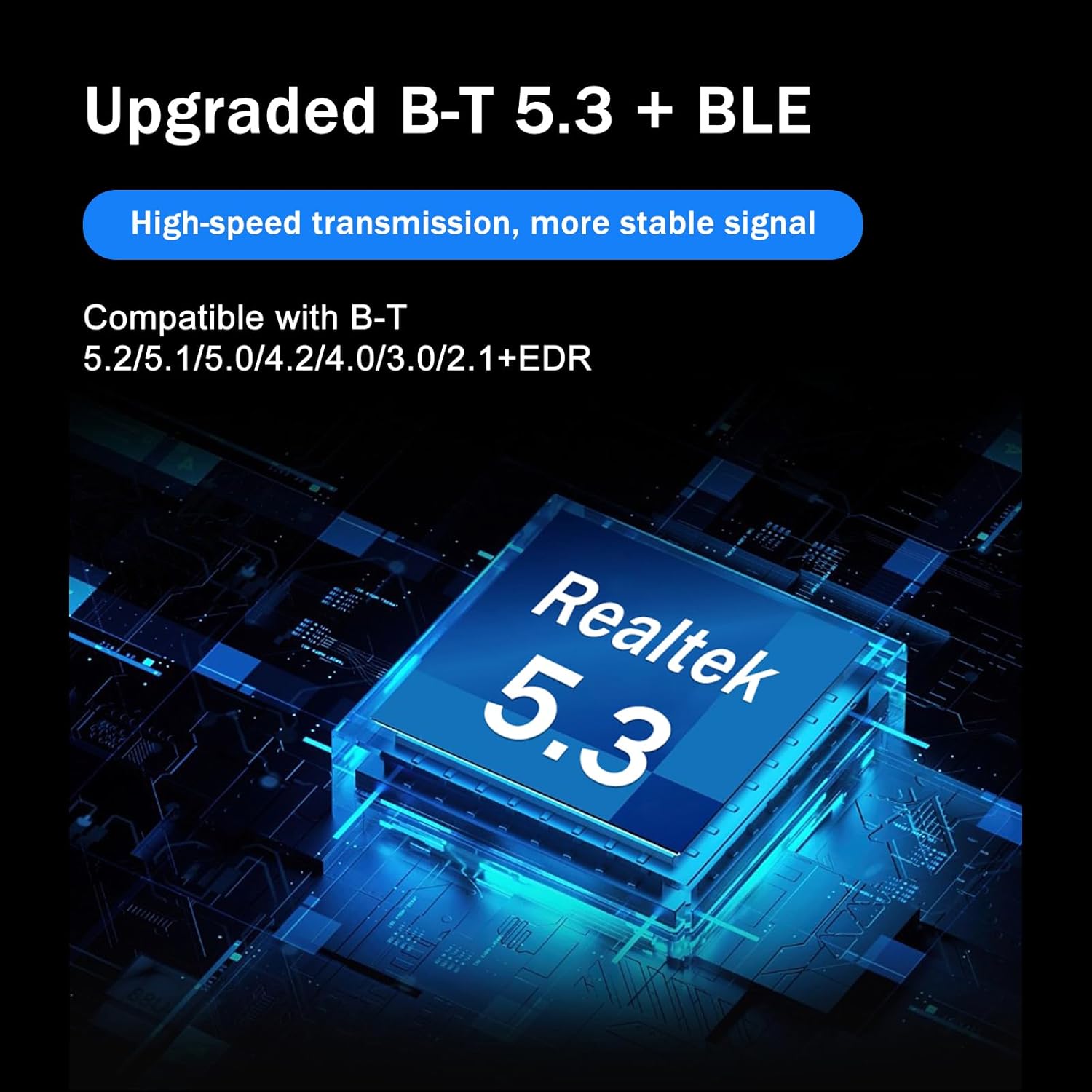
Tsanangudzo yemufananidzo This graphic emphasizes the advanced features of the Techkey adapter, including upgraded Bluetooth 5.3 + BLE technology powered by a Realtek 5.3 chip, ensuring high-speed transmission, stable signal, and backward compatibility with older Bluetooth versions.
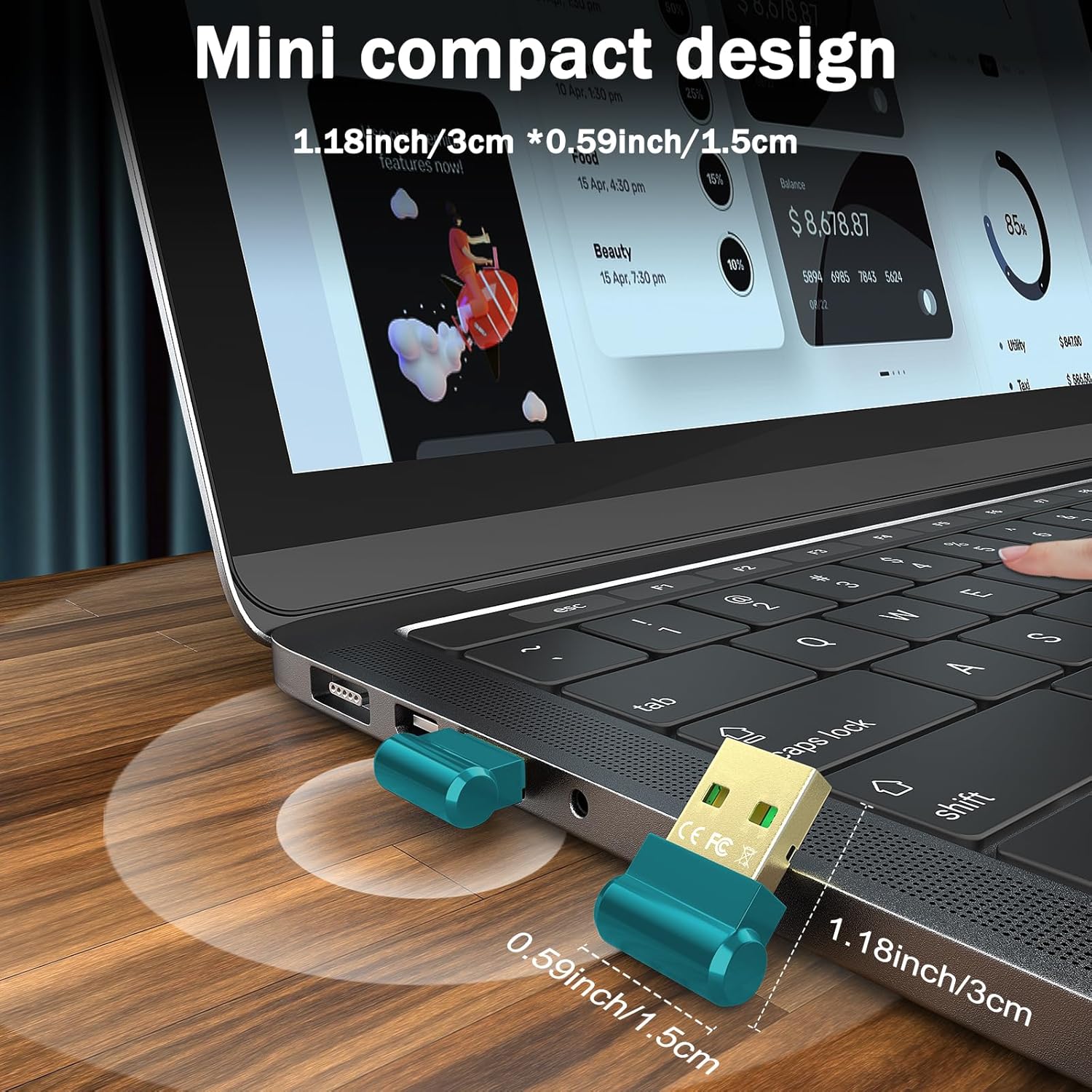
Tsanangudzo yemufananidzo This image illustrates the ultra-compact design of the Techkey Bluetooth adapter, shown plugged into a laptop. Its small dimensions (1.18 inches x 0.59 inches) ensure it does not obstruct adjacent USB ports, making it ideal for portable use.
3. Operating Instructions
Once the adapter is installed, you can begin pairing your Bluetooth devices.
3.1. Pairing Your Devices
- Locate the Bluetooth icon in the system tray (bottom-right corner of your screen). If not visible, click the 'Show hidden icons' arrow.
- Right-click on the Bluetooth icon and select 'Add a Bluetooth Device'.
- In the 'Bluetooth & other devices' settings, click 'Add Bluetooth or other device'.
- Select 'Bluetooth' from the options.
- Ensure your Bluetooth device (e.g., headphones, mouse, keyboard) is in pairing mode.
- Select your device from the list that appears and follow any on-screen prompts to complete the pairing process.

Tsanangudzo yemufananidzo This diagram demonstrates the versatility of the Techkey Bluetooth adapter, capable of connecting up to five different Bluetooth devices concurrently, such as a mouse, headphones, keyboard, and game controller, to a laptop.
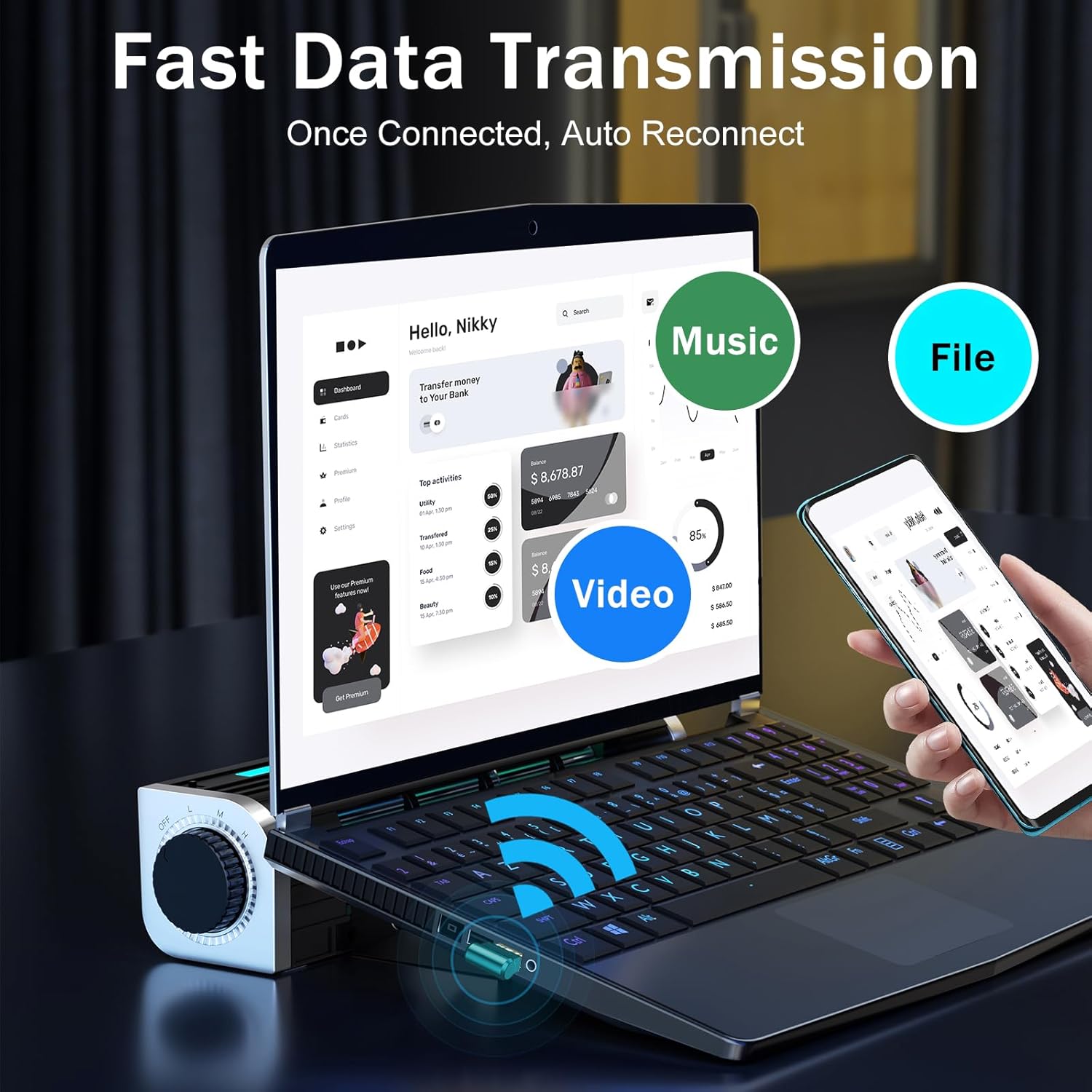
Tsanangudzo yemufananidzo This visual highlights the fast data transmission capabilities of the adapter, showing a laptop wirelessly connected to a smartphone, enabling quick transfer of music, videos, and files with an automatic reconnection feature.
4. Kuchengeta
To ensure the longevity and optimal performance of your Techkey Bluetooth Adapter, consider the following:
- Chengetedza adapta yakachena uye isina guruva. Shandisa jira rakapfava, rakaoma pakuchenesa.
- Dzivisa kuisa adapta kune tembiricha yakanyanya kana hunyoro.
- Do not apply excessive force when inserting or removing the adapter from a USB port.
- Regularly check for Windows updates to ensure your system has the latest drivers and security patches, which can improve Bluetooth performance.
5. Kugadzirisa matambudziko
If you encounter issues with your Bluetooth adapter, try the following solutions:
- Mudziyo Hauzivikanwe: Try unplugging the adapter and re-inserting it into a different USB port. Restart your computer.
- Kubatanidza Matambudziko: Ensure your external Bluetooth device is in pairing mode. Verify that any built-in Bluetooth on your computer is disabled (refer to Section 2.2). Make sure the adapter is correctly installed in Device Manager.
- Kubatana Kwenguva: Ensure the adapter is not obstructed by other devices or metal objects. Try moving closer to the adapter. Check for potential interference from other 2.4 GHz wireless devices.
- No Bluetooth Icon: Refer to the video in Section 2.3 for instructions on how to locate or enable the Bluetooth icon in the system tray.
- Nyaya dzemutyairi: Although plug-and-play, if issues persist, check Device Manager for any error indicators next to the Bluetooth adapter. You may need to manually update or reinstall drivers via Windows Update.
6. Zvinotsanangurwa
| Brand | Techkey |
| Model | Bluetooth Adapter 5.3 USB Mini EDR Dongle |
| Bluetooth Version | 5.3 + EDR (Backward compatible with 5.2/5.1/5.0/4.2/4.0/3.0/2.1) |
| Data Transfer Rate | Kusvikira ku3 Megabits paSekondi |
| Transmission Distance | Up to 30m (in open areas) |
| Hardware inowanikwa | Micro USB 2.0 Rudzi B |
| Inowirirana Devices | Headphones, Keyboards, Mice, Speakers |
| Inotsigirwa OS | Windows 11 / 10 / 8.1 (32/64-bit) |
| Product Dimensions | 1.18 x 0.59 x 0.2 inches |
| Item Weight | 1.06 ounces (0.03 Makirogiramu) |
7. Warranty uye Tsigiro
For warranty information and technical support, please refer to the product packaging or contact the seller directly. Specific warranty terms and support contact details may vary.