Nhanganyaya
This manual provides detailed instructions for the proper setup, operation, and maintenance of your FEELWORLD FW759 PRO 7-inch 1280x800 IPS Touch Screen Camera Field Video Monitor. Please read this manual thoroughly before using the product to ensure optimal performance and to prevent damage.
The FW759 PRO is designed to provide precise monitoring for professional video and photography applications. It features a 7-inch 1280x800 IPS display, 4K HDMI input, and a touch screen interface for intuitive control.
Package Zviri mukati
Tarisa kuti zvinhu zvese zvakanyorwa pazasi zvinosanganisirwa mupakeji yako. Kana chero zvinhu zvisipo kana kukuvadzwa, ndapota taura nemutengesi wako.

Mufananidzo 1: Inosanganisirwa Zvishandiso
- FEELWORLD FW759 PRO Monitor (1x)
- HDMI Cable (1x)
- Micro HDMI Cable (1x)
- Mini Hot Shoe Mount + Hex Wrench (1x)
- USB-A to USB-C Adapter (1x)
- Sun Shade + Frame (1x)
- Cable Management Tie (1x)
- Quick Start Guide (1x)
Product Overview
The FW759 PRO monitor features a slim and lightweight design, making it suitable for mobile shooting environments. It incorporates multiple ports for connectivity and versatile power options.

Mufananidzo 2: Mberi uye Rutivi Views with Ports
Front and Side Features:
- 7-inch IPS Bata Screen: High-resolution display for clear monitoring and intuitive control.
- Mabhatani eF1, F2, F3: Customizable shortcut keys for quick access to frequently used functions.
- Bhatani reSimba: For turning the monitor on and off.
- Type-C 5V Port: Zvekupinza simba.
- Chiteshi cheAV: Yekupinza vhidhiyo yeanalogi.
- HDMI Port: Supports 4K 30Hz signal input.
- DC IN 12V Port: Yemagetsi ekunze.
- 3.5mm Headphone Jack: Zvekuteerera kutariswa.

Mufananidzo 3: Kumashure View with Battery Plate
Rear Features:
- Purati yeBhatiri yeNP-F: Compatible with NP-F series batteries for portable power.
- 1/4" Mounting Points: Multiple mounting points for flexible attachment to cameras or rigs.
Gadzirira
1. Kuisa Monitor
The FW759 PRO features multiple 1/4" mounting points on its sides and bottom, allowing for flexible attachment to various camera setups or rigs using the included Mini Hot Shoe Mount or other compatible accessories.

Mufananidzo 4: Sarudzo dzeKuisa Monitor
- Batanidza Mini Hot Shoe Mount kuhot shoe yekamera yako kana kuti rig inoenderana nayo.
- Secure the monitor to the Mini Hot Shoe Mount using one of the 1/4" screw threads. Ensure it is tightened securely with the hex wrench.
2. Kusimbisa Monitor
The FW759 PRO offers versatile power options:
- NP-F Series Bhatiri: Insert a charged NP-F series battery into the battery plate on the back of the monitor.
- DC MU 12V: Connect an external 12V DC power adapter (not included) to the DC IN port.
- Type-C 5V: Connect a 5V Type-C power source (e.g., power bank, USB adapter) to the Type-C port.
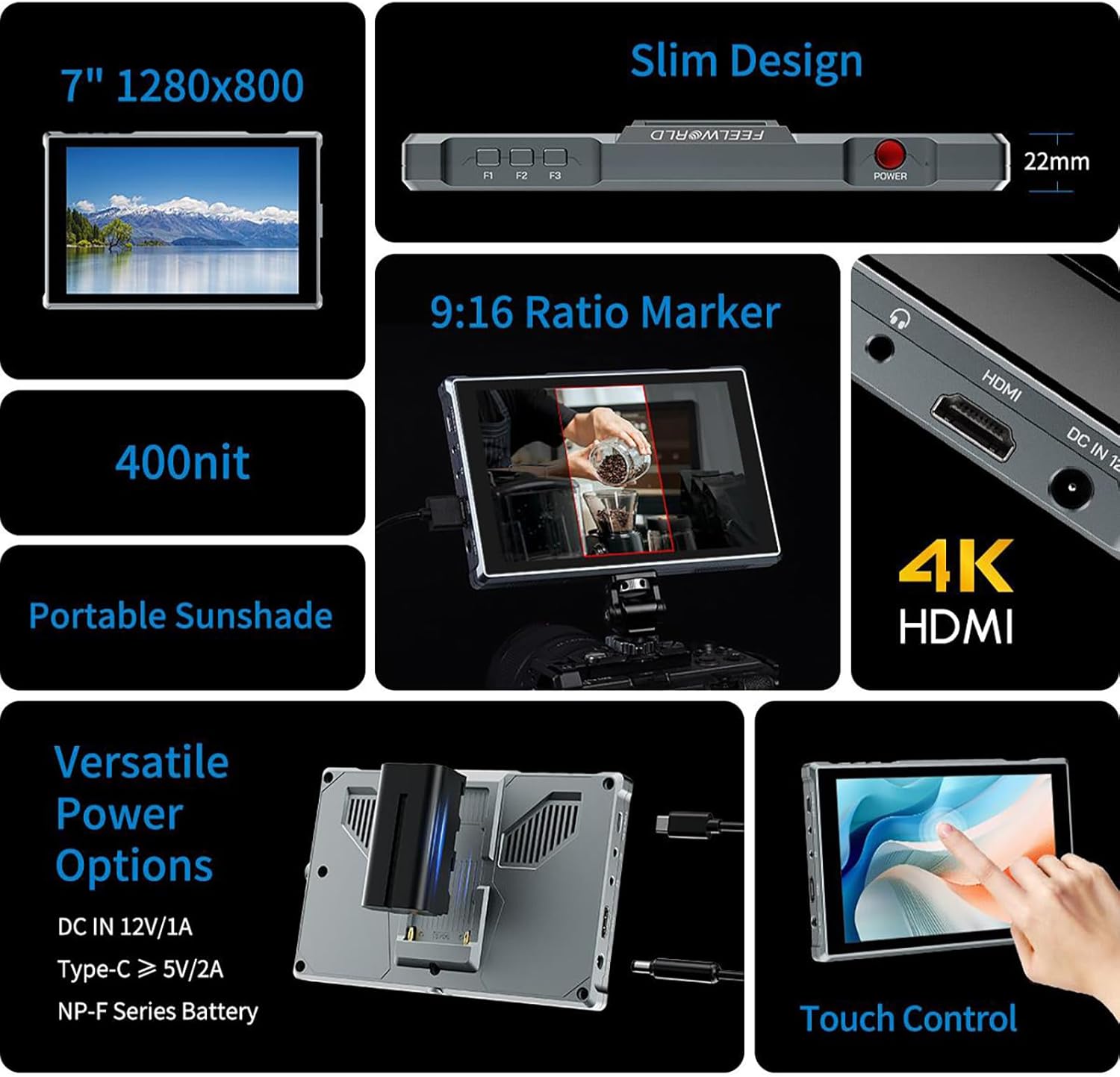
Figure 5: Power Options and Connectivity
3. Connecting Video Input
Connect your camera or video source to the monitor using the appropriate cable:
- HDMI Inzwa Zvinotaurwa: Use the provided HDMI or Micro HDMI cable to connect your camera's HDMI output to the monitor's HDMI input port. The monitor supports 4K 30Hz signals.
- AV Input: For devices with analog video output, connect to the AV port.
4. Attaching the Sun Shade
For improved visibility in bright outdoor conditions, attach the included sun shade:
- Assemble the sun shade frame.
- Slide the sun shade onto the monitor's frame until it clicks into place.
Operating Instruction
1. Simba On / Off
Dzvanya uye ubate iyo Bhatani reSimba located on the top right side of the monitor to turn it on or off.
2. Bata Screen Operation
The FW759 PRO features an intuitive touch screen for quick adjustments:

Figure 6: Touch Screen Gestures
- Swipe from the left edge: Rongedza kupenya kwebacklight.
- Swipe from the right edge: Rongedza inzwi.
- Swipe up from the bottom edge: Access the shortcut menu for quick settings.
- Top: Select menu items or confirm settings.
3. Customizable Shortcut Keys (F1, F2, F3)
The three customizable function buttons (F1, F2, F3) allow you to assign frequently used features for quick access. To assign a function:
- Access the main menu (via touch screen or a long press on a function button).
- Navigate to the 'Function Key Settings' or similar option.
- Select F1, F2, or F3 and choose the desired function (e.g., Peaking Focus, False Color, Aspect Marker).
4. Kufamba uye Kugadzirisa Menyu
The monitor's menu system allows for comprehensive control over display settings, auxiliary functions, and system configurations.
- Main Menu Access: Tap the screen to bring up the main menu interface.
- Navigation Use touch gestures to navigate through menu options.
- Mabasa Anobatsira: Access features like Peaking Focus Assist, False Color, Exposure, Histogram, Aspect Markers (including 9:16 vertical marker for social media content), and more.
- Mutauro Settings: The FW759 PRO supports up to 12 languages. Adjust this in the system settings.
- Menu Setting Saving: The monitor supports saving up to 4 groups of menu settings. After configuring your desired settings, select a group (1-4) to save them automatically. These can be recalled or switched as needed for different shooting scenarios.
5. Audio Monitoring
Connect headphones to the 3.5mm headphone jack to monitor audio from your HDMI or AV input source.
Maintenance
Kuchenesa Monitor
- Use a soft, lint-free cloth to gently wipe the screen and body of the monitor.
- Kune matope akaomarara, zvishoma dampen the cloth with water or a screen-cleaning solution specifically designed for electronics.
- Avoid using harsh chemicals, abrasive cleaners, or solvents, as these can damage the screen and finish.
Storage
- When not in use, store the monitor in a dry, cool place away from direct sunlight and extreme temperatures.
- Use a protective case or pouch to prevent scratches and impacts during transport.
- Bvisa mabhatiri kana uchichengeta kwenguva yakareba kudzivirira kubuda.
Kugadzirisa matambudziko
If you encounter issues with your FW759 PRO monitor, refer to the following common solutions:
- Hapana Simba: Ensure the battery is charged and correctly inserted, or that the external power adapter is properly connected and supplying adequate power. Check the power button.
- Hapana Chiratidzo: Verify that the HDMI or AV cable is securely connected to both the monitor and the video source. Confirm that the video source is outputting a signal and that the monitor's input source is correctly selected in the menu.
- Image Distortion/Poor Quality: Check the resolution and frame rate settings on your camera or video source to ensure compatibility with the monitor (up to 4K 30Hz). Inspect cables for damage.
- Bata Sikirini Haidaire: Try restarting the monitor. Ensure the screen is clean and free of debris.
- Mabhatani Asina Kushanda: Restart the monitor. If the issue persists, contact support.
For further assistance, please refer to the official FEELWORLD support resources.
Zvinotsanangurwa
| Feature | Tsanangudzo |
|---|---|
| Model | FW759 PRO |
| Screen Size | 7 inches |
| Resolution | 1280x800 |
| Panel Type | IPS |
| Viewing Angle | 178° (Wide) |
| Input Ports | HDMI (4K 30Hz support), AV, Type-C (5V power) |
| Output Ports | 3.5mm Headphone Jack |
| Simba Sarudzo | DC IN 12V, Type-C 5V, NP-F Series Battery |
| Kushandisa Simba | 9W |
| Product Dimensions | 4.53 x 7.17 x 0.87 inches (11.5 x 18.2 x 2.2 cm) |
| Item Weight | 1.76 makirogiramu (0.8 kg) |
| Mitauro Inotsigirwa | Up to 12 languages |
Warranty uye Support
FEELWORLD products are manufactured to high-quality standards. For warranty information, please refer to the warranty card included with your product or visit the official FEELWORLD website. Chengetedza risiti yako yekutenga sehumbowo hwekutenga kwezvichemo zvewaranti.
For technical support, product inquiries, or service, please contact FEELWORLD customer service through their official channels. You can often find support information on the manufacturer's websaiti kana kuburikidza nemutengesi wako ane mvumo.
Visit the FEELWORLD Store kuti uwane rumwe ruzivo uye zvigadzirwa zvinogadziridzwa.