
Qubo T-106
Qubo T-106 Tablet User Manual
Muenzaniso: T-106
1. Nhanganyaya
Thank you for choosing the Qubo T-106 Tablet. This manual provides essential information for setting up, operating, maintaining, and troubleshooting your device. Please read it carefully before using your tablet to ensure optimal performance and safety.
The Qubo T-106 is a versatile 10.1-inch tablet featuring an Octacore processor, Android 12 operating system, 6GB RAM, and 128GB internal storage. It supports 4G connectivity, Wi-Fi, and Bluetooth 5, making it suitable for various tasks from entertainment to productivity.
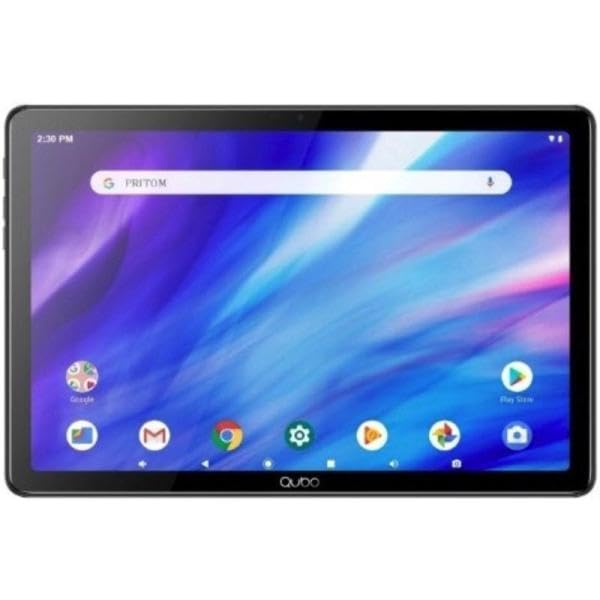
Mufananidzo 1.1: Mberi view of the Qubo T-106 Tablet, showcasing yayo 10.1-inch kuratidza.
2. Safety Information
To prevent damage to your device or injury to yourself and others, please observe the following safety precautions:
- Usaisa piritsi racho kune tembiricha yakanyanyisa, zuva rakananga, kana hunyoro hwepamusoro.
- Dzivisa kudonhedza kana kuisa piritsi kune simba rakasimba.
- Use only Qubo-approved chargers and accessories.
- Usaedza kubvisa kana kugadzirisa piritsi iwe pachako. Tarisa kune vashandi vanokwanisa.
- Chengetedza piritsi iri kure nemvura uye zvimwe zvinwiwa.
- Rasa piritsi uye bhatiri rayo zvine musoro maererano nemitemo yenzvimbo.
3. Chii chiri muBhokisi
Upon unpacking your Qubo T-106 Tablet, please ensure all items are present:
- Qubo T-106 Tablet
- Chinyorwa Chirairo (gwaro iri)
- USB-C Cable or Connector
If any items are missing or damaged, please contact your retailer or Qubo customer support.
4. Setup
4.1 Kuchaja Tablet
Before first use, fully charge your tablet. Connect the provided USB-C cable to the tablet's USB-C port and the other end to a compatible power adapter (not always included) or a computer's USB port.
- Chiratidzo chekuchaja chichavhenekera.
- Kuchaja kwakazara kunotora maawa 3-4.
4.2 Kubatidza/Kudzima
- Kubatidza: Press and hold the Power button (usually located on the side or top edge) until the Qubo logo appears on the screen.
- Kudzima: Dzvanya uye ubate bhatani reMasimba kudzamara menyu yesarudzo yemagetsi yaoneka. Sarudza "Kudzima" uye simbisa.
- Kuti utangezve: Kubva pane simba sarudzo menyu, sarudza "Restart" uye simbisa.
4.3 Yekutanga Setup Wizard
The first time you power on your tablet, an on-screen setup wizard will guide you through:
- Kusarudzwa kwemutauro
- Wi-Fi network yekubatanidza
- Google account sign-in or creation
- Date uye nguva marongero
- Security settings (PIN, pattern, password)
4.4 Inserting SIM/MicroSD Card (Optional)
If your model supports 4G connectivity or expandable storage, locate the SIM/MicroSD card tray on the side of the tablet. Use the provided ejector tool to open the tray. Insert the Nano-SIM card and/or MicroSD card (up to 128GB, check specifications for exact maximum) into the designated slots with the gold contacts facing down. Gently push the tray back into the tablet.
5. Kushandisa Tablet Yako
5.1 Basic Navigation
- Bata: Tinya chiratidzo kuti uvhure app kana kusarudza chinhu.
- Bata & Bata: Press and hold an item to access contextual menus or move icons.
- Rova zvakasimba: Drag your finger across the screen to scroll through pages or lists.
- Nzwara: Shandisa zvigunwe zviviri kuswededza mukati kana kunze pamifananidzo uye web mapeji.
5.2 Kubatanidza kuWi-Fi
- Enda ku Settings > Network & internet > Wi-Fi.
- Toggle Wi-Fi On.
- Sarudza network yako yaunoda kubva pane iyo rondedzero.
- Isa password kana ukakurudzirwa uye tinya Connect.
5.3 Using 4G Data (if applicable)
Ensure a valid SIM card is inserted. Go to Settings > Network & internet > Mobile network. Enable Mobile data. You may need to configure APN settings provided by your mobile carrier.
5.4 Kushanda kwekamera
Vhura Kamera app kubva pahome screen kana paapp drawer.
- Tinya bhatani rekuvhara kuti utore mufananidzo.
- Tap the video icon to switch to video recording.
- Use the switch icon to toggle between the front (5MP) and rear (8MP) cameras.
6. Kuchengeta
6.1 Kuchenesa Tablet
Use a soft, lint-free cloth to clean the screen and body of the tablet. Do not use liquid cleaners, aerosols, or abrasive materials, as these can damage the screen or finish.
6.2 Zvigadziriso zveSoftware
Periodically check for software updates to ensure your tablet has the latest features and security patches. Go to Settings > System > System update.
6.3 Kuchengeta Battery
- Dzivisa kuburitsa bhatiri zvakazara nguva zhinji.
- Do not leave the tablet charging for extended periods after it's fully charged.
- Store the tablet in a cool, dry place if not used for a long time, with the battery charged to about 50%.
7. Kugadzirisa matambudziko
| Dambudziko | Possible Solution |
|---|---|
| Tablet haibatike. | Ensure the battery is charged. Connect the charger and wait a few minutes before attempting to power on again. If unresponsive, perform a force restart by holding the power button for 10-15 seconds. |
| Haikwanisi kubatana neWi-Fi. | Check if Wi-Fi is enabled in settings. Ensure you have the correct password. Restart your Wi-Fi router and the tablet. Try connecting to a different Wi-Fi network to isolate the issue. |
| Mapurogiramu ari kuparara kana kutonhora. | Vhara uye vhura zvakare app. Bvisa cache yeapp uye data mukati Settings > Apps. Update the app to the latest version. If the problem persists, uninstall and reinstall the app. |
| Kunonoka kuita. | Vhara maapplication asina kushandiswa. Bvisa cache uye bvisa kwenguva pfupi files. Free up storage space by deleting unnecessary files or apps. Restart the tablet. Consider a factory reset as a last resort (back up your data first). |
| Bhatiri rinopera nekukurumidza. | Reduce screen brightness. Disable Wi-Fi, Bluetooth, GPS, and 4G when not in use. Close background apps. Check battery usage in Settings > Bhatiri kuziva maapplication ane nzara yemagetsi. |
8. Zvinotsanangurwa
| Feature | Detail |
|---|---|
| Model | Qubo T-106 (T106 128GB) |
| Display | 10.1 inches IPS, 1280x800 resolution |
| processor | MT8788 Octacore, 3.4 GHz (max speed) |
| Operating System | Android 12 |
| RAM | 6GB |
| Kuchengeta Kwemukati | 128GB |
| Expandable Storage | MicroSD (capacity not specified, typically up to 128GB or 256GB) |
| Rear Camera | 8 Megapixels (Autofocus) |
| Front Camera | 5 Megapixels (Fixed Focus) |
| Kubatana | 4G (B1/B3/B7/B8/B20), Wi-Fi 802.11n (2.4G/5G), Bluetooth 5, FM, GPS, GLONASS, A-GPS |
| Bhatiri | 6000 mAh Lithium-ion, 12 hours average battery life |
| Kuchaja Port | USB-C |
| Dimensions | 15 x 15 x 20 cm |
| Kurema | 1.1 kg |
9. Warranty uye Tsigiro
9.1 Ruzivo rweWaranti
The Qubo T-106 Tablet comes with a three-year warranty against manufacturing defects kubva pazuva rawakatenga. Waranti iyi inovhara zvikanganiso muzvinhu uye kugadzirwa kwezvinhu pasi pekushandiswa kwakajairika. Haivhari kukuvara kunokonzerwa nekushandiswa zvisizvo, tsaona, shanduko dzisina mvumo, kana kusakara kwakajairika.
Ndapota chengetedza humbowo hwako hwekutenga kwezvichemo zvewaranti.
9.2 Mutengi Tsigiro
For technical assistance, warranty claims, or further inquiries, please contact Qubo customer support through your retailer or visit the official Qubo websaiti kuti uwane ruzivo.
Note: Contact information may vary by region. Please refer to your product packaging or the Qubo official websaiti kune yakanyanya-kusvika-date rutsigiro ruzivo.