
Nhanganyaya
Thank you for choosing the JOMAA Ergonomic Folding Bluetooth Keyboard. This manual provides detailed instructions for setting up, operating, and maintaining your keyboard to ensure optimal performance and longevity. Please read this manual thoroughly before use.
Package Zviri mukati
- JOMAA Ergonomic Folding Bluetooth Keyboard (Model DF047)
- USB-C Kuchaja Cable
- User Manual
Gadzirira
1. Kuchaja kiyibhodhi
Before first use, fully charge the keyboard. Connect the provided USB-C cable to the charging port on the keyboard and to a USB power source. The charging indicator light will illuminate during charging and turn off when fully charged.

Image: The keyboard connected to a USB-C charging cable, with LED indicators showing charging status.
2. Powering On / Off
Locate the power switch on the side of the keyboard. Slide the switch to the 'ON' position to power on the keyboard. Slide it to the 'OFF' position to power off.

Video: This video demonstrates the initial power-on sequence and connection methods for the keyboard.
3. Maitiro Ekubatanidza
The keyboard supports both Bluetooth and Wired USB connections.
Bluetooth Pairing (BT1/BT2/BT3)
- Ita shuwa kuti kiibhodhi yakabatidzwa.
- Dzvanya uye ubate iyo Fn kiyi uye imwe yemakiyi eBluetooth channel (BT1, BT2, kana BT3) for 3-5 seconds until the corresponding Bluetooth indicator light flashes rapidly. This indicates pairing mode.
- On your device (PC, tablet, phone), enable Bluetooth and search for "Jomaa Keyboard" in the list of available devices.
- Select "Jomaa Keyboard" to connect. The indicator light will stop flashing and remain solid for a few seconds, then turn off, indicating a successful connection.
- Kuti uchinje pakati pemidziyo yakabatana, ingodzvanya Fn + BT1/BT2/BT3.
Wired USB Mode
The keyboard can also be used in wired mode. Connect the USB-C cable to the keyboard and the other end to your computer's USB port. The keyboard will automatically switch to wired mode.
Video: This video illustrates the process of connecting the keyboard using a wired USB connection.
Operating Instruction
1. Ergonomic Design and Usage
The keyboard features a split, ergonomic design to promote a more natural hand and wrist posture, reducing strain during extended typing sessions. When unfolded, ensure the keyboard is placed on a flat, stable surface.
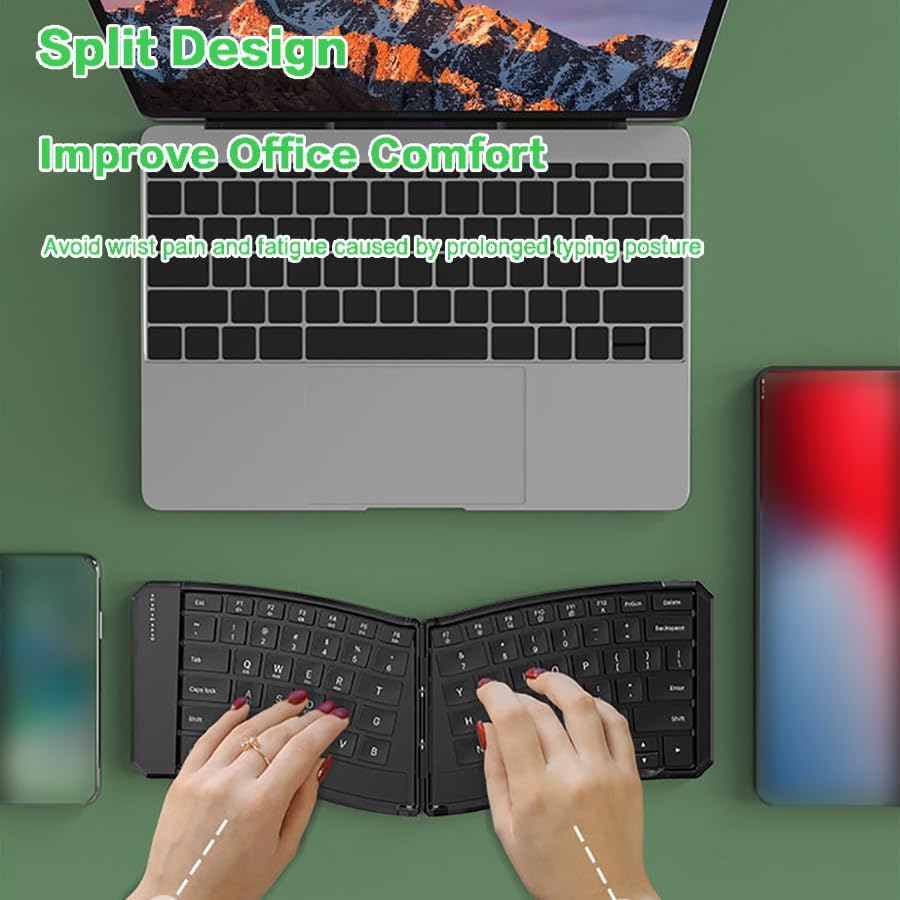
Image: A user typing on the split ergonomic keyboard, demonstrating comfortable hand placement.
2. Kuchinjana Kwemidziyo Yakawanda
The keyboard allows seamless switching between up to three paired Bluetooth devices. Simply press Fn + BT1, Fn + BT2, kana Fn + BT3 to switch to the corresponding device.
Video: This video shows how to switch between multiple devices connected to the keyboard via Bluetooth.
3. Makiyi eBasa uye Mapfupi
The top row of keys (F1-F12) includes multimedia and system control functions. These functions are accessed by pressing the Fn key in combination with the desired F-key.
- Fn+F1-F12: Multimedia controls (e.g., volume, play/pause, brightness).
- Caps Lock Indicator: An LED indicator above the Caps Lock key illuminates when Caps Lock is active.
- Input Method Kuchinja: Shandisa Ctrl+Space or Alt+Shift for seamless input method switching on compatible operating systems.
4. Kugarisana
The JOMAA keyboard is compatible with a wide range of operating systems:
- Windows
- iOS
- Android
- Mac
Maintenance
1. Kuchenesa
To clean the keyboard, power it off and disconnect any cables. Use a soft, lint-free cloth slightly dampened with water or a mild cleaning solution. Avoid excessive moisture and abrasive cleaners. Do not spray cleaners directly onto the keyboard.
2. Kuchengeta uye Kutakurika
The keyboard's folding design makes it highly portable. When not in use, fold the keyboard to protect the keys and reduce its footprint. The keyboard includes a locking mechanism to keep it flat when unfolded for stable use.

Image: The folded keyboard being stored in a backpack, highlighting its compact size for travel.
3. Battery Care
The keyboard features a built-in rechargeable battery and an auto-sleep mode (after 10 minutes of inactivity) to conserve power. For optimal battery life, avoid fully discharging the battery frequently and store the keyboard in a cool, dry place.
Kugadzirisa matambudziko
| Dambudziko | Solution |
|---|---|
| Kiyibhodhi haibatike. | Ensure the power switch is in the 'ON' position. Charge the keyboard for at least 2 hours. |
| Haikwanisi kubatana neBluetooth. | Ensure the keyboard is in pairing mode (flashing BT indicator). Check your device's Bluetooth settings. Forget and re-pair the keyboard if necessary. Ensure no other devices are actively connected to the selected BT channel. |
| Makiyi haasi kudaira. | Check battery level. Reconnect the keyboard (Bluetooth or wired). Restart your device. |
| Kiyibhodhi inowanzo dzima. | Ensure the keyboard is within range of your device. Check for interference from other wireless devices. Charge the keyboard. |
Zvinotsanangurwa
- Muenzaniso: DF047
- Kubatana: Bluetooth (BT1, BT2, BT3), Wired USB
- Kuenderana: Windows, iOS, Android, Mac
- Bhatiri: 140mAh Rechargeable (1 9V battery included)
- Kushanda Zvazvino: <3.5mA
- Auto-Sleep Mode: Mushure memaminitsi makumi matanhatu ekusaita basa
- Zviyero zveChigadzirwa (Zvakapetwa): Anenge 14.05 x 4.80 x 0.73 inches (35.7 x 12.2 x 1.85 cm)
- Chinhu Weight: 9.2 ounces (256g)
- Material: Plastiki

Image: A diagram illustrating the physical dimensions of the keyboard when unfolded.
Warranty uye Support
JOMAA products come with a standard manufacturer's warranty. For detailed warranty information, technical support, or service inquiries, please refer to the warranty card included with your product or visit the official JOMAA website. Ndapota chengetedza humbowo hwako hwekutenga kwezvichemo zvewaranti.