1. Chigadzirwa Pamusoroview
The StarTech.com ICUSBAUDIO7D is an external 7.1 USB sound card designed to upgrade the audio capabilities of your desktop or laptop computer. It provides a robust USB audio experience, connecting via a single USB 2.0 connection. This device supports both analog and digital audio for 2 to 7.1 channel applications, offering a cost-effective solution to enhance your system's sound for home theater, gaming, or multimedia presentations.
Zvinhu zvakakosha zvinosanganisira:
- Adds up to 7.1 channels of audio through a single USB port.
- Supports 7.1, 5.1, and 2 channel output using 3.5mm jacks, a headphone port, line-in, and stereo microphone inputs.
- Upgrades existing integrated audio on desktop or laptop computers.
- Supports 44.1KHz and 48KHz sampling rates for analog playback and recording.
- SPDIF Digital output supports 48KHz audio playback.
- SPDIF optical input passthrough supports up to two-channel audio at 48KHz.
- Features easy-to-use volume controls and mute buttons.
- Plug and Play support for Windows 7/8.1/10.
2. Package Zviri mukati
Ona kuti pasuru yako ine zvinhu zvinotevera:
- 1x StarTech.com 7.1 USB Sound Card (ICUSBAUDIO7D)
- 1x USB Cable
- 1x Installation CD (drivers may be outdated, refer to StarTech.com website for latest)
- 1x Chinyorwa Chekuraira

Image: Contents of the StarTech.com 7.1 USB Sound Card package, showing the sound card, USB cable, and printed manual.
3. Product Features and Diagrams
3.1 Chishandiso Pamusoroview
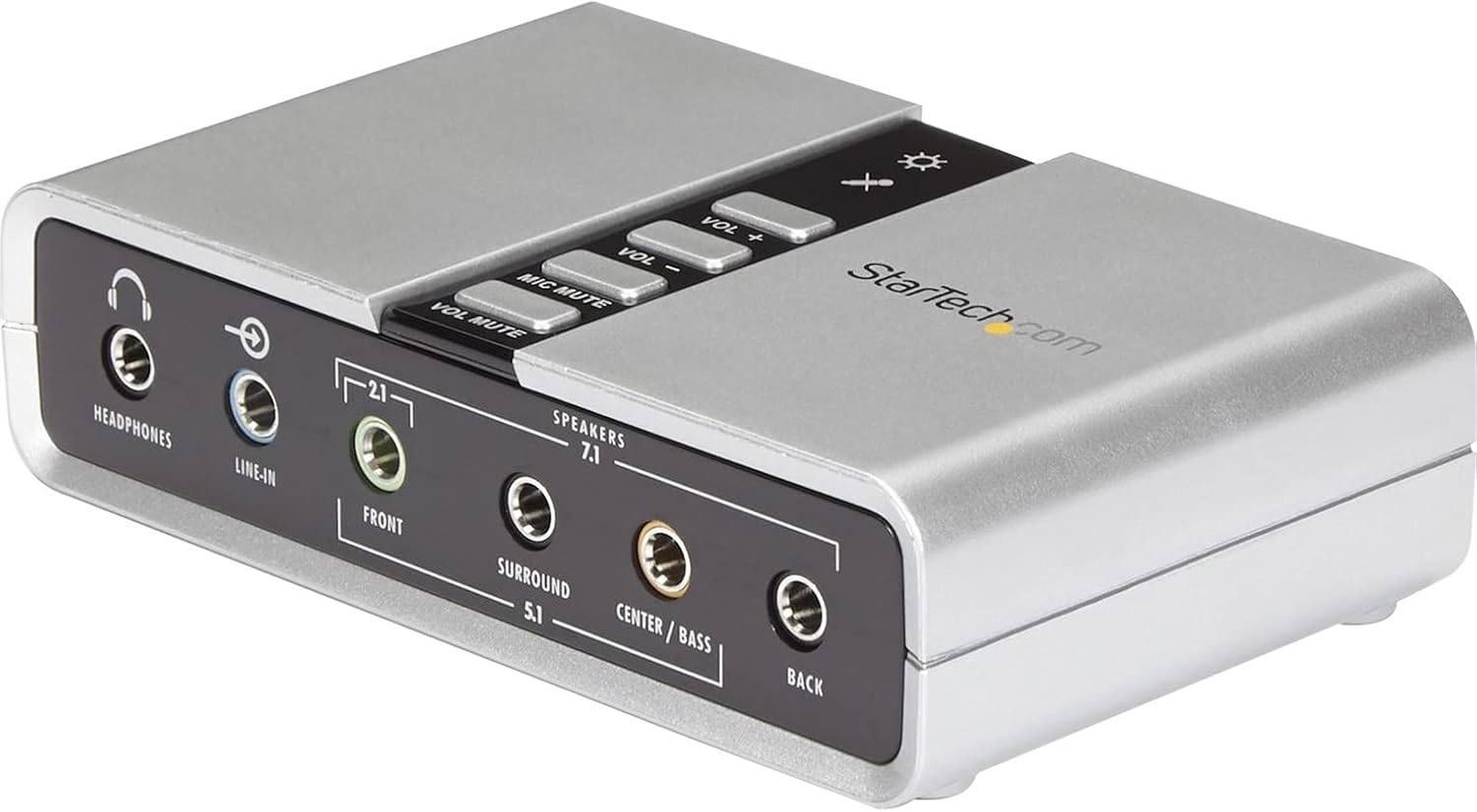
Image: The StarTech.com 7.1 USB Sound Card, displaying its compact silver design and the various audio input/output ports on the front panel, along with volume controls on the top.
The external sound card connects to your computer via a USB-A port, providing an instant audio upgrade. It supports full duplex recording and playback and features built-in volume control buttons for convenience.

Image: The StarTech.com 7.1 USB Sound Card connected to a laptop, illustrating its use as an external audio solution.
3.2 Front Panel Connections

Image: Detailed diagram of the front panel of the sound card, highlighting the headphone output, line-in input, and the 3.5mm jacks for Front (L/R CH + Sub), Surround (Rear in 5.1 or Side 7.1), Center/Bass, and Back (L/R CH) speakers.
- Mahedhifoni 3.5mm stereo kubuda kwemahedhifoni.
- Line-In: 3.5mm stereo input for external audio sources.
- Pamberi 3.5mm output for front left/right speakers and subwoofer (2.1 or 7.1 setup).
- Kukomberedza: 3.5mm output for surround speakers (rear in 5.1, side in 7.1).
- Center / Bass: 3.5mm output for center speaker and subwoofer.
- Kumashure: 3.5mm output for back left/right speakers (7.1 setup).
3.3 Rear Panel Connections

Image: Detailed diagram of the rear panel of the sound card, showing the S/PDIF In (Optical Digital), S/PDIF Out (Optical Digital), USB-B port for connection to a laptop or PC, and two 3.5mm microphone inputs (Microphone 1 L CH, Microphone 2 R CH).
- S/PDIF In: Kuisa odhiyo yedhijitari.
- S/PDIF Out: Optical digital audio output. Note: This port supports two-channel audio only and does not support 5.1 or 7.1 audio.
- USB-B: Connects to your computer's USB-A port using the provided USB cable.
- Microphone 1 (L CH) / Microphone 2 (R CH): Two 3.5mm inputs for stereo microphones.
4. Setup uye Kuiswa
The StarTech.com 7.1 USB Sound Card is designed for easy plug-and-play installation on compatible Windows operating systems.
4.1 Hardware Connection
- Batanidza USB Cable: Connect the USB-B end of the included USB cable to the USB-B port on the rear of the sound card. Connect the USB-A end of the cable to an available USB-A port on your desktop or laptop computer.
- Connect Speakers/Headphones:
- For headphones, plug them into the Mahedhifoni jack pamberi pepaneru.
- For 2.1, 5.1, or 7.1 analog speaker systems, connect the corresponding 3.5mm jacks from your speakers to the Mberi, Surround, Center / Bass,uye Back ports on the front panel as required by your speaker system. Refer to your speaker system's manual for specific connections.
- For digital audio output, connect an optical S/PDIF cable from the S/PDIF Kunze port on the rear to your digital audio receiver.
- Connect Microphones/Line-In:
- Plug microphones into the Maikorofoni 1 uye/kana Maikorofoni 2 majeki ari kumashure kwepaneru.
- Connect external audio sources (e.g., MP3 player) to the Line-In jack pamberi pepaneru.
4.2 Driver Installation (Windows)
For Windows 7, 8.1, and 10, the device typically installs automatically using built-in drivers. If prompted, allow Windows to install the necessary drivers. If automatic installation fails or you experience issues, you may need to download the latest drivers from the official StarTech.com website. The included installation CD may contain outdated drivers.
It is recommended to disable any integrated audio devices in your computer's sound settings to ensure the StarTech.com sound card takes full control of audio processing.
5. Operating Instructions
5.1 Kutamba Kwekutanga Kwemanzwi
Once connected and drivers are installed, your computer should recognize the StarTech.com 7.1 USB Sound Card as the default audio playback device. You can verify this in your operating system's sound settings.
- Kudzora inzwi: Use the physical "VOL +" and "VOL -" buttons on the top of the sound card to adjust the master volume. You can also adjust volume through your operating system's sound mixer.
- Mute Functions: The "VOL MUTE" button mutes all audio output. The "MIC MUTE" button mutes the microphone inputs.
5.2 Configuring Surround Sound (Windows)
To configure 5.1 or 7.1 surround sound output:
- Vhura iyo Control Panel uye famba uchienda Inzwi.
- Pasi pe Playback tab, locate and select the "Speakers" entry for the "USB Sound Device" (or similar name for the StarTech.com sound card).
- Dzvanya iyo Configure bhatani.
- Choose your desired audio configuration (e.g., "5.1 Surround" or "7.1 Surround") and click Next.
- Follow the on-screen prompts to test your speaker setup and ensure all channels are working correctly.
- Adjust speaker types (e.g., full-range or satellite) if applicable, then click Finish.
The audio outputs are also selectable via the included software, which provides more granular control over audio settings.
5.3 Kurekodha Audio
To record audio from the microphone or line-in inputs:
- Ensure your microphone(s) or line-in source is connected to the appropriate port on the sound card.
- Open your preferred audio recording software (e.g., Windows Voice Recorder, Audacity).
- In the recording software's settings, select the "USB Sound Device" (or similar) as the input device.
- Adjust input levels as needed within the software or your operating system's sound settings.
- Tanga kurekodha.
6. Kuchengeta
The StarTech.com 7.1 USB Sound Card requires minimal maintenance. Keep the device clean and free from dust. Use a soft, dry cloth for cleaning. Avoid exposing the device to extreme temperatures, humidity, or direct sunlight. Ensure all cable connections are secure.
7. Kugadzirisa matambudziko
- Hapana Kubuda Munzwi:
- Ensure the USB cable is securely connected to both the sound card and your computer.
- Verify that the sound card is selected as the default playback device in your operating system's sound settings.
- Check that speakers/headphones are correctly plugged into the appropriate jacks.
- Ensure the "VOL MUTE" button is not active and volume levels are sufficiently high on both the device and your computer.
- If using analog speakers, confirm they are powered on.
- Maikorofoni Haisi Kushanda:
- Ensure the microphone is correctly plugged into one of the microphone jacks.
- Verify that the "MIC MUTE" button is not active.
- Check your operating system's sound recording settings to ensure the USB Sound Device is selected as the input and input levels are adequate.
- Surround Sound Not Functioning Correctly:
- Review the "Configuring Surround Sound" section (5.2) to ensure your system is properly configured for 5.1 or 7.1 output.
- Confirm that your speaker system is correctly connected to the corresponding output jacks on the sound card.
- Note that the S/PDIF optical output supports two-channel audio only, not 5.1 or 7.1 surround sound.
- Some streaming services or media players may not output true surround sound via PC applications; verify your media source supports surround sound output through the device.
- Nyaya dzemutyairi:
- If you encounter driver-related issues, visit the official StarTech.com website to download and install the latest drivers for your operating system.
- Ensure any previously installed sound card drivers or integrated audio drivers are disabled or uninstalled to prevent conflicts.
- Volume Range Limitations:
- If the volume range feels limited (e.g., 1% is too loud, 100% is not loud enough), adjust the physical volume knob on your external speakers (if applicable) to find a comfortable range. This device is USB bus-powered, which can sometimes affect the maximum ampliification.
8. Zvinotsanangurwa
| Product Dimensions | 3.9 x 1 x 2.4 inches (9.9 x 2.5 x 6.1 cm) |
| Item Weight | 3.17 ounces (90 gramu) |
| Model Number | ICUSBAUDIO7D |
| Hardware inowanikwa | USB |
| Audio Output Mode | Surround (7.1, 5.1, 2-channel) |
| Sampling Rates (Analog) | 44.1KHz, 48KHz |
| Sampling Rate (SPDIF Digital Out) | 48 KHz (2-channel only) |
| Inowirirana Devices | Desktop, Laptop |
| Platform Compatibility | Windows 10, Windows 11, Windows 8, Windows 8.1, Windows Vista, Windows XP |
| Mugadziri | StarTech.com |
| Zuva Rokutanga Kuwanikwa | Kukadzi 28, 2012 |
9. Warranty uye Technical Support
The StarTech.com 7.1 USB Sound Card (ICUSBAUDIO7D) is backed by a 2-makore waranti. StarTech.com also provides rutsigiro rwehunyanzvi rwehupenyu hwese rwemahara nokuda kwechigadzirwa ichi.
For technical assistance, please visit the official StarTech.com website or contact their customer support directly. Ensure you have your product model number (ICUSBAUDIO7D) available when seeking support.
10. Kuchengeteka uye Nyevero
Ndapota verenga uye tevera nhungamiro idzi dzekuchengetedza kudzivirira kukuvara kwemudziyo kana kukuvara kwako:

Image: Safety warning labels for handling electronic components.
- Static Electricity: Always discharge static electricity before handling the component. Static discharge can damage devices and cause injury. Use an anti-static wrist strap or ground yourself by touching a grounded metal surface.
- Sharp Edges: Chenjerera paunenge uchibata mudziyo, sezvo mimwe mipendero kana zvikamu zvingave zvakapinza. Pfeka magirovhosi kana zvichidikanwa kudzivirira kucheka kana kukwenya.
- Kudzima Usati Wabata: Ensure the host device is powered off and unplugged before installing or removing any components. Working with powered systems may lead to electric shocks or damage to components.


