1. Nhanganyaya uye Pamusoroview
The Avision AV 320D2+ is a high-performance A3 document scanner designed for efficient and reliable document digitization. Featuring a 600 dpi optical resolution and USB connectivity, it is capable of handling a wide range of document sizes up to A3, making it suitable for various professional environments. This manual provides essential information for setting up, operating, maintaining, and troubleshooting your scanner.
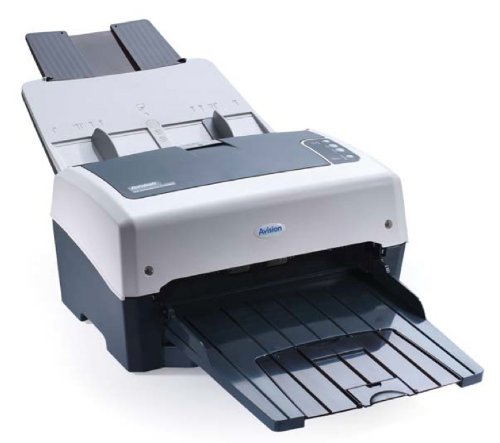
Figure 1: Avision AV 320D2+ A3 Document Scanner. This image displays the Avision AV 320D2+ A3 Document Scanner from a front-right perspective. The scanner is light grey and dark grey, featuring an automatic document feeder (ADF) at the top with paper guides visible, and an extended output tray at the front. The Avision logo is visible on the front panel.
2. Setup
2.1 Kusunungura
- Nyatsobvisa scanner uye zvese zvishongedzo kubva pakurongedzerwa.
- Tarisa uone kuti zvese zvikamu zvakanyorwa murondedzero yekurongedza zviripo.
- Remove all protective tapes and packing materials from the scanner, including any inside the document feeder and output tray.
2.2 Kubatanidza Scanner
- Place the scanner on a stable, flat surface near your computer.
- Connect the power adapter to the scanner's power input and then plug it into an electrical outlet.
- Connect one end of the supplied USB cable to the USB port on the scanner and the other end to an available USB port on your computer.
- Power on the scanner using the power button, typically located on the side or rear panel.
2.3 Kuiswa kweSoftware
Before using the scanner, you must install the necessary drivers and scanning software. Refer to the included software CD or visit the official Avision website for the latest drivers and utilities.
- Insert the software installation CD into your computer's CD/DVD drive, or download the software package from the Avision support website.
- Follow the on-screen instructions to install the scanner drivers and bundled scanning applications. It is recommended to install all provided software for full functionality.
- Restart your computer if prompted after the installation is complete.
3. Kushanda neScanner
3.1 Loading Documents
- Automatic Document Feeder (ADF): Open the ADF input tray. Adjust the paper guides to fit the width of your documents. Place the documents face-down with the top edge first into the ADF. The standard sheet capacity is 50 sheets.
- Ensure documents are free of staples, paper clips, or any foreign objects that could damage the scanner.
- For mixed-size documents, ensure they are aligned properly to prevent skewing.
3.2 Basic Scanning Procedures
- Load your documents into the ADF as described above.
- Open your preferred scanning application (e.g., Avision Button Manager, TWAIN/ISIS compatible software).
- Select the Avision AV 320D2+ as your scanner.
- Choose your desired scanning settings (e.g., color mode, resolution, destination folder).
- Initiate the scan from the software interface. The scanner will automatically feed and scan the documents.
- Review the scanned images and save them to your desired location.
3.3 Scan Settings
The scanner supports various settings to optimize scan quality and file saizi:
- Resolution: Adjustable up to 600 dpi. Higher resolution provides better image quality but results in larger file saizi.
- Color Mode: Options typically include Color, Grayscale, and Black & White (Binary).
- Duplex Scanning: The AV 320D2+ supports duplex (two-sided) scanning, allowing you to capture both sides of a document in a single pass.
- Output Format: Common output formats include PDF, JPEG, TIFF, and searchable PDF.
4. Kuchengeta
4.1 Kuchenesa Scanner
Regular cleaning ensures optimal performance and extends the life of your scanner.
- Kunze: Pukuta nzvimbo dzekunze nekanyoro, dampjira risina maronda. Usashandise zvinochenesa kana zvinonyungudutsa.
- Glass Surfaces: Shandisa jira rakapfava dampened with a non-abrasive glass cleaner to clean the scanner's glass surfaces (if applicable).
- Rollers: Periodically clean the feed rollers with a lint-free cloth lightly dampened with isopropyl alcohol to remove paper dust and residue.
- Always power off and unplug the scanner before cleaning.
5. Kugadzirisa matambudziko
This section addresses common issues you might encounter with your Avision AV 320D2+ scanner.
| Dambudziko | Zvinogona Kukonzera | Solution |
|---|---|---|
| Scanner not detected by computer | Loose USB cable, power off, driver issue | Check USB connection, ensure scanner is powered on, reinstall drivers. |
| Mapepa jams | Misaligned documents, worn rollers, foreign objects | Remove jammed paper carefully, align documents properly, clean rollers. |
| Poor scan quality (streaks, blurry images) | Dirty glass, incorrect settings, worn rollers | Clean scanner glass and rollers, adjust resolution/color settings. |
| Documents not feeding | Incorrectly loaded, worn feed rollers | Ensure documents are loaded correctly, clean or replace feed rollers if worn. |
6. Zvinotsanangurwa
Key technical specifications for the Avision AV 320D2+ scanner:
- Product Type: Document Scanner
- Pepa Format: A3
- Resolution: 600 dpi (Optical)
- Kubatana: USB
- Ruvara: Mutema/Muchena
- Kurema Anenge 26.46 pounds (12 kg)
- Kushandisa Simba: 38.4 Watts
- Standard Sheet Capacity (ADF): 50 mapepa
- Optical Sensor Tekinoroji: CMOS
- Zita remuenzanisi: AV320D2+
- Nhamba Yemhando Yechinhu: FT-0807H
7. Warranty uye Tsigiro
7.1 Warranty yemugadziri
The Avision AV 320D2+ scanner typically comes with a 2-year mugadziri waranti. This warranty covers defects in materials and workmanship under normal use. Please retain your proof of purchase for warranty claims. For specific terms and conditions, refer to the warranty card included with your product or visit the official Avision website.
7.2 Tsigiro yehunyanzvi
For technical assistance, driver updates, or further troubleshooting not covered in this manual, please contact Avision customer support. Support contact information can usually be found on the Avision official webkana kuti mune magwaro anopiwa ne scanner yako.
Note: Availability of spare parts and software updates may vary. Please check the manufacturer's official channels for the most current information.


