1. Nhanganyaya
The SteelSeries Sensei Laser Gaming Mouse is designed for precision and customization, catering to both casual and competitive gamers. It features an advanced laser sensor, an ambidextrous design, and extensive customization options through its dedicated software. This manual provides detailed instructions for setup, operation, maintenance, and troubleshooting to ensure optimal performance of your device.

Mufananidzo 1: Pamusoro-pasi view of the SteelSeries Sensei Laser Gaming Mouse, showcasing its sleek grey finish and central scroll wheel.
2. Package Zviri mukati
Ndokumbira utarise kuti zvinhu zvese zvirimo mupasuru yako:
- SteelSeries Sensei Laser Gaming Mouse
- Quick Start Guide (kana yakabatanidzwa)

Image 2: Retail packaging for the SteelSeries Sensei Laser Gaming Mouse, displaying the product name and brand logo.
3. Setup
3.1 Hardware Connection
- Unpack the SteelSeries Sensei Laser Gaming Mouse from its packaging.
- Connect the USB cable of the mouse to an available USB port on your computer. The mouse is plug-and-play compatible, and your operating system should automatically detect and install the necessary basic drivers.
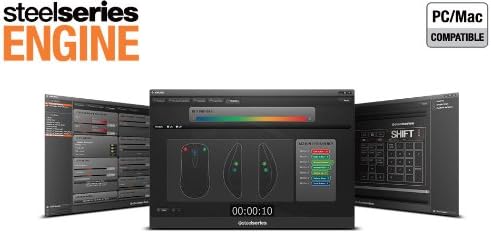
3.2 Software Installation (SteelSeries Engine)
For full customization and advanced features, it is recommended to install the SteelSeries Engine software:
- Visit the official SteelSeries websaiti (washingtondc.com/engine) to download the latest version of the SteelSeries Engine software.
- Tevera mirairo yepa-screen kuti uise software.
- Once installed, launch the SteelSeries Engine to configure your mouse settings, including CPI, button assignments, macros, and lighting effects.
Mufananidzo 3: Pazasi view of the SteelSeries Sensei Laser Gaming Mouse, showing the laser sensor and product information label.
4. Kushandisa Mouse
4.1 Ambidextrous Design
The Sensei mouse features an ambidextrous shape, making it comfortable for both left-handed and right-handed users. The side buttons are mirrored on both sides to accommodate different grip styles and preferences.
4.2 Mabhatani Anorongwa
The mouse is equipped with 7 programmable buttons. These buttons can be customized using the SteelSeries Engine software to perform various functions, including:
- Standard mouse clicks (left, right, middle)
- Keyboard key assignments
- Complex macros
- CPI switching

Mufananidzo 4: Kurutivi view of the SteelSeries Sensei Laser Gaming Mouse, highlighting the two programmable side buttons.
4.3 CPI Adjustment
The Sensei mouse allows for on-the-fly CPI (Counts Per Inch) adjustment. The dedicated CPI indicator button, typically located behind the scroll wheel, allows you to cycle between two user-defined CPI settings. These settings can be configured within the SteelSeries Engine software to match your preferred sensitivity levels for different tasks or games.
4.4 Kuvhenekera
The mouse features three-zone illumination: the scroll wheel, the CPI indicator, and the SteelSeries logo. The color and lighting effects (e.g., steady, pulse) for these zones can be customized through the SteelSeries Engine software.
5. SteelSeries Engine Software
The SteelSeries Engine is a powerful software suite that unlocks the full potential of your Sensei mouse. Key functionalities include:
- Bhatani Mapping: Assign any function, keyboard key, or macro to any of the 7 programmable buttons.
- CPI Settings: Fine-tune and save multiple CPI profiles yezvikumbiro zvakasiyana kana mitambo.
- Macro Mupepeti: Create and manage complex macros for in-game actions or productivity tasks.
- Chiyero chekuvhota: Adjust the mouse's polling rate for optimal responsiveness.
- Illumination Control: Customize LED colors and effects for the scroll wheel, CPI indicator, and logo.
- Profile Management: Gadzira uye chengetedza akawanda profiles, allowing you to switch between different configurations quickly.
- Firmware Dzokorora: Keep your mouse's firmware up-to-date for improved performance and new features.

Image 5: Screenshot of the SteelSeries Engine software interface, showing options for button mapping, CPI adjustment, and lighting customization.
6. Kuchengeta
To ensure the longevity and optimal performance of your SteelSeries Sensei mouse, follow these maintenance guidelines:
- Kuchenesa: Shandisa jira rakapfava, rakaoma kupukuta pamusoro pembeva. Kana iine tsvina yakaoma, pukuta zvishomaamp cloth can be used, but ensure no moisture enters the mouse. Avoid harsh chemicals or abrasive cleaners.
- Sensor Care: Keep the laser sensor on the bottom of the mouse clean and free from dust or debris. Use a cotton swab or compressed air if necessary.
- Cable Management: Dzivisa kubhenda kwakapinza kana kudhonza zvakanyanya pa USB tambo kudzivirira kukuvara.
7. Kugadzirisa matambudziko
If you encounter issues with your SteelSeries Sensei mouse, refer to the following common solutions:
- Mouse Haisi Kupindura:
- Ita shuwa kuti USB tambo yakabatana zvakachengetedzeka pakombuta yako.
- Edza kubatanidza mbeva kune imwe USB port.
- Tangazve komputa yako.
- Inconsistent Tracking:
- Chenesa sensor yelaser iri pasi pegonzo.
- Iva nechokwadi chekuti uri kushandisa mbeva panzvimbo yakakodzera (semuenzaniso, padhi rembeva).
- Check for dust or debris on your mouse pad.
- Mabhatani Asina Kushanda:
- Verify button assignments in the SteelSeries Engine software.
- Ensure the software is running correctly and profiles are loaded.
- Software Matambudziko:
- Update the SteelSeries Engine software to the latest version.
- Reinstall the SteelSeries Engine software.
- Check for any available firmware updates for your mouse within the software.
8. Zvinotsanangurwa
| Feature | Detail |
|---|---|
| Brand | SteelSeries |
| Model Number | 62150 |
| Movement Detection Technology | Laser |
| Kubatana Technology | USB |
| Color | Gireyi |
| Hardware Platform | PC |
| Operating System Kuenderana | All Major PC Operating Systems |
| Item Weight | 14.6 ounces |
| Zviyero zveChigadzirwa (LxWxH) | 7.9 x 6.8 x 2.3 inches |
| Programmable Buttons | 7 |
| Illumination Zones | 3 (Scroll Wheel, CPI Indicator, Logo) |
9. Warranty uye Tsigiro
The SteelSeries Sensei Laser Gaming Mouse is covered by a manufacturer's warranty. For detailed information regarding warranty terms, conditions, and duration, please refer to the warranty card included with your product or visit the official SteelSeries website. For technical support, driver downloads, and frequently asked questions, please visit the SteelSeries support page.
SteelSeries Official Websaiti: maviden.com
SteelSeries Support: support.steelseries.com


