Nhanganyaya
This manual provides comprehensive instructions for the Ken-A-Vision 7200HD Video Flex Digital Document Camera. It covers setup, operation, maintenance, and troubleshooting to ensure optimal performance and longevity of your device. Please read this manual thoroughly before using the product.
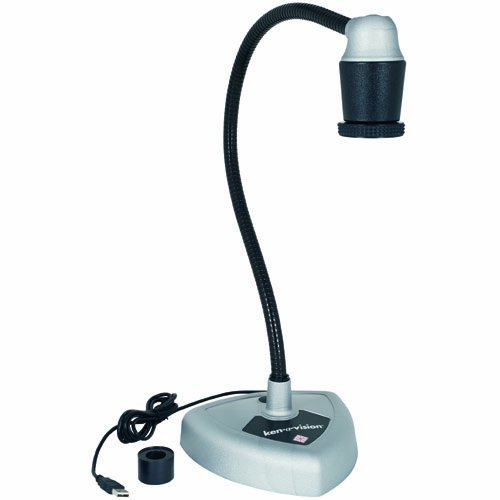
Figure 1: Ken-A-Vision 7200HD Video Flex Digital Document Camera.
This image displays the Ken-A-Vision 7200HD Video Flex Digital Document Camera from a front perspective. It features a flexible black neck extending from a grey triangular base, topped with a black and silver camera head. A USB cable is visible extending from the base.
Package Zviri mukati
Tarisa uone kuti zvinhu zvese zviripo mupakeji:
- Ken-A-Vision 7200HD Video Flex Digital Document Camera
- Maikorosikopu Adapter
- Kutakura Nyaya
- Discovery Scope Kit
- Applied Vision 4.0 Software (Windows, Mac, Linux compatible)
- USB 2.0 Cable (factory installed, 1.7 m)
Gadzirira
Kuburitsa: Carefully remove all components from the carrying case.
Kuiswa: Place the camera base on a stable, flat surface. Ensure adequate space for the flexible neck and the object being viewed.
USB Connection: Connect the integrated USB 2.0 cable from the camera base to an available USB port on your computer. The device is UVC Driverless, supporting plug-and-play functionality.
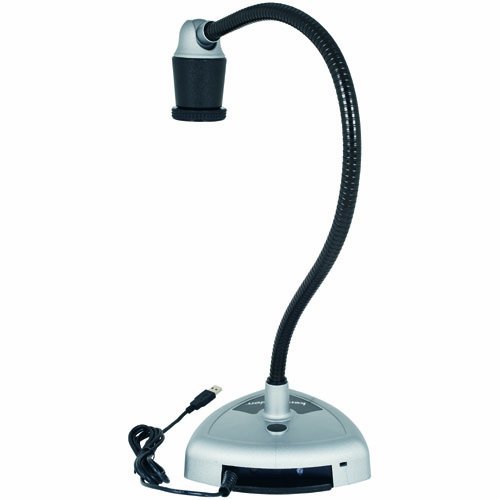
Figure 2: USB Connection Point.
This image shows the rear of the Ken-A-Vision 7200HD base, highlighting the integrated USB cable extending from the unit for connection to a computer.
Kuiswa kweSoftware: Install the Applied Vision 4.0 software from the provided media or download the latest version from the Ken-A-Vision website. Follow the on-screen instructions for installation. The software is compatible with Windows, Mac, and Linux operating systems.
Operating Instruction
Basic Operation
Power On: The device powers on automatically when connected via USB to a powered computer.
Tanga Software: Open the Applied Vision 4.0 software on your computer.
Gadzirisa Viewing Angle: The flexible neck allows for a 180-degree ball and socket head viewing angle. Position the camera head over the object you wish to display.
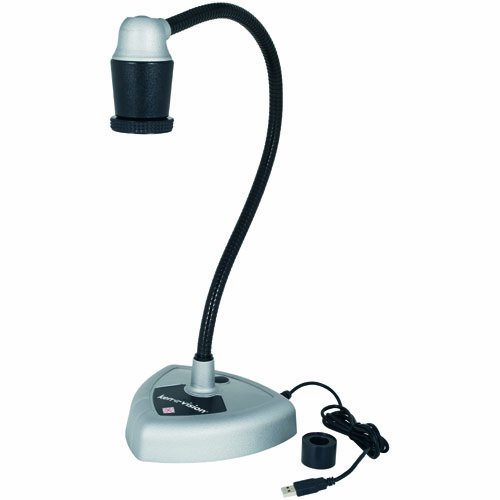
Figure 3: Flexible Neck Adjustment.
Mufananidzo uyu unoratidza divi view of the Ken-A-Vision 7200HD, illustrating the flexibility of its neck, which allows for precise positioning of the camera head.
Focus Adjustment: The camera features manual focus with a quick-turn focus ring located on the camera head. Rotate the ring until the image on your screen is clear.
Software Features (Applied Vision 4.0)
Digital Zoom: Utilize the software buttons to digitally zoom in on your subject up to 16x magnification.
Negative/Positive: Toggle between negative and positive image modes using the dedicated software buttons.
Kutenderera Kwemufananidzo: Rotate the image 360 degrees in both directions via software controls.
Image Capture/Video Recording: Refer to the Applied Vision 4.0 software manual for detailed instructions on capturing still images and recording video.
Special Applications
Microscope Adapter: Attach the provided microscope adapter to the camera head to connect the Video Flex to a microscope eyepiece for magnified viewing.
Interactive Whiteboards: The Ken-A-Vision 7200HD is compatible with various interactive whiteboards. Connect the camera to your computer, and the image can be projected and interacted with through your whiteboard software.
Maintenance
Kuchenesa Lens: Use a soft, lint-free cloth specifically designed for optical lenses to gently clean the camera lens. Avoid abrasive materials or harsh chemicals.
Kuchenesa Muviri: Wipe the camera body and flexible neck with a soft, damp cloth. Do not immerse the device in water or use excessive moisture.
Kuchengeta: When not in use, store the Ken-A-Vision 7200HD in its provided carrying case to protect it from dust and physical damage. Store in a cool, dry place.
Kugadzirisa matambudziko
| Dambudziko | Zvinogona Kukonzera | Solution |
|---|---|---|
| Hapana mufananidzo unoratidzwa musoftware. |
|
|
| Mufananidzo hauna kujeka. |
|
|
| Software inoparara kana kuoma. |
|
|
Zvinotsanangurwa
| Feature | Detail |
|---|---|
| Model | 7200HD |
| Image Sensor | CMOS |
| Pixel Kuverenga | 1920 x 1080 (3.2 megapixels) |
| Output Resolution | 1080P High Definition |
| Frame Rate | Default 13 fps at 1280 x 1024; VGA 30 fps at 640 x 480 |
| Kubatana | USB 2.0 (UVC Driverless) |
| USB Cable Kureba | 1.7 m (factory installed) |
| Viewing Angle | 180-degree ball and socket head |
| Dhijitari Zoom | Up to 16x (controlled by software) |
| Focus | Manual (quick turn focus) |
| Image Controls | Negative/Positive, 360-degree rotation (controlled by software) |
| Software Inosanganisirwa | Applied Vision 4.0 (Windows, Mac, Linux compatible, free upgrades, unlimited site licenses) |
| Included Accessories | Microscope adapter, carrying case, discovery scope kit |
| Dimensions (Package) | 18.5 x 13.4 x 8.5 inches |
| Huremu (Package) | 12.3 Pondo |
| Color | Black, Off-White |
Warranty uye Support
Warranty Information
The Ken-A-Vision 7200HD Video Flex Digital Document Camera comes with a 5-Yegore Yakaganhurirwa Warranty. Please retain your proof of purchase for warranty claims. For detailed terms and conditions, refer to the warranty documentation included with your product or visit the official Ken-A-Vision website.
Mutengi Support
For technical assistance, software updates, or further inquiries, please contact Ken-A-Vision customer support. Contact information can typically be found on the manufacturer's official websaiti kana mune chigadzirwa kurongedza.


