1. Nhanganyaya
Ndatenda nekutengaasing the Imation Memorex PX6683 Wireless Bluetooth Speaker. This manual provides essential information for setting up, operating, and maintaining your speaker to ensure optimal performance and longevity. Please read these instructions carefully before use.
2. Package Zviri mukati
- Imation Memorex PX6683 Wireless Bluetooth Speaker
- Power Adapter (inogona kusiyana nenzvimbo)
- Audio Cable (3.5mm auxiliary cable)
- Mushandisi Chinyorwa (gwaro iri)
3. Chigadzirwa Pamusoroview
Familiarize yourself with the components of your Memorex PX6683 speaker.
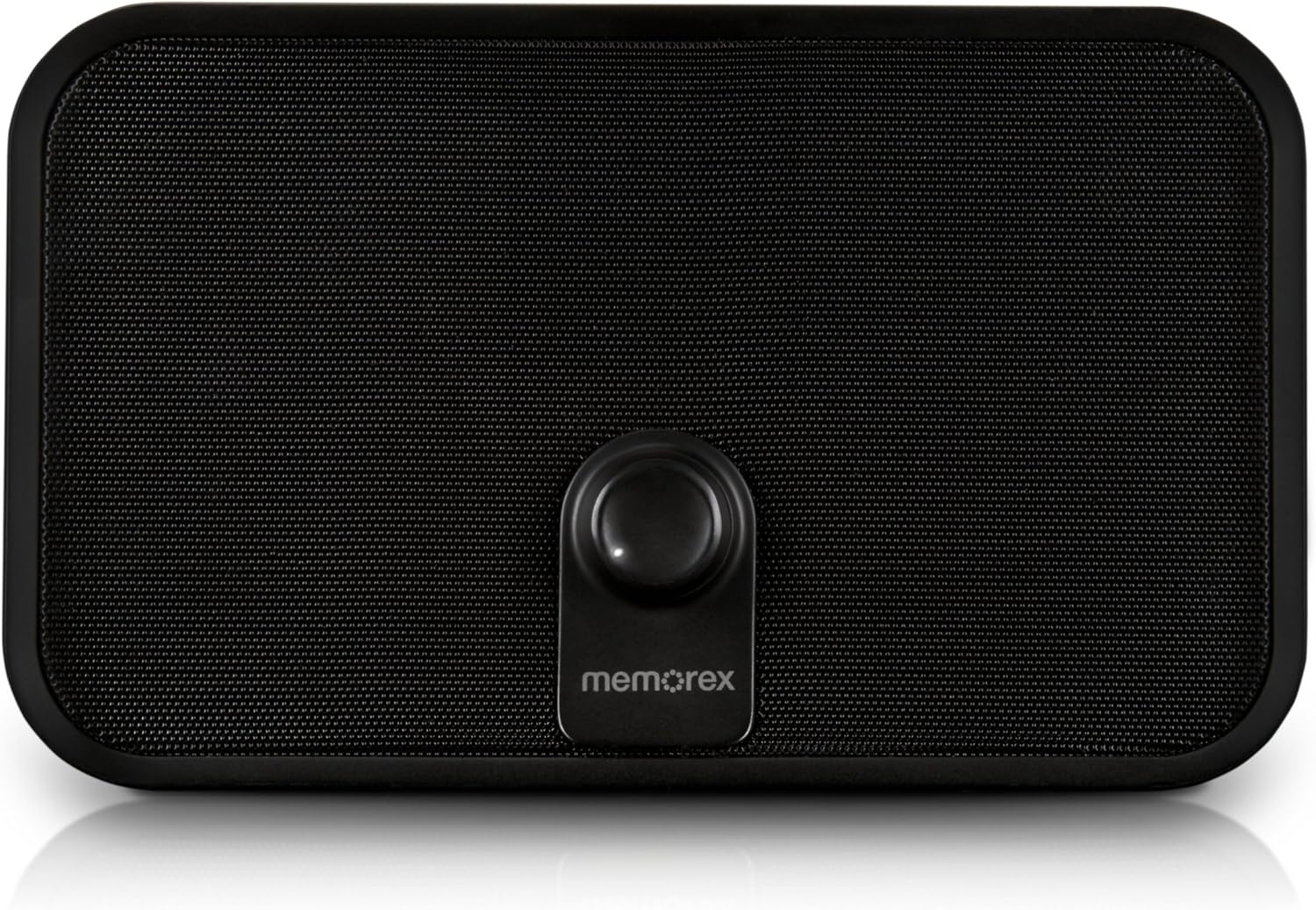
Mufananidzo 3.1: Mberi view of the Memorex PX6683 speaker. The front features a large speaker grille and a central control knob with the 'memorex' logo below it.

Mufananidzo 3.2: Angled view of the Memorex PX6683 speaker. This perspective highlights the speaker's rectangular shape with rounded edges, the front grille, and the central control knob.
4. Setup
4.1 Simba Connection
- Locate the power input port on the back or side of the speaker.
- Connect the provided power adapter to the speaker.
- Batanidza dhiraivha yemagetsi mugetsi remagetsi.
- The speaker is now powered on or in standby mode.
4.2 Bluetooth Pairing
The Memorex PX6683 supports A2DP Bluetooth wireless technology for audio streaming.
- Ita shuwa kuti speaker yakabatidzwa.
- Activate Bluetooth on your audio device (smartphone, tablet, computer).
- Tsvaga available Bluetooth devices. The speaker should appear as "Memorex PX6683" kana zvakafanana.
- Sarudza mutauri kubva pane runyorwa kuti utange kusanganisa.
- Once paired, the speaker will indicate a successful connection (e.g., an audible tone or LED indicator).
4.3 Line-in Connection (Auxiliary Input)
For devices without Bluetooth, use the universal line-in jack.
- Connect one end of the 3.5mm audio cable to the 'Line In' or 'AUX' port on the speaker.
- Connect the other end of the 3.5mm audio cable to the headphone jack or audio output of your device.
- The speaker will automatically switch to auxiliary input mode or may require manual selection via a mode button (if present).
5. Operating Instructions
5.1 Simba On/Kudzima
Refer to the power button or control knob on your speaker. Typically, a long press or rotation will power the unit on or off.
5.2 Kudzora Inzwi
Adjust the audio volume using the central control knob on the front of the speaker. Rotate clockwise to increase volume and counter-clockwise to decrease volume.
5.3 Audio Playback
Once connected via Bluetooth or Line-in, begin playing audio from your source device. The sound will be output through the speaker.
6. Kuchengeta
6.1 Kuchenesa
Wipe the speaker's exterior with a soft, dry cloth. Do not use liquid cleaners or abrasive materials, as they may damage the finish or internal components.
6.2 Kuchengeta
When not in use for extended periods, store the speaker in a cool, dry place away from direct sunlight and extreme temperatures. Disconnect the power adapter.
7. Kugadzirisa matambudziko
- Hapana Simba: Ensure the power adapter is securely connected to both the speaker and a working electrical outlet.
- Hapana Inzwi:
- Check the volume level on both the speaker and your audio source device.
- If using Bluetooth, ensure the speaker is successfully paired and connected.
- If using Line-in, ensure the audio cable is fully inserted into both devices.
- Bluetooth Pairing Nyaya:
- Ensure the speaker is in pairing mode (if applicable).
- Dzima uye vhura Bluetooth pane yako sosi mudziyo.
- Svedzera mudziyo wako pedyo nesipika.
- Remove "Memorex PX6683" from your device's Bluetooth list and attempt to re-pair.
8. Zvinotsanangurwa

Figure 8.1: Approximate dimensions of the Memorex PX6683 speaker.
| Feature | Tsanangudzo |
|---|---|
| Brand | Kutevedzera |
| Model | PX6683 |
| Kubatana Technology | Wireless (Bluetooth), Wired (3.5mm Line-in) |
| Bluetooth Tsigiro | A2DP |
| Audio Output Mode | Stereo |
| Mutauri Mukuru Wekubuda Simba | 10 Watts |
| Mounting Type | Kusununguka |
| Dimensions (Yakaenzana) | 11.25" (W) x 8.75" (H) x 4.13" (D) |
9. Warranty uye Tsigiro
For warranty information and customer support, please refer to the documentation included with your purchase or visit the official Imation website. Chengetedza humbowo hwako hwekutenga kune warranty claim.


