Nhanganyaya
This manual provides detailed instructions for the setup, operation, maintenance, and troubleshooting of your AOC E2261FWH 21.5-inch monitor. Please read this manual thoroughly before using your monitor to ensure proper installation and optimal performance.
The AOC E2261FWH monitor features a 21.5-inch display with a narrow screen border, a 50,000,000:1 Dynamic Contrast Ratio, and Clear Vision technology for enhanced image quality. It is designed for energy efficiency with LED backlighting.
1. Setup
1.1 Kusunungura
Carefully remove all components from the packaging. Ensure all items listed in the packing list are present. Retain the packaging materials for future transport or storage.
1.2 Kuunganidza Chigadziko
- Isa chekutarisa pasi panzvimbo yakapfava, yakachena kudzivirira mavanga.
- Batanidza stand base kugoro yekumira, uchiichengetedza nescrew yakapihwa.
- Align the assembled stand with the mounting slot on the back of the monitor and gently push until it clicks into place.
1.3 Kubatanidza Cables
Usati wabatanidza tambo, iva nechokwadi chekuti monitor nekombuta yako zvadzimwa.
- Simba Cable: Batanidza mugumo mumwe wetambo yemagetsi kune chinopinzwa simba chemuchina wekutarisa uye mumwe mugumo kune chinoburitswa magetsi chakadzika pasi.
- HDMI Cable: For digital video and audio, connect an HDMI cable from your computer's HDMI output to the monitor's HDMI input.
- VGA Cable: Kuti muwane vhidhiyo yeanalog, batanidzai tambo yeVGA kubva paVGA output yekombuta yenyu kuenda kuVGA input yemonitor.

Mufananidzo 1: Mberi view of the AOC E2261FWH monitor, showing the display and stand.
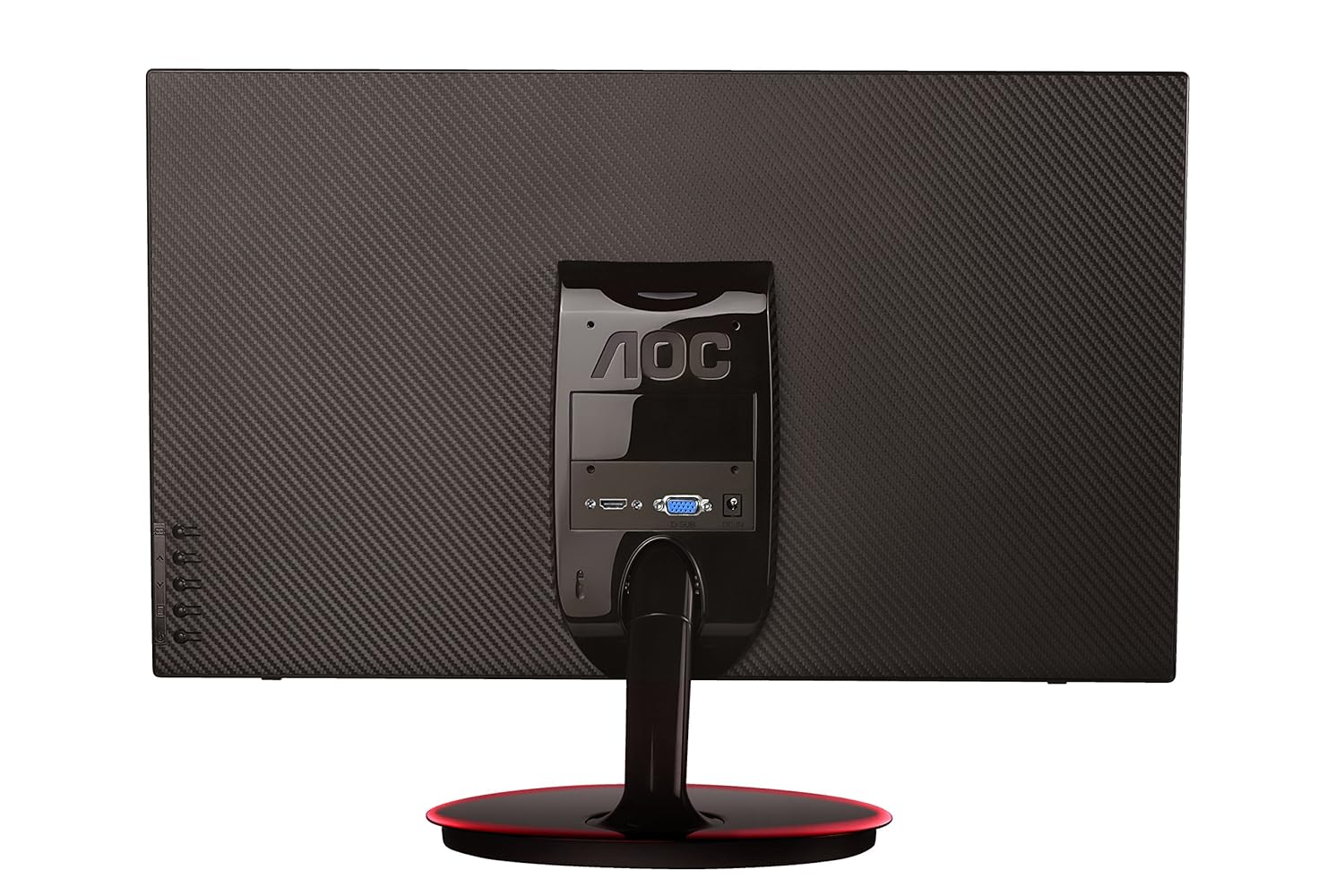
Mufananidzo 2: Kumashure view of the AOC E2261FWH monitor, highlighting the power, HDMI, and VGA input ports.
1.4 Kutanga Simba-Kubatidza
After connecting all necessary cables, power on your computer, then press the power button on the monitor. The monitor should automatically detect the input signal. If not, you may need to manually select the input source using the OSD menu.
2. Kushandisa Monitor
2.1 Simba On/Kudzima
Press the power button located on the monitor's bezel to turn the monitor on or off. The power indicator light will illuminate when the monitor is on.
2.2 Pa-Screen Display (OSD) Menyu
The OSD menu allows you to adjust various monitor settings. Use the control buttons (usually located on the bottom right or rear of the monitor) to navigate the menu.
- Bhatani reMenu: Inovhura menyu yeOSD.
- Mabhatani emuseve: Navigate kubudikidza menyu sarudzo.
- Bhatani reKupinda/Sarudza: Inosimbisa sarudzo kana kuti inopinda mu sub-menu.
- Buda Bhatani: Inobuda mumenyu iripo kana OSD.
2.3 Kugadzirisa Zvirongwa
Common adjustable settings include:
- Kupenya/Kusiyanisa: Gadzirisa kupenya kwese uye mutsauko pakati pechiedza nenzvimbo dzakasviba.
- Rudzi Settings: Shandura tembiricha yeruvara, gamma, uye nhanho dzeRGB dzemunhu.
- Sarudzo yekupinda: Nemaoko chinja pakati peHDMI neVGA masosi ekuisa.
- Zvakajeka Vision: Enable or disable Clear Vision technology to enhance image clarity for standard definition content.
- Mufananidzo Mode: Select from preset display modes (e.g., Standard, Text, Internet, Game, Movie, Sports).
3. Kuchengeta
3.1 Kuchenesa Monitor
- Gara uchidzima monitor uye unplug tambo yemagetsi usati wachenesa.
- Shandisa jira rakapfava, risina jira zvinyoro dampyakaturikwa nemvura kana chinyoro, chisiri chekuchenesa skrini.
- Usapfapfaidza chekuchenesa zvakananga pachiratidziri. Isa iyo kumucheka kutanga.
- Dzivisa kushandisa benzene, mishonga yekuchenesa yakatetepa, ine ammonia, kana zvinhu zvinogumbura, sezvo izvi zvinogona kukuvadza sikirini kanaasing.
3.2 Kutarisira Kwese
- Dzivisa kuisa monitor muzuva rakananga kana pedyo nenzvimbo dzinopisa.
- Ita shuwa kuti pave nemhepo yakakwana yakatenderedza monitor.
- Usaisa zvinhu zvinorema pamonitor kana tambo dzayo.
- Protect the monitor from excessive dust and moisture.
4. Kugadzirisa matambudziko
Kana ukasangana nematambudziko nemonitor yako, tarisa kune anotevera akajairika matambudziko uye mhinduro:
| Dambudziko | Zvinogona Kukonzera | Solution |
|---|---|---|
| Hapana Simba | Tambo yemagetsi haina kubatana; Nzvimbo yekubuditsa magetsi yakanganisa; Monitor yadzimwa. | Check power cable connections; Try a different outlet; Press the monitor's power button. |
| Hapana Chiratidzo | Video cable not connected; Incorrect input source selected; Computer not powered on. | Ensure video cable (HDMI/VGA) is securely connected; Select the correct input source via OSD; Power on your computer. |
| Image is Blurry/Distorted | Incorrect resolution; Loose video cable; Monitor settings. | Set your computer's display resolution to 1920 x 1080; Reconnect the video cable; Adjust OSD settings like phase, clock, brightness, and contrast. |
| Colors are Incorrect | Color settings in OSD; Faulty video cable. | Adjust color settings in the OSD menu; Try a different video cable. |
If the problem persists after trying these solutions, please contact AOC customer support.
5. Zvinotsanangurwa
| Feature | Detail |
|---|---|
| Brand | AOC |
| Model | E2261FWH |
| Screen Size | 21.5 inches |
| Screen Resolution | 1920 x 1080 |
| Aspect ratio | 16:9 |
| Nguva Yekupindura | 5 Milliseconds |
| Dynamic Contrast Ratio | 50,000,000: 1 (zvakajairika) |
| Input Ports | 1 x HDMI, 1 x VGA |
| Frequency Range (H) | 30-83 KHz |
| Frequency Range (V) | 55-76 Hz |
| Kushandisa Simba | 22 Watts (zvakajairika) |
| Item Weight | 3.51 kg (approx.) |
6. Warranty uye Tsigiro
6.1 Ruzivo rweWaranti
AOC monitors are covered by a limited warranty. For specific warranty terms and conditions applicable to your region, please refer to the warranty card included with your product or visit the official AOC website. Chengetedza risiti yako yekutenga sehumbowo hwekutenga kwezvichemo zvewaranti.
6.2 Mutengi Tsigiro
For technical assistance, product inquiries, or service requests, please contact AOC customer support. You can typically find contact information (phone numbers, email, or support portals) on the official AOC websaiti kana mune zvinyorwa zvinopihwa nemonitor yako.
AOC Official Websaiti: www.acde.com


