1. Chigadzirwa Pamusoroview
The Cisco 4000 series Integrated Services Routers (ISR) are designed to provide advanced network, compute, and WAN services for modern business environments. The ISR4351/K9 model facilitates the extension of cloud services to remote sites and supports a transition to a hybrid WAN architecture. It integrates chassis, modules, and WAN services within a robust management framework, offering a flexible platform adaptable to evolving application landscapes.
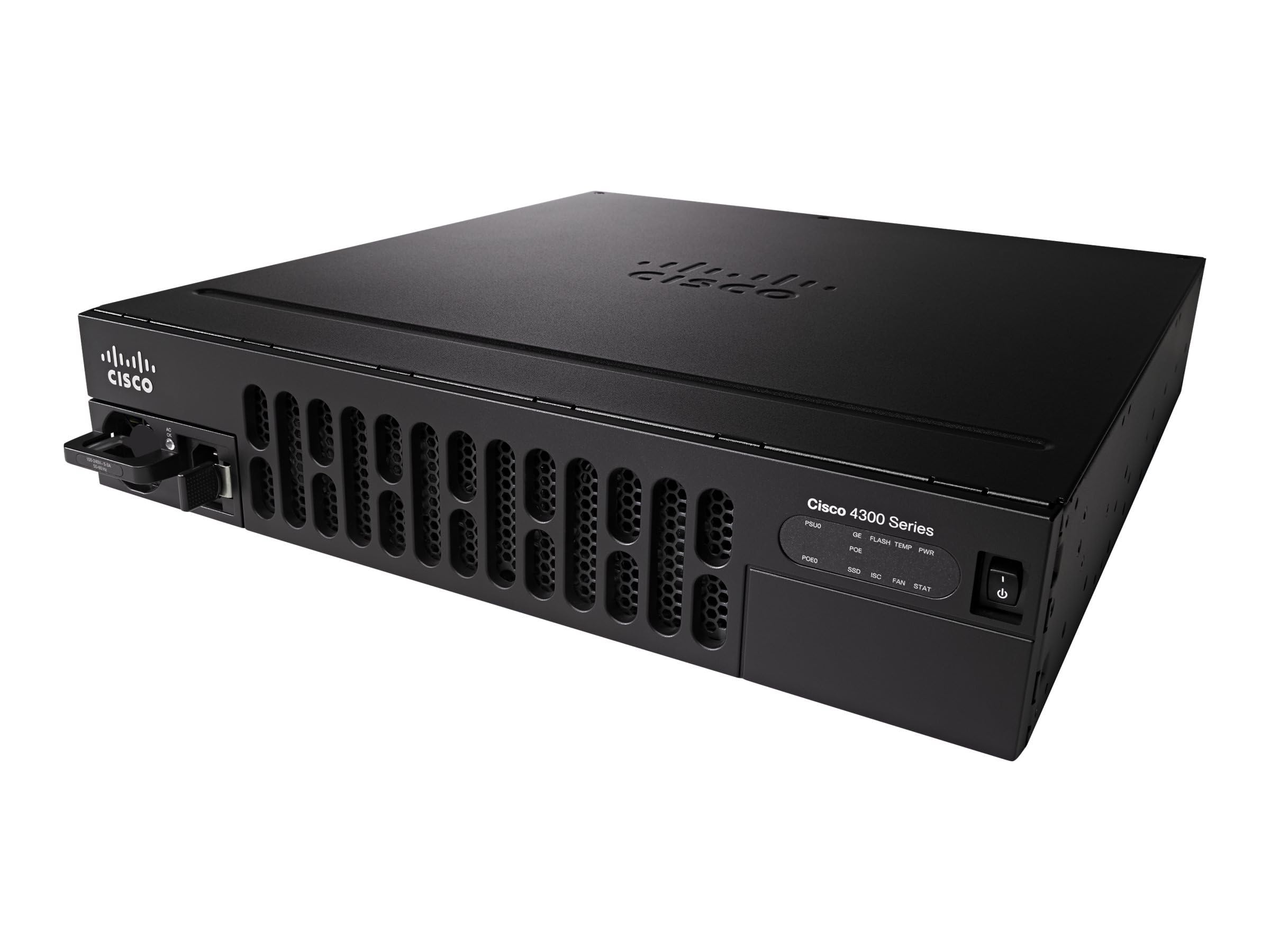
Image showing the front panel of the Cisco ISR4351/K9 Router, highlighting its rack-mountable design and port layout.
2. Package Zviri mukati
Wona kuti zvinhu zvese zvirimo mupakeji usati waenderera mberi nekuisa.
- Cisco ISR4351/K9 Router
- Rack inowedzera kit
3. Setup
Follow these steps for initial setup of your Cisco ISR4351/K9 Router:
- Kuburitsa: Carefully remove the router and all components from the packaging. Inspect for any visible damage.
- Rack Mounting: Use the provided rack mounting kit to securely install the router into a standard equipment rack. Ensure adequate ventilation around the unit.
- Power Connection: Connect the power cable to the router's power input and then to a grounded electrical outlet. Do not power on the device yet.
- Network Connections: Connect your WAN and LAN cables to the appropriate Ethernet ports on the router. Refer to the port labels for correct connections.
- Console Access (Optional): For initial configuration or troubleshooting, connect a console cable from your computer to the router's console port.
- Power On: Once all connections are secure, connect the power cable to the electrical outlet. The router will begin its boot sequence.
4. Operating Instructions
The Cisco ISR4351/K9 Router operates on Cisco IOS, providing a comprehensive command-line interface (CLI) for configuration and management. Basic operation involves configuring network interfaces, routing protocols, and security features.
- Kutanga Configuration: Access the router via the console port or a network connection (if pre-configured) using a terminal emulator. Follow Cisco IOS configuration guides for initial setup, including IP addressing, user accounts, and basic security.
- WAN Services: Configure WAN interfaces to connect to your internet service provider or private networks. The router supports various WAN technologies for flexible connectivity.
- Application Visibility: Utilize built-in features for visibility into application traffic, enabling effective capacity planning and prioritization of critical applications.
- Intelligent Path Selection: Implement intelligent path selection to optimize traffic flow, balance loads, and potentially reduce operational costs.
- Chengetedzo: Configure firewalls, VPNs, and other security protocols (such as WPS for wireless if applicable) to protect your network infrastructure.
5. Kuchengeta
Regular maintenance ensures optimal performance and longevity of your Cisco ISR4351/K9 Router.
- Firmware Dzokorora: Tarisa rutsigiro rweCisco nguva nenguva website for the latest IOS software updates. Applying updates can improve performance, add features, and address security vulnerabilities.
- Environmental Conditions: Ensure the router operates within recommended temperature and humidity ranges. Maintain clear airflow around the device to prevent overheating.
- Kuongororwa Kwenyama: Regularly inspect cables and connections for wear or damage. Keep the router's exterior clean and free of dust.
- Negadziriro yeparutivi: Regularly back up your router's configuration to an external storage device or network location.
6. Kugadzirisa matambudziko
If you encounter issues with your Cisco ISR4351/K9 Router, consider the following troubleshooting steps:
- Hapana Simba: Verify that the power cable is securely connected to both the router and a working electrical outlet. Check the power indicator lights on the router.
- Network Connectivity Matambudziko: Check all Ethernet cable connections. Verify interface status using Cisco IOS commands (e.g.,
show ip interface brief). Ensure correct IP addressing and routing configurations. - Kuita Kunonoka: Monitor CPU and memory utilization (
show processes cpu,show memory). Check for high traffic loads or potential network bottlenecks. - Access Problems: If you cannot access the router via SSH/Telnet, try using the console port for direct access. Verify user credentials and access control lists (ACLs).
- Bvunza Magwaro: Refer to the comprehensive Cisco IOS documentation and support resources available on the official Cisco website for detailed troubleshooting guides and command references.
7. Zvinotsanangurwa
Key technical specifications for the Cisco ISR4351/K9 Router:
| Feature | Tsanangudzo |
|---|---|
| Model Name | ISR4351/K9 |
| Brand | Cisco |
| Operating System | Cisco IOS |
| RAM Memory Yakaiswa | 4 GB |
| Nhamba yePorts | 8 |
| Kubatana Technology | Ethernet |
| Bandwidth yechiteshi cheLAN | 1000 Mbps |
| Data Transfer Rate | 200 Megabits paSekondi |
| Mwero weKutamisa Data Wakanyanya Kukwira | 450 Megabits paSekondi |
| Wireless Kutaurirana Standard | 802.11n |
| Frequency Band Kirasi | Dual-Band |
| Security Protocol | WPS |
| Voltage | 240 Volts |
| Item Weight | 28.9 Pondo |
8. Warranty uye Tsigiro
Warranty: This Cisco ISR4351/K9 Router comes with a 30-day warranty from the date of purchase. Please retain your proof of purchase for warranty claims.
Tsigiro yehunyanzvi: For technical assistance, additional documentation, or to report issues, please visit the official Cisco support website. You can find extensive resources, including knowledge bases, downloads, and contact information for support services.
Cisco Tsigiro Websaiti: https://www.cisco.com/c/en/us/support/index.html


