1. Nhanganyaya
This manual provides comprehensive instructions for the Intel Dual Band Wireless-AC 7265 Wi-Fi + Bluetooth 4.0 adapter. Designed for seamless integration into compatible systems, this adapter offers robust wireless connectivity for various computing needs.
Important Note: This adapter does NOT support HP and Lenovo computers.
2. Key Features
- Download Speeds up to 867 Mbps with 2x2 Design.
- Optimized for use with Intel Core i Series CPUs.
- Integrated Bluetooth 4.0 for wireless peripheral connectivity.
- M.2 Interface, compatible with the latest laptops and mini PCs.
- Dual-band operation supporting 2.4 GHz and 5 GHz Wi-Fi connections.
3. Zvigadzirwa zveChigadzirwa
| Attribute | Value |
|---|---|
| Model Number | 7265NGW |
| Product Dimensions | 3.9 x 1.4 x 0.6 inches |
| Item Weight | 0.352 ounces |
| Hardware inowanikwa | M.2 (Bluetooth) |
| Data Link Protocol | Bluetooth, 802.11ac Wi-Fi |
| Data Transfer Rate | Up to 867 Mbps (Wi-Fi), 433 Megabits Per Second (Bluetooth) |
| Mugadziri | Intel |
4. Setup uye Kuiswa
Installing the Intel Dual Band Wireless-AC 7265 adapter is a straightforward process, typically involving a plug-and-play experience with minimal driver installation required.
4.1. Kuiswa Kwenyama
- Ensure your computer is powered off and disconnected from any power source.
- Locate the M.2 slot on your laptop or motherboard. This may require opening the back panel of your device.
- Carefully insert the Intel 7265NGW adapter into the M.2 slot.
- Secure the adapter with the retaining screw, if applicable.
- Connect the two antenna cables to the corresponding "MAIN" and "AUX" ports on the adapter. Note: Connecting both antennas is crucial for utilizing the Bluetooth functionality.

Mufananidzo 1: Mberi view of the Intel 7265NGW adapter, highlighting the antenna connection points.
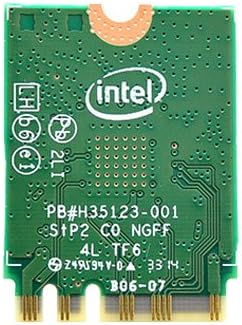
Mufananidzo 2: Kudzoka view of the Intel 7265NGW adapter, displaying the reverse side of the circuit board.
4.2. Kuiswa kwemutyairi
Upon booting your system after physical installation, the operating system (e.g., Windows) may automatically detect and install the necessary drivers. If not, you can download the latest drivers directly from the official Intel support website. A simple driver install will make the adapter ready for use.
5. Kushanda
The Intel Dual Band Wireless-AC 7265 provides stable and consistent wireless connectivity for both Wi-Fi and Bluetooth functions. It supports both 2.4 GHz and 5 GHz Wi-Fi bands, allowing for flexible connection options depending on your network environment.
5.1. Wi-Fi Kubatana
Once installed and drivers are in place, your system's Wi-Fi settings will display available networks. Select your desired network and enter the password to connect. The adapter is capable of delivering speeds up to 867 Mbps, suitable for browsing, streaming high-definition content, and downloading large files without significant issues.
5.2. Kubatana kweBluetooth
To use the integrated Bluetooth 4.0, ensure both antenna cables are properly connected to the adapter. Access your system's Bluetooth settings to pair with compatible devices such as keyboards, mice, headphones, and other peripherals. The Bluetooth functionality provides reliable short-range wireless communication.
6. Kuchengeta
The Intel Dual Band Wireless-AC 7265 adapter is designed for durability and reliability. Minimal maintenance is required to ensure optimal performance.
- Zvigadziriso zvemutyairi: Tarisa rutsigiro rweIntel nguva nenguva websaiti yemadhiraivha akagadziridzwa kuti ave nechokwadi chekuenderana uye kuvandudzwa kwekuita.
- Hutsanana hweSitimu: If the adapter is installed in a laptop or desktop, ensure the internal components are kept free of dust to prevent overheating and maintain stable operation.
- Kuongororwa Kwenyama: Avoid physical damage to the adapter and its antenna connections.
7. Kugadzirisa matambudziko
If you encounter issues with your Intel Dual Band Wireless-AC 7265 adapter, consider the following common solutions:
- Hapana Wi-Fi kana Bluetooth:
- Verify that the adapter is correctly seated in the M.2 slot.
- Ensure both antenna cables are securely connected to the "MAIN" and "AUX" ports on the adapter. Bluetooth functionality specifically requires both antennas.
- Check Device Manager (Windows) to confirm the adapter is recognized and drivers are installed without errors. Reinstall drivers if necessary.
- Slow Wi-Fi Speeds or Disconnections:
- Ensure you are connected to the appropriate Wi-Fi band (2.4 GHz for range, 5 GHz for speed).
- Gadziridza firmware yeWi-Fi router yako.
- Deredza kukanganiswa kwezvimwe zvishandiso zvemagetsi.
- Bluetooth Pairing Nyaya:
- Confirm Bluetooth is enabled in your system settings.
- Ensure the device you are trying to pair is in pairing mode and within range.
- As mentioned, ensure both antennas are connected to the adapter.
- Kuenderana Nyaya:
Remember, this adapter is explicitly stated to NOT support HP and Lenovo computers. Attempting to use it with these brands may result in non-functionality or instability.
8. Warranty uye Tsigiro
The Intel Dual Band Wireless-AC 7265 adapter comes with a 1 Year Intel Direct Warranty. For warranty claims, technical support, or further assistance, please contact Intel's official customer support channels.
For the most up-to-date support information and driver downloads, please visit the official Intel website.


