Nhanganyaya
This manual provides instructions for setting up, operating, and maintaining your Mercury MW3030R Dual Band Wireless Router. Please read this manual carefully before use to ensure proper installation and optimal performance.
Safety Information
- Usaisa mudziyo kumvura kana kunyorova kwakanyanya.
- Usaedze kudimbura kana kugadzirisa mudziyo wega.
- Shandisa chete adapta yemagetsi yakapihwa nemudziyo.
- Iva nechokwadi chekuti mhepo inofefetera zvakanaka yakatenderedza router kudzivirira kupisa zvakanyanya.
Package Zviri mukati
Ona kuti pasuru yako ine zvinhu zvinotevera:
- Mercury MW3030R Wireless Router
- Power Adapter
- Ethernet Cable
- Quick Installation Guide (this manual serves as a detailed guide)
Product Overview
Zvijaire zvinhu zve router uye zviratidzo.
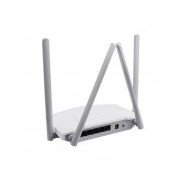
Mufananidzo 1: Rear view of the Mercury MW3030R router. This image displays the four external antennas, the WAN port (typically blue), multiple LAN ports (typically yellow), and the power input jack. The reset button and WPS button are also usually located on the rear panel.
Mufananidzo 2: Pamusoro-pasi view of the Mercury MW3030R router with its antennas folded. This perspective highlights the router's sleek, white casing and its overall compact form factor, suitable for various placements.
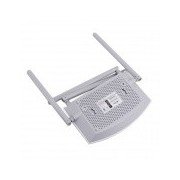
Mufananidzo 3: Pasi view of the Mercury MW3030R router. This image shows the ventilation holes designed for heat dissipation and the product label, which typically contains important information such as the default Wi-Fi name (SSID), password, and web management address.
Zviratidzo zve LED:
- Simba re LED: Inoratidza mamiriro esimba re router.
- Internet LED: Indicates the status of the internet connection.
- WLAN LED: Inoratidza kushanda kwewaya isina waya.
- LAN LEDs: Indicate connection status for each LAN port.
Gadzirira
1. Hardware Kubatanidza
- Power On: Connect the power adapter to the router's power port and plug it into a wall outlet. Wait for the Power LED to become stable.
- Batanidza kuInternet (WAN): Connect one end of an Ethernet cable to your modem's LAN port and the other end to the router's WAN port (usually distinctively colored, e.g., blue).
- Connect Devices (LAN): For wired connections, connect your computer or other devices to the router's LAN ports (usually yellow) using Ethernet cables.
- Antennas: Adjust the four antennas for optimal signal coverage.
2. Yekutanga Configuration (Web Inowanikwa)
- Batanidza kune Router: Connect your computer to the router either via an Ethernet cable to a LAN port or wirelessly using the default Wi-Fi SSID and password printed on the router's label (refer to Figure 3).
- Access Web Browser Vhura a web browser (e.g., Chrome, Firefox) and type the default access address (e.g., http://192.168.1.1 or http://tplinkwifi.net) mubhadha rekero uye tinya Enter.
- Login: Isa zita rekushandisa uye password (kazhinji admin kune ese ari maviri, kana sekutsanangurwa pane iyo router's label).
- Mhanya Kugadzirisa Kukurumidza: Follow the on-screen instructions of the Quick Setup Wizard to configure your internet connection type (e.g., PPPoE, Dynamic IP, Static IP) and wireless settings (SSID, password).
- Chinja Default Password: Nekuchengetedza, zvinokurudzirwa zvakanyanya kushandura iyo default login password yeiyo router web manejimendi interface.
Operating Instruction
Kubatanidza kuWi-Fi
- On your wireless device (smartphone, laptop), search for available Wi-Fi networks.
- Select your router's Wi-Fi network name (SSID) that you configured during setup.
- Enter the Wi-Fi password you set.
- Chishandiso chako zvino chinofanira kunge chakabatana neinternet.
Dual Band Operation
The MW3030R supports both 2.4GHz and 5.0GHz wireless bands. The 2.4GHz band offers wider coverage, while the 5.0GHz band provides faster speeds with less interference over shorter distances. You can connect your devices to either band based on your needs.
Guest Network
Enda kune router web interface to enable and configure a separate guest network. This allows guests to access the internet without accessing your main network resources.
Maintenance
- Firmware Dzokorora: Gara uchitarisa zvemugadziri website for firmware updates. Updating firmware can improve performance, add new features, and fix security vulnerabilities.
- Kutangazve Router: Kana ukasangana nematambudziko enetwork, edza kutangazve router nekudzima adapta yemagetsi, womirira kwemasekonzi gumi, wozoiisa zvakare.
- Kuchenesa: Chengetedza router yakachena uye isina guruva. Shandisa jira rakapfava, rakaoma. Usashandise mvura yekuchenesa.
- Kuiswa: Place the router in a central location, away from obstructions and devices that may cause interference (e.g., microwaves, cordless phones).
Kugadzirisa matambudziko
Hapana Internet Access
- Check if the Internet LED on the router is lit or blinking correctly.
- Ensure the Ethernet cable from your modem is securely connected to the router's WAN port.
- Tangazve yako modem uye router.
- Simbisa marongero ako ekubatana kweinternet mu router web interface.
Slow Wireless Speed
- Ensure your device is connected to the 5.0GHz band if it supports it, for faster speeds.
- Move closer to the router or adjust antenna positions.
- Tarisa kukanganiswa kubva kune zvimwe zvigadzirwa zvemagetsi.
- Reduce the number of devices connected to the network or bandwidth-intensive activities.
Haikwanise Kupinda muRouter Web Interface
- Ita shuwa kuti mudziyo wako wakabatana kune router (waya kana isina waya).
- Verify the IP address you are typing in the browser is correct (e.g., http://192.168.1.1).
- Edza kudzima cache yebrowser yako kana kushandisa imwe browser.
- If you forgot the login password, you may need to perform a factory reset (Warning: This will erase all your settings).
Zvinotsanangurwa
| Feature | Tsanangudzo |
|---|---|
| Model | MW3030R |
| Wireless Standards | IEEE 802.11ac/n/g/b/a |
| Frequency | 2.4GHz uye 5.0GHz (Dual Band) |
| Wireless Speed | Up to 600Mbps (combined) |
| Antennas | 4 External Antennas |
| Interfaces | 1x WAN Port, Multiple LAN Ports (typically 3 or 4) |
| Magetsi | External Power Adapter (provided) |
Warranty uye Support
The Mercury MW3030R router comes with a standard manufacturer's warranty. For detailed warranty information, technical support, or service inquiries, please refer to the official Mercury webwebhusaiti kana kuti taura nerutsigiro rwevatengi vavo. Chengeta risiti yako yekutenga kuti uzive zviri kudiwa newaranti.


