1. Nhanganyaya
This manual provides essential information for the safe and efficient use of your InFocus IF195a Touch Pad. Please read this manual thoroughly before operating the device and retain it for future reference.
2. Safety Information
- Usaisa mudziyo kune tembiricha yakanyanyisa, zuva rakananga, kana hunyoro hwepamusoro.
- Dzivisa kudonhedza kana kuisa mudziyo kune zvinokanganisa zvakasimba.
- Use only the charger provided or approved by InFocus.
- Usaedze kudimbura kana kugadzirisa mudziyo wega. Tumira masevhisi ese kuvashandi vanokwanisa.
- Chengetedza mudziyo kure nemvura uye zvimwe zvinwiwa.
- Rasa mudziyo uye bhatiri rayo zvine hungwaru maererano nemitemo yenzvimbo.
3. Chigadzirwa Pamusoroview
The InFocus IF195a is a 20-inch Android-powered touch pad designed for interactive use. Familiarize yourself with its components.
3.1 Kumberi View

Mufananidzo 1: Mberi view of the InFocus IF195a Touch Pad. This image shows the large 20-inch display with the Android operating system interface, including various app icons and the Google search bar. The device features a sleek bezel around the screen.
- Ratidza: 20-inch multi-touch screen.
- Front Camera: Located at the top center bezel.
- Maikorofoni: Yakabatanidzwa kuti ishandiswe nenzwi.
3.2 Side View uye Ports
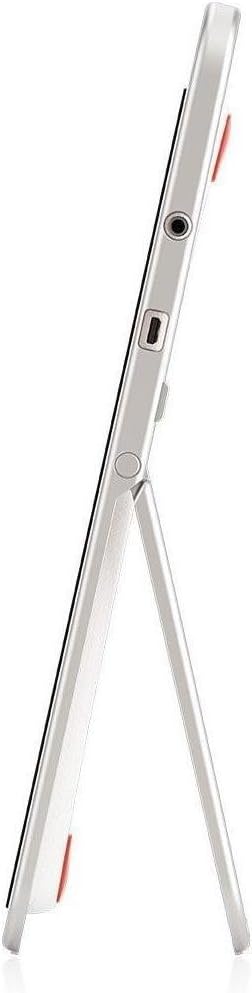
Mufananidzo 2: Side view of the InFocus IF195a Touch Pad. This image highlights the device's slim profile and the integrated kickstand, which allows for upright positioning. Visible ports include a headphone jack and a USB port.
- Bhatani reSimba: Used to turn the device on/off or put it to sleep.
- Mabhatani eVolume: Adjust the device's audio output.
- Headphone Jack (3.5mm): Yekubatanidza ekunze ekuteerera midziyo.
- Micro-USB Port: Yekuchaja uye kutumira data.
- Kickstand Yakabatanidzwa: Allows the device to stand upright.
4. Setup
4.1 Unboxing uye Yekutanga Kuchaja
- Carefully remove the InFocus IF195a Touch Pad and all accessories from the packaging.
- Connect the provided power adapter to the Micro-USB port on the device and plug it into a power outlet. Allow the device to charge fully before first use. The charging indicator will typically show a full battery when complete.
4.2 Kubatidza/Kudzima
- Kubatidza: Press and hold the Power button until the InFocus logo appears on the screen.
- Kudzima: Press and hold the Power button until a power-off menu appears. Select "Power off" and confirm.
- Kurara/Kumuka: Briefly press the Power button to put the device into sleep mode or wake it up.
4.3 Yekutanga Setup Wizard
Upon first power-on, the device will guide you through an initial setup process:
- Sarudzo yeMutauro: Sarudza mutauro waunofarira.
- Kubatanidza Wi-Fi: Select your Wi-Fi network from the list and enter the password. A stable internet connection is required for many features.
- Akaundi yeGoogle Sign in with an existing Google account or create a new one. This is necessary to download apps from the Google Play Store and access Google services.
- Zuva uye Nguva: Set the correct date and time or allow the device to set it automatically via the network.
- Zvakavanzika Settings: Review uye gadzirisa marongero ekuchengetedza zvakavanzika sezvaunoda.
5. Kushandisa Chishandiso
5.1 Mabatiro Ekubata
- Top: Bata skrini kamwe chete kusarudza chinhu kana kuvhura application.
- Bata & Bata: Dzvanya wobata chinhu kuti uwane menyu yezviri mukati kana kudhonza zvinhu.
- Rova zvakasimba: Dhonza chigunwe chako pachiratidziro kuti upfuure nemazita kana chinja pakati pezvikirini zvekumba.
- Pina-ku-Zoom: Use two fingers to zoom in or out on images, maps, or web mapeji.
5.2 Chidzitiro Chepamba uye Kufamba
- Bhatani Repamba: Inokudzorera kuchidzitiro chikuru chepamba.
- Back Button: Returns to the previous screen or closes the current application.
- Recent Apps Bhatani: Displays a list of recently used applications for quick switching.
- Notification Panel: Swipe uchidzika kubva pamusoro pechidzitiro kuti uwane zviziviso uye nekukurumidza marongero.
5.3 Kuisa nekutarisira maApplication
- Google Play Store: Open the "Play Store" app to browse and download applications. A Google account is required.
- Kuisa Maapuro: Select an app and tap "Install." Follow on-screen prompts for permissions.
- Uninstalling Apps: Enda ku Zvirongwa > Zvishandiso, select the desired app, and tap "Uninstall." Alternatively, touch and hold an app icon on the home screen and drag it to the "Uninstall" option (if available).
5.4 Kubatanidza kuZvishandiso Zvekunze
- Mahedhifoni Batanidza mahedhifoni 3.5mm muhedhifoni jack.
- USB Zvishandiso: Connect compatible USB devices (e.g., flash drives, keyboards) to the Micro-USB port using an appropriate adapter if necessary. The device supports USB On-The-Go (OTG).
6. Kuchengeta
6.1 Kuchenesa Chishandiso
- Shandisa jira rakapfava, risina lint kuchenesa skrini uye muviri wemudziyo.
- Pazvibodzwa zvakasindimara, zvishoma dampsn jira rine mvura kana chekuchenesa skrini rakagadzirirwa zvemagetsi.
- Dzivisa kushandisa makemikari ane hasha, abrasive cleaners, kana aerosol sprays.
6.2 Kuchengeta Battery
- Kurebesa bhatiri, dzivisa kuburitsa bhatiri zvakazara nguva zhinji.
- Do not leave the device connected to the charger for extended periods after it is fully charged.
- Store the device in a cool, dry place if not used for a long time, with the battery charged to about 50%.
6.3 Zvigadziriso zveSoftware
Nguva nenguva tarisa kana software yako yakagadziridzwa kuti uve nechokwadi chekuti inoshanda zvakanaka uye yakachengeteka. Enda ku Zvirongwa> Nezve piritsi> Zvigadziriso zveSystem to check for and install available updates. Ensure your device is connected to Wi-Fi and has sufficient battery charge before starting an update.
7. Kugadzirisa matambudziko
| Dambudziko | Possible Solution |
|---|---|
| Device will not power on. | Ensure the device is charged. Connect the charger and wait a few minutes before attempting to power on again. If unresponsive, perform a hard reset by holding the power button for 10-15 seconds. |
| Wi-Fi nyaya dzekubatanidza. | Tarisa kana Wi-Fi yakabatidzwa mumasetingi. Tangazve Wi-Fi router yako. Kanganwa network wobva wabatanidzazve. Iva nechokwadi chekuti uri pedyo neWi-Fi signal. |
| Applications are crashing or freezing. | Close and restart the application. Clear the app's cache (Zvirongwa> Zvishandiso> [Zita reApp]> Chengetedza> Bvisa cacheKana dambudziko rikaramba riripo, bvisa woisazve app yacho. |
| Sikirini haibatike. | Restart the device. Ensure the screen is clean and free of debris. If the issue continues, contact support. |
| Kunonoka kuita. | Close unnecessary background applications. Clear cache for frequently used apps. Check available storage (Zvirongwa > Kuchengeta) and free up space if needed. Consider a factory reset as a last resort. |
7.1 Factory Reset
Kugadziriswa kwefekitori kuchadzima data rese kubva pachigadzirwa chako uye kudzosera kune yayo yekutanga marongero efekitori. Chengetedza data rese rakakosha usati waenderera mberi.
- Enda ku Settings > Backup & reset > Factory data reset.
- Read the warning message carefully.
- Tap "Reset tablet" and then "Erase everything" to confirm.
- Chigadzirwa chacho chichatangazve uye chotanga kugadzirisa zvakare.
8. Zvinyorwa zveUnyanzvi
| Feature | Tsanangudzo |
|---|---|
| Model | IF195a |
| Brand | InFocus |
| Kukura Kwekuratidza | 20 inches |
| Maximum Resolution | 1600 x 900 |
| processor | ARM Cortex-A15 Quad-Core 1.8 GHz |
| RAM Kukwanisa | 2 GB |
| Storage Capacity | 16 GB |
| Operating System | Android 4.4 KitKat |
| Rear Camera Resolution | 5 MP |
| Dimensions (L x W x H) | 61.6 x 47 x 8.6 cm |
| Kurema | 3.7 kg |
| Color | Gireyi |
9. Warranty uye Tsigiro
For warranty information, please refer to the warranty card included with your product or visit the official InFocus website. For technical support, product registration, or service inquiries, please contact InFocus customer service through their official channels.
Please note that warranty terms may vary by region and retailer. Keep your proof of purchase for warranty claims.


