1. Nhanganyaya
This manual provides detailed instructions for the safe and efficient operation of your Optoma EH416 Full HD 3D DLP Projector. Please read this manual thoroughly before using the projector and retain it for future reference. Proper use and maintenance will ensure optimal performance and longevity of your device.
Safety Information
- Usatarise zvakananga muprojekita lens kana iyo lamp iri on. Chiedza chakasimba chinogona kukuvadza maziso.
- Iva nechokwadi chekuti mhepo inofefetera zvakanaka yakatenderedza purojekita. Usavhare maburi emhepo.
- Use only the power cord supplied with the projector. Connect to a properly grounded outlet.
- Do not expose the projector to rain, moisture, or excessive humidity.
- Refer all servicing to qualified service personnel. Do not attempt to open or repair the projector yourself.
2. Chii chiri muBhokisi
Please verify that all items listed below are present in your package. If any items are missing or damaged, contact your dealer immediately.
- Optoma EH416 Projector
- Power Cord
- VGA kune VGA Cable
- Remote Control
- Kutakura Bag
- Mabhatiri eRemote Control
- Multilingual CD-ROM User’s Manual
- Quick Start Card
- Warranty Card
3. Chigadzirwa Pamusoroview
Key Features
- Kupenya Kwepamusoro: 4200 lumens for clear images in various lighting conditions.
- High Contrast: 20,000:1 contrast ratio for sharp, luminous images with deep blacks.
- Full HD Resolution: Native 1080p (1920x1080) resolution, supporting up to WUXGA (1920x1200).
- Advanced Optical Lens: Features a 1.6x zoom and vertical lens shift for flexible installation.
- Kubatana Kwakakura: Dual HDMI (one with MHL support), dual audio-in, VGA, and more.
- sRGB Ruvara Ruzivofile: Enables vibrant and highly accurate colors based on Rec. 709 HDTV specification.
- Kugadzirisa Ruvara rweWall: Compensates for brightness loss when projecting on non-white surfaces.
- Edge Mask: Eliminates soft edges and jaggedness on the projection border for a smooth image.
- Integrated Audio: Yakavakwa-mukati 10W mutauri.
Projector Zvikamu
The image below illustrates the main components of the Optoma EH416 projector, including the lens, control panel, and various ports.
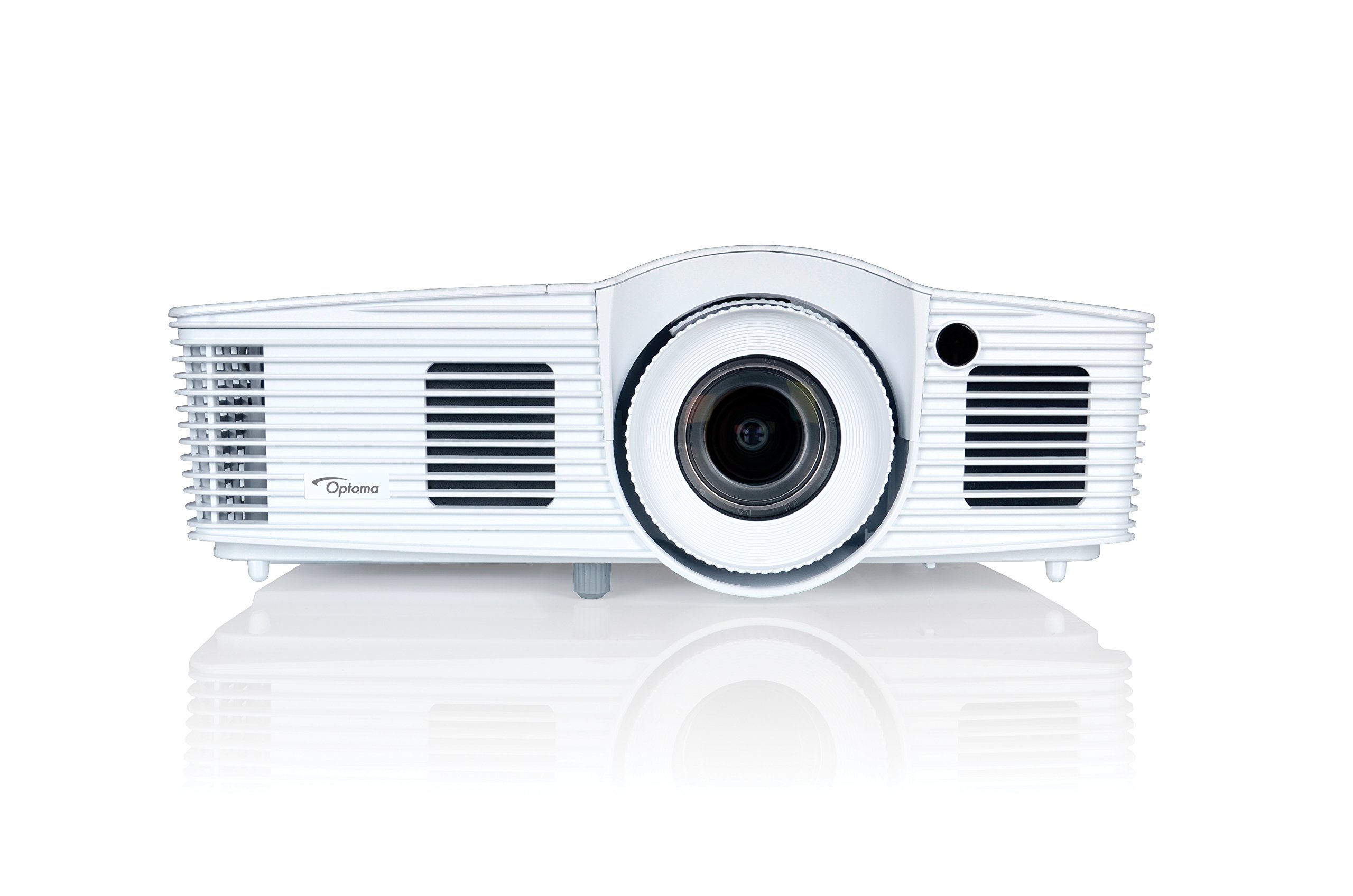
Mufananidzo 1: Mberi view of the Optoma EH416 Projector, showing the lens and primary controls.
Kubatana Zviteshi
The Optoma EH416 projector offers a wide range of connectivity options located on the rear panel for versatile integration with various devices.
- HDMI (x2): Digital input for high-definition video and audio. One port supports MHL for mobile devices.
- VGA (x2): Analog input for computer connections.
- Audio In (x2): 3.5mm stereo jack for analog audio input.
- Audio Out: 3.5mm stereo jack for connecting external speakers.
- USB-A: For power output or service.
- RS232: For projector control via a computer or control system.
- RJ45 (Ethernet): For network control and management.
4. Setup
Projector Placement
The Optoma EH416 offers flexibility in placement due to its 1.6x zoom and vertical lens shift capabilities. Position the projector on a stable surface or mount it securely. Adjust the distance from the screen to achieve the desired image size. The 1.6x zoom allows for a larger image from a shorter distance or a smaller image from a longer distance without moving the projector.
Kubatanidza Midziyo
- Power Connection: Connect the power cord to the projector's power inlet and then to a grounded electrical outlet.
- Vhidhiyo Source:
- For HDMI devices (e.g., Blu-ray player, laptop): Connect an HDMI cable from your device to one of the HDMI ports on the projector.
- For VGA devices (e.g., older laptops): Connect a VGA cable from your device to a VGA port on the projector. If audio is also required, connect a separate 3.5mm audio cable from your device to an Audio In port on the projector.
- For MHL compatible mobile devices: Connect an MHL cable to the designated HDMI/MHL port.
- Audio Output (Optional): If using external speakers, connect an audio cable from the projector's Audio Out port to your sound system.
Kubatidza/Kudzima
- Kubatidza: Press the power button on the projector's control panel or the remote control. The power indicator light will turn blue.
- Kudzima: Press the power button twice. The projector will enter a cooling down cycle before completely shutting off. Do not unplug the projector during the cooling cycle.
5. Kushandisa Projector
Basic Operation
- Kwakabva Sarudzo Use the 'Source' button on the remote or control panel to cycle through available input sources (HDMI1, HDMI2/MHL, VGA1, VGA2).
- Menu Navigation: Press the 'Menu' button to access the On-Screen Display (OSD). Use the arrow keys to navigate and 'Enter' to select options.
- Kudzora inzwi: Use the volume buttons on the remote control to adjust the audio output from the built-in speaker or Audio Out port.
Image Adjustments
- Focus and Zoom: Rotate the focus and zoom rings on the projector lens to achieve a sharp and appropriately sized image.
- Keystone Kugadziriswa: If the image appears trapezoidal, use the 'Keystone' function in the OSD menu or the dedicated button on the remote to correct the image shape. The EH416 supports ±40° vertical keystone correction.
- Vertical Lens Shift: This feature allows you to physically move the image up or down without tilting the projector, minimizing keystone distortion. Adjust the lens shift dial located near the lens.
- Kugadzirisa Ruvara rweWall: Access this feature in the OSD menu to compensate for the color of your projection surface (e.g., blackboard, light yellow wall). This helps maintain accurate color reproduction even on non-white walls.
- sRGB Ruvara Ruzivofile: For the most accurate and vibrant colors, especially when connecting to a PC, Mac, or sRGB compatible source, select the sRGB picture mode in the OSD. This profile adheres to the Rec. 709 HDTV specification.
- Edge Mask: This function, found in the OSD, helps to refine the edges of the projected image, eliminating any soft or jagged appearance on the border.
6. Kuchengeta
Kuchenesa Projector
- Lenzi: Shandisa jira rakapfava, risina lint rakagadzirirwa chaizvo malenzi ekuona. Usashandise abrasive cleaners.
- Casing: Pukuta purojekita casing with a soft, dry cloth. For stubborn dirt, use a slightly damp jira nesipo isina kunyorova, wobva wapukuta.
- Air Vents: Regularly check and clean the air vents to prevent dust buildup, which can lead to overheating. Use a soft brush or compressed air.
Lamp Care
Purojekita lamp ine hupenyu husingagumi. Kana lamp life is nearing its end, a warning message may appear on the screen. Refer to the full user manual on the included CD-ROM for detailed instructions on lamp replacement. Always use genuine Optoma replacement lamps to ensure optimal performance and safety.
7. Kugadzirisa matambudziko
This section addresses common issues you might encounter. For more detailed troubleshooting, refer to the comprehensive user manual on the included CD-ROM.
- Hapana mufananidzo paScreen:
- Check if the projector is powered on and the lamp inovheneka.
- Verify that the video source device is powered on and functioning correctly.
- Ensure the video cable (HDMI, VGA) is securely connected to both the projector and the source device.
- Select the correct input source using the 'Source' button on the remote or projector.
- Mufananidzo Wakasviba kana Wakakanganiswa:
- Rongedza mhete yekutarisa pane lenzi yeprojekita.
- If the image is trapezoidal, use the keystone correction function.
- Ensure the projector is perpendicular to the screen or use vertical lens shift.
- Hapana Inzwi:
- Tarisa huwandu hwevhoriyamu papurojekita nepamudziyo unobva ruzha.
- If using an analog VGA connection, ensure a separate audio cable is connected.
- Verify that the audio output is not muted.
- Remote Control Haisi Kushanda:
- Tarisa uye shandura mabhatiri.
- Iva nechokwadi chekuti hapana zvipingamupinyi pakati pe remote ne IR receiver yeprojekita.
8. Zvinotsanangurwa
| Feature | Detail |
|---|---|
| Model Number | EH416 |
| Display Resolution | 1920 x 1080 (Full HD) |
| Kupenya | 4200 Lumens |
| Kusiyanisa Ratio | 20,000:1 |
| Kubatana Technology | Wireless, HDMI, MHL, VGA |
| Product Dimensions | 8.81 x 12.36 x 4.48 inches |
| Item Weight | 6.6 makirogiramu |
| Inokurudzirwa Zvishandiso | Business, Education |
| Mugadziri | Tekinoroji yeOPTOMA |
| Zuva Rokutanga Kuwanikwa | Kubvumbi 5, 2016 |
9. Warranty uye Tsigiro
Your Optoma EH416 projector comes with a manufacturer's warranty. Please refer to the included warranty card for specific terms, conditions, and registration information. For technical support, product registration, or to download the latest drivers and firmware, please visit the official Optoma website or contact Optoma customer service.


