1. Nhanganyaya
This manual provides detailed instructions for the setup, operation, maintenance, and troubleshooting of your Huawei ETS1162 3G GSM Voice Box Link. This device converts a mobile SIM card signal into a fixed-line telephone connection, allowing you to use standard analog telephones or telecare systems with a GSM network.

Mufananidzo 1: Mberi view of the Huawei ETS1162 device. This image shows the top surface of the black, square-shaped device with the Huawei logo centrally placed and a single, upright antenna.
2. Package Zviri mukati
Ndokumbira utarise kuti zvinhu zvese zvirimo mupasuru yako:
- Huawei ETS1162 3G GSM Voice Box Link unit
- Power Adapter
- Antenna
- Mushandisi Chinyorwa (gwaro iri)
- Note: Telephone connection cables may not be included and might need to be sourced separately.
3. Setup Instructions
Follow these steps to set up your Huawei ETS1162 device.
3.1. Kuisa SIM Card
- Ita shuwa kuti mudziyo wakadzimwa uye wabviswa pamagetsi.
- Tsvaga nzvimbo yeSIM card, kazhinji padivi kana pasi pemudziyo.
- Insert your 3G GSM SIM card into the slot. Ensure the SIM card's PIN code has been disabled prior to insertion. This can usually be done by inserting the SIM card into a mobile phone and disabling the PIN request through the phone's security settings.
- Dzvanya SIM card zvinyoro nyoro kusvika yadzvanya panzvimbo yayo.
3.2. Kubatanidza Antenna
Screw the provided antenna into the designated antenna port on the rear of the device. Ensure it is securely fastened for optimal signal reception.
3.3. Connecting Telephones/Devices
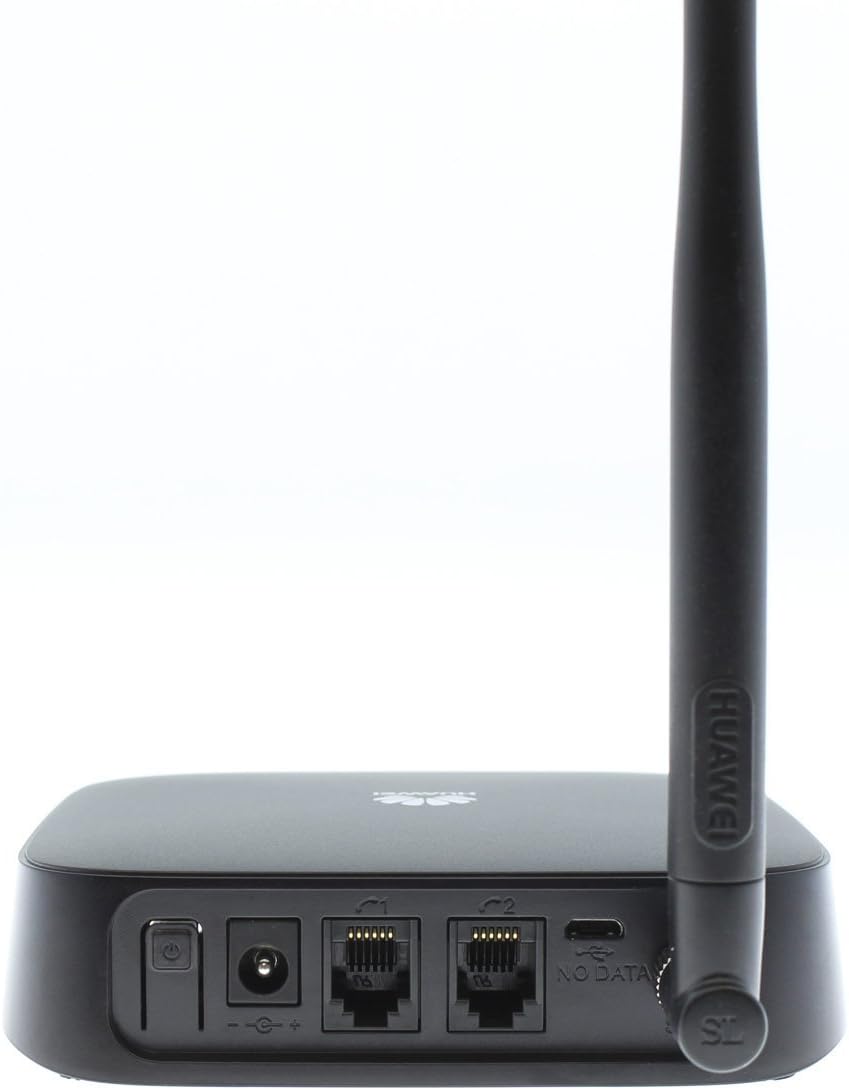
Figure 2: Rear ports of the Huawei ETS1162. This image displays the back panel of the device, highlighting the power input, two RJ11 telephone ports (labeled C1 and C2), a USB port (labeled NO DATA), and the antenna connection point.
The Huawei ETS1162 typically features two RJ11 ports (often labeled C1 and C2) for connecting analog telephones or telecare systems.
- Connect your analog telephone(s) or telecare system(s) to the RJ11 ports on the rear of the ETS1162 using standard telephone cables.
- You can connect one or two devices as needed. For example, one port can be used for a telephone and the other for a telecare system.
3.4. Kusimba paChidimbu
- Connect the power adapter to the power input port on the rear of the ETS1162.
- Batanidza adapta yemagetsi mudura repamadziro.
- Press the power button (if available) or the device will power on automatically.
- Observe the indicator lights on the device. A stable signal light indicates successful network connection.
4. Operating Instructions
Once the device is set up and connected to the GSM network, you can use your connected analog telephone as you would a standard landline.
4.1. Kufona
- Pick up the handset of your connected telephone.
- You should hear a dial tone.
- Dzvanya nhamba yefoni yaunoda.
- The call will be routed through the GSM network using your inserted SIM card.
4.2. Kugamuchira Macalls
- When a call comes in, your connected telephone will ring.
- Tora handset kuti udavire runhare.
4.3. Mwenje yeIndicator
Refer to the device's indicator lights for status information:
- Power Indicator: Zvinoratidza kana mudziyo wacho wakabatidzwa.
- Chiratidzo chechiratidzo: Shows the strength of the GSM network signal. A solid light typically means a good signal. A blinking light or no light may indicate a weak signal or no network connection.
- Status Indicator: May indicate call activity or other operational states. Consult the specific device labeling for details.
5. Kuchengeta
To ensure the longevity and optimal performance of your Huawei ETS1162, follow these maintenance guidelines:
- Kuchenesa: Use a soft, dry cloth to clean the exterior of the device. Do not use liquid cleaners or abrasive materials.
- Kuiswa: Place the device in a well-ventilated area, away from direct sunlight, heat sources, and moisture. Ensure it is placed in an area with good GSM signal reception.
- Antenna: Do not bend or forcefully remove the antenna. Ensure it is positioned vertically for best signal.
- Magetsi: Shandisa chete yekutanga magetsi adapta yakapihwa nemudziyo.
- Zvigadziriso zveSoftware: While this device typically does not require frequent user-initiated software updates, ensure it is connected to a stable power source if any updates are prompted by your service provider.
6. Kugadzirisa matambudziko
If you encounter issues with your Huawei ETS1162, refer to the following troubleshooting tips:
6.1. No Dial Tone or Cannot Make Calls
- Tarisa SIM Card: Ensure the SIM card is correctly inserted and its PIN code has been disabled.
- Signal Strength: Check the signal indicator light. If it's off or blinking, the device may not have a strong enough GSM signal. Try repositioning the device or antenna.
- Simba: Verify the device is powered on and the power adapter is securely connected.
- Telephone Connection: Ensure your analog telephone is correctly plugged into one of the RJ11 ports.
- SIM Card Validity: Confirm your SIM card is active and has sufficient credit or an active plan.
6.2. Intermittent Signal or "Red Light" Issue
Some users have reported intermittent signal loss or a "red light" indicator, particularly with certain network providers.
- Tangazve Chishandiso: If you experience a persistent red light or loss of signal, try disconnecting the power, waiting 10-15 seconds, and then reconnecting the power. This can often resolve temporary network issues.
- Antenna Position: Adjust the antenna's position to optimize signal reception.
- Nzvimbo: Move the device to a location with better cellular coverage.
- Network Provider: If issues persist, contact your mobile network provider to inquire about network coverage in your area or potential SIM card issues.
6.3. No Incoming Calls
- SIM Card: Ensure the SIM card is active and can receive calls on a mobile phone.
- Device Status: Check the device's indicator lights to confirm it is powered on and has a stable network connection.
- Call Forwarding: Verify that no call forwarding is active on your SIM card that would redirect incoming calls away from the device.
7. Zvinotsanangurwa
| Brand | HUAWEI |
| Model | ETS1162 |
| Modem Type | Cellular Modem (3G GSM) |
| Kubatana Technology | GSM, Ethernet, USB |
| Number of Phone Ports | 2 (RJ11) |
| Inowirirana Devices | Analog Telephones, Telecare Systems |
| Color | Nhema |
| Mabhatiri Anodiwa | Aihwa |
8. Warranty uye Tsigiro
As a refurbished product, this Huawei ETS1162 device is typically covered by the Amazon Renewed Guarantee. This guarantee ensures that if you are not satisfied with your purchase, renewed products are eligible for replacement or refund.
- For specific warranty details and to initiate a claim, please refer to the Amazon Renewed program terms and conditions or contact Amazon customer service directly.
- For technical support related to the device's functionality, please contact the seller or Huawei customer support.
9. Safety Information
- Usaisa mudziyo kune tembiricha yakanyanyisa, mwando, kana zuva rakananga.
- Chengetedza mudziyo kure nemvura uye zvimwe zvinwiwa.
- Usaedze kuvhura kana kugadzirisa mudziyo wega. Tumira masevhisi ese kuvashandi vanokwanisa.
- Rasa mudziyo uye zvikamu zvaro zvine musoro maererano nemitemo yenzvimbo.


