1. Chigadzirwa Pamusoroview
The DEPSTECH WF010-3.5M Wireless Endoscope is a versatile inspection camera designed for use with Android 5.0+ and iOS 9+ smartphones and tablets. Featuring a 2.0 Megapixels HD camera and a bendable semi-rigid cable, it allows for visual inspection in hard-to-reach areas. The IP67 waterproof probe and adjustable LED lights ensure clear imaging in various environments.

Image 1: The DEPSTECH WF010-3.5M Wireless Endoscope, a flexible inspection camera with a built-in light.
2. Package Zviri mukati
Iva nechokwadi chekuti zvinhu zvese zvinotevera zviripo mupakeji yako:
- DEPSTECH Wireless Endoscope (WF010-3.5M)
- USB Kuchaja Cable
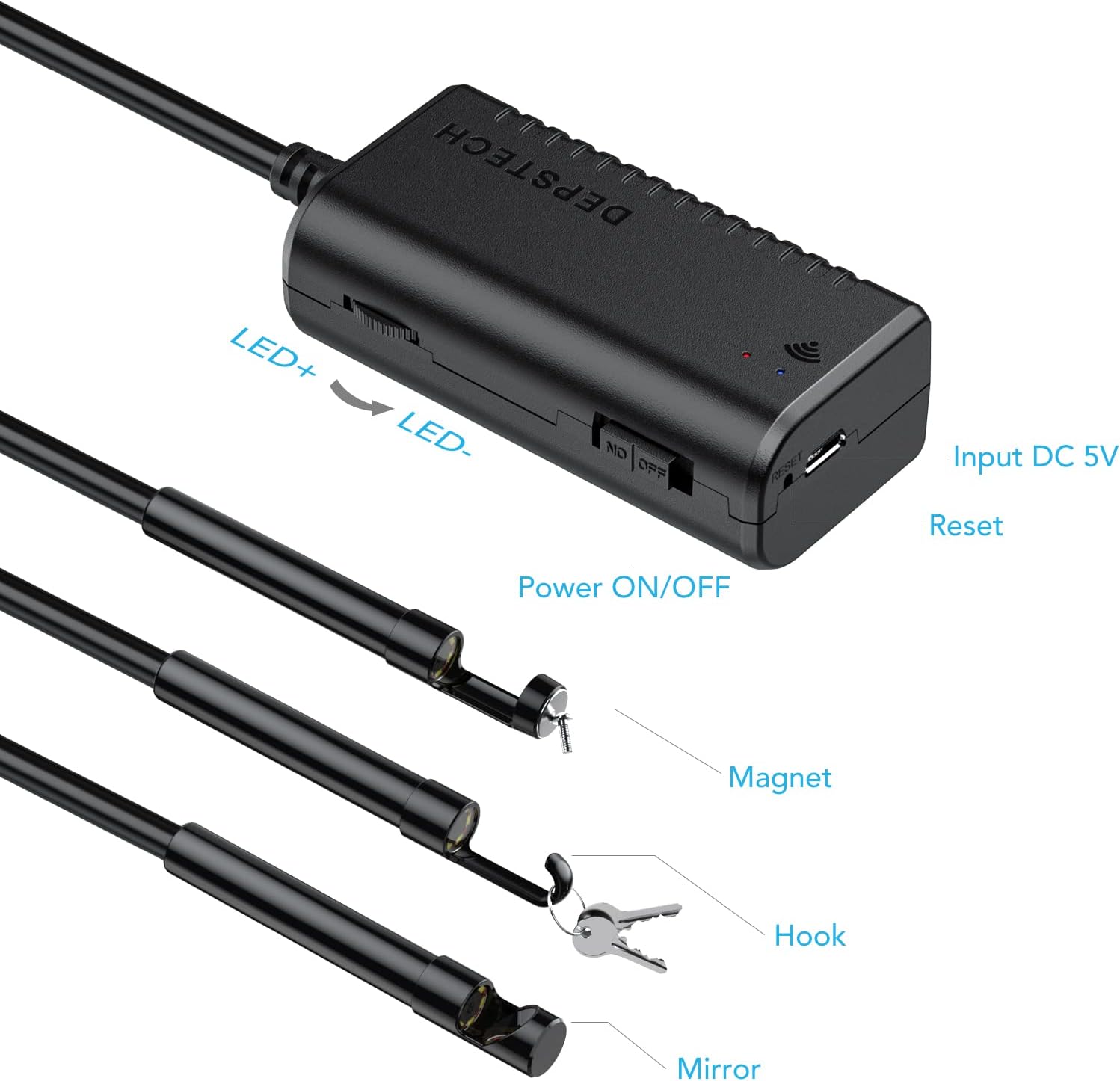
- Hook Attachment
- Magnet Attachment
- Side View Mirror Attachment
- Dzorerazve Pin
- User Manual

Image 2: The endoscope control box with LED adjustment, power switch, and charging port, along with the included hook, magnet, and mirror attachments.
3. Setup Guide
- Chaja Chishandiso: Before first use, fully charge the endoscope using the provided USB charging cable. The charging indicator light will change when fully charged.
- Dhaunirodha App: Tsvaga and install the compatible application on your smartphone or tablet.
- If the WiFi name generated by the endoscope starts with "Jetion", use the "DEPSTECH" app (available for iOS/Android).
- If the WiFi name starts with "DEPSTECH", use the "DEPSTECH-view" app (available for iOS/Android).
- Power On: Turn on the wireless endoscope. It will generate a Wi-Fi signal.
- Batanidza kuWiFi: Go to your phone's WLAN settings, find the endoscope's WiFi network (e.g., "Jetion_XXXX" or "DEPSTECH_XXXX"), and connect to it. The default password is usually 12345678. If prompted that the network has no internet, confirm to proceed.
- Tanga App: Open the installed DEPSTECH app. The real-time image from the endoscope camera should now be displayed.
4. Operating Instructions
4.1 Kugadzirisa Kupenya kwe LED
The endoscope features 6 adjustable LED lights around the camera lens. Use the LED+ and LED- buttons on the control box to increase or decrease the brightness as needed for optimal visibility in dark environments.
4.2 Kutora mifananidzo nemavhidhiyo
Within the DEPSTECH app, you will find options to capture still images (JPG format) and record videos (MP4 format). Refer to the app's interface for specific button layouts for these functions.
4.3 Kubatanidza Zvishandiso
The included hook, magnet, and side view mirror attachments can be screwed onto the tip of the camera probe to assist with various inspection tasks, such as retrieving small objects or viewing at a 90-degree angle.

Image 3: The IP67 waterproof probe of the endoscope, suitable for damp kana nzvimbo dzakanyorova.
Mufananidzo 4: Eksamples of how the endoscope can be used for inspections in various household and automotive settings.
5. Kuchengeta
- Kuchenesa: After use, especially in wet or dirty environments, gently wipe the camera probe with a soft, damp cloth. Ensure the lens is clean for clear images.
- Kuchengeta: Store the endoscope and its accessories in a dry, cool place, away from direct sunlight and extreme temperatures.
- Battery Care: To prolong battery life, avoid fully discharging the device frequently. Recharge it regularly, even if not in use for extended periods.
6. Kugadzirisa matambudziko
| Dambudziko | Possible Solution |
|---|---|
| No image displayed in the app. | Ensure the endoscope is powered on and your device is connected to its WiFi network. Verify the correct app is installed and launched. |
| Poor image quality / blurry image. | Clean the camera lens. Adjust the LED brightness. Ensure the object is within the optimal macro focus range (3cm-8cm). Try adjusting the resolution settings within the app. |
| App language is incorrect (e.g., Chinese). | Navigate to the app's settings (often represented by a gear icon) and select your preferred language (e.g., English). |
| WiFi connection drops frequently. | Disable automatic WiFi connections on your phone to prevent it from switching to other networks. Ensure you are within range of the endoscope's WiFi signal. |
| Mudziyo hauchaji. | Check the USB cable and power adapter. Ensure they are properly connected and functional. |
7. Zvinotsanangurwa
- Model Number: WF010-3.5M
- Kamera Resolution: 2.0 Megapixels (adjustable: 640x480, 1280x720, 1600x1200, 1920x1080)
- Cable Length: 11.5FT / 3.5M
- Probe Diameter: 8.4mm
- Waterproof Rating: IP67
- Mwenje ye LED: 6 inogadziriswa LEDs
- Macro Focus Range: 3cm-8cm (1.18-3.15 inches)
- Kubatana: Wireless WiFi
- Kuenderana: Android 5.0+ / iOS 9+
- Bhatiri: 1 Lithium Polymer bhatiri (inosanganisirwa)
- Chinhu Weight: 9 ounces
- Zviyero zvechigadzirwa: 5.12 x 4.92 x 1.77 inches

Image 5: Illustration of the optimal observation distance for clear imaging with the endoscope.
8. Warranty uye Tsigiro
For warranty information, technical support, or further assistance, please visit the official DEPSTECH store or contact their customer service directly. You can find more information at the DEPSTECH Store on Amazon.